Sales System
Complete guide to institutional subscriptions, licensing, seat management, sales pipeline, and renewals
1. Simple Feature Overview
The Sales & Institutional Subscription System helps your team manage the full lifecycle of institutional (B2B) sales — from initial contact with a prospective institution, through pipeline tracking and negotiation, all the way to closing a deal, onboarding users, and managing renewals.
Here is what the system lets you do:
- Create and manage institutions — universities, libraries, schools, corporates, nonprofits — each with their own subscription plan, seats, billing details, and contact information
- Track sales opportunities — use a visual Kanban pipeline to move deals through stages (New → Contacted → Negotiating → Converted or Declined)
- Log sales activities — record calls, emails, meetings, and notes against each opportunity so your team has a complete history
- Send outreach emails — use built-in email templates or write custom emails directly from the pipeline, with attachment support
- Convert opportunities to institutions — when a deal closes, convert the inquiry into a fully set-up institution with one click
- Manage institutional users — add users (readers) to an institution, send login invitations, and track activation
- Handle renewals — renew expiring subscriptions, with automated reminder emails sent at 30, 14, and 7 days before expiry
- View sales reports — see pipeline value, conversion rates, deal sizes, and expiring subscriptions at a glance
Implementation Status: All sales features listed above are fully implemented and working. The Sales Management Module is 100% complete.
The big picture (one diagram)
How It Works (Behind the Scenes)
The Sales system is an Admin Console feature backed entirely by PostgreSQL (via Prisma) — there is no Strapi involvement here. Everything you do in the UI writes to a small family of Postgres tables, and reader access is granted by linking institution users to existing Reader accounts.
Step by step, what actually happens:
- An opportunity is created (
POST /api/institution-inquiries) → a row ininstitution_inquirieswithstatus = new,opportunityType = new_inquiry,probability = 50by default. Acreatedentry is written toinquiry_activities. - You work the deal — logging activities (
inquiry_activities), sending email (POST /api/institution-inquiries/:id/send-email), dragging across stages (updatesstatus). Sending an email auto-bumpsnew → contactedand setslastContactedAt. - You convert (
POST /api/institution-inquiries/:id/convert) → a new row ininstitutions(status = active, withseats,planId,startDate,endDate), the inquiry'sstatusbecomesconverted, andconvertedToIdlinks the two. An optionalinstitutional_welcomeemail fires. - You add users (
POST /api/institutions/:id/users) → rows ininstitution_userswithstatus = invited, each linked to a Reader account (created if needed). An invited member holds a seat but does not yet have reader access. The seat cap (active + invited) is enforced here. - You send login emails (
POST /api/institutions/:id/invite) → magic-link emails via the Email System;loginEmailSentAtis stamped (24h resend throttle). The email does not grant access and does not activate the member — it simply lets them sign in. On their first successful sign-in (which runs the OTP + Terms/Privacy gate), the member is promotedinvited → activeandactivatedAtis stamped (activateInstitutionUserOnLogin). Only anactivemember, on a non-expiredactiveinstitution, gets reader-portal access. - Renewals (
POST /api/institutions/:id/renew) extendendDate, optionally add seats, write arenewal_historyrow, and email aninstitutional_renewal_confirmation. - The cron (
/api/cron/institutional-renewal-reminders) runs daily, finds institutions nearingendDate, and sends 30/14/7-day reminders, recording each ininstitution_reminder_logs(idempotency, keyed by institution + endDate + window).
Concepts: Pipeline, Institutions & Institutional Subscriptions
Four ideas anchor the whole system.
- Opportunity (a.k.a. Inquiry) — a potential deal, stored in
institution_inquiries. It has an opportunity type (new_inquiry,renewal,upsell,winback), a pipeline stage (new,contacted,negotiating,converted,declined), value tracking (expectedValuein paise,probability0–100), and follow-up tracking. An "Inactive" Kanban column is virtual — it surfaces deals with no contact for 30+ days; it is not a stored status. - Institution — a confirmed customer account, stored in
institutions. It owns the commercial relationship:type, contacts, billing/tax details, offline-payment fields, and the institutional subscription (seats,planId,startDate,endDate,status,totalAmount). Default status on raw create ispending; conversion creates it directly asactive. - Institutional subscription — not a separate table, but the subscription-bearing fields on the institution row plus the linked
SubscriptionPlan. The plan should be marked Audience = Institutional so it never leaks into self-service flows. Seats define the licensed user ceiling. A plan marked Audience = Institutional stays out of every self-service flow — it does not appear in the public/subscribecatalog, the admin Create-Reader Grant dialog, the Change Plan dialog, or the Send Payment Link modal — which guarantees a library/university plan is never accidentally sold to an individual. - Institutional user — a member of the institution, stored in
institution_usersand linked one-to-one to a Reader account (readerId). Status isinvited,active, ordeactivated. A member is created asinvited(holds a seat, may receive a login link, but has no reader access), becomesactiveon first sign-in (this is what grants subscriber access in the Reader Portal), and can bedeactivatedto revoke access and free their seat. Bothinvitedandactivemembers consume a seat;deactivatedmembers do not.
A deal's lifecycle through the pipeline:
An institutional member's lifecycle (institution_users.status):
2. Who Should Use This Feature
| Role | What You'll Use |
|---|---|
| Sales Team | Create opportunities, track pipeline, send outreach emails, log activities, convert deals to institutions |
| Customer Success | Manage institutional users, send invitations, handle renewals, monitor activation rates |
| Operations / Admin | Create institutions directly, manage seats and billing, handle user onboarding, review reports |
| QA | Validate workflows end-to-end, verify email delivery, test invitation flows, check permission enforcement |
| Super Admin | All of the above, plus manage roles/permissions for sales staff |
3. Before You Begin
Prerequisites You Must Have in Place
Before using the sales system, the following must be configured by your admin team:
| Prerequisite | Where to Check | Why It Matters |
|---|---|---|
| Admin account with sales permissions | Settings → Admin Users → your account → Role | You need institutions:read/create/update/delete, institutions:manage_users, and institution_inquiries:read/update permissions |
| At least one subscription plan | Subscriptions → Plans | When creating an institution or converting an opportunity, you must select a subscription plan. At least one plan must exist. |
| Email account configured | Settings → Email → Accounts → click an account → Verify connection | Invitation emails, renewal reminders, and outreach emails all require a working email account (Custom SMTP / SendGrid / Mailchimp Transactional / AWS SES / Postmark). The subscription_lifecycle and inquiry_followup purposes at Settings → Email → Purposes must also be mapped to that account. See the Email System Guide. |
| Email templates seeded | Settings → Email → Templates | The system uses templates like institutional_login, institutional_welcome, institutional_renewal_confirmation, and institutional_renewal_reminder. These are auto-seeded on first use, but verify they exist. |
| Cron jobs running | Deployment configuration | Automated renewal reminders (/api/cron/institutional-renewal-reminders) and subscription expiration (/api/cron/subscription-reminders) need to be scheduled. |
Permissions Required
The system uses role-based access control. Here are the permissions relevant to sales:
| Permission | What It Allows |
|---|---|
institutions:read | View the Institutions list and details |
institutions:create | Create new institutions |
institutions:update | Edit institutions, renew subscriptions |
institutions:delete | Delete institutions |
institutions:manage_users | Add/remove/invite institutional users |
institution_inquiries:read | View the sales pipeline and opportunity details |
institution_inquiries:update | Create/edit opportunities, log activities, send emails, convert to institutions |
If you cannot see the Sales section in the left sidebar, ask your admin to assign you a role with these permissions.
4. Key Terms in Simple Language
| Term | What It Means |
|---|---|
| Institution | An organization (university, library, school, corporate, nonprofit) that has a group subscription. Think of it as a "customer account." |
| Opportunity | A potential deal in your sales pipeline. It tracks a prospective or existing institution through the sales process. Also called an "inquiry" in some parts of the system. |
| Pipeline | The visual board (Kanban) showing all your opportunities organized by their current stage. |
| Pipeline Stage | Where a deal is in the sales process: New → Contacted → Negotiating → Converted or Declined. There is also a virtual Inactive column for deals with no activity for 30+ days. |
| Opportunity Type | The kind of deal: New Inquiry (brand new prospect), Renewal (existing institution renewing), Upsell (expanding an existing deal), or Win-back (re-engaging a lost customer). |
| Seats | The number of user accounts (readers) an institution is licensed for. For example, "50 seats" means up to 50 people from that institution can access the platform. |
| Invited | The starting status for every institutional member. They hold a seat and can be sent a login link, but they have no reader access yet. Sending the email does not change this. |
| Invitation (login email) | A magic-link email sent to institutional users so they can sign in without a password. It is not what grants access and it does not activate the member — it simply lets them log in. Access is granted only after the member completes their first sign-in. |
| Activation | When an invited member completes their first sign-in (through the OTP + Terms/Privacy gate), the system promotes them invited → active and stamps activatedAt. Only an active member has reader access. |
| Lead Source | How the prospective institution found you: Website Form, Referral, Cold Outreach, Conference/Event, Email Campaign, Social Media, Partner, or Other. |
| Expected Value | The estimated deal value in INR (stored in paise internally, displayed in rupees). |
| Probability | Your estimate of how likely the deal is to close, expressed as a percentage (0–100%). |
| Follow-up Date | The next date you plan to contact the prospect. Overdue follow-ups are highlighted with a warning icon. |
| Renewal | Extending an institution's subscription with a new end date (and optionally adding more seats). |
| Activity | Any interaction logged against an opportunity: calls, emails, meetings, notes, status changes. |
5. Step-by-Step Setup Guide
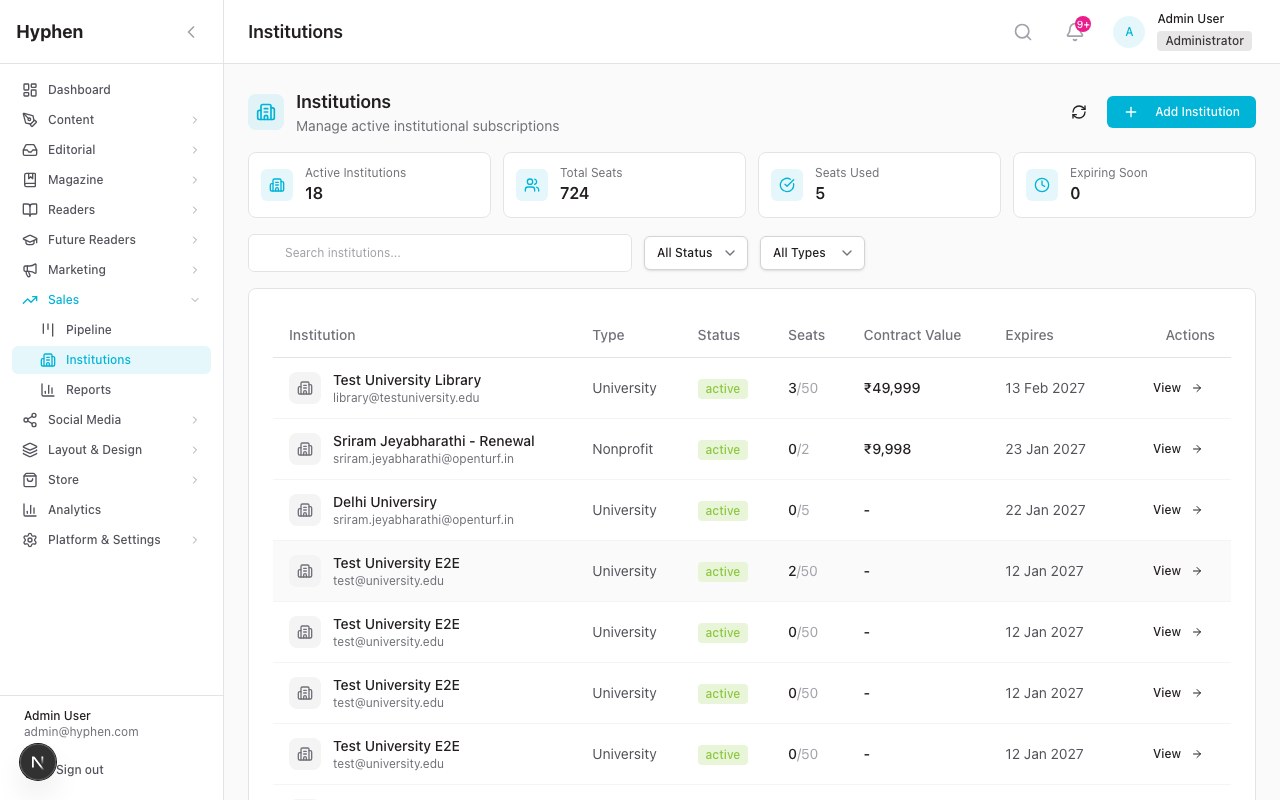
5.1 Institution Creation and Management
Creating a New Institution
Use this when you already have a confirmed deal and want to set up the institution immediately (skipping the pipeline).
- In the left sidebar, click Sales → Institutions
- Click the "Add Institution" button (top right)
- Fill in the Basic Details section:
- Institution Name — the official organization name (required)
- Institution Type — select from the dropdown: University/College, Public Library, School (K-12), Corporate/Business, Nonprofit Organization, or Other (required)
- Contact Name — primary point of contact at the institution (required)
- Contact Email — their email address (required)
- Contact Phone — phone number (optional)
- Address — physical address (optional)
- Expand the Billing & Tax Details section (click to expand):
- GSTIN — 15-character GST identification number (optional)
- PAN Number — 10-character PAN (optional)
- Billing Address, Billing City, Billing State (dropdown), Billing Pincode — fill if different from primary address
- Fill in the Subscription Details section:
- Seats — how many user accounts this institution gets (required)
- Subscription Plan — select from available plans in the dropdown (required)
- Start Date — defaults to today (change if needed)
- End Date — defaults to one year from today (change if needed)
- Total Amount — contract value in INR (optional but recommended)
- Currency — defaults to INR
- Notes — any internal notes about this institution (optional)
- (Optional) Fill in the Offline Payment section to record how the institution actually paid, since institutional commercials are negotiated and paid outside the platform:
- Offline Payment Mode — one of Bank Transfer / Cheque / Cash / Other
- Offline Payment Reference — bank reference, cheque number, internal invoice ID, or any free-text identifier
- Offline Payment Date — the date the payment was received
- Click "Save"
The institution is created with status Active and appears in the Institutions list.
Viewing and Editing an Institution
- Go to Sales → Institutions
- Use the search bar to find an institution by name, or use the Status and Type dropdown filters
- Click the "View" button on any row (or click the row itself)
- On the institution detail page, you can see:
- Overview — all institution details, subscription dates, plan, seat usage, billing info
- Users — table of all users added to this institution
- Linked Opportunities — any renewal/upsell/winback opportunities created for this institution
- To edit details, update the fields and save
Understanding Institution Metrics
At the top of the Institutions list page, you'll see four metric cards:
| Card | What It Shows |
|---|---|
| Active Institutions | Number of institutions with status "Active" |
| Total Seats | Sum of all licensed seats across active institutions |
| Seats Used | How many of those seats are actually in use, with a utilization percentage |
| Expiring Soon | Number of active institutions whose subscription ends within 30 days |
5.2 Sales Pipeline and Opportunity Management
Accessing the Pipeline
- In the left sidebar, click Sales
- The main Sales page shows the pipeline with metrics and opportunities
Understanding the Pipeline Layout
At the top of the page, you'll see:
- Header: "Sales Pipeline" with subtitle "Manage institutional opportunities and deals"
- Metric Cards:
- Active Opportunities — count of all non-converted/non-declined opportunities
- Pipeline Value — total expected value across all active opportunities
- Avg Deal Size — average expected value per opportunity
- Converted This Month — number of deals closed this month
Below the metrics:
- Search bar: "Search opportunities..." — search by institution name, contact name, or email
- Filters: Opportunity Type dropdown (All Types, New Inquiry, Renewal, Upsell, Win-back)
- View toggle: Switch between Kanban and List views
Using the Kanban View
The Kanban board has six columns:
| Column | Color | Meaning |
|---|---|---|
| New | Blue | Freshly created opportunities, not yet contacted |
| Contacted | Cyan | You've reached out to the prospect |
| Negotiating | Amber | Active discussions about pricing, terms, etc. |
| Inactive | Orange | Opportunities with no contact for 30+ days (virtual column — cannot drag into) |
| Converted | Green | Deal closed successfully |
| Declined | Gray | Prospect said no or deal fell through |
Each column header shows:
- The stage name with a colored dot
- Number of opportunities in that stage
- Total pipeline value for that stage
Each opportunity card shows:
- Institution name (with building icon)
- Opportunity type badge (Inquiry, Renewal, Upsell, Win-back)
- Contact name (with user icon)
- Probability bar (color-coded: green for 75%+, blue for 50–74%, orange for 25–49%, red for below 25%)
- Expected value in INR (if set)
- Next follow-up date (with warning icon if overdue)
- Assigned team member (if assigned)
Pipeline Summary Bar (above the columns):
- Total Pipeline — sum of expected values
- Weighted Value — sum of (expected value × probability / 100) for all active deals
- Active Opportunities — count
Drag and Drop:
- Drag an opportunity card from one column to another to change its status
- You cannot drag into the Inactive column (it's automatically populated)
- The system updates the status immediately when you drop
Using the List View
Click the List button to switch to a table view. Columns include:
- Institution, Contact, Type, Status, Value, Created, Last Contact, Follow-up, Actions
Creating a New Opportunity
- On the Sales Pipeline page, click "New Opportunity" (top right)
- Fill in the Basic Information section:
- Institution Name — the prospect's organization name (required)
- Organization Type — select from dropdown (required)
- Contact Name — person you're working with (required)
- Contact Email — their email (required)
- Contact Phone — their phone (optional)
- Fill in the Opportunity Details section:
- Opportunity Type — defaults to "New Inquiry"; change to Renewal, Upsell, or Win-back if applicable
- Lead Source — how they found you: Website Form, Referral, Cold Outreach, Conference/Event, Email Campaign, Social Media, Partner, or Other (optional)
- Estimated Seats — how many users the prospect might need (optional)
- Fill in the Sales Metrics section:
- Expected Value — estimated deal value in INR (optional)
- Probability — your estimated close probability, defaults to 50% (0–100)
- Next Follow-up Date — when you plan to contact them next (optional)
- Add any Notes (optional)
- Click "Create Opportunity"
The opportunity appears in the New column of the Kanban.
5.3 Managing Users Within an Institution
Adding Users to an Institution
- Go to Sales → Institutions → click on the institution
- In the Users section, click "Add Users"
- Enter user details: Email and Name for each user
- Click "Add"
What happens behind the scenes:
- The system creates a Reader account for each email (if one doesn't already exist) — these accounts are passwordless initially
- The user is linked to the institution with status Invited — they hold a seat but do not have reader access yet
- An invited member becomes Active only after their first magic-link sign-in
- The institution's seat count is checked against active + invited members — you cannot add more users than the licensed seats
Important: Adding users does NOT automatically send them login emails, and it does NOT grant access. You need to send invitations separately (see next section), and the member only gains access once they sign in for the first time.
When an invited member clicks their sign-in link for the first time, they complete the standard OTP + Terms/Privacy flow before access is granted, and their status is promoted from Invited to Active. Members without a prior Terms acceptance record will see the Terms/Privacy checkbox (needsTermsAcceptance) — this is intentional and ensures GDPR-compliant consent for every member.
Viewing User Status
The Users table on the institution detail page shows:
| Column | What It Shows |
|---|---|
| User | Email address and name |
| Status | Badge: Invited (amber — seat held, no access yet), Active (green — signed in at least once, has access), or Deactivated (gray — access revoked, seat freed) |
| Login Email Sent | Date the last magic-link login email was sent (loginEmailSentAt); also drives the 24h resend throttle |
| Activated | Date the user first signed in via the magic link, at which point they were promoted Invited → Active (activatedAt); blank while still Invited |
| Linked Reader | Whether the user has a connected Reader account (readerId); combined with Active status this is what grants subscriber access |
Changing User Status
- Click the status toggle button next to a user to change them between Active and Deactivated
- Deactivating a user immediately revokes their active sessions (they get logged out) and frees their seat
- Re-activating a deactivated user restores access (subject to seat availability) without requiring them to go through the magic link again
- Click the Remove button to completely remove a user from the institution (does not delete their Reader account)
5.4 Sending Invitations to Institutional Users
Invitations send magic link login emails to users so they can access the platform without a password.
Sending Invitations (Bulk or Selective)
- Go to Sales → Institutions → click on the institution
- Option A: Send to all active users — click the "Send Invitations" button in the Quick Actions area
- Option B: Send to specific users — check the boxes next to the users you want to invite, then click "Send Invitations" in the bulk actions bar
What happens:
- Each selected user receives an email with a magic login link
- The link is unique per user and valid for a single use
- The Login Email Sent column updates with today's date
- The system prevents re-sending to the same user within 24 hours
Requirements:
- The institution must have Active status
- The subscription must not be expired
- Users must be login-eligible — Invited or Active status — and have a linked Reader account (Deactivated users are skipped)
What the User Experiences
- The user receives an email with a magic link to log in
- They click the link, which takes them to the Reader Portal
- They complete the OTP + Terms/Privacy gate — they verify a one-time code sent to their email and, if they have no prior Terms acceptance record, tick the Terms/Privacy checkbox
- On this first successful sign-in the system promotes them Invited → Active and stamps
activatedAt - They can now read subscriber-only content (access is granted by the institution's plan, but only once they are
active)
5.5 Renewal Management
How Automatic Renewal Reminders Work
The system automatically sends reminder emails to the institution's contact person (not the users) at three intervals before the subscription expires:
| Reminder | When Sent | Template |
|---|---|---|
| 30-day reminder | 30 days before end date | institutional_renewal_reminder |
| 14-day reminder | 14 days before end date | institutional_renewal_reminder |
| 7-day reminder | 7 days before end date | institutional_renewal_reminder |
These are handled by the cron job /api/cron/institutional-renewal-reminders. The system prevents duplicate reminders within a 6-day window.
Manually Renewing an Institution
- Go to Sales → Institutions → click on the institution
- Click the "Renew" button in the Quick Actions area
- The Renew Subscription modal appears:
- New End Date — select the new subscription end date (must be after the current end date)
- Additional Seats — enter a number if the institution is adding more seats (optional)
- Notes — any notes about this renewal (optional)
- Click "Renew"
What happens:
- The institution's end date is updated
- If additional seats were specified, the total seat count increases
- The institution's status is set to Active (useful if it had expired)
- A Renewal History record is created (tracking previous dates, seats, and who renewed)
- A confirmation email is sent to the institution's contact person (
institutional_renewal_confirmationtemplate)
Viewing Renewal History
The renewal history is tracked in the system with full details:
- Previous end date and seat count
- New end date and seat count
- Total amount (if entered)
- Who performed the renewal and when
5.6 Converting an Opportunity to an Institution
When a deal closes and you want to set up the institution:
- Go to the opportunity detail page (click on any opportunity in the pipeline)
- Click the "Convert to Institution" button in the Quick Actions bar
- The Convert Inquiry to Institution modal appears:
- Seats — number of user accounts (required)
- Subscription Plan — select from the dropdown (required)
- Start Date — subscription start date
- End Date — subscription end date
- Total Amount — contract value in INR (optional)
- Notes — any notes (optional)
- Expand Billing & Tax Details if needed: GSTIN, PAN, Billing Address, City, State, Pincode
- Click "Convert"
What happens:
- A new Institution record is created with the contact info from the opportunity
- The opportunity's status changes to Converted
- A "Converted" activity is logged in the opportunity's timeline
- The institution appears in Sales → Institutions
- If you checked the send welcome email option, the contact person receives an email (
institutional_welcometemplate)
5.7 Logging Activities and Sending Emails from the Pipeline
Logging an Activity
- Go to the opportunity detail page
- Click the "Log Activity" button (or the dropdown arrow next to it)
- Choose the activity type:
- Log Call — record a phone conversation
- Log Email — record an email you sent outside the system
- Log Meeting — record a meeting (in-person or virtual)
- Add Note — add an internal note
- Fill in the modal:
- Subject — brief description of the interaction (optional)
- Notes — details of what was discussed (optional)
- Next Follow-up Date — set the next follow-up date (optional)
- Click "Log Activity"
The activity appears in the Activity Timeline on the opportunity page with a timestamp, the activity type icon, and who logged it.
Sending an Email from the Pipeline
- Go to the opportunity detail page
- Click the "Send Email" button
- Choose your email mode:
- Select Template — pick from 16+ pre-built templates organized by category:
- Initial Outreach: Initial Follow-up, Demo Invitation, Information Request
- Sales Process: Pricing Proposal, Proposal Sent, Contract Sent, Negotiation Follow-up, Meeting Confirmation
- Follow-ups: General Follow-up
- Renewal: Renewal Reminder, Renewal Confirmation
- Upsell: Upsell Opportunity
- Win-back: Win-back Outreach
- Post-Conversion: Welcome/Onboarding, Thank You
- Custom Email — write your own subject and body
- Select Template — pick from 16+ pre-built templates organized by category:
- Optionally set a Next Follow-up Date
- Optionally attach files using Attachments (file upload)
- Click "Send Email"
What happens:
- The email is sent to the opportunity's contact email
- A copy is CC'd to you (the sender)
- An "Email Sent" activity is logged in the timeline
- If the opportunity was in "New" status, it automatically moves to "Contacted"
- The
lastContactedAtfield is updated
Editing Contact Information
- On the opportunity detail page, find the Contact Information panel
- Click into the Contact Name, Contact Email, or Contact Phone fields to edit them
- Click "Save" to save changes
Updating Sales Metrics
On the opportunity detail page, you can update:
- Status — change using the dropdown (New, Contacted, Negotiating, Converted, Declined)
- Expected Value — update the deal value
- Probability — slide between 0% and 100%
- Next Follow-up Date — set or change the next follow-up
- Notes — add or edit notes
Changes save automatically or on clicking Save.
5.8 Creating Opportunities from Existing Institutions
You can create renewal, upsell, or win-back opportunities directly from an existing institution:
- Go to Sales → Institutions → click on the institution
- Click the "Create Opportunity" button
- Select from the dropdown:
- Create Renewal Opportunity — for subscription renewals
- Create Upsell Opportunity — for expanding the deal (more seats, higher plan)
- Create Win-back Opportunity — for re-engaging a cancelled or expired institution
- Fill in any additional details (expected value, notes, follow-up date)
- The opportunity is created and linked to this institution
The linked opportunity appears in the Linked Opportunities section on the institution detail page.
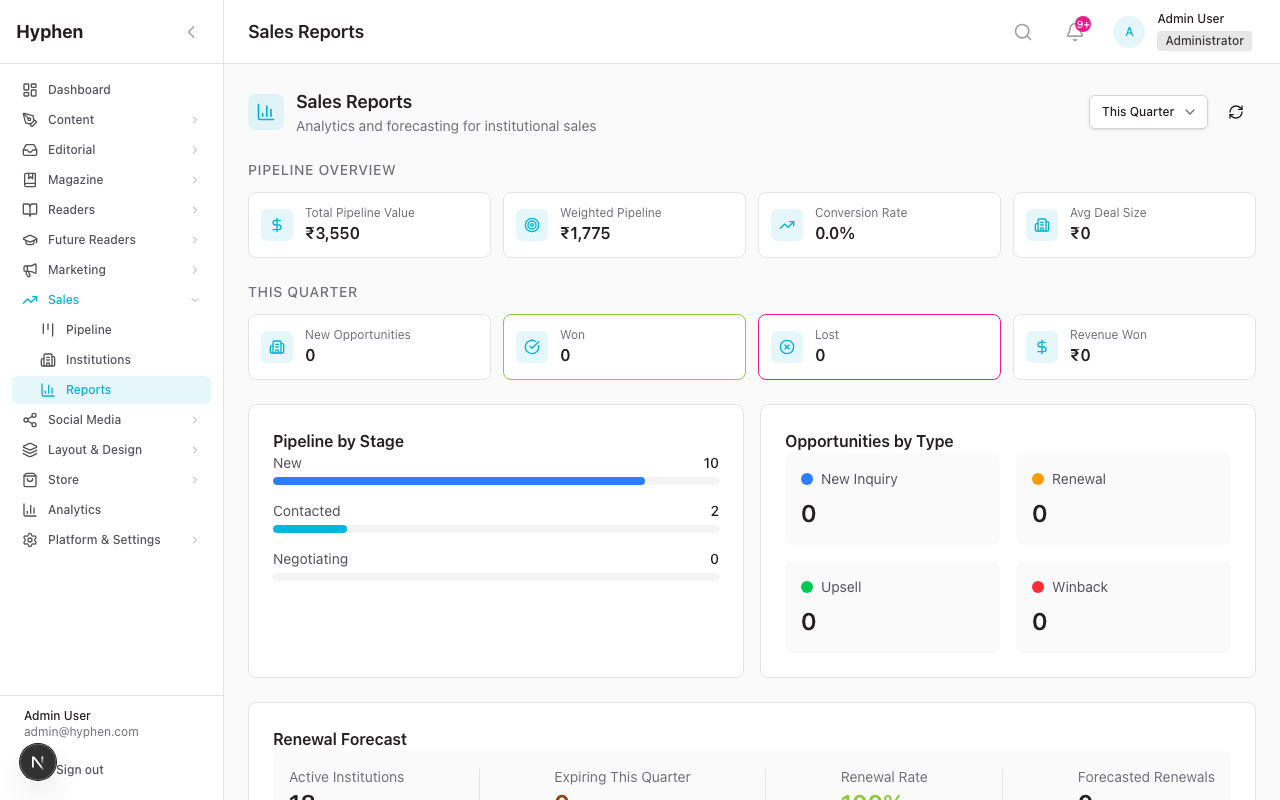
5.9 Sales Reports and Analytics
- Go to Sales → click the "Reports" button (or navigate to Sales → Reports)
- The reports page shows:
| Metric | Description |
|---|---|
| Total Pipeline Value | Sum of expected values for all active opportunities |
| Weighted Pipeline Value | Sum of (expected value × probability) — a more realistic projection |
| Conversion Rate | Percentage of closed deals that were won (converted / (converted + declined)) |
| Converted Revenue | Total value of converted deals |
| Average Deal Size | Converted revenue / number of converted deals |
| Active Institutions | Number of institutions currently active |
| Expiring This Quarter | Institutions with subscriptions ending this quarter |
- Use the Date Range filter (Month, Quarter, Year) to adjust the view
- Review the Metrics by Stage breakdown (New, Contacted, Negotiating counts)
- Review the Metrics by Opportunity Type breakdown (New Inquiry, Renewal, Upsell, Win-back counts)
Configuration Reference
Every field you can set, what it does, and where it lives. UI path is relative to the Admin Console (:3000). Role is the minimum permission needed.
Opportunity / Deal fields (institution_inquiries)
| Field / Option | What it does | Type | Mandatory? | Default | Where configured (UI path) | Role |
|---|---|---|---|---|---|---|
| Institution Name | Name of the prospect organization | text | Yes | — | Sales → New Opportunity | institution_inquiries:update |
| Organization Type | Category of institution | enum (university, library, school, corporate, nonprofit, other) | Yes | — | Sales → New Opportunity | institution_inquiries:update |
| Contact Name | Person you work with | text | Yes | — | Sales → New Opportunity / detail | institution_inquiries:update |
| Contact Email | Where pipeline emails go | Yes | — | Sales → New Opportunity / detail | institution_inquiries:update | |
| Contact Phone | Phone number | text | No | — | Sales → New Opportunity / detail | institution_inquiries:update |
| Opportunity Type | Deal classification | enum (new_inquiry, renewal, upsell, winback) | No | new_inquiry | Sales → New Opportunity | institution_inquiries:update |
| Lead Source | How they found you | text/select | No | — | Sales → New Opportunity | institution_inquiries:update |
| Estimated Seats | Likely number of users | integer | No (Yes on raw inquiry model) | — | Sales → New Opportunity | institution_inquiries:update |
| Expected Value | Deal value, stored in paise, shown in ₹ | integer | No | — | Opportunity detail → Sales Metrics | institution_inquiries:update |
| Probability | Close likelihood 0–100% | integer | No | 50 | Opportunity detail → Sales Metrics | institution_inquiries:update |
| Next Follow-up Date | Next planned contact; overdue is flagged | date | No | — | Opportunity detail / activity modal | institution_inquiries:update |
| Status (Stage) | Pipeline stage | enum (new, contacted, negotiating, converted, declined) | No | new | Kanban drag / detail dropdown | institution_inquiries:update |
| Assigned To | Owning admin user | relation | No | — | Opportunity detail | institution_inquiries:update |
| Linked Institution | Ties a renewal/upsell/winback to an existing institution | relation | No | — | Institution detail → Create Opportunity | institution_inquiries:update |
| Notes / Message | Free-text context | text | No | — | New Opportunity / detail | institution_inquiries:update |
Activity fields (inquiry_activities)
| Field / Option | What it does | Type | Mandatory? | Default | Where configured (UI path) | Role |
|---|---|---|---|---|---|---|
| Activity Type | Kind of interaction | enum (status_changed, note_added, call_logged, email_logged, email_sent, meeting_logged, follow_up_set, assigned) | Yes | — | Opportunity detail → Log Activity | institution_inquiries:update |
| Subject | Short title | text | No | — | Log Activity modal | institution_inquiries:update |
| Notes | Details discussed | text | No | — | Log Activity modal | institution_inquiries:update |
| Activity Date | When it happened | datetime | No | now() | Log Activity modal | institution_inquiries:update |
Institution fields (institutions)
| Field / Option | What it does | Type | Mandatory? | Default | Where configured (UI path) | Role |
|---|---|---|---|---|---|---|
| Institution Name | Official org name | text | Yes | — | Sales → Institutions → Add | institutions:create |
| Institution Type | Category | enum (university, library, school, corporate, nonprofit, other) | Yes | — | Add Institution | institutions:create |
| Contact Name / Email | Primary contact (gets renewal + confirmation emails) | text/email | Yes | — | Add Institution | institutions:create |
| Contact Phone / Address | Optional contact details | text | No | — | Add Institution | institutions:create |
| GSTIN | 15-char GST id (invoicing) | text | No | — | Add Institution → Billing & Tax | institutions:create |
| PAN Number | 10-char PAN | text | No | — | Add Institution → Billing & Tax | institutions:create |
| Billing Address / City / State / Pincode | Invoice address | text | No | — | Add Institution → Billing & Tax | institutions:create |
| Offline Payment Mode | How payment was made | enum (bank_transfer, cheque, cash, other) | No | — | Add Institution → Offline Payment | institutions:create |
| Offline Payment Reference | Bank ref / cheque no / invoice id | text | No | — | Add Institution → Offline Payment | institutions:create |
| Offline Payment Date | Date payment received | date | No | — | Add Institution → Offline Payment | institutions:create |
Institutional subscription & provisioning fields
| Field / Option | What it does | Type | Mandatory? | Default | Where configured (UI path) | Role |
|---|---|---|---|---|---|---|
| Seats | Licensed user ceiling | integer | Yes | — | Add Institution / Convert / Renew | institutions:create / update |
| Subscription Plan | The plan granted (should be Audience = Institutional) | relation | Yes | — | Add Institution / Convert | institutions:create |
| Start Date | Subscription start | date | No | today | Add Institution / Convert | institutions:create |
| End Date | Subscription end (drives expiry + reminders) | date | No | +1 year | Add Institution / Convert / Renew | institutions:create / update |
| Status | Lifecycle | enum (pending, active, expired, cancelled) | No | pending (raw) / active (on convert) | Institution detail | institutions:update |
| Total Amount | Contract value (paise) | integer | No | — | Add Institution / Convert / Renew | institutions:create |
| Currency | Currency code | text | No | INR | Add Institution / Convert | institutions:create |
| User Email / Name | Institutional user identity, linked to a Reader | text | Yes (to add a user) | — | Institution detail → Add Users | institutions:manage_users |
| User Status | Access state. invited and active consume a seat; only active grants reader access | enum (invited, active, deactivated) | No | invited (on add) | Institution detail → Users | institutions:manage_users |
Renewal fields (renewal_history, set via Renew modal)
| Field / Option | What it does | Type | Mandatory? | Default | Where configured (UI path) | Role |
|---|---|---|---|---|---|---|
| New End Date | Extends the subscription (must be after current end) | date | Yes | — | Institution detail → Renew | institutions:update |
| Additional Seats | Adds to the seat ceiling | integer | No | 0 | Institution detail → Renew | institutions:update |
| Total Amount | Renewal contract value | integer | No | — | Institution detail → Renew | institutions:update |
| Notes | Renewal context | text | No | — | Institution detail → Renew | institutions:update |
Backend-only / not user-editable:
convertedToId,linkedInstitutionIdresolution,lastContactedAt,loginEmailSentAt,activatedAt,reminder_day/endDateininstitution_reminder_logs, and allcreatedAt/updatedAtaudit timestamps are written by the system, not entered in the UI.
Dependencies & Impact
The Sales system does not stand alone. Here is what it touches and what depends on it.
It depends on:
- Subscriptions — every institution must reference a
SubscriptionPlan. The plan should be flagged Audience = Institutional so it stays out of self-service catalogs, the Create-Reader Grant dialog, Change Plan, and Send Payment Link. At least one plan must exist before you can create or convert. - Reader Management — institutional users are real Reader accounts. Adding a user creates a Reader if one doesn't exist; the
readerIdlink plus Active membership status is what grants subscriber access. An invited or active member of a live institution is classified as theinstitutionaltier in the reader directory (this is the institutional lock/badge on the reader card — see Reader Management), and bulk / complimentary / gift provisioning is classified assubscribereven when the plan price is 0. Deactivating a user revokes their sessions and frees their seat. - Email System — magic-link logins, renewal reminders/confirmations, welcome emails, and pipeline outreach all route through the notification service. The
subscription_lifecycleandinquiry_followuppurposes must be mapped to a verified email account, and templates (institutional_login,institutional_welcome,institutional_renewal_reminder,institutional_renewal_confirmation) must be seeded. - Admin Settings & RBAC — visibility and actions are gated by the
institutions:*andinstitution_inquiries:*permissions listed in §3. - Automated Tasks (Cron) —
/api/cron/institutional-renewal-remindersdrives the 30/14/7-day reminder cycle; without it, reminders never fire.
What it impacts / cross-links:
- Reader Management — institutional onboarding creates/links Reader accounts that then appear in reader lists and can read subscriber-only content.
- Future Readers — Sales Institutions and Future Readers Institutes are separate models; use the Sync to Future Readers action on the institution detail page to associate them.
- Analytics — converted revenue, active institutions, seat utilization, and pipeline metrics feed the Sales Reports view and broader analytics.
- Email System — each conversion, invite, and renewal generates outbound email whose deliverability you can monitor there.
6. How to Verify It Worked
After Creating an Institution
| Check | Where to Look | Expected Result |
|---|---|---|
| Institution appears in list | Sales → Institutions | New row with correct name, type, status "Active" |
| Seat count is correct | Institution detail page → Overview | Shows "0/N" used (where N is seat count) |
| Plan is assigned | Institution detail page → Overview | Plan name displayed |
| Dates are correct | Institution detail page → Overview | Start and end dates match what you entered |
After Creating an Opportunity
| Check | Where to Look | Expected Result |
|---|---|---|
| Appears in Kanban | Sales → Pipeline (Kanban view) | Card in the "New" column |
| Appears in List | Sales → Pipeline (List view) | Row with correct details |
| Metrics updated | Sales → Pipeline → metric cards | "Active Opportunities" count increased |
| Activity logged | Opportunity detail → Activity Timeline | "Created" activity entry |
After Sending Invitations
| Check | Where to Look | Expected Result |
|---|---|---|
| Login email status updated | Institution detail → Users table | "Login Email Sent" date populated; status still Invited |
| Email received | Check the user's email inbox | Magic link email from the platform |
| User can log in | Reader Portal | Click magic link → complete OTP + Terms gate → user can access content |
| Status promoted | Institution detail → Users table | Status flips Invited → Active after the first sign-in |
| Activation recorded | Institution detail → Users table | "Activated" date populated after the user's first sign-in |
| Active users count | Institution detail → metric cards | "Active Members" count increases (Invited members are counted separately) |
After Renewing an Institution
| Check | Where to Look | Expected Result |
|---|---|---|
| End date extended | Institution detail → Overview | New end date displayed |
| Status is Active | Institution detail → Overview | Status badge shows "Active" |
| Seat count updated | Institution detail → Overview | Reflects any additional seats |
| Confirmation email | Check the contact person's email | Renewal confirmation email received |
| Renewal history | System records | Renewal tracked with previous/new dates and who renewed |
After Converting an Opportunity
| Check | Where to Look | Expected Result |
|---|---|---|
| Opportunity status | Sales → Pipeline | Card moved to "Converted" column |
| Institution created | Sales → Institutions | New institution in the list |
| Activity logged | Opportunity detail → Activity Timeline | "Converted" activity entry |
| Contact info carried over | Institution detail → Overview | Contact name, email, phone match the opportunity |
7. Worked Examples (End-to-End Scenarios)
Example 1: Creating a New Institution and Preparing It for Subscription Onboarding
Scenario: Delhi University has signed a contract for 200 seats on the Annual plan, starting April 1, 2026.
Steps:
- Go to Sales → Institutions
- Click "Add Institution"
- Fill in:
- Institution Name:
Delhi University - Institution Type:
University / College - Contact Name:
Dr. Priya Sharma - Contact Email:
priya.sharma@du.ac.in - Contact Phone:
+91-9876543210 - Address:
North Campus, Delhi 110007
- Institution Name:
- Expand Billing & Tax Details:
- GSTIN:
07AABCU9603R1ZM - PAN Number:
AABCU9603R - Billing Address:
Accounts Department, North Campus - Billing City:
New Delhi - Billing State:
Delhi - Billing Pincode:
110007
- GSTIN:
- Fill in Subscription Details:
- Seats:
200 - Subscription Plan: select
Annual(or your institutional plan) - Start Date:
2026-04-01 - End Date:
2027-03-31 - Total Amount:
₹5,00,000 - Notes:
Contract #DU-2026-001. Payment via wire transfer.
- Seats:
- Click "Save"
Verification:
- Go to Sales → Institutions — "Delhi University" appears with status "Active", 200 seats, 0 used
- Metric cards update: "Active Institutions" and "Total Seats" increase
Next Steps:
- Add users to the institution (Section 5.3)
- Send invitations so users can log in (Section 5.4)
Example 2: Creating and Tracking a New Sales Opportunity in the Pipeline
Scenario: You met a representative from Mumbai Public Library at a conference. They expressed interest in a 50-seat subscription.
Steps:
- Go to Sales → click "New Opportunity"
- Fill in Basic Information:
- Institution Name:
Mumbai Public Library - Organization Type:
Public Library - Contact Name:
Rajesh Mehta - Contact Email:
rajesh.mehta@mumbailib.org - Contact Phone:
+91-9988776655
- Institution Name:
- Fill in Opportunity Details:
- Opportunity Type:
New Inquiry - Lead Source:
Conference/Event - Estimated Seats:
50
- Opportunity Type:
- Fill in Sales Metrics:
- Expected Value:
₹1,50,000 - Probability:
30 - Next Follow-up Date:
2026-03-20
- Expected Value:
- Notes:
Met at LitFest 2026. Interested in digital-only plan for branch libraries. - Click "Create Opportunity"
Tracking over time:
Day 2 — Send initial email:
- Open the opportunity from the Kanban (click the card in the "New" column)
- Click "Send Email" → Select Template → "Initial Follow-up"
- Set Next Follow-up Date to
2026-03-25 - Click "Send Email"
- Status automatically changes to "Contacted"
Day 7 — Log a call:
- Click "Log Activity" → "Log Call"
- Subject:
Discussed pricing and seat options - Notes:
Rajesh is checking budget approval. Expects answer by month-end. - Next Follow-up Date:
2026-04-01 - Click "Log Activity"
Day 12 — Update probability:
- On the opportunity detail page, change Probability from 30 to 60
- Change status to "Negotiating" (or drag the card to the Negotiating column)
Day 20 — Deal closes:
- Click "Convert to Institution"
- Fill in: Seats: 50, Plan: Annual, Start Date: 2026-04-15, End Date: 2027-04-14
- Click "Convert"
- The opportunity moves to "Converted" and a new institution is created
Verification:
- Pipeline → Kanban: card is in "Converted" column
- Sales → Institutions: "Mumbai Public Library" is in the list with 50 seats
- Activity Timeline shows: Created → Email Sent → Call Logged → Status Changed → Converted
Example 3: Sending Invitations to Institutional Users and Verifying Activation
Scenario: Delhi University (from Example 1) has provided a list of 10 initial users to onboard.
Steps:
- Go to Sales → Institutions → click Delhi University
- Click "Add Users"
- Enter the 10 users' email addresses and names:
student1@du.ac.in— Anika Guptastudent2@du.ac.in— Vikram Patel- ... (repeat for all 10)
- Click "Add"
- The Users table now shows 10 users, all with status Invited and no invitation sent. All 10 already consume a seat (10/200 used).
Sending Invitations:
- Click the "Send Invitations" button in Quick Actions
- The system sends magic link emails to all 10 invited users
- The "Login Email Sent" column updates with today's date for each user — note the status stays Invited
Verifying Activation:
- Ask one of the users (e.g., Anika) to check her email and click the login link
- She is taken to the Reader Portal, completes the OTP + Terms/Privacy gate, and gains access
- Go back to the institution detail page and click "Refresh"
- Anika's row now shows:
- Status: Active (green badge) — promoted from Invited
- Activated: today's date
- Linked Reader: yes
- The "Active Members" metric card increases from 0 to 1 (and "Invited" decreases from 10 to 9)
- The "Seats Used" on the Institutions list page already reflected all 10 (invited members hold seats)
Verification:
- Institution detail → Users table: one or more users show "Active" status
- Institution detail → metric cards: "Active Users" matches the number who activated
- Institutions list → Seats column: shows "1/200" (or however many activated)
- The activated user can access subscriber-only content on the Reader Portal
Example 4: Handling an Institutional Renewal and Checking Reminder Behavior
Scenario: Bangalore International School's subscription expires on April 15, 2026. They want to renew for another year with 20 additional seats.
Automatic Reminders (no action needed from you):
- March 16 (30 days before): The cron job sends a renewal reminder email to the contact person
- April 1 (14 days before): Second reminder email sent
- April 8 (7 days before): Third reminder email sent
You can verify reminders were sent by checking:
- The contact person's email inbox
- The institution's renewal history (the system logs REMINDER_SENT entries)
Processing the Renewal:
- Go to Sales → Institutions → click Bangalore International School
- Note the alert: "Subscription expiring within 30 days" (if within 30 days)
- Click the "Renew" button
- In the modal:
- New End Date:
2027-04-15 - Additional Seats:
20 - Notes:
Renewed for AY 2026-27. Added 20 seats for new batch.
- New End Date:
- Click "Renew"
Verification:
- Institution detail → Overview:
- End Date now shows
2027-04-15 - Seats increased (e.g., from 100 to 120)
- Status: "Active"
- End Date now shows
- Contact person receives a renewal confirmation email
- The "Expiring Soon" metric card on the Institutions list decreases
- All existing users continue to have access without interruption
Example 5: Following Up on an Institution Inquiry and Verifying Downstream Impact
Scenario: A nonprofit organization, Literacy Foundation, submitted an inquiry through the website. You need to nurture this lead and close the deal.
Step 1: Inquiry is in the pipeline
- Go to Sales → Pipeline
- Find "Literacy Foundation" in the New column
- Click the card to open the detail page
- Review the inquiry details: contact info, estimated seats, message
Step 2: Initial outreach
- Click "Send Email" → Select Template → "Information Request"
- The template auto-fills with the contact's name and institution name
- Set Next Follow-up Date: 5 days from now
- Click "Send Email"
- Status moves to Contacted
Step 3: Follow-up call
- When the follow-up date arrives, you'll see a warning icon on the opportunity
- Call the contact and log the activity:
- Click "Log Activity" → "Log Call"
- Subject:
Discussed pricing for 25 seats - Notes:
Interested in digital-only annual plan. Needs board approval. Will confirm by end of month. - Next Follow-up Date: 2 weeks from now
- Update Probability to 55%
- Drag the card to Negotiating (or change status in the dropdown)
Step 4: Close the deal
- After board approval, click "Convert to Institution"
- Fill in:
- Seats:
25 - Subscription Plan:
Annual - Start Date:
2026-05-01 - End Date:
2027-04-30 - Total Amount:
₹75,000
- Seats:
- Check "Send Welcome Email" if available
- Click "Convert"
Step 5: Onboard users
- Go to Sales → Institutions → Literacy Foundation
- Add users, send invitations (per Sections 5.3 and 5.4)
Verification of downstream impact:
| What to Check | Where | Expected Result |
|---|---|---|
| Opportunity closed | Sales → Pipeline | Card in "Converted" column with green badge |
| Institution created | Sales → Institutions | "Literacy Foundation" with 25 seats, Active status |
| Welcome email received | Contact person's inbox | institutional_welcome email with dates and details |
| Users can activate | Reader Portal | Invited users click magic link, pass the OTP + Terms gate, and are promoted to Active |
| Subscriber content access | Reader Portal | Active institutional users can read subscriber-only articles (Invited users cannot until they sign in) |
| Reports updated | Sales → Reports | Converted Revenue and Active Institutions increase |
| Renewal reminders scheduled | Automatic | 30/14/7-day reminders will fire before April 30, 2027 |
8. Common Mistakes and How to Fix Them
"I can't see the Sales section in the sidebar"
Cause: Your admin role doesn't have institutions:read or institution_inquiries:read permissions.
Fix: Ask your Super Admin to go to Settings → Admin Users → your account, and assign a role that includes sales permissions.
"I can't add more users to the institution"
Cause: You've reached the seat limit. Remember that seats are consumed by both Invited and Active members — invited members who have never signed in still hold a seat. Fix: Either:
- Renew the subscription with additional seats (Section 5.5)
- Deactivate or remove members you no longer need (deactivating frees their seat)
- Edit the institution to increase the seat count (if you have
institutions:updatepermission)
"Invitation emails are not being sent"
Cause: Could be one of several issues:
- No email account configured: Go to Settings → Email → Accounts, click an account, and click Verify connection. If it fails, fix the credentials. If no accounts exist, click + New email account. See the Email System Guide.
subscription_lifecyclepurpose not mapped: Go to Settings → Email → Purposes and confirm the row has a primary account.- Institution is not Active: Invitations can only be sent for active institutions with valid subscriptions.
- User was already invited within 24 hours: The system prevents re-sending within 24 hours to avoid spam. Wait and try again.
- User doesn't have a linked Reader account: Users must have Active status with a Reader account to receive invitations.
"I can't convert an opportunity to an institution"
Cause: Possible reasons:
- Missing permissions: You need both
institution_inquiries:updateANDinstitutions:createpermissions. - Opportunity already converted: An opportunity can only be converted once. Check if the status is already "Converted."
- No subscription plans available: At least one subscription plan must exist. Check Subscriptions → Plans.
"Drag and drop is not working on the Kanban"
Cause: You cannot drag into the Inactive column (it's read-only/virtual). You also cannot change the status of a Converted opportunity. Fix: Drag between the other columns (New, Contacted, Negotiating, Declined). For converted deals, the status is final.
"Renewal reminders are not being sent automatically"
Cause: The cron job /api/cron/institutional-renewal-reminders may not be scheduled.
Fix: Contact your DevOps team to verify the cron job is configured and running. It should run daily.
"I deleted an opportunity by mistake"
Cause: Only Declined opportunities can be deleted. If it was declined and deleted, it cannot be recovered. Fix: Create a new opportunity. For active opportunities, the delete button is disabled — only Declined status allows deletion.
"The overdue follow-up alert won't go away"
Cause: You have opportunities where the Next Follow-up Date is in the past. Fix: Open each overdue opportunity, update the follow-up date to a future date, or log an activity to update the last contact date.
"Expected value shows ₹0 or looks wrong"
Cause: The system stores amounts in paise (1/100 of a rupee) internally. Fix: Enter amounts in rupees in the UI — the system handles the conversion. If you see unexpected values, check whether the amount was entered in rupees or paise.
Known Limitations
| Limitation | Impact | Workaround |
|---|---|---|
| No bulk CSV import for users | You must add users one by one or in small batches via the UI | Use the API endpoint POST /api/institutions/:id/users with a list of users for bulk operations |
| Pipeline reports use partially mock historical data | Monthly trend charts may show sample data rather than real historical values | Focus on the real-time metrics (Total Pipeline, Conversion Rate, etc.) which are accurate |
| No payment collection within the pipeline | The pipeline tracks the deal but doesn't handle actual payment processing | Collect payment via Razorpay/Stripe outside the pipeline, then create or convert the institution |
| No automated opportunity creation from website forms | Inquiries from a public-facing form must be manually entered as opportunities | Create opportunities manually in the pipeline as you receive inquiries |
| Invitation magic links are single-use | If a user's link expires or fails, you need to resend from the institution page | Wait 24 hours if the system blocks resending, then send a new invitation |
| Renewal reminders only go to the contact person | Individual institutional users don't receive expiry warnings | Communicate renewal status to users through your own channels if needed |
| Cannot change institution type after creation | The institution type field (University, Library, etc.) is set at creation | Delete and recreate the institution if the type needs to change, or update via API |
| Delete is only allowed for Declined opportunities | Active opportunities cannot be deleted from the pipeline | Change the status to "Declined" first, then delete |
| No dashboard for sales team individual performance | Pipeline reports show aggregate metrics, not per-salesperson performance | Filter opportunities by assigned team member manually |
| Future Readers and Sales Institutions are separate models | If an institution is both a Sales customer and a Future Readers participant, they exist as separate records | Use the "Sync to Future Readers" action from the institution detail page to link them |
FAQ
Common questions about institutional (B2B) accounts, seats, gifting, and billing entitlements.
E-Commerce Store
Complete guide to the Shopify-integrated e-commerce store — the Books Storefront (book pages, author profiles, wishlist, bundles), the Hyphen Collection book-box subscription, catalog, inventory, orders, and checkout
Subscriptions
Complete technical reference for the reader-facing subscription experience — browsing plans, checkout, payment & billing model, entitlements, gifting, upgrades/downgrades, cancellation, renewal, and how the whole journey flows from the Reader Portal through the Admin Console subscription engine into PostgreSQL and the payment gateways