E-Commerce Store
Complete guide to the Shopify-integrated e-commerce store — the Books Storefront (book pages, author profiles, wishlist, bundles), the Hyphen Collection book-box subscription, catalog, inventory, orders, and checkout
1. Feature Overview
The Hyphen Ecommerce Store lets your publication sell physical products — books, print magazines, and literary merchandise — directly through the Reader Portal storefront. The store is powered by Shopify behind the scenes.
Shopify is the system of record for everything commercial: you create products, set prices, manage inventory, configure shipping/tax, and accept payment in Shopify. Hyphen acts as a fast, branded storefront in front of Shopify — it mirrors the catalog into its own database for quick rendering, lets your editorial team feature and prioritize products, and hands readers off to Shopify's secure checkout when they buy. This split keeps the reading experience inside your portal while leaving the heavy commercial machinery to Shopify.
Here is how it works at a high level:
- Products are managed in Shopify. You create and manage your products (titles, descriptions, images, prices, variants, inventory) in your Shopify store.
- Products sync to Hyphen. Products are pulled from Shopify into the Hyphen Admin Console either manually (using the "Sync from Shopify" button) or automatically (through Shopify webhooks whenever a product is created, updated, or deleted).
- Your team controls editorial settings. In the Admin Console, you can mark products as "Featured" and set a display priority to control how products appear in the storefront.
- Readers browse and shop in the Reader Portal. The Reader Portal has a full storefront with product browsing, search, filtering, product detail pages, a shopping cart, and collections.
- Checkout happens on Shopify. When a reader clicks "Proceed to Checkout," they are redirected to your Shopify checkout page where they complete payment and shipping.
- Order history is available to logged-in readers. Readers can view their past orders, order details, shipping status, and tracking information in the Reader Portal.
Books Storefront (2026-07-07). The store has been extended into a full Books Storefront, purpose-built for selling books alongside magazines and merchandise:
- Book-specific detail sections. A book's product page can show an Additional Info table (ISBN, binding, pages, dimensions, original title/language, publisher, edition, category/genre, translator), a Praise section of quotes from critics and other authors, and a Know More video section — all sourced from Shopify metafields, so editorial has nothing extra to maintain in Hyphen.
- Curated Author linking. A book can be linked to its Author Profile page in the Reader Portal. The book page then shows a View Author Profile link, and the Author Profile page shows a reverse-lookup grid of that author's books in the store.
- Wishlist. Signed-in readers can save products to a personal Wishlist (
/shop/wishlist), move items to cart, remove them, share a link, or clear the whole list. - Bundles & Collections. A dedicated storefront page for curated bundles and themed collections, built the same way as other content-driven pages in the platform (fully admin-configurable, not hardcoded).
- Configurable Shop sub-navigation. The tab bar under the Shop page (e.g. "Books," "Our Journal," "Bundles & Collections") can now mix product-type filters with plain links to other pages, instead of only auto-listing product types.
- The Hyphen Collection — a monthly book-box subscription. Readers can subscribe to a recurring, curated book delivery, independently of (and at the same time as) a Magazine subscription. Editorial picks a Collection Edition (a book) for each month via a Collection Schedule, and the Admin Console's Collection Fulfilment page handles dispatch and shipping labels the same way Magazine print fulfilment does.
What is fully working today:
| Capability | Status |
|---|---|
| Product sync from Shopify (manual + webhook) | Fully working |
| Product browsing, search, filtering in storefront | Fully working |
| Product detail pages with images, variants, pricing | Fully working |
| Featured products and display priority (admin) | Fully working |
| Inventory overview dashboard (admin) | Fully working |
| Shopping cart (add, remove, update quantity) | Fully working |
| Checkout redirect to Shopify | Fully working |
| Product collections | Fully working |
| Order history for logged-in readers | Fully working |
| Order detail with shipping and tracking | Fully working |
| Shopify webhook handling (product + order events) | Fully working |
| Returns/refunds visibility (admin) | Fully working |
| RBAC permissions for product management | Fully working |
| Book metadata (Additional Info, Praise, Know More videos) | Fully working |
| Curated Author linking + Author Profile books grid | Fully working |
| Wishlist (add, remove, move to cart, share, clear) | Fully working |
| Bundles & Collections page | Fully working |
| Configurable Shop sub-navigation tabs | Fully working (tab layout itself is configured via an API call, not a visual editor yet — see Known Limitations) |
| Hyphen Collection subscription + admin Editions/Schedule/Fulfilment | Fully working |
| A reader holding a Magazine and a Hyphen Collection subscription at the same time | Fully working |
How It Works (Behind the Scenes)
The store spans three running systems: your Shopify store, the Hyphen Admin Console (:3000), and the Reader Portal (:3002). Product data is mirrored from Shopify into a PostgreSQL/Prisma table so the storefront renders fast and your team can layer editorial controls on top; cart and checkout talk directly to Shopify so payment never touches Hyphen.
Step by step:
- Catalog sync. When an Admin clicks Sync from Shopify (or a
products/*webhook fires), the Admin Console calls Shopify's Admin API, normalizes each product, and upserts it into theProducttable in PostgreSQL viasyncProductsToDb(). Removed products are pruned. Each row keeps ashopifyProductId,handle, price (in the smallest currency unit), an optionalpriceUsd(US presentment price, also in the smallest unit), variants, images, availability, a book metadata blob (ISBN, dimensions, praise, videos, etc. — see Concepts below), and a Last Synced timestamp. The USD price is derived from the variantpresentmentPrices([USD])field and is leftnullwhen your store exposes no USD market/presentment currency — so the US price degrades gracefully rather than breaking sync. - Editorial layer. Your team can set Featured, Priority, and a Curated Author link on each cached row. These are the only fields Hyphen owns — everything else, including book metadata, is overwritten on the next sync.
- Storefront rendering. The Reader Portal calls the Admin Console's public shop APIs (
/api/public/shop/products,/products/[handle],/collections) rather than Shopify directly. Responses are cached (revalidate: 60for products,300for collections) for speed. Out-of-stock products are hidden from the public grid by default. - Cart. When a reader clicks Add to Cart, the Reader Portal calls Shopify's Storefront Cart API (
cartCreate/cartLinesAdd) directly from the browser. Shopify returns a cart object including acheckoutUrl. The cart's ID is saved in browserlocalStorage(keyhyphen_shopify_cart_id); the line items live on Shopify. - Wishlist. Unlike the cart, the Wishlist is a Hyphen-owned, account-based list (not a Shopify concept) — it requires the reader to be signed in and lives in Hyphen's own database.
- Checkout. Proceed to Checkout simply redirects the browser to the cart's
checkoutUrl— Shopify's hosted, PCI-compliant checkout. Hyphen never handles card data. - Orders. Order history is fetched live from the Shopify Admin API, looked up by the logged-in reader's email. There is no local order cache.
- Hyphen Collection. This is a separate, parallel flow from the catalog above — a reader subscribes to it through the normal Subscriptions checkout (see Subscriptions), not by adding a product to cart. Editorial assigns one book (a Collection Edition) per calendar month via the Collection Schedule, and every active Collection subscriber is automatically entitled to that month's pick.
Concepts: Shopify Integration, Catalog Sync & Cart
A few core concepts explain every behavior in this module.
Storefront API vs. Admin API. Shopify exposes two APIs and Hyphen uses both for different jobs:
- The Admin API (server-side, secret token) is the privileged channel. Hyphen uses it to pull the full catalog during sync and to read a reader's orders. The token is a backend secret and never reaches the browser.
- The Storefront API (client-side, public token) is the shopper-facing channel. The Reader Portal uses it from the browser to create and modify the cart and to obtain the secure
checkoutUrl. The token is aNEXT_PUBLIC_*value and is safe to expose.
Catalog sync (mirror, not master). Hyphen's Product table is a read-mostly mirror of Shopify. Sync overwrites all product fields on every run; the only locally-owned fields are Featured and Priority. This is why product edits must happen in Shopify, and why a stale price is almost always fixed by re-syncing.
Cart persistence. The cart is owned by Shopify; Hyphen only remembers which cart by storing its ID in localStorage. Consequences: the cart survives page reloads on the same browser, but is not tied to the reader's account, not synced across devices, and is lost if the reader clears browser data. Shopify expires idle carts after ~30 days.
Checkout redirect. There is no Hyphen checkout page. Checkout, payment, shipping rules, taxes, and discount codes are all Shopify's responsibility — Hyphen just redirects to checkoutUrl.
Concepts: The Books Storefront
Book metadata (a single Shopify metafield namespace). Everything on the book's product page beyond title/price/images — ISBN, binding, page count, dimensions, weight, original title, original language, publisher, edition, category/genre, translator name, praise quotes, and "Know More" videos — comes from Shopify metafields under the book namespace. Hyphen stores all of it as one bundle on the product and never asks editorial to duplicate it. If a book has none of this metadata set in Shopify, the corresponding sections on its page simply don't render — nothing breaks, and there's no "fill in this field" nagging for non-book products.
Curated Author — a link, not a copy. The Curated Author field on a product connects a book to its Author Profile page in the Reader Portal (the same author pages used for articles). This is deliberately just a link, remembered by Hyphen — Hyphen does not copy or manage author biography/photo data, which continues to live wherever author profiles are already managed. If an author's profile is later renamed or removed, the link is automatically kept in sync by the same nightly check that already keeps article-author links correct.
Wishlist — account-based, not a Shopify cart. The Wishlist is entirely a Hyphen concept: a signed-in reader's saved-for-later list, stored in Hyphen's own database (not Shopify). This is a deliberate difference from the Cart (which is anonymous-friendly and lives on Shopify) — Wishlist requires sign-in because it is meant to persist as part of a reader's account, not a browser session. An anonymous visitor who clicks the wishlist heart icon is taken to sign in first; after signing in they land back on the Wishlist page.
Bundles & Collections — an ordinary content page. The Bundles & Collections page at /shop/bundles-and-collections is built the same way as other content pages on the platform (an admin-configured page made of sections), not a special hardcoded feature. This means your team can add more pages like it under /shop/<any-name> for other themed collections, without any code changes — the same mechanism the platform already uses for pages under Campaigns, Events, and the Archive.
Shop sub-navigation — filters and links, side by side. The tab bar under the main Shop page can mix two kinds of tabs: a filter tab (like "Books" or "Merchandise") narrows the product grid to one product type, while a link tab (like "Bundles & Collections" or "Our Journal") takes the reader to a different page entirely. If no tabs are configured, the bar falls back to automatically listing every product type found in your catalog, exactly as it always has.
The Hyphen Collection — a subscription, sold like a magazine plan. The Hyphen Collection is a recurring, curated book-box subscription — readers subscribe to it and pay for it the same way they subscribe to the Magazine, through the platform's existing Subscriptions checkout, not by adding a product to a Shopify cart. A reader can hold a Magazine subscription and a Hyphen Collection subscription at the same time — they are treated as two independent product lines, so subscribing to one never cancels or interferes with the other. Each calendar month, your editorial team assigns one book (called a Collection Edition) as that month's pick, mapped through the Collection Schedule. Every active Collection subscriber is automatically entitled to receive that month's pick, and the Collection Fulfilment page in the Admin Console (under Readers → Subscriptions) is where your operations team marks boxes as dispatched and prints shipping labels — the same workflow already used for Magazine print fulfilment, just for books instead of issues.
Configuration Reference
Configuration is split between the Admin Console UI (Shopify credentials used by the server for sync, orders, and webhooks) and environment variables (used by the Reader Portal browser code for cart/checkout, and by both apps for low-level settings). UI-stored credentials drive server-side Admin-API calls; the NEXT_PUBLIC_* env vars drive the browser's Storefront-API calls.
Shopify connection
| Field / Option | What it does | Type | Mandatory? | Default | Where configured | Role |
|---|---|---|---|---|---|---|
| Shop Domain | Your Shopify store URL (your-shop.myshopify.com); identifies which store to sync/query | String | Yes | — | UI: Settings → Integrations → Shopify → Configure (also env SHOPIFY_DOMAIN) | Admin |
| Admin API Access Token | Server-side token used to pull the catalog and read orders via the Admin API | Secret string | Yes | — | UI: Settings → Integrations → Shopify (stored server-side) | Admin |
| Storefront Access Token | Public token used by the Reader Portal browser for cart and checkout URL | Token | Yes | — | Env: NEXT_PUBLIC_SHOPIFY_STOREFRONT_TOKEN | Admin / DevOps |
| API Version | Shopify API version string used for requests | String | No | 2026-04 (Reader Portal) | UI field + env SHOPIFY_API_VERSION / NEXT_PUBLIC_SHOPIFY_API_VERSION | Admin / DevOps |
Reader Portal environment (browser)
| Field / Option | What it does | Type | Mandatory? | Default | Where configured | Role |
|---|---|---|---|---|---|---|
NEXT_PUBLIC_SHOPIFY_DOMAIN | Storefront GraphQL endpoint host for cart operations | Env var | Yes (for cart) | empty | Backend/env (Reader Portal) | DevOps |
NEXT_PUBLIC_SHOPIFY_STOREFRONT_TOKEN | Auth for Storefront Cart API calls | Env var | Yes (for cart) | empty | Backend/env (Reader Portal) | DevOps |
NEXT_PUBLIC_SHOPIFY_API_VERSION | Storefront API version | Env var | No | 2026-04 | Backend/env (Reader Portal) | DevOps |
NEXT_PUBLIC_ADMIN_API_URL | Base URL the Reader Portal uses to reach the Admin Console public shop APIs | Env var | Yes | — | Backend/env (Reader Portal) | DevOps |
Webhooks (backend)
| Field / Option | What it does | Type | Mandatory? | Default | Where configured | Role |
|---|---|---|---|---|---|---|
SHOPIFY_WEBHOOK_SECRET | Verifies HMAC signatures of incoming Shopify webhooks at /api/webhooks/shopify | Secret | Yes (for auto-sync) | — | Backend/env (Admin Console) | DevOps |
SHOPIFY_WEBHOOK_TOPICS | Topics Hyphen listens for (e.g. products/update, products/delete, orders/create, orders/updated) | String list | No | standard set | Backend/env (Admin Console) | DevOps |
Per-product editorial options (UI, locally owned)
| Field / Option | What it does | Type | Mandatory? | Default | Where configured | Role |
|---|---|---|---|---|---|---|
| Featured | Marks a product as featured; sortable to the top of the storefront | Toggle | No | Off | UI: Products → product detail → Editorial Settings | Admin (products:update) |
| Priority | Numeric weight for the "Featured" sort order; higher shows first | Integer ≥ 0 | No | 0 | UI: Products → product detail → Editorial Settings | Admin (products:update) |
| Curated Author | Links the product to an Author Profile page in the Reader Portal | Author picker | No | None | UI: Products → product detail → Curated Author field | Admin (products:update) |
Note on prices: product and cart amounts are stored internally in the smallest currency unit (paise for INR, cents for USD). The storefront divides by 100 and formats with the store's currency symbol — a row showing
49900is displayed as ₹499.00. This is normal and not a configuration option.
Book metadata (Shopify metafields, book namespace)
These are set in Shopify, not Hyphen — an Admin creates the metafield definitions once in Shopify Admin (Settings → Custom data → Products), and your editorial/catalog team fills them in per book. They sync into Hyphen automatically with the rest of the product.
| Metafield key | Shows on the book page as | Mandatory? |
|---|---|---|
isbn, binding, pages, dimensions, weight | Additional Info table | No |
original_title, original_language, publisher, edition, category_genre, translator_name | Additional Info table | No |
praise (list of quote / name / title) | Praise section | No |
videos (list of title / url / label) | Know More video section | No |
If none of these are set for a given product, its Additional Info / Praise / Know More sections simply don't appear — this is expected for non-book products (magazines, merchandise).
Hyphen Collection (Admin Console → Collections)
| Field / Option | What it does | Type | Mandatory? | Where configured | Role |
|---|---|---|---|---|---|
| Collection plan | The subscribable plan readers see and pay for (price, billing interval) | Plan record | Yes, before selling | Subscriptions → Plans → set Product Line to "Hyphen Collection" | Admin (subscriptions:manage_plans) |
| Collection Edition | One book, with an optional cover override and an editor's note, that can be assigned as a month's pick | Record | Yes, before a month can ship | Collections → Editions → New Edition | Admin/Editor (collection_editions:create) |
| Collection Schedule | Maps a specific (year, month) to one Collection Edition | Record | Yes, before entitlements generate for that month | Collections → Schedule → Add Entry | Admin/Editor (collection_editions:update) |
| Collection Fulfilment | Where operations marks a month's boxes dispatched and prints shipping labels | Admin page | — | Readers → Subscriptions → Collection Fulfilment | Admin/Ops (fulfilment:read/fulfilment:manage) |
Shop sub-navigation tabs
| Field / Option | What it does | Type | Mandatory? | Where configured |
|---|---|---|---|---|
Tabs (filter kind) | A tab that filters the Shop grid to one product type (e.g. "Books") | List item | No — falls back to auto-derived tabs | Section config on the Shop page's sub-nav block (displayOptions.tabs) |
Tabs (link kind) | A tab that is a plain link to any other page (e.g. "Bundles & Collections") | List item | No | Same section config |
Note: there is no visual tab editor in the Admin Console yet — a developer or technically-minded Admin sets this list via the page-template configuration API. See Known Limitations.
Dependencies & Impact
The store does not stand alone. It depends on, and feeds, several other modules:
- Reader Management — Order history is gated by reader authentication and matched by the reader's email to Shopify orders. A reader's portal email must equal their Shopify checkout email for orders to appear. Browsing and cart do not require login.
- Analytics — Store/product analytics (e.g. the
/api/analytics/store/products/[shopifyProductId]route) report on catalog performance. Accurate analytics depend on the catalog being synced and on consistentshopifyProductIdvalues. - Layout & Design — Featured products and product types surface in storefront layout blocks and navigation; the Editorial Settings (Featured/Priority) set here drive how merchandise is promoted on reader-facing pages.
- Marketing — Sale pricing (compare-at price), featured placement, and collections are the levers marketing uses to run promotions; the actual discount codes and campaign pricing originate in Shopify and surface in the storefront after sync.
- Subscriptions — The Hyphen Collection is sold, billed, and managed through the same Subscriptions checkout, plan, and account-management surfaces as the Magazine — it is a second, independent product line on the same subscription system, not a separate billing system. A reader's Magazine and Hyphen Collection subscriptions are managed from the same "My Subscription" account page, each as its own card.
- Author Profile pages — Curated Author linking connects a book to the same author profile pages used elsewhere on the platform (e.g. for articles). Renaming or removing an author profile is reconciled automatically by the same nightly check that already keeps article-author links accurate.
- Data privacy (GDPR) — When a reader's account is deleted/anonymized, their Wishlist is deleted along with their other personal data (bookmarks, reading history, etc.). Wishlist data is not yet included in the separate reader data-export feature — this is a known, tracked gap (see Known Limitations).
External dependency: the entire module depends on Shopify availability. If Shopify's APIs are unreachable, cart, checkout, and order history degrade — orders in particular have no local fallback because they are read live.
Store stock vs. print-issue inventory — two different systems. The "in stock / out of stock" status on store products comes from Shopify and governs the storefront and cart. It is not the same as the Current Issue print-inventory toggle used in the subscription checkout. That toggle (
inventoryAvailableon a magazine issue, set under Magazine → Issues and only shown for published/archived issues) controls whether the print copy of the current issue can be selected during subscription checkout. See Subscriptions and Reader Management. Don't expect a Shopify sync to change print-issue availability, or vice versa.
2. Who Should Use This Guide
| Role | What You Will Use |
|---|---|
| Ecommerce / Store Manager | Shopify product setup, syncing products, managing featured products, monitoring inventory, verifying storefront display |
| Admin / Operations | Shopify integration setup, product sync, permissions, monitoring webhooks, reviewing returns |
| Marketing Team | Featuring products, setting display priority, verifying how products appear to readers |
| QA Team | End-to-end store testing — sync, browse, cart, checkout, orders |
| Customer Support | Understanding what readers see, helping with order questions, troubleshooting product display |
| Editorial Team | Read-only product viewing, understanding what products are available in the store; picking each month's Hyphen Collection book |
| Subscriptions / Print Operations Team | Setting up the Hyphen Collection plan, assigning monthly Editions via the Schedule, dispatching Collection boxes and printing shipping labels |
3. Before You Begin
3.1 Prerequisites
Before the Ecommerce Store can work, the following must be in place:
-
A Shopify store with products. You need an active Shopify store with at least one published product. This is where all product data originates.
-
Shopify API credentials. You need the following from your Shopify store:
- Shop Domain — Your Shopify store URL (e.g.,
your-shop.myshopify.com) - Storefront Access Token — Used to fetch products and manage carts (public-facing)
- Admin API Access Token — Used for product sync, order retrieval, and webhook verification
- API Version — The Shopify API version to use
- Shop Domain — Your Shopify store URL (e.g.,
-
Shopify integration configured in Hyphen. An Admin must enter the Shopify credentials in the Admin Console (see Section 5.1).
-
Shopify webhooks registered. For automatic product and order sync, Shopify must be configured to send webhooks to your Hyphen instance. The webhook topics needed are:
products/updateproducts/deleteorders/createorders/updated
-
Webhook secret configured. The
SHOPIFY_WEBHOOK_SECRETmust be set for Hyphen to verify incoming webhook requests from Shopify. -
Admin permissions. The user performing setup must have the Admin role, which has full access to all product and settings permissions.
-
For book metadata: the
book.*metafield definitions must be created once in your Shopify store (Shopify Admin → Settings → Custom data → Products) before your catalog team can fill them in per book. This is a one-time Shopify-side setup step. -
For the Hyphen Collection: a Subscription Plan with its Product Line set to "Hyphen Collection" must be created before readers can subscribe, and at least one Collection Edition and a Schedule entry must exist before there is a "this month's pick" to show (see Sections 5.8–5.9).
3.2 Required Permissions
| Permission | What It Allows | Who Has It by Default |
|---|---|---|
products:read | View products, inventory, and product details in Admin Console | Admin, Editor |
products:update | Edit editorial settings (Featured toggle, Priority) | Admin only |
products:sync | Trigger manual product sync from Shopify | Admin only |
| Settings access | Configure Shopify integration credentials | Admin only |
collection_editions:read/create/update/delete | View, create, edit, and delete Hyphen Collection Editions and Schedule entries | Admin, Editor, Publishing Team |
fulfilment:read / fulfilment:manage | View and dispatch Collection Fulfilment (same permission used for Magazine Print Fulfilment) | Admin, Ops roles with fulfilment access |
subscriptions:manage_plans | Create/edit the Hyphen Collection Subscription Plan | Admin only |
Note: Editors can view products but cannot sync products, edit featured settings, or configure the Shopify integration. If an Editor needs these capabilities, an Admin must update their role or grant additional permissions.
4. Key Terms
| Term | What It Means |
|---|---|
| Product Sync | The process of pulling product data from your Shopify store into Hyphen. This copies titles, descriptions, images, prices, variants, and inventory status. |
| Webhook | An automatic notification from Shopify to Hyphen. When you update or delete a product in Shopify, Shopify sends a message to Hyphen so the change is reflected automatically. |
| Featured Product | A product that your team has marked as important. Featured products can be sorted to the top of the storefront. |
| Priority | A number (0 or higher) that controls the display order of featured products. Higher priority = shown first when sorting by "Featured." |
| Variant | A version of a product with specific options — for example, a book in hardcover vs. paperback, or a t-shirt in size small vs. large. Each variant can have its own price and availability. |
| Handle | A URL-friendly version of the product name, created automatically by Shopify (e.g., "the-great-novel" for a product titled "The Great Novel"). Used in product page URLs. |
| Availability | The stock status of a product: In Stock, Out of Stock, or Pre-order. |
| Collection | A curated group of products in Shopify (e.g., "New Releases," "Best Sellers," "Poetry Books"). Collections appear as browsable categories in the storefront. |
| Cart | A temporary list of products a reader wants to buy. The cart is stored in the reader's browser and connects to Shopify for checkout. |
| Checkout | The final step of a purchase. Readers are redirected to Shopify's secure checkout page to enter shipping and payment details. |
| Compare-at Price | The original or suggested retail price, shown with a strikethrough when a product is on sale. The actual selling price appears next to it. |
| Storefront | The public-facing shop pages in the Reader Portal where readers browse and buy products. |
| Book Metadata | The set of book-specific details (ISBN, binding, pages, dimensions, publisher, edition, praise quotes, "Know More" videos) stored on a product and shown in dedicated sections of the book's page. Set in Shopify, syncs automatically. |
| Curated Author | A link from a book product to its Author Profile page in the Reader Portal, set by an Admin/Editor in the product editor. |
| Wishlist | A signed-in reader's personal list of saved products, separate from their shopping cart. Requires sign-in; not tied to a browser like the cart is. |
| Bundles & Collections page | A dedicated storefront page (/shop/bundles-and-collections) for curated bundles and themed collections, built like any other admin-configured content page. |
| Hyphen Collection | A recurring, curated book-box subscription — a reader subscribes to receive one book a month, chosen by your editorial team. Independent of a Magazine subscription. |
| Collection Edition | One specific book prepared to be sent as a Hyphen Collection pick, with an optional cover override and editor's note. |
| Collection Schedule | The calendar mapping that says which Collection Edition ships in a given month. |
| Collection Fulfilment | The Admin Console page where operations marks a month's Collection boxes as dispatched and prints shipping labels — the Hyphen Collection equivalent of Magazine Print Fulfilment. |
5. Step-by-Step Setup Guide
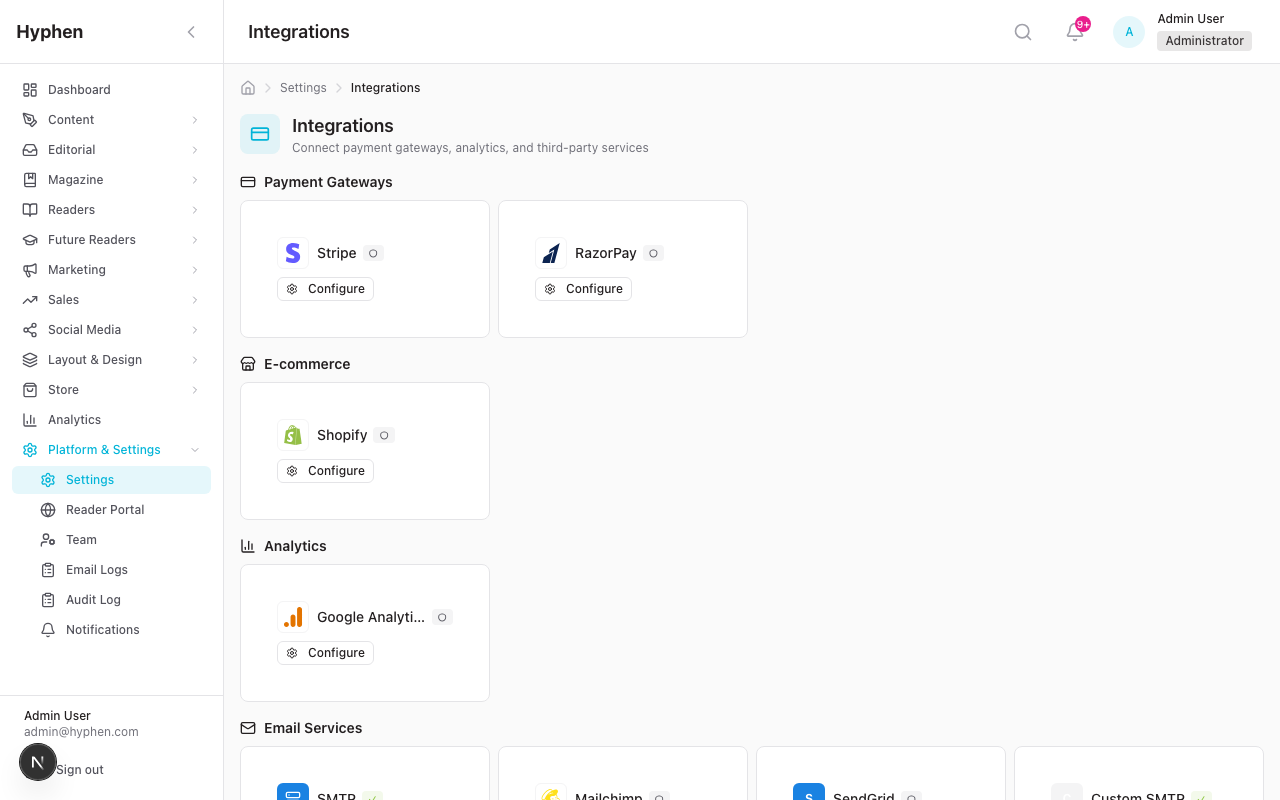
5.1 Configure Shopify Integration
This step connects your Hyphen platform to your Shopify store. An Admin must do this before any products can be synced.
-
Log in to the Admin Console with an Admin account.
-
In the left sidebar, click Settings.
-
Click Integrations.
-
Scroll down to the E-Commerce section.
-
Find the Shopify integration card and click Configure.
-
A configuration modal will open with these fields:
Field What to Enter Shop Domain Your Shopify store URL (e.g., your-shop.myshopify.com)Storefront Access Token The token from your Shopify Storefront API credentials Admin API Access Token The token from your Shopify Admin API credentials API Version The Shopify API version (e.g., 2026-04) -
Click Save to store the configuration.
-
The Shopify integration card should now show as Connected.
Where to find these credentials in Shopify:
- Log in to your Shopify Admin → Settings → Apps and sales channels → Develop apps → Select or create an app → API credentials tab.
- The Storefront Access Token is under the "Storefront API" section.
- The Admin API Access Token is under the "Admin API" section.
5.2 Register Shopify Webhooks
For automatic sync when products change in Shopify, you need to register webhooks in your Shopify store pointing to your Hyphen instance.
-
In your Shopify Admin, go to Settings → Notifications → Webhooks (or configure via the Shopify API).
-
Create the following webhooks:
Event Webhook URL Product update https://your-hyphen-domain.com/api/webhooks/shopifyProduct deletion https://your-hyphen-domain.com/api/webhooks/shopifyOrder creation https://your-hyphen-domain.com/api/webhooks/shopifyOrder updated https://your-hyphen-domain.com/api/webhooks/shopify -
Set the format to JSON.
-
Copy the Webhook signing secret from Shopify — this must be configured as the
SHOPIFY_WEBHOOK_SECRETenvironment variable in your Hyphen deployment.
Note: Without webhooks, products will only update when you manually click "Sync from Shopify" in the Admin Console. With webhooks, updates happen automatically within seconds of a change in Shopify.
5.3 Sync Products for the First Time
Once Shopify is connected, sync your products into Hyphen:
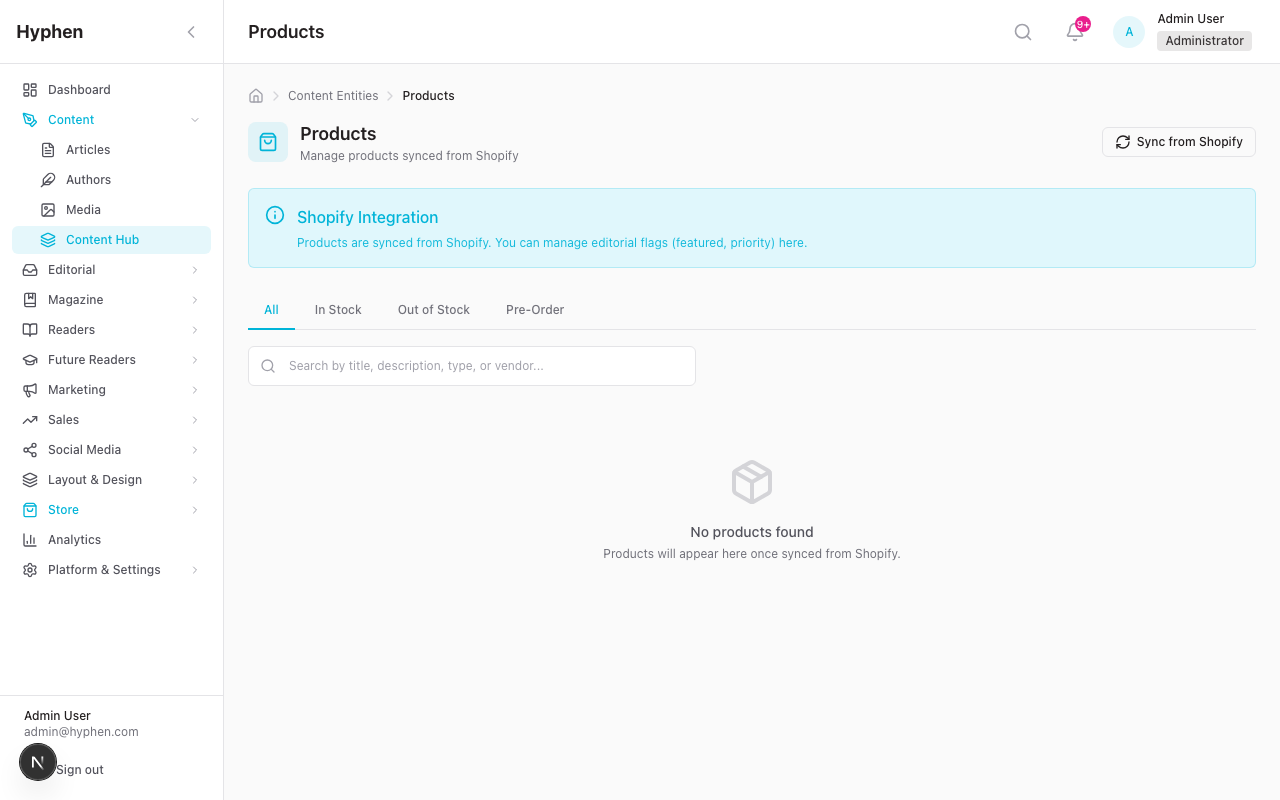
- In the Admin Console, go to the left sidebar and click Content Entities → Products.
- You will see the Products page. If this is your first time, the page will be empty.
- Click the Sync from Shopify button (top-right area of the page).
- Wait for the sync to complete. A notification will confirm how many products were synced.
- The product grid will now show your Shopify products with their images, titles, prices, and availability status.
What gets synced: Product title, description, images, price (INR), an optional US presentment price (USD), compare-at price, product type, vendor, tags, variants (with individual pricing and availability), handle, and inventory count.
What does NOT get synced: Shopify checkout settings, shipping rules, tax settings, or payment methods. Those remain in Shopify.
Dual-currency (₹ / $): If your Shopify store has a USD market/presentment currency configured, each synced product also stores a US price. This is surfaced on the reader-facing Featured Book card (rendered as, for example,
₹399 / $14) and is available to the public products API aspriceUsd. When no USD presentment currency exists, the field stays empty and only the INR price shows — nothing breaks.
5.4 Set Featured Products and Display Priority
After syncing, you can control which products are highlighted in the storefront:
- On the Products page, click on a product to open its detail page.
- On the right side, you will see the Editorial Settings section.
- Toggle Featured to "on" to mark the product as featured.
- Enter a Priority number. Higher numbers appear first when readers sort by "Featured."
- Click Save to apply changes.
Example: You want "Spring Poetry Collection" to appear at the top of the storefront when readers sort by Featured. Set it as Featured with Priority = 10. Set other featured products to Priority 5 or lower.
5.5 Monitor Inventory
To check stock levels across all products:
- In the Admin Console, go to Content Entities → Inventory (in the left sidebar under Products).
- The Inventory page shows:
- Summary cards at the top: total In Stock, Out of Stock, and Pre-Order product counts.
- Low Stock / Out of Stock alerts — products that need attention.
- Inventory table — all products with their type, price, variant count, status, and last sync time.
Note: Inventory data comes from Shopify. To update inventory, make changes in Shopify and either wait for the webhook to sync or manually trigger a sync.
5.6 Add Book Metadata to a Book
This is a one-time Shopify-side setup, then an ongoing per-book editorial step.
- One-time setup, in Shopify: Go to Shopify Admin → Settings → Custom data → Products → Add definition. Create metafield definitions under the
booknamespace for the fields you want to use — for exampleisbn,binding,pages,dimensions,weight,original_title,original_language,publisher,edition,category_genre,translator_name,praise(list), andvideos(list). You only need to do this once per store. - Per book, in Shopify: Open the book's product page in Shopify Admin, scroll to the Metafields section, and fill in whichever fields apply to that title. Leave any field blank if it doesn't apply — the corresponding section simply won't show on the book's page.
- Sync into Hyphen: either wait for the webhook (seconds) or click Sync from Shopify on the Products page in the Admin Console.
- Verify: open the book's page in the Reader Portal and confirm the Additional Info, Praise, and Know More sections appear with the data you entered (see Section 6.8).
5.7 Link a Curated Author to a Book
- In the Admin Console, go to Content Entities → Products and open a book's product detail page.
- Find the Curated Author field.
- Search for and select the author's profile.
- Click Save.
- The book's page in the Reader Portal will now show a View Author Profile link, and that author's profile page will show this book in its books grid.
5.8 Set Up the Hyphen Collection Subscription Plan
- In the Admin Console, go to Subscriptions → Plans.
- Click New Plan (or edit an existing draft plan).
- Fill in the usual plan fields (name, price, billing interval).
- Set Product Line to Hyphen Collection.
- Click Save.
- The plan now appears to readers wherever Hyphen Collection subscriptions are offered.
A reader can hold this plan and a Magazine plan at the same time — subscribing to one never touches or cancels the other.
5.9 Create a Collection Edition and Schedule It
- In the Admin Console left sidebar, open the Collections group and click Editions.
- Click New Edition.
- Fill in: Title, Book (the Shopify-synced product being sent), Year, Month, Editor's Note, and optionally a Cover Image URL override.
- Click Create Edition.
- Go to Collections → Schedule.
- Click Add Entry, choose the Year and Month, and select the Mapped Edition you just created. Confirm it is marked Active.
- Save. Every reader with an active Hyphen Collection subscription is now automatically entitled to that month's Edition.

5.10 Dispatch a Month's Collection Boxes
- In the Admin Console, go to Readers → Subscriptions → Collection Fulfilment.
- Under Select Edition, choose the month you're dispatching.
- Use the Status filter (Undispatched / Dispatched / Delivered / All) and the search/state/pincode filters to find the subscribers you're shipping to.
- Select the subscribers ready to ship and click Mark Dispatched, or Export CSV / Print labels to generate shipping labels first.
- Confirm the dispatch in the Confirm dispatch dialog (optionally add a delivery note), then click Dispatch.

5.11 Configure the Shop Sub-Navigation Tabs
By default, the tab bar under the Shop page automatically lists every product type in your catalog ("All," "Books," "Magazines," etc.) — no setup needed. To mix in a plain link tab (e.g. "Bundles & Collections" or "Our Journal"), a developer or technical Admin sets a small list of tabs on the Shop page's sub-navigation section, each either a filter tab (narrows to one product type) or a link tab (goes to any URL). There is no visual editor for this yet (see Known Limitations) — ask your technical team to configure it via the page-template settings.
5.12 Create Another Bundles-Style Page
Because the Bundles & Collections page is an ordinary admin-configured content page (not hardcoded), your team can create more pages like it:
- In the Admin Console, go to Layout & Design → Pages.
- Create a new page nested under the Shop space, giving it a URL slug (e.g.
/shop/summer-reads). - Add sections to it the same way you would for any other page — a hero, a product grid (optionally limited to one product type), text blocks, etc.
- Publish the page. It's immediately reachable at its URL, and you can add a link tab pointing to it from the Shop sub-navigation (Section 5.11).
6. How to Verify It Worked
After completing setup, verify the end-to-end flow:
6.1 Verify Products Appear in Admin Console
- Go to Content Entities → Products in the Admin Console.
- Confirm your products appear with correct images, titles, and prices.
- Use the availability tabs (All, In Stock, Out of Stock, Pre-Order) to filter.
- Use the Search bar to find specific products by name.
- Click into a product and verify:
- Images display correctly (gallery with thumbnails)
- Price and compare-at price are correct
- Variants are listed with their individual prices and availability
- Product type, vendor, and tags are accurate
- Shopify Product ID is shown in the Shopify Info section
- "Last Synced" timestamp is recent
6.2 Verify Products Appear in Reader Portal Storefront
- Open the Reader Portal in a browser.
- Navigate to the Shop page.
- Confirm products appear in the product grid with:
- Product image
- Product type label (e.g., "Book," "Magazine," "Merchandise")
- Title
- Vendor name (if applicable)
- Price (with compare-at price shown as strikethrough if on sale)
- Availability badges ("Sold Out" for out-of-stock, "Pre-order" for pre-order items, "Sale" for discounted items)
- Test the search bar — type part of a product name and confirm results appear.
- Test the type filters — click "Book," "Magazine," "Merchandise," or "Print" to filter.
- Test the sort options — try "Newest," "Price: Low to High," "A-Z," and "Featured."
- Test pagination — if you have more than 12 products, click "Next" and "Previous."
6.3 Verify Product Detail Pages
- From the Shop page, click on any product.
- The product detail page should show:
- Breadcrumb navigation at the top (Shop > Product Type > Product Name)
- Image gallery with clickable thumbnails and next/previous arrows
- Product title, vendor/author name, and price
- Sale badge and strikethrough compare-at price (if applicable)
- Variant selector (if the product has multiple options like size or format)
- "Add to Cart" button (or "Sold Out" if unavailable, or "Pre-order Now" for pre-order items)
- Product description (full text)
- Tags displayed below the description
6.4 Verify Cart Behavior
- On a product detail page, click Add to Cart.
- The button should briefly show "Added to Cart!" as confirmation.
- The cart icon in the header should update to show the item count (e.g., "1").
- Click the cart icon to open the Cart Drawer (slides in from the right).
- In the Cart Drawer, verify:
- Product image, title, and price appear correctly
- Quantity can be adjusted with + and − buttons
- Items can be removed
- Subtotal updates when quantity changes
- Checkout button is present
- Alternatively, navigate to
/shop/cartto see the full Cart Page with:- All cart items listed
- Quantity controls
- Line totals for each item
- Order Summary sidebar showing subtotal
- "Shipping and taxes calculated at checkout" notice
- "Proceed to Checkout" button
6.5 Verify Checkout
- From the Cart Page or Cart Drawer, click Proceed to Checkout (or Checkout).
- You should be redirected to your Shopify checkout page.
- The Shopify checkout should show the same items that were in your cart.
- Complete a test purchase (use Shopify's test mode if available).
6.6 Verify Order History (Logged-In Reader)
- Log in to the Reader Portal as a reader who has placed an order.
- Navigate to Shop → Orders (or
/shop/orders). - The Order History page should show:
- Order number (e.g., "#1001")
- Order date
- Total price
- Financial status badge (Paid, Pending, Refunded, etc.)
- Fulfillment status badge (Fulfilled, Partial, Unfulfilled)
- Item count
- Click on an order to view the Order Detail page:
- Line items with images, titles, quantities, and prices
- Order totals: Subtotal, Shipping, Tax, Total
- Shipping address (if available)
- Tracking information with tracking number and link (if fulfilled)
6.7 Verify Collections
- Navigate to Shop → Collections (or
/shop/collections) in the Reader Portal. - Confirm collection cards appear with image, title, description, and product count.
- Click a collection to see its products filtered in the shop view.
6.8 Verify Book Metadata Sections
- Open a book's product page in the Reader Portal (a book with metafields filled in — see Section 5.6).
- Confirm the Additional Info table shows the fields you filled in (ISBN, dimensions, publisher, etc.).
- Confirm the Praise section shows the quotes you entered, with attribution.
- Confirm the Know More section shows the videos you added.
- Open a product that has none of this metadata set and confirm those sections simply don't appear (no empty boxes or error).
6.9 Verify Curated Author Linking
- Open the book you linked to an author in Section 5.7.
- Confirm a View Author Profile link appears on the page and navigates to the correct author page.
- Open that author's Author Profile page and confirm the book appears in their books grid.
6.10 Verify the Wishlist
- As a signed-out visitor, click the wishlist icon in the header. Confirm you are taken to sign in.
- Sign in, then add a product to your Wishlist from a product card or product page.
- Open My Wishlist (
/shop/wishlist) and confirm the item appears with its image, title, and price. - Test Move to Cart (item should be removed from the Wishlist and added to the Cart), Remove (item disappears), Share (a shareable link is copied), and Clear (empties the whole list).
- Confirm an empty Wishlist shows "Your wishlist is empty" with a Browse Products button.
6.11 Verify Bundles & Collections and Shop Sub-Navigation
- Navigate to
/shop/bundles-and-collectionsin the Reader Portal and confirm the page renders with the content your team configured. - On the main Shop page, confirm the sub-navigation tab bar shows the tabs your team configured (or the auto-derived product-type tabs if none were configured).
- Click a link tab (e.g. "Bundles & Collections") and confirm it navigates to that page rather than filtering the grid.
6.12 Verify the Hyphen Collection Subscription
- As a reader, subscribe to the Hyphen Collection plan through the normal Subscriptions checkout.
- Go to My Subscription (
/account/subscription) and confirm a Hyphen Collection card appears — separate from any Magazine subscription card — showing the plan, status, next pick (if scheduled), and renewal date. - Confirm the reader can still hold an active Magazine subscription at the same time, if they have one.
- In the Admin Console, go to Readers → Subscriptions → Collection Fulfilment, select the current month's Edition, and confirm the reader appears in the subscriber list.
7. Worked Examples
Example 1: Syncing a New Product from Shopify and Verifying It in the Storefront
Scenario: Your team has added a new book, "Monsoon Verses," to the Shopify store and you need to verify it appears in the Reader Portal.
Steps:
-
In Shopify: Go to your Shopify Admin → Products → confirm "Monsoon Verses" is created with:
- Title: "Monsoon Verses"
- Description: Poetry collection about the monsoon season
- Product type: "Book"
- Price: ₹499
- Compare-at price: ₹699 (optional, if on sale)
- At least one image uploaded
- Status: Active
- Inventory: In stock
-
In Admin Console: Go to Content Entities → Products.
-
If webhooks are set up: The product should already appear in the list (webhooks auto-sync within seconds). Look for "Monsoon Verses" in the product grid.
-
If webhooks are NOT set up: Click Sync from Shopify and wait for the sync to complete. A success message will confirm the sync results.
-
Verify in Admin Console: Click on "Monsoon Verses" to open the product detail page. Confirm:
- Title: "Monsoon Verses"
- Price: ₹499 (stored internally as
49900in the smallest currency unit, but shown as ₹499.00) - Product type: Book
- Images display correctly
- Availability: In Stock
-
Mark as Featured (optional): In the Editorial Settings panel on the right, toggle Featured on and set Priority to 8. Click Save.
-
Verify in Reader Portal: Open the Reader Portal → Shop page.
- Search for "Monsoon" — the product should appear.
- Filter by "Book" — the product should appear.
- Sort by "Featured" — if you set it as Featured, it should appear near the top.
- Click on the product to verify the detail page shows correct images, price (₹499 with ₹699 strikethrough if compare-at price was set), and description.
- The "Sale" badge should appear since the compare-at price is higher than the selling price.
Example 2: Checking Product Details, Price, and Availability in the Storefront
Scenario: A customer contacts support saying a product shows "Sold Out" but you believe it should be in stock.
Steps:
- In Admin Console: Go to Content Entities → Products.
- Search for the product name.
- Click the product to view its detail page.
- Check the Availability field — it will show "In Stock," "Out of Stock," or "Pre-order."
- Check the Total Inventory count (if available from Shopify).
- Check the Variants section — each variant shows its individual availability status. A product may show as "Sold Out" if all its variants are unavailable, even if some were recently restocked.
- Check the Last Synced timestamp. If it is old (e.g., hours ago), the stock may have been updated in Shopify but not yet synced.
To fix:
- In Shopify: Go to the product and confirm the inventory is updated and the product status is "Active."
- In Admin Console: Click Sync from Shopify to pull the latest data.
- After the sync completes, refresh the product detail page and confirm the availability has updated.
- In Reader Portal: Refresh the Shop page and confirm the product no longer shows "Sold Out."
Example 3: Adding a Product to Cart and Completing Checkout
Scenario: You want to test the full purchase flow from browsing to checkout.
Steps:
- Open the Reader Portal and navigate to the Shop page.
- Browse the products or search for a specific item (e.g., "Literary Tote Bag").
- Click on the product to open the Product Detail page.
- If the product has variants (e.g., Color: Black, Navy), select your preferred option from the variant selector.
- Click Add to Cart. The button will briefly show "Added to Cart!" and the cart icon in the header will update to show "1."
- Click the Cart Icon in the header to open the Cart Drawer.
- Verify the item appears with the correct title, variant, price, and quantity.
- Click Checkout in the Cart Drawer.
- Alternatively, click View Cart to go to the full Cart Page, then click Proceed to Checkout.
- You will be redirected to the Shopify Checkout page.
- On the Shopify Checkout page:
- Enter shipping address
- Select shipping method
- Enter payment details
- Click Pay now (or complete with test payment if using Shopify's test mode)
- After successful payment, Shopify displays an order confirmation.
To verify the order:
- Go back to the Reader Portal → Shop → Orders.
- Your new order should appear in the list with status "Paid" and "Unfulfilled" (until the seller ships it).
Example 4: Verifying Order History for a Logged-In Reader
Scenario: A reader contacts support saying they cannot see their order history. You need to verify it works correctly.
Steps:
-
Confirm the reader is logged in. Order history requires authentication. If the reader is not logged in, they will be redirected to the sign-in page when they try to access Orders.
-
In the Reader Portal: Log in as the reader (or use a test account that has placed orders).
-
Navigate to Shop → Orders (accessible from the shop navigation or directly at
/shop/orders). -
The Orders page should display:
- All orders associated with the reader's email address
- Each order shows: order number, date, total price, financial status, fulfillment status, and item count
-
If no orders appear:
- Confirm the reader's email address in the Reader Portal matches the email used for the Shopify checkout.
- Orders are fetched from Shopify by email address — the emails must match exactly.
-
Click on an order to view the Order Detail page. Verify:
- Line items list with correct products, quantities, and prices
- Order totals (Subtotal, Shipping, Tax, Total)
- Shipping address (if provided)
- Fulfillment and tracking information (if the order has been shipped)
-
If tracking information is available, click the tracking link to verify it opens the carrier's tracking page.
Example 5: Troubleshooting a Product Update Not Reflected in the Platform
Scenario: You updated a product's price in Shopify 30 minutes ago, but the Reader Portal still shows the old price.
Steps:
-
Check the Admin Console first.
- Go to Content Entities → Products.
- Find the product and click to open its detail page.
- Check the Last Synced timestamp.
- If the "Last Synced" time is before your Shopify update, the change has not synced yet.
-
Check if webhooks are working:
- If webhooks are configured, product updates should appear within seconds.
- If the "Last Synced" time is old, the webhook may not have fired or may have failed.
- Check your server logs for webhook errors (ask your technical team for this).
-
Manually sync:
- On the Products page, click Sync from Shopify.
- Wait for the sync to complete.
- Refresh the product detail page.
- Confirm the price has updated to the new value.
-
Verify in Reader Portal:
- Open the Reader Portal → Shop page.
- Find the product and confirm the new price appears on the product card.
- Click into the product detail page and confirm the price is updated there too.
-
If the price still does not update after manual sync:
- Confirm the product is "Active" in Shopify (draft or archived products may not sync).
- Confirm the price change was saved in Shopify (check Shopify Admin → Products → the product).
- Check that the Shopify API credentials in Settings → Integrations are still valid and connected.
Example 6: Setting Up a Seasonal Sale and Verifying Storefront Display
Scenario: Your marketing team wants to run a summer sale. You need to update prices in Shopify, feature the sale products, and verify the storefront reflects the sale.
Steps:
-
In Shopify: For each sale product:
- Set the Compare-at price to the original price (e.g., ₹999).
- Set the Price to the sale price (e.g., ₹599).
- Save each product.
-
In Admin Console:
- If webhooks are active, wait a few seconds for the sync.
- If not, go to Content Entities → Products and click Sync from Shopify.
-
Feature the sale products:
- Click on each sale product.
- In the Editorial Settings panel, toggle Featured to on.
- Set Priority to a high number (e.g., 10) so these appear first.
- Click Save for each product.
-
Verify in Reader Portal:
- Open the Shop page.
- Sort by Featured — sale products should appear at the top.
- Each sale product should show:
- The sale price (e.g., ₹599)
- The original price with a strikethrough (e.g.,
₹999) - A "Sale" badge on the product card
- Click into a sale product to verify the detail page shows the discount correctly.
Example 7: Reviewing Returns and Refunds
Scenario: A customer has requested a refund through Shopify and you want to verify it is reflected in the platform.
Steps:
-
In Shopify: Process the refund through Shopify Admin → Orders → select the order → Refund.
-
In Admin Console:
- The returns/refunds data is accessible through the admin API.
- Returns can be filtered by status: Open, Closed, or All.
-
Verify the order status update:
- In the Reader Portal, the reader can go to Shop → Orders and view the order.
- The Financial Status badge should update to "Refunded" (shown in gray).
- The order detail page will still show the original line items and totals for reference.
-
If the status does not update:
- Remember that order data is fetched directly from Shopify in real-time — there is no sync delay for orders.
- If the status still shows "Paid," the refund may not have been fully processed in Shopify yet. Check Shopify Admin for the refund status.
Example 8: Publishing a New Book with Full Metadata, Praise, and a Curated Author
Scenario: Your team is launching "The Salt Path" and wants its book page to show full details, praise quotes, and a link to the translator's author profile.
Steps:
- In Shopify: Create the product as usual (title, price, images, description).
- Go to the product's Metafields section and fill in the
booknamespace fields: ISBN, binding, pages, dimensions, weight, original title/language, publisher, edition, category/genre, translator name, a couple ofpraiseentries (quote, name, title), and onevideosentry (a book trailer link). - Save the product in Shopify.
- In Admin Console: Sync (webhook or manual), then open the product and set Curated Author to the translator's Author Profile.
- In Reader Portal: Open the book's page and confirm the Additional Info table, Praise section, and Know More video all appear, and that View Author Profile links to the translator's page correctly.
Example 9: Assigning September's Hyphen Collection Pick
Scenario: It's the last week of August and your editorial team has decided which book ships to Hyphen Collection subscribers in September.
Steps:
- In Admin Console: Go to Collections → Editions → New Edition.
- Set Title, choose the Book (must already exist as a synced Shopify product), fill in Year: 2026, Month: September, and write the Editor's Note.
- Click Create Edition.
- Go to Collections → Schedule → Add Entry, set Year/Month to September 2026, select the new Edition as the Mapped Edition, and confirm Active.
- Save. Every reader with an active Hyphen Collection subscription is now entitled to this book for September.
- Verify: any reader's My Subscription page should show the September pick under "Next Pick" once their current period rolls into September; the public Hyphen Collection plan page shows it as a marketing teaser slightly earlier.
Example 10: A Reader Subscribes to Both the Magazine and the Hyphen Collection
Scenario: An existing Magazine subscriber also wants the monthly book box.
Steps:
- The reader goes to the Hyphen Collection subscribe page and completes checkout for that plan, exactly like subscribing to the Magazine.
- Verify: on My Subscription, the reader now sees two cards — their existing Magazine subscription (unaffected, still active) and a new Hyphen Collection card showing plan, status, and next pick.
- In Admin Console: open the reader's profile (Readers → Directory → the reader) and confirm both a Magazine subscription and a Hyphen Collection subscription are shown.
- Cancelling or changing either subscription (in the reader-facing account page or via an Admin action) affects only that one product line — the other stays untouched.
8. Common Mistakes and How to Fix Them
8.1 "No products appear in the Admin Console"
Possible causes:
- Shopify integration is not configured. Go to Settings → Integrations and verify Shopify is connected.
- Products have never been synced. Click Sync from Shopify on the Products page.
- Shopify API credentials are incorrect or expired. Re-enter them in the Shopify integration configuration.
Fix: Configure the integration (Section 5.1), then click Sync from Shopify (Section 5.3).
8.2 "Products appear in Admin Console but not in the Reader Portal"
Possible causes:
- Products are marked as "Out of Stock" — the public storefront hides out-of-stock products by default.
- The Reader Portal Shopify environment variables are not configured correctly.
Fix:
- Check product availability in the Admin Console. If out of stock, update inventory in Shopify and re-sync.
- Ask your technical team to verify the Reader Portal environment variables:
NEXT_PUBLIC_SHOPIFY_DOMAIN,NEXT_PUBLIC_SHOPIFY_STOREFRONT_TOKEN, andNEXT_PUBLIC_ADMIN_API_URL.
8.3 "Product prices look wrong (showing very small or very large numbers)"
Possible cause: Prices are stored in the smallest currency unit (e.g., paise for INR, cents for USD). A product priced at ₹499 is stored as 49900 internally.
Fix: This is normal internal behavior. If the display is wrong, it means the price conversion is not working correctly. Report it to the technical team. In the storefront, prices should display correctly with the currency symbol (e.g., ₹499.00).
8.4 "Clicking 'Add to Cart' does nothing"
Possible causes:
- The product or selected variant is sold out.
- The Shopify Storefront API token is invalid or misconfigured.
- Browser localStorage is full or blocked.
Fix:
- Check if the button shows "Sold Out" — if so, the product is unavailable.
- Try clearing your browser cache and cookies, then refresh the page.
- If the issue persists, ask the technical team to verify the Storefront API token.
8.5 "Checkout redirects to a broken page or error"
Possible causes:
- The Shopify Storefront API is not generating a valid checkout URL.
- The Shopify store is in maintenance mode or paused.
- Cart has expired (Shopify carts expire after 30 days of inactivity).
Fix:
- Try adding items to a fresh cart and checking out again.
- Verify the Shopify store is active and accepting orders.
- Check the Shopify integration credentials in Settings → Integrations.
8.6 "Order history shows no orders even though the reader has purchased items"
Possible cause: The email address the reader uses to log in to the Reader Portal does not match the email used during Shopify checkout. Orders are looked up by email address.
Fix: Confirm that the reader used the same email for both their Reader Portal account and the Shopify checkout. If different emails were used, the orders will not appear.
8.7 "Sync from Shopify button is not visible"
Possible cause: Your account does not have the products:sync permission. Only Admin users have this permission by default.
Fix: Ask an Admin to either perform the sync or grant you the necessary permission.
8.8 "Product images are not displaying"
Possible causes:
- The product has no images uploaded in Shopify.
- Images were removed from Shopify after the last sync.
Fix: Upload or restore images in Shopify, then trigger a sync.
8.9 "The Additional Info / Praise / Know More sections aren't showing on a book's page"
Possible cause: The book.* metafields were never filled in for that product in Shopify, or the metafield definitions were never created in the store.
Fix: Confirm the metafield definitions exist (Shopify Admin → Settings → Custom data → Products), fill in the relevant fields on that product, and re-sync. A section only appears when its underlying data is present — this is expected behavior for non-book products, not a bug.
8.10 "A reader can't add anything to their Wishlist"
Possible cause: The reader is not signed in. The Wishlist requires an account (unlike the Cart, which works for anonymous visitors).
Fix: Ask the reader to sign in. Clicking the wishlist icon while signed out should redirect to sign-in and return them to the Wishlist afterward — if it doesn't, report it to the technical team.
8.11 "A subscriber isn't showing up in this month's Collection Fulfilment list"
Possible causes:
- No Collection Schedule entry exists for the current month (or it isn't marked Active).
- The reader's Hyphen Collection subscription isn't active yet (e.g. payment still pending).
Fix: Confirm a Schedule entry exists for the current month and points at an Edition (Section 5.9). Confirm the reader's subscription status on their profile.
8.12 "Subscribing to the Hyphen Collection seems to have changed or cancelled the reader's Magazine subscription"
This should never happen — the two are independent product lines. If you see this, it is a bug, not expected behavior. Escalate to the technical team with the reader's account details rather than trying to work around it.
8.13 "I want to add/change the Shop sub-navigation tabs but can't find a setting for it"
Possible cause: There is currently no visual editor for the tabs list — it must be set via the underlying page-template configuration.
Fix: Ask your technical team to update the tabs list for you (see Section 5.11 and Known Limitations).
Known Limitations
-
Products are read-only in Hyphen. You cannot create products, edit prices, update descriptions, or manage inventory within the Admin Console. All product data is managed in Shopify. The only locally editable fields are the Featured toggle and Priority number.
-
Checkout happens entirely on Shopify. The platform has no checkout page of its own — readers are redirected to Shopify's hosted checkout. Checkout customization (shipping options, payment methods, discount codes) is configured in Shopify.
-
Orders are not stored locally. Order data is fetched live from Shopify's API. If Shopify is unreachable, order history is unavailable; there is no offline cache.
-
Order lookup is by email address. A reader's Reader Portal email must match the email used at Shopify checkout for orders to appear in their history. Orders placed under a different email are not linked.
-
Cart is browser-based. The shopping cart ID is stored in the reader's browser (localStorage). If a reader clears browser data or switches devices, the cart is lost. Carts are not synced to a reader's account.
-
Shopify carts expire after 30 days. If a reader adds items but does not check out within 30 days, Shopify automatically expires the cart.
-
Guest checkout is governed by Shopify. Whether guest checkout is available depends on your Shopify store settings, not Hyphen. The Reader Portal does not require login to browse or add to cart — only the Order History page requires authentication.
-
Return/refund requests cannot be submitted through the Reader Portal. Returns and refunds are processed in Shopify directly. The Admin Console provides read-only visibility into returns/refunds processed in Shopify.
-
Storefront pricing is single-currency (INR), with limited dual-currency display. The storefront formats prices in Indian Rupees (₹), determined by the Shopify store configuration. A US presentment price (
priceUsd) is supported only on the reader-facing Featured Book card when a USD market/presentment currency is configured in Shopify; full multi-currency storefront pricing is not supported. -
No real-time inventory updates in the storefront. Storefront inventory reflects the last sync or webhook update. If inventory changes rapidly in Shopify, there may be a brief delay before the storefront reflects it.
-
The Hyphen Collection cannot be paused or skipped for a single month. A subscriber can cancel the whole subscription, but there is no "skip this month's box" option yet.
-
Collection dispatch does not send the reader a confirmation email. The dispatch action updates status and can generate shipping labels, but no notification email is sent to the subscriber yet (unlike some Magazine fulfilment notifications).
-
The Wishlist "Share" link has no public shared-viewing page yet. Sharing copies a link, but there is currently no page that renders someone else's shared wishlist when the link is opened.
-
Wishlist data is not yet included in the reader data-export feature. It is included in account deletion/anonymization, but not (yet) in the separate personal-data export a reader can request.
-
There is no visual editor for the Shop sub-navigation tabs. The list of filter/link tabs is configured via the underlying page-template settings by a technical team member, not through an Admin Console form.
FAQ
Related guides
- Subscriptions — the Magazine subscription checkout, plans, coupons, and account management that the Hyphen Collection plan shares
- Reader Management — admin reader profiles, where both a reader's Magazine and Hyphen Collection subscriptions are visible together
- Page Templates — how admin-configured content pages (like Bundles & Collections) are built
- Layout & Design — Featured products, storefront layout blocks, and page/section configuration
- Analytics — store and product performance reporting