Magazine Issue Management
Complete guide to creating magazine issues, managing articles, cover images, editor notes, and structured layouts
1. Simple Feature Overview
The Magazine Issue Management system lets your team create, assemble, review, publish, and archive digital magazine issues — all from the Admin Console. Each issue is a curated collection of articles that readers can browse as a single publication on the Reader Portal — either as a table of contents of articles or as a page-turning flipbook rendered from a protected PDF.
Under the hood the feature spans four systems. You build issues in the Admin Console (Next.js, the Issue Editor). Issue and Table-of-Contents records live in PostgreSQL (the issues and issue_articles tables, accessed through Prisma) — this is the source of truth for issue membership and access. On publish, the issue is mirrored into Strapi CMS so the Reader Portal (Next.js) can list and render it. Flipbook PDF bytes are never exposed as a public storage URL — they are streamed on demand through a gated Admin Console endpoint that checks the reader's entitlement before returning full bytes. The diagram below shows the end-to-end journey; the rest of this guide explains each stage.
What You Can Do
| Capability | What It Means |
|---|---|
| Create issues | Set up a new magazine issue with a title, number, cover image, theme, and other details |
| Assemble articles | Pick which published articles belong in the issue and arrange them in order |
| Editorial workflow | Move issues through Draft → Building → Review → Approved stages before publishing |
| Publish or schedule | Publish an issue immediately or schedule it to go live automatically at a future date and time |
| Subscriber notifications | When an issue is published, subscribers who opted into new content emails receive an automatic notification |
| Reader Portal display | Published issues appear on the Reader Portal with a cover image, table of contents, and individual article links |
| Access control | Control who can read the issue — everyone, restricted, premium, or subscribers only |
| Per-article Magazine Access tier | For each article in an issue, choose whether it's Free to magazine readers (any signed-in reader) or Magazine-exclusive (paying subscribers only). Magazine-bound articles are hidden from home/section/tag pages and from search. |
| Archive | Remove an issue from active display when it is no longer current |
| Analytics | View total views, shares, and comments across all articles in an issue |
How an Issue Reaches Readers
Create Issue (Admin Console)
    ↓
Add Articles & Configure Details
    ↓
Move through workflow: Draft → Building → Review → Approved
    ↓
Publish Now  — or —  Schedule for Later
    ↓
Issue syncs to CMS (Strapi) automatically
    ↓
Reader Portal shows the issue on the Issues page and Issue Detail page
    ↓
Subscribers receive an email notification (if they opted in)
2. Who Should Use This Feature
| Role | What You'll Do |
|---|---|
| Content Editors | Create issues, add articles, arrange the table of contents, fill in metadata |
| Editorial / Managing Editors | Review issues, approve or send back for revision, make final publish decisions |
| Publishing / Operations | Schedule issues, monitor the publish checklist, verify Reader Portal display, manage archives |
| Marketing | Check that cover images, themes, and SEO settings are configured before publication |
| QA | Validate the full workflow end to end — creation, publishing, Reader Portal display, notifications |
| Admin / Super Admin | Full access to all of the above, plus configure permissions for other team members |
Permissions Required
Magazine issue management uses the following permissions. Your admin role must have the relevant ones enabled under Admin Settings > Roles > [Your Role].
| Permission | What It Allows |
|---|---|
| Issues — Read | View the issue list and issue detail pages |
| Issues — Create | Create new issues |
| Issues — Update | Edit issue details, add/remove/reorder articles |
| Issues — Delete | Delete issues that are still in Draft status |
| Issues — Publish | Publish issues and schedule them for future publication |
| Issues — Archive | Archive published issues |
| Issues — View Analytics | View the Analytics tab on the issue detail page |
If you cannot see "Magazine" in the left sidebar or the "Create Issue" button is missing, ask your administrator to check your role's permissions.
3. Before You Begin
Checklist
- You have an admin account on the Hyphen Admin Console
- Your role has the appropriate Issues permissions (see table above)
- You can access the Reader Portal URL to verify published issues
- Articles you want to include in an issue are already created (and ideally already published) in the Content Management module
- Cover images and hero images are already uploaded to the Media Library (or you have them ready to upload)
- If you plan to use subscriber notifications, confirm that email templates are seeded in the system (this is typically done during initial setup)
Where to Find Everything
All magazine issue features are under the Magazine group in the Admin Console left sidebar:
| Sidebar Menu Item | What It Does | When to Use |
|---|---|---|
| Magazine > Issues | View all issues, search, filter by status or frequency, create new issues | Start here for all issue management |
Dependencies on Other Modules
Magazine issues depend on several other parts of the platform:
| Dependency | Why It Matters |
|---|---|
| Content Management | Articles must exist before you can add them to an issue. Published articles are preferred. |
| Media Library | Cover images and hero images should be uploaded to the Media Library first. |
| Editorial Workflow | Articles in the issue should ideally have gone through their own editorial review and be in a Published state. |
| Page Templates (Layout & Design) | The Reader Portal uses page templates to display the issue listing and issue detail pages. Default templates are included out of the box. |
| Notifications & Email | Subscriber notifications on publish depend on the email template system being configured. |
| Subscriptions | Access level enforcement (e.g., "Subscriber Only") depends on the subscription system being active. |
| Automated Tasks (Cron) | Scheduled issue publishing depends on the cron job being configured and running. |
4. Key Terms in Simple Language
| Term | What It Means |
|---|---|
| Issue | A single edition of your magazine — like "March 2026" or "Special Edition: Climate". Contains a curated list of articles. |
| Issue Number | A unique identifying number for the issue (e.g., 1, 2, 3...). Each issue must have a different number. |
| Slug | The URL-friendly version of the issue name (e.g., spring-2026). This becomes part of the Reader Portal URL: /issues/spring-2026. |
| Volume | An optional grouping — for example, all issues in 2026 might be "Volume 5". |
| Frequency | How often your magazine publishes: Weekly, Monthly, Quarterly, Half-Yearly, Yearly, or Special Edition. |
| Theme | A short label describing the issue's focus (e.g., "Climate & Environment", "Summer Fiction"). |
| Cover Image | The main image shown on the issue card in the Reader Portal issues listing. Think of it as the magazine's front cover. |
| Hero Image | A wider banner image shown at the top of the issue's detail page in the Reader Portal. |
| Cover Date Label | A human-readable date label shown on the cover (e.g., "March/April 2026"). Does not affect scheduling. |
| Editor's Note | An optional message from the editor that appears on the issue detail page. |
| Reader Mode | How articles are presented: Article List (traditional table of contents), Flipbook (digital page-turning), or Dual Spread (two-page spread). |
| Flipbook free preview | On a gated issue, the first N pages (cover + editor's note) that a non-subscriber may read in the flipbook before the paywall. Set per issue via Free preview through page (flipbookFreePreviewPageCount, default 1). The preview is always contiguous from page 1. |
| Immersive reader | The distraction-free, full-bleed page-turning route /issue/[slug]/read, opened from the issue page's "Read the issue" / "OPEN THE DIGITAL FLIPBOOK" CTA. |
| Access Level | Who can read the issue: Free (everyone), Restricted Free (soft paywall), Premium Limited (premium subscribers), or Subscriber Only (paid subscribers only). |
| Magazine Access tier | A per-article setting on each article in an issue. Three values: Not magazine-only (regular article — appears on home/section pages too), Free to magazine readers (signed-in readers can read it inside the issue), Magazine-exclusive (only readers with a digital-issue subscription can read it inside the issue). Articles with a magazine tier are hidden from home, section, tag, and search pages — they live only inside the issue. |
| Digital-issue subscription | A reader subscription plan that includes access to magazine issues. Set per-plan under Subscriptions > Plans. The platform calls this entitlement accessDigitalIssues. The Magazine-exclusive tier checks for it. |
| Table of Contents | The ordered list of articles in an issue, managed on the "Table of Contents" tab. |
| Featured | A flag on an article within an issue that highlights it as a standout piece. Shown with a "Featured" badge. |
| Cover Story | A flag marking an article as the issue's lead/cover story. Shown with a "Cover Story" badge. |
| Publish Checklist | An automated set of checks the system runs to confirm the issue is ready to publish — e.g., has a title, has articles, articles are published. |
| Workflow | The progression of statuses an issue moves through: Draft → Building → Under Review → Approved → Published (or Scheduled). |
| Strapi Sync | When you publish an issue, it is automatically synced to the CMS (Strapi) so the Reader Portal can display it. You do not need to do anything — this happens behind the scenes. |
5. How It Works (Behind the Scenes)
You only ever touch the Issue Editor, but a published issue travels through four systems before a reader can read it. Understanding the chain helps you reason about "I published — why isn't it showing?" and "why can this reader open this article but not that one?".
The publish gate
Publishing is not a single button write — it is gated twice:
- Transition validation (
validateTransitionagainstISSUE_TRANSITIONSinadmin-console/src/types/issues.ts) rejects illegal status jumps (you cannot go Draft → Published directly). - Publish Checklist runs at publish time (manual Publish Now and the scheduled-publish cron both call it). Errors block; warnings do not. See §6.10.
Only after both pass does the system flip Issue.status = published, set publishedAt, run syncIssueToStrapi, send subscriber notifications, and revalidate the Reader Portal (/issues listing refreshes within ~60s).
Strapi mirror and visibility status
syncIssueToStrapi publishes the Strapi document when status is published or archived (both are reader-visible), and unpublishes it for hidden or workflow states. This is the visibility axis — separate from the access axis below. The four visibility states:
| Admin status | Portal listing | Direct URL | Strapi state |
|---|---|---|---|
published | listed | renders | live |
archived | listed (with "Archived" badge) | renders | live |
hidden | not listed | 404 | draft (unpublished) |
draft / building / under_review / approved / scheduled | not listed | 404 | draft |
archived≠ hidden. Archived issues stay readable (SEO and back-issue value); they only lose active promotion. To fully remove an issue from the portal, transition it to hidden — the takedown state.
Protected flipbook byte delivery
When an issue uses Flipbook reader mode, the Reader Portal never receives a downloadable PDF URL. The public issue JSON exposes only a hasFlipbookPdf boolean. The page-turning UI fetches bytes from a same-origin proxy (reader-portal /api/issues/[slug]/flipbook) which forwards to the gated Admin endpoint (admin-console /api/reader/issues/[slug]/flipbook). That endpoint runs resolveFlipbookDelivery, which mirrors the issue's own access tier — "if the magazine is free, the flipbook is free". It decides what to stream:
| Viewer | What is streamed | outcome |
|---|---|---|
| Valid issue preview token (editor preview) | Full PDF | preview-token |
| Anonymous (any issue, incl. free) | N-page free-preview PDF (cover + editor's note), else cover image — never full bytes | preview / anonymous-cover |
| Signed-in reader, free issue | Full PDF | full |
| Signed-in reader, gated issue + entitled | Full PDF | full |
| Signed-in reader, gated issue, not entitled | N-page free-preview PDF (cover + editor's note), else cover image | preview / anonymous-cover |
| No flipbook PDF on the issue | 403 (proxy) — flipbook UI falls back to the article list | — |
The free preview is the first N pages of the full PDF, sliced contiguously from page 1 by generateFlipbookPreviewPdf (pdf-lib). N comes from flipbookFreePreviewPageCount (default 1 = cover only; editors raise it to include the editor's note). The endpoint returns the boundary in an X-Flipbook-Preview-Max-Page response header (clamped to the issue's true page count) so the page-turning UI stops at the right page and shows the paywall beyond it. The gated pages are never sent to a non-entitled reader.
A free issue is full only for signed-in readers. Anonymous visitors always receive the preview, even on a free issue — the anonymous branch is evaluated before the tier check. Ask anonymous readers to sign in (no subscription needed) to read a free issue's full flipbook.
All flipbook responses carry Cache-Control: no-store, X-Content-Type-Options: nosniff, and Content-Disposition: inline. This is best-effort protection (a determined user can still screen-record), but it guarantees the full PDF storage URL is never leaked. Article HTML protection (copy/print/drag blocking, optional per-reader watermark) is documented in Paywall & Access. (Implementation: admin-console/src/lib/issues/resolveFlipbookDelivery.ts, admin-console/src/lib/issues/flipbookPreview.ts.)
The immersive reader route
The page-turning experience has its own distraction-free route: /issue/[slug]/read (reader-portal/src/app/issue/[slug]/read/page.tsx). The issue overview page (/issue/[slug]) carries a "Read the issue" / "OPEN THE DIGITAL FLIPBOOK" call-to-action that opens it. The immersive page keeps the site Header and Footer; the flipbook fills the viewport between them, with a Hyphen-design TOC drawer and a bottom toolbar. It uses the same byte-level access model as the proxy above — a free issue opens fully for signed-in readers, a gated issue streams the N-page free preview then shows the paywall. If the issue has no flipbook PDF, the route redirects back to /issue/[slug] (which falls back to the article-list view). The route is noindex (the overview page is canonical) so it does not compete in search.
6. Concepts: Issues, TOC & the Magazine Access Ladder
This section explains the three ideas that everything else builds on: the issue model, the Table of Contents, and how a reader's request for a magazine article is resolved against the four-tier access ladder.
The magazine issue model
An Issue (issues table, Prisma model Issue) is the container. Its key fields:
- Identity:
title,number(unique),slug(unique, becomes/issue/<slug>),volume,theme,coverDateLabel. - Presentation:
coverImage,heroImage,description,editorNote,masthead(editorial credits),uncategorizedLabel(per-issue name for the default TOC bucket). - Reader experience:
defaultReaderMode(article_list/flipbook/dual_spread) and the flipbook source fields (flipbookPdfUrl,flipbookPreviewPdfUrl,flipbookPageCount,flipbookFreePreviewPageCount). The free-preview PDF is generated server-side from the first N pages of the full PDF;flipbookFreePreviewPageCount(default 1) is the editor-set free-preview boundary on gated issues. - Access (the default for every article in the issue):
accessLevel— one offree/restricted_free/premium_limited/subscriber_only. - Workflow & scheduling:
status(theIssueStatusenum),scheduledFor,archivedAt,publishedAt. - Lifecycle markers:
isActive,isCurrent(exactly one current issue at a time),inventoryAvailable(print-stock override). - Strapi sync:
strapiDocumentId,strapiSyncStatus.
Cadence lives on
MagazineSchedule, not on the issue. The issue has nofrequencyfield; it was display-only and never drove entitlement. The Issues list shows an Access column.
The Table of Contents builder
The TOC is a set of junction rows (issue_articles table, Prisma model IssueArticle) — one per article in the issue. Each row carries:
| Field | What it controls |
|---|---|
sequenceOrder | The order articles appear (set with the up/down arrows). |
sectionLabel | Groups articles under a heading (e.g., "Fiction", "Poetry"). Set from the Section picker at add time. |
isFeatured / isCoverStory | The "Featured" / "Cover Story" badges. |
accessLevelOverride | Per-article access override — wins over the issue default. Empty = inherit the issue default. |
displayTitleOverride | Show a different title for the article inside this issue. |
language | Per-entry language tag (coral chip on the TOC, e.g. "TAMIL"). |
pageOrder / flipbookStartPage | The PDF page where the article begins (used by the flipbook side-drawer TOC to jump to an article). |
An article belongs to at most one issue (@@unique([issueId, articleId]) plus the one-to-one Article.issueId). Reassigning an article to a different issue moves it (with confirmation), it does not duplicate. Only Magazine-visibility articles can be added — the Add Article picker filters magazineOnly=true and the API rejects Public articles with a 400. Set visibility to Magazine on the article first.
The four-tier access ladder
Magazine read access is issue-first. The effective access level for a given article inside an issue resolves like this:
effectiveAccessLevel = IssueArticle.accessLevelOverride   (if set on the TOC row)
                     ?? Issue.accessLevel                 (the issue default)
                     ?? Article.accessLevel               (the article's own level)
That resolved level is then graded against the four-tier ladder, each tier requiring a different reader entitlement bit:
| Effective level | Entitlement bit required | Anonymous viewer | Signed-in, missing the bit |
|---|---|---|---|
free | none | allow (anyone, incl. anonymous) | allow |
restricted_free | accessRestrictedMagazines | redirect to /login | redirect to /subscribe |
premium_limited | accessPremiumLimitedMagazines | redirect to /login | redirect to /subscribe |
subscriber_only | accessDigitalIssues (full magazine access) | redirect to /login | redirect to /subscribe |
Override always wins. A per-article
accessLevelOverrideis authoritative — it beats the article's own level and global Content Access Rules, even when more permissive. Afreeoverride therefore makes that one article free for everyone and bypasses the magazine gate. (Implementation:reader-portal/src/lib/magazineAccess.ts→decideArticleAccess;resolvePerArticleAccessLevel.)
Free magazine content is readable by everyone, including anonymous readers. "Magazine" visibility only hides an article from public listings — it does not by itself require a login. Reading is gated only when the resolved tier is above
free.
Access resolution flow
Legacy back-compat. Older articles may still carry a
magazineAccessenum (exclusive/free_to_magazine) from the previous three-option model. It is honored at read time (exclusive → subscriber_only,free_to_magazine → free) and retired as articles are re-saved — no migration required. The §5.5–§5.6 material below documents that older model for reference.
7. Configuration Reference
Every field you can configure, where it lives, whether it is mandatory, its default, and which role can set it. UI paths are in the Admin Console; "Backend / API" means the field is not yet exposed in the Admin UI and must be set via the API.
Issue fields
| Field / Option | What it does | Type | Mandatory? | Default | Where configured | Role |
|---|---|---|---|---|---|---|
| Title | Issue name; used as listing title and SEO fallback | Text | Yes | — | Issue Editor → Overview (or Create wizard Step 1) | Issues — Create / Update |
| Issue Number | Unique edition number | Integer | Yes | — | Create wizard Step 1 / Overview | Issues — Create / Update |
| URL Slug | URL segment → /issue/<slug>; unique | Text | Yes (auto-filled from title) | derived from title | Create wizard Step 1 / Overview | Issues — Create / Update |
| Volume | Optional grouping | Integer | No | — | Overview | Issues — Update |
| Theme | Short focus label | Text | No | — | Overview | Issues — Update |
| Description | Overview shown on the portal | Text | No | — | Overview | Issues — Update |
| Editor's Note | Editor message on the issue page | Text | No | — | Overview | Issues — Update |
| Cover Image | Issue "front cover" on the listing | Media ref | No (warned by checklist) | — | Cover & Media / Overview | Issues — Update |
| Hero Image | Wide banner on the issue page | Media ref | No | — | Cover & Media / Overview | Issues — Update |
| Cover Date Label | Human-readable cover date (display only) | Text | No | — | Cover & Media / Overview | Issues — Update |
| Masthead | Editorial credits (role → names) | JSON | No | — | Overview | Issues — Update |
| Uncategorized Label | Per-issue name for the default TOC bucket | Text | No | "Uncategorized" | Overview / API | Issues — Update |
| Reader Mode | article_list / flipbook / dual_spread | Enum | No | article_list | Configuration (Step 3) | Issues — Update |
| Flipbook PDF | Source PDF for flipbook mode (URL up to 2048 characters — matches cover/hero image fields so cloud-storage signed URLs fit) | Media ref | Only if reader mode = flipbook | — | Cover & Media / Overview | Issues — Update |
Free preview through page (flipbookFreePreviewPageCount) | On a gated issue, the last flipbook page a non-subscriber may read before the paywall (cover + editor's note). Free issues open in full for signed-in readers regardless of this value. The control only appears once a flipbook PDF is bound. | Integer (≥ 1) | No | 1 (cover only) | Overview → flipbook section → "Free preview through page" | Issues — Update |
| Issue Access Level (default for articles) | Default tier for every article in the TOC | Enum (free…subscriber_only) | No | free | Configuration card → "Default access for articles in this issue" | Issues — Update |
| SEO Title / Description / Canonical URL | Search metadata | Text | No | falls back to title/description | SEO tab | Issues — Update |
| Schedule (publish date/time) | Future auto-publish time | DateTime | No | — | Publishing tab → Schedule | Issues — Publish |
| Status | Workflow state | Enum (IssueStatus) | system-managed | draft | Workflow action buttons | depends on transition |
| Is Current | Marks the one "current" issue | Boolean | No | false | Set-current action | Issues — Update |
| Inventory Available | Print-stock override (ANDed with Shopify) | Boolean | No | true | Issue / Plan editor | Issues — Update |
Per-article TOC entry fields (issue_articles)
| Field / Option | What it does | Type | Mandatory? | Default | Where configured | Role |
|---|---|---|---|---|---|---|
| Sequence Order | Reading order in the issue | Integer | auto | append order | TOC tab → up/down arrows | Issues — Update |
| Section Label | Groups article under a heading | Text | No | issue's uncategorized bucket | TOC Add Article → Section picker | Issues — Update |
| Featured | "Featured" badge | Boolean | No | false | TOC three-dot menu | Issues — Update |
| Cover Story | "Cover Story" badge | Boolean | No | false | TOC three-dot menu | Issues — Update |
| Access Override | Per-article tier; wins over issue default | Enum or empty | No | empty (inherit issue) | TOC tab → per-row "Access override" select | Issues — Update |
| Display Title Override | Alternate title inside this issue | Text | No | — | Backend / API | Issues — Update |
| Language | Per-entry language tag chip | Text | No | — | Backend / API | Issues — Update |
| Page Order / Flipbook Start Page | PDF page where the article begins | Integer | No | — | Backend / API | Issues — Update |
Mandatory vs optional summary: the only hard-required fields to create an issue are Title, Issue Number, and Slug. To publish, the Publish Checklist additionally requires at least one article and an appropriate status; cover image and access level produce warnings only. Everything else is optional and has a sensible default.
8. Step-by-Step Setup Guide
8.1 Creating a New Magazine Issue
Where to Go
Magazine > Issues in the left sidebar, then click the "Create Issue" button in the top-right corner.
Steps
The creation form has 4 steps. You move between steps using the Next and Previous buttons at the bottom.
Step 1 — Basic Information
- Title (required): Enter the issue name. Example:
Spring 2026 — Climate & Environment. - Issue Number (required): Enter a unique number for this issue. Example:
12. - URL Slug (required): This auto-fills based on the title, but you can edit it. It will appear after
/issues/in the Reader Portal URL. Example:spring-2026-climate-environment. - Volume (optional): Enter a volume number if your magazine uses volumes. Example:
5. - Frequency: Select from the dropdown —
Weekly,Monthly,Quarterly,Half-Yearly,Yearly, orSpecial Edition. If you leave this blank, no frequency label is shown. - Theme (optional): A short phrase describing the issue's focus. Example:
Climate & Environment. - Description (optional): A brief overview of what this issue contains. Shown on the Reader Portal.
- Editor's Note (optional): A message from the editor. Shown on the issue detail page.
Click Next to proceed.
Step 2 — Cover & Media
- Cover Image: Click the dashed-border area to open the media picker. Select or upload an image. This is the "front cover" of the issue.
- Hero Image (optional): A wider banner image for the top of the issue detail page. Click to select.
- Cover Date Label (optional): A human-readable date shown on the cover. Example:
March/April 2026.
Click Next to proceed.
Step 3 — Configuration
- Reader Mode: Choose how articles are presented to readers:
- Article List — Traditional table of contents with article links (recommended for most issues).
- Flipbook — A page-turning digital magazine experience.
- Dual Spread — Two-page magazine spread layout.
- Access Level: Choose who can read this issue:
- Free — Anyone can read.
- Restricted Free — Soft paywall (readers see a prompt but can continue).
- Premium Limited — Only premium plan subscribers.
- Subscriber Only — Only paid subscribers.
- SEO Title (optional): A title optimized for search engines. If left blank, the issue title is used.
- SEO Description (optional): A brief summary for search engine results.
Click Next to proceed.
Step 4 — Review
A summary of everything you entered is displayed in a two-column layout. Review all fields.
- If anything needs changing, click Previous to go back to the relevant step.
- When satisfied, click the "Create Issue" button at the bottom.
The issue is created in Draft status. You are redirected to the issue detail page where you can add articles and continue setup.
5.2 Understanding Issue Status and Workflow
Every issue moves through a series of statuses. The current status is shown as a colored badge on the issue detail page, and a visual workflow stepper at the top shows your progress.
| Status | Color | What It Means | What You Can Do |
|---|---|---|---|
| Draft | Gray | Issue is being set up. No articles required yet. | Edit all fields, add articles. Move to Building. Delete the issue. |
| Building | Blue | Articles are being assembled and ordered. | Edit all fields, add/remove/reorder articles. Move to Under Review. |
| Under Review | Amber | The issue has been submitted for editorial review. | Reviewers can Approve or Send Back to Building. |
| Approved | Green | The issue has been approved and is ready to publish. | Publish Now, Schedule for Later, or move back to Building if changes are needed. |
| Scheduled | Purple | The issue is approved and waiting for its scheduled publish date. | Cancel the schedule (returns to Approved). When the date arrives, the system publishes it automatically. |
| Published | Green (primary) | The issue is live on the Reader Portal. | Archive the issue when it is no longer current. |
| Archived | Gray (muted) | The issue is no longer actively displayed. | Restore to Draft to start the cycle again. |
Allowed Transitions
Draft  →  Building  →  Under Review  →  Approved  →  Published
                              ↓                ↓
                          Building          Scheduled → Published
                          (send back)                     ↓
                                                       Archived
                                                          ↓
                                                        Draft
                                                      (restore)
5.3 Editing an Existing Issue
Where to Go
Magazine > Issues → click on the issue title (or the View / Edit option in the three-dot menu).
The Issue Detail Page
The issue detail page has 5 tabs:
| Tab | What's Inside |
|---|---|
| Overview | All issue metadata fields (title, number, slug, volume, frequency, theme, description, editor's note, cover image, hero image, cover date label, access level, reader mode) plus a read-only Information panel showing status, article count, and dates. |
| Table of Contents | Manage which articles are in the issue, their order, and per-article flags (Featured, Cover Story). |
| Publishing | Status guidance, Publish Checklist (validation), and publish/schedule actions. |
| SEO | SEO Title, SEO Description, Canonical URL, and a live search preview. |
| Analytics | Summary cards (Total Views, Total Shares, Total Comments, Article Count) and a per-article performance table. |
How to Edit
- Open the issue detail page.
- Switch to the Overview tab (this is the default).
- Change any field — title, description, theme, cover image, etc.
- Click the "Save Changes" button that appears in the top-right corner when you have unsaved changes.
Note: You can edit most fields when the issue is in Draft, Building, or Under Review status. Once an issue is Published or Archived, some fields may be restricted.
5.4 Adding Articles to an Issue (Table of Contents)
Where to Go
Issue detail page → Table of Contents tab.
Steps
- Click the "Add Articles" button at the top of the Table of Contents tab.
- A Select Articles dialog opens.
- Search for articles by typing in the search box (e.g.,
climate fictionor an author name). - The search results show each article's title, status (Published or Draft), author, and content type (Fiction, Poetry, Essay, etc.).
- Check the box next to each article you want to add.
- Click "Add Selected ([count])" at the bottom of the dialog.
- The selected articles appear in the Table of Contents list, numbered in sequence order.
Tip: Articles that are already in the issue are excluded from the search results, so you won't accidentally add duplicates.
Important: For the Publish Checklist to pass, all articles in the issue should be in a Published state. If you add Draft articles, you will see a warning during validation.
What happens to Article visibility when you add an article to an issue:
The system auto-defaults the Article visibility of every newly-attached article based on its access level, so you don't have to remember to flip the dropdown:
Article access level Auto-applied visibility Subscriber-only / Premium Magazine — subscribers only (hidden from public listings) Free / Restricted free Magazine — registered readers only (hidden from public listings) Articles whose visibility is already explicitly set are never overwritten — your prior choice via the article editor's Article visibility dropdown is authoritative.
When you remove an article from its last issue, visibility is reset to Public — appears in home, sections, search so the article can re-surface in regular listings if you intend it to. Re-attach restores the auto-default.
5.5 Configuring Per-Article Settings Inside an Issue
Each article added to an issue can have additional settings specific to how it appears in that issue. These are accessed through the three-dot menu (⋮) next to each article in the Table of Contents — except the Magazine Access tier, which is set on the article itself (see §5.6).
| Setting | How to Set It | What It Does |
|---|---|---|
| Magazine Access tier | On the article editor (Content > [article] > Edit > Publishing Settings > Article visibility) | Controls whether the article is Magazine — registered readers only (signed-in users) or Magazine — subscribers only (digital-issue subscribers). Articles set to a Magazine option are hidden from home/section/tag/search. See §5.6. |
| Featured | Three-dot menu → "Mark Featured" | Adds a "Featured" badge to the article in the issue. Use for standout pieces. |
| Cover Story | Three-dot menu → "Mark Cover Story" | Adds a "Cover Story" badge. Typically used for the lead article. |
| Section Label | Set during article association or via the API | Groups articles under a section heading in the table of contents (e.g., "Fiction", "Poetry"). |
| Display Title Override | Set via the API | Shows a different title for the article within this issue, without changing the article's actual title. |
| Access Level Override | Set via the API | Overrides the issue-wide or article-default access level for this specific article. |
| Page Order | Set via the API | Used in Flipbook and Dual Spread reader modes to set the page number. |
To remove a Featured or Cover Story flag, open the same three-dot menu and select "Remove Featured" or "Remove Cover Story".
5.6 Setting the Magazine Access tier on an article
A three-option dropdown controls magazine visibility. It lets you decide whether a magazine article is free for signed-in readers or restricted to paying subscribers.
The tier lives on the article itself, not on the issue. That keeps the rule simple: each article carries its own access decision, and you can mix tiers freely inside one issue (e.g., a free preview piece alongside three subscriber-only deep-dives).
Access is controlled from the Issue Editor. The issue is the primary access control: the Issue Editor's Configuration card has a "Default access for articles in this issue" setting, and each Table-of-Contents row has a per-article Access override. The effective tier resolves as TOC override → issue default → the article's own access level, against the four-tier ladder — Free / Restricted Free / Premium Limited / Subscriber Only (see Paywall & Access → Magazine Issue Access Tiers). The per-article Article visibility dropdown below is retained for backward compatibility and still drives reader gating; its values map into the ladder (
Magazine-exclusive → Subscriber Only,Free to magazine readers → Restricted Free). The Issues list shows an Access column.
Where to set it
Content > [article] > Edit → scroll to Publishing Settings → use the Article visibility dropdown.
The three options
| Option | What it means | What happens to the article on the public site |
|---|---|---|
| Public — appears in home, sections, search (default) | Regular article. The standard Access Level field controls who can read it. | Appears on home, section, tag pages, and in search exactly as before. |
| Magazine — registered readers only (hidden from public listings) | The article is part of an issue and any signed-in reader may read it inside the issue. | Hidden from home, section, tag pages, and from search. Inside the parent issue, any signed-in reader sees the full article. Anonymous visitors who hit the article URL directly are sent to the sign-in page (and routed back to the article after signing in). |
| Magazine — subscribers only (hidden from public listings) | The article is part of a paid issue. Only readers with a digital-issue subscription may read it. | Hidden from home, section, tag pages, and from search. Inside the parent issue, only readers with a digital-issue subscription see the full article. Everyone else (anonymous and free-account) is sent to the parent issue page, where they can subscribe. |
What changes in the form
When you pick Magazine — registered readers only or Magazine — subscribers only:
- The standard Access Level field disappears. The magazine tier handles access — having two settings would be confusing.
- A small info card appears: "Access level is managed by the magazine tier."
- When you Save, the article is automatically excluded from public listings (allow ~60 seconds for caches to refresh).
When you pick Public — appears in home, sections, search:
- The Access Level field reappears, restored to whatever you had before.
- The article reappears on home/section/tag pages.
Step-by-step: bind an article to an issue with a tier
- Create or edit the article under Content as you normally would. Save it as Draft or Published — both work.
- Open the parent magazine issue under Magazine > Issues > [your issue] > Table of Contents.
- Add the article via the "Add Articles" button (see §5.4).
- Return to the article editor under Content > [article] > Edit.
- Scroll to Publishing Settings and pick the appropriate option from the Article visibility dropdown.
- Click Save Changes.
That's it. The article is now bound to the issue with the right tier. Allow ~60 seconds for the change to propagate to the Reader Portal.
One article per issue
An article belongs to at most one magazine issue. The Magazine Access tier and the Table of Contents work together — the tier says who can read it, the issue's Table of Contents says which issue it lives inside. If you accidentally try to add an article to a second issue from a different issue's Table of Contents, the system will move it (not duplicate it).
Common mistakes
| Mistake | What you'll see | Fix |
|---|---|---|
| Set the Magazine Access tier but forget to add the article to an issue's Table of Contents | The article disappears from public pages and is also unreachable through any issue. | Open the relevant issue under Magazine > Issues and add the article via the Table of Contents tab. |
| Add an article to an issue's TOC but leave its Article visibility as Public — appears in home, sections, search | The article still shows on the home page / section page, and also shows in the issue. This is rare — newly-attached articles are auto-defaulted to a Magazine tier — and only happens if you explicitly chose Public. | Open the article and pick Magazine — registered readers only or Magazine — subscribers only. |
| Subscriber tells you they can't read a Magazine — subscribers only article | Their plan may not include digital issues. | Check their subscription under Reader Management > [reader]. The plan must grant the Digital Issues entitlement (accessDigitalIssues). |
| Article appears on the home page even after setting a tier | Strapi or the reader portal cache hasn't refreshed yet. | Wait up to 60 seconds and reload. If still showing after 2 minutes, ask DevOps to verify the latest deploy. |
5.7 Reordering Articles
Articles in the Table of Contents are displayed in a numbered sequence. To change the order:
- Go to the Table of Contents tab.
- Find the article you want to move.
- Use the up arrow (↑) and down arrow (↓) buttons on the left side of the article row.
- Each click moves the article one position up or down.
- The sequence numbers update automatically.
The order you set here is the order readers will see on the issue detail page in the Reader Portal.
5.8 Removing an Article from an Issue
- Go to the Table of Contents tab.
- Click the three-dot menu (⋮) next to the article you want to remove.
- Select "Remove" (shown in red).
- The article is removed from the issue. It is not deleted from the system — it remains available as a standalone article and can be re-added later.
5.9 Moving an Issue Through the Workflow
Workflow actions appear as buttons near the status badge at the top of the issue detail page. The available buttons change depending on the current status.
| Current Status | Available Action Buttons | What Happens |
|---|---|---|
| Draft | Start Building | Moves to Building status. Signals that you are now assembling articles. |
| Building | Submit for Review | Moves to Under Review. An editor or reviewer can now evaluate the issue. |
| Under Review | Approve / Send Back | Approve moves to Approved (ready to publish). Send Back returns to Building for further work. |
| Approved | Publish Now / Schedule | Publish immediately or set a future date. |
| Scheduled | (automatic) | The system publishes the issue automatically when the scheduled time arrives. You can also cancel the schedule from this state (returns to Approved). |
| Published | Archive | Moves to Archived. The issue is unpublished from the CMS. |
| Archived | Restore to Draft | Returns the issue to Draft so you can rework and republish it. |
Important: When transitioning, the relevant admin team members receive in-app notifications. For example, submitting for review notifies reviewers, and approving notifies the issue creator.
5.10 Running the Publish Checklist (Validation)
Before publishing, the system runs a set of automated checks to confirm the issue is ready.
Where to Go
Issue detail page → Publishing tab.
Steps
- Click the "Validate" button (or "Recheck" if you have already run a validation).
- The system checks several conditions and displays the results in a Publish Checklist card.
What Gets Checked
| Check | Pass | Fail |
|---|---|---|
| Issue has a title | ✅ | ❌ Error: "Issue must have a title" |
| Issue has at least one article | ✅ | ❌ Error: "Issue must have at least one article" |
| Issue is in an appropriate status (Approved, Scheduled, or Published) | ✅ | ❌ Error: Status-related message |
| All articles are published | ✅ | ⚠️ Warning: "One or more articles are not yet published" |
| Cover image is set | ✅ | ⚠️ Warning: "No cover image set — recommended for reader experience" |
| Access level is set | ✅ | ⚠️ Warning: "No access level set — will default to free" |
- Errors (red ❌) block publishing. You must fix them before you can publish.
- Warnings (amber ⚠️) do not block publishing but are recommended to address.
- If everything passes, you see: "All checks passed — Ready to publish" (green ✅).
Tip: For already-published issues, this tab shows "Health Check" instead of "Publish Validation" — same checks, different framing.
5.11 Publishing an Issue Manually
Prerequisites
- The issue must be in Approved status.
- The Publish Checklist should show no errors.
Steps
- Go to the issue detail page.
- Click the "Publish Now" button (shown with a green/primary color and a send icon).
- The system:
- Runs the Publish Checklist one more time automatically.
- If validation passes, updates the issue status to Published.
- Syncs the issue to the CMS (Strapi) so it appears on the Reader Portal.
- Sends email notifications to subscribers who have new content notifications enabled.
- Creates in-app notifications for relevant admin team members.
- The status badge changes to "Published" and the published date appears in the Information panel.
What Happens Behind the Scenes
- The issue and all its article associations are synced to Strapi.
- The Reader Portal picks up the new issue within 60 seconds (due to revalidation).
- Subscribers with
newContentemail preference enabled receive a branded email with the issue title, theme, article count, cover image, and a "Read Now" link. - If subscribers have topic preferences set, they only receive the notification if the issue contains articles matching their interests.
5.12 Scheduling an Issue for Future Publication
Prerequisites
- The issue must be in Approved status.
Steps
- Go to the issue detail page.
- Click the "Schedule" button (shown with a purple tint and a calendar icon).
- A "Schedule Publication" dialog opens.
- Select a date and time in the future using the date-time picker.
- The dialog validates that the selected time is in the future. If you pick a past time, an error message appears.
- Click "Schedule" to confirm.
- The issue status changes to Scheduled, and the scheduled date/time appears near the status badge.
What Happens at the Scheduled Time
- A cron job (
publish-scheduled-issues) runs periodically (typically every 5 minutes). - When the scheduled time has passed, the cron job:
- Finds the issue and runs the Publish Checklist.
- If validation passes, publishes the issue (same as manual publish — Strapi sync, subscriber notifications, the works).
- If validation fails (e.g., all articles were unpublished in the meantime), the issue is reverted to Approved status and the schedule is cleared. An error is logged.
Cancelling a Schedule
If the issue is in Scheduled status and you need to cancel:
- The workflow actions area will show an option to cancel/unschedule (returning to Approved).
- The scheduled date is cleared and the issue is ready for you to publish manually or reschedule.
5.13 Archiving or Unpublishing an Issue
When an issue is no longer current, you can archive it.
Steps
- Go to the issue detail page (the issue must be in Published status).
- Click the "Archive" button.
- The issue status changes to Archived.
- The issue is unpublished from Strapi, which means it is removed from active display on the Reader Portal.
Note: Archived issues may still appear in the archive/back-issues section of the Reader Portal depending on your page template configuration. The key difference is that archived issues are no longer promoted as current.
5.14 Restoring an Archived Issue
If you need to bring an archived issue back:
- Go to the issue detail page (the issue is in Archived status).
- Click "Restore to Draft".
- The issue returns to Draft status. You can then edit it, move it through the workflow again, and republish.
5.15 Configuring SEO Settings
Where to Go
Issue detail page → SEO tab.
Fields
- SEO Title: Enter a search-engine-optimized title (up to 60 characters). A character counter shows your progress. If left blank, the issue title is used.
- SEO Description: Enter a summary for search results (up to 160 characters). A character counter is shown. If left blank, the issue description is used.
- Canonical URL: If this issue is also published at another URL, enter the canonical URL here. Example:
https://example.com/issues/spring-2026.
Search Preview
Below the fields, a Search Preview box shows how the issue will appear in search engine results:
- Title (blue, underlined) — from SEO Title or issue title
- URL (green) — from the issue slug
- Description (gray) — from SEO Description or issue description
Click "Save Changes" to save your SEO settings.
5.16 Viewing Issue Analytics
Where to Go
Issue detail page → Analytics tab.
What You'll See
-
Summary cards at the top showing:
- Total Views
- Total Shares
- Total Comments
- Article Count
-
Article Performance Table below, with columns:
- Article name
- Views
- Shares
- Comments
This data is aggregated across all articles in the issue. It is available for Published and Archived issues.
9. How to Verify It Worked
6.1 Verify in the Admin Console
| What to Check | Where | Expected Result |
|---|---|---|
| Issue was created | Magazine > Issues list | Issue appears with correct title, number, and Draft status |
| Articles were added | Issue detail → Table of Contents tab | Articles appear in the correct order with correct badges |
| Status transition worked | Issue detail page → status badge and workflow stepper | Badge shows the new status; stepper highlights the correct step |
| Publish Checklist passed | Issue detail → Publishing tab | "All checks passed — Ready to publish" with green checkmark |
| Issue is published | Issue detail → status badge | Shows "Published" with a published date in the Information panel |
| Issue is scheduled | Issue detail → status badge | Shows "Scheduled" with the scheduled date/time displayed |
9.2 Verify in the Reader Portal
After publishing an issue, check the Reader Portal (allow up to 60 seconds for the page to refresh):
| What to Check | Where in Reader Portal | Expected Result |
|---|---|---|
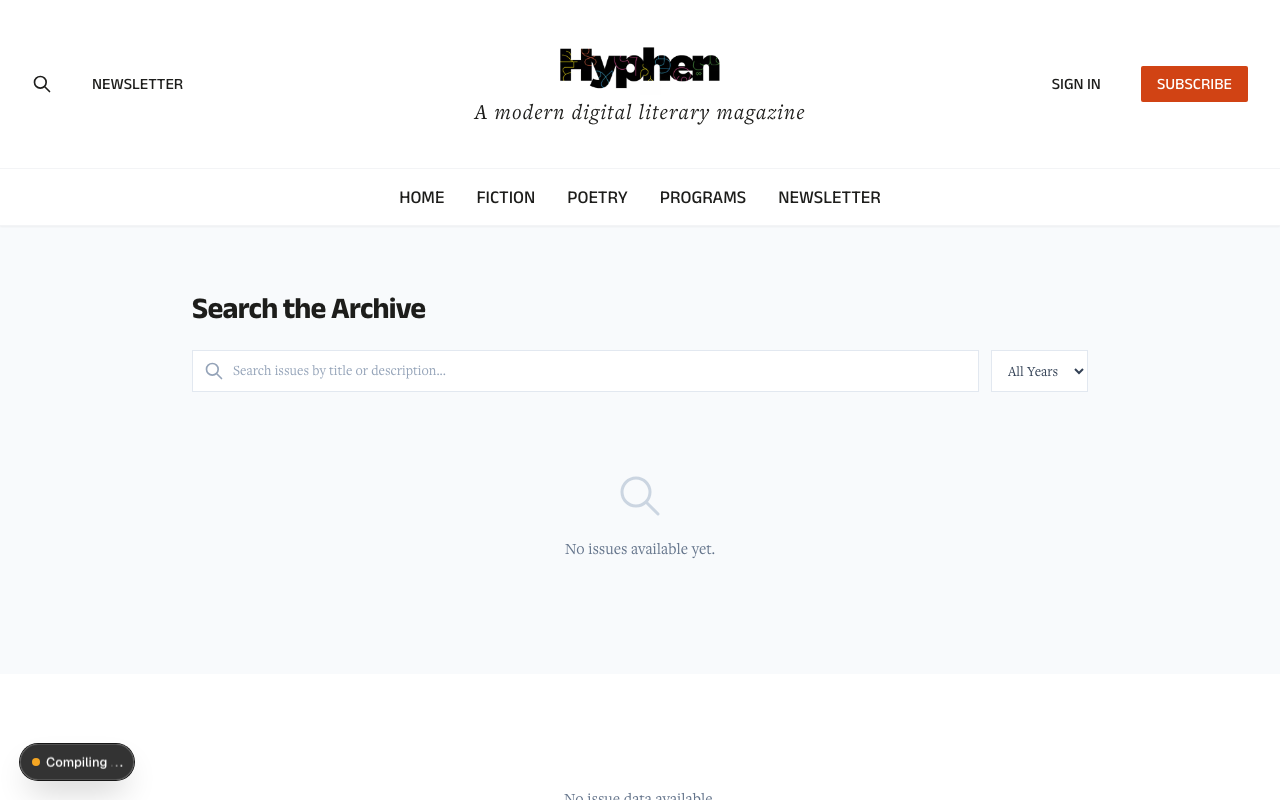
| Issue appears in the listing | Go to the Issues page (e.g., /issues) | The issue appears in the grid with its cover image, title, and issue number |
| Issue detail page loads | Click on the issue in the listing (e.g., /issue/spring-2026) | The issue detail page shows the hero image, title, editor's note, and table of contents |
| Articles are listed correctly | Issue detail page → Table of Contents section | Articles appear in the sequence order you set, grouped by section label if applicable |
| Access levels are displayed | Issue detail page → article list | Subscriber-only and premium articles show a lock icon; free articles show a "Free" badge |
| Cover image is correct | Issues listing page | The correct cover image is displayed on the issue card |
| Archived issue is not shown | Issues listing page (after archiving) | The issue no longer appears in the active listing (may appear in archive/back-issues section) |
6.3 Verify Subscriber Notifications
After publishing an issue:
- Check with a test subscriber account that has new content email notifications enabled.
- The subscriber should receive an email with:
- Subject:
New Issue: [Issue Title] — [Site Name] - Body containing: cover image, issue title, theme, article count, and a "Read Now" button linking to the issue.
- Subject:
- If the subscriber has topic preferences set, verify they only receive the email if the issue contains matching content.
- Subscribers with new content notifications disabled should not receive the email.
6.4 Verify Scheduled Publishing
- Schedule an issue for a time in the near future (e.g., 10 minutes from now).
- Verify the issue shows Scheduled status with the correct date/time.
- Wait for the scheduled time to pass (plus up to 5 minutes for the cron job to run).
- Refresh the issue detail page. The status should now be Published.
- Check the Reader Portal — the issue should be visible.
- Check subscriber notifications — they should have been sent.
6.5 Verify the Magazine Access tier on the Reader Portal
After publishing an issue with mixed-tier articles, walk through these scenarios in three different browser sessions (or three private windows):
| Scenario | Steps | Expected result |
|---|---|---|
| Anonymous → Free-to-magazine article URL | In an incognito window, paste the article's direct URL (e.g., /article/sample-essay-slug). | Browser is sent to /login?callbackUrl=…. After signing in, the reader lands on the article and reads it fully. |
| Anonymous → Magazine-exclusive article URL | In an incognito window, paste the exclusive article's URL. | Browser is sent to /issue/<parent-slug> — the parent issue page. The article URL itself is never rendered. |
| Registered (no subscription) → Magazine-exclusive article URL | Sign in as a free-account reader. Paste the exclusive article's URL. | Browser is sent to /issue/<parent-slug>. From the issue page they can subscribe. |
| Magazine subscriber → Magazine-exclusive article URL | Sign in as a reader with a digital-issue subscription. Paste the URL. | Article renders fully — no paywall, no truncation. |
| Listing exclusion | Open the home page, a section page, and a tag page. | None of the magazine-tiered articles appear. Only Not magazine-only articles show. |
| Search collapse | Search for a phrase that's only in a magazine-tiered article's title. | The result is shown as an Issue card (linking to the parent issue), not as an article card. |
What "magazine subscriber" means in practice: a reader whose subscription plan grants the Digital Issues entitlement. Configure plan entitlements under Subscriptions > Plans > [plan] > Features.
10. What Readers See for Each Magazine Access Tier
This section is for reference when explaining the feature to authors, marketing teams, or customer support. Use the table when answering questions like "Why can't this reader open this article?".
Tier behaviour matrix
| Article tier | Anonymous visitor | Signed-in reader (no magazine sub) | Magazine subscriber |
|---|---|---|---|
| Not magazine-only (regular article) | Existing access-level rules — Free articles render; Subscriber Only articles show a paywall preview. | Same as before — paywall preview if the article is Subscriber Only, otherwise renders. | Renders fully. |
| Free to magazine readers | Sent to /login?callbackUrl=/article/<slug>. Returns to the article after sign-in. Hidden from home/section/tag/search. | Renders fully — any signed-in reader may read it inside the issue. | Renders fully. |
| Magazine-exclusive | Sent to /issue/<parent-slug>. Hidden from home/section/tag/search. | Sent to /issue/<parent-slug> — they can subscribe from there. | Renders fully. |
Where readers find magazine articles
| Surface | Magazine-tiered articles? |
|---|---|
| Home page | ❌ Hidden |
Section pages (/section/[slug]) | ❌ Hidden |
Tag pages (/tag/[slug]) | ❌ Hidden |
| Search results | ❌ Hidden as articles. Search instead returns an Issue card for the parent issue, with a "matches found in this issue" hint. |
Issue listing page (/issues) | ✅ The parent issue appears |
Issue detail page (/issue/[slug]) | ✅ The article shows in the issue's table of contents |
Direct article URL (/article/[slug]) | ⚠️ Behaviour depends on tier and viewer (see matrix above) |
| Related articles, RSS feed, sitemap | ❌ Hidden |
What about the issue's own Access Level?
The issue itself has an Access Level (Free / Restricted Free / Premium Limited / Subscriber Only). This is separate from the per-article Magazine Access tier:
- Issue Access Level controls whether the issue page itself loads (e.g., the cover, the editor's note, the table of contents listing).
- Magazine Access tier controls whether each individual article inside the issue is readable.
In most setups, leave the issue Access Level as Free so any reader can browse the table of contents and discover what's inside, and use the per-article tier to gate individual pieces. That gives you the most editorial flexibility.
How to explain this to readers
If a reader emails support saying "I can't read this article," ask:
- Are you signed in? If not, ask them to sign in.
- Do you have a digital-issue subscription? If not, the article may be Magazine-exclusive — they need to subscribe.
- Did you arrive via a direct link or via the issue page? Magazine articles are only reachable via the issue page; if they bookmarked the article URL, that URL now redirects them — that's intentional.
11. Worked Examples
7.1 Example 1: Creating and Publishing a Monthly Issue
Scenario: You are the managing editor at Hyphen Magazine. It's time to publish the March 2026 issue, which focuses on climate and environment.
Step-by-step:
- Go to Magazine > Issues and click "Create Issue".
- Step 1 — Basic Information:
- Title:
March 2026 — Climate & Environment - Issue Number:
15 - Slug:
march-2026-climate-environment(auto-generated, adjust if needed) - Volume:
3 - Frequency:
Monthly - Theme:
Climate & Environment - Description:
Our March issue explores the intersection of literature and the climate crisis, featuring new fiction, poetry, and essays from leading voices in environmental writing. - Editor's Note:
This issue has been a labor of love. We are proud to present twelve powerful pieces that grapple with our relationship to the natural world.
- Title:
- Step 2 — Cover & Media:
- Upload a cover image (a striking nature photograph or illustration).
- Upload a hero image (a wider landscape banner).
- Cover Date Label:
March 2026
- Step 3 — Configuration:
- Reader Mode:
Article List - Access Level:
Restricted Free - SEO Title:
March 2026: Climate & Environment Issue — Hyphen Magazine - SEO Description:
Explore fiction, poetry, and essays about the climate crisis in Hyphen Magazine's March 2026 issue.
- Reader Mode:
- Step 4 — Review: Check everything, then click "Create Issue".
- You are now on the issue detail page in Draft status.
- Click "Start Building" to move to Building status.
- Go to the Table of Contents tab. Click "Add Articles".
- Search for and select your 12 published articles. Click "Add Selected (12)".
- Reorder the articles using the up/down arrows. Mark the lead piece as Cover Story and two others as Featured using the three-dot menus.
- Click "Submit for Review" to move to Under Review.
- The editorial reviewer opens the issue, reviews the articles and metadata, and clicks "Approve".
- Now in Approved status, go to the Publishing tab. Click "Validate". Confirm: "All checks passed."
- Click "Publish Now".
- The issue is now Published. Check the Reader Portal at
/issues— the March 2026 issue appears with its cover image. Click into it to see the full table of contents.
7.2 Example 2: Building an Issue from Selected Articles and Arranging Them
Scenario: You have 20 published articles from the past month and need to curate 10 of them into a quarterly issue, organized by section.
Step-by-step:
- Create a new issue: Title
Q1 2026 — Best of Winter, Number4, FrequencyQuarterly, ThemeBest of Winter. - After creation, click "Start Building".
- Go to the Table of Contents tab.
- Click "Add Articles" and search for your Fiction articles. Select 3 fiction pieces and click "Add Selected (3)".
- Click "Add Articles" again. Search for Poetry. Select 3 poems. Add them.
- Repeat for Essays (2) and Interviews (2).
- Now you have 10 articles. Arrange them in the order you want readers to encounter them:
- Use the up/down arrows to group Fiction pieces first (positions 1–3), then Poetry (4–6), then Essays (7–8), then Interviews (9–10).
- Mark the strongest Fiction piece as Cover Story.
- Mark one Poetry piece and one Essay as Featured.
- Review the Table of Contents — articles are numbered 1 through 10 in your chosen order, with the appropriate badges.
- Submit for Review, get approval, then publish.
7.3 Example 3: Scheduling an Issue to Go Live Later
Scenario: Your April 2026 issue is ready but should not be visible until April 1st at 9:00 AM.
Step-by-step:
- Create the issue with all details, articles, and media. Move it through Draft → Building → Under Review → Approved.
- On the issue detail page (now in Approved status), click the "Schedule" button (purple, with a calendar icon).
- In the "Schedule Publication" dialog:
- Select date: April 1, 2026
- Select time: 09:00 AM (in your local timezone)
- Click "Schedule".
- The status badge changes to "Scheduled" (purple). The scheduled date appears: "Scheduled for April 1, 2026 at 9:00 AM".
- On April 1st around 9:00–9:05 AM, the cron job runs and:
- Validates the issue (Publish Checklist).
- Publishes it — syncs to Strapi, updates status to Published.
- Sends subscriber notification emails.
- To verify after the scheduled time:
- Open the issue detail page in Admin Console — status should be Published.
- Visit the Reader Portal
/issues— the April issue should appear. - Check email — a subscriber notification should have been sent.
If you need to cancel the schedule:
- While in Scheduled status, click the unschedule/cancel option.
- The issue returns to Approved. The schedule is cleared.
- You can now publish manually or set a new schedule.
7.4 Example 4: Updating a Published Issue
Scenario: You published the March 2026 issue, but realize you need to add one more article and fix a typo in the description.
Step-by-step:
- Go to Magazine > Issues and open the March 2026 issue.
- On the Overview tab, fix the typo in the Description field.
- Click "Save Changes".
- Go to the Table of Contents tab. Click "Add Articles" and add the missing article.
- Use the up/down arrows to place it in the correct position.
- The changes are saved. Since the issue is already Published, the system will sync updates to Strapi.
- Verify in the Reader Portal (wait up to 60 seconds):
- Open the issue detail page — the corrected description should appear.
- The table of contents should now include the newly added article in the correct position.
Note: Minor metadata updates (title, description, theme) and article additions can be made to published issues. The updated data is synced to the CMS and reflected on the Reader Portal.
7.5 Example 5: Archiving an Issue
Scenario: The March 2026 issue has been live for two months. It's time to archive it so the current issue takes center stage.
Step-by-step:
- Go to Magazine > Issues and open the March 2026 issue (currently in Published status).
- Click the "Archive" button.
- The status changes to Archived (gray). The archived date is recorded.
- Behind the scenes, the issue is unpublished from Strapi.
- Verify in the Reader Portal:
- Go to the Issues listing page (
/issues). The March 2026 issue should no longer appear in the primary listing. - Depending on your page template configuration, it may still appear in a back-issues or archive section.
- Go to the Issues listing page (
- Verify in the Admin Console:
- On the Magazine > Issues list, switch to the "Archived" status tab. The issue should appear there.
If you need to bring it back:
- Open the archived issue.
- Click "Restore to Draft".
- The issue returns to Draft status. Move it through the workflow and republish when ready.
12. Common Mistakes and How to Fix Them
| Mistake | What Happens | How to Fix |
|---|---|---|
| Trying to publish without articles | Publish Checklist shows error: "Issue must have at least one article" | Go to the Table of Contents tab and add at least one article before publishing. |
| Adding draft (unpublished) articles | Publish Checklist shows warning: "One or more articles are not yet published" | Go to Content Management, publish the articles first, then return to the issue. |
| Forgetting to set a cover image | Publish Checklist shows warning: "No cover image set" | Go to the Overview tab, upload a cover image in the Cover & Media section. |
| Duplicate issue number | Error when creating the issue — issue numbers must be unique | Choose a different issue number that hasn't been used. |
| Duplicate slug | Error when creating the issue — slugs must be unique | Edit the slug to be different from existing issues. |
| Scheduling a past date | The Schedule dialog shows an error: the date must be in the future | Pick a date and time that hasn't passed yet. |
| Issue not showing on Reader Portal after publish | The Reader Portal revalidates every 60 seconds | Wait up to 60 seconds and refresh the Reader Portal. If still missing, check that the Strapi sync completed (look for errors in the issue detail). |
| Subscribers not receiving emails | Subscribers must have newContent email preference enabled and an active subscription | Verify the subscriber's email preferences. Also check that the email template (issue_published_notification) exists in the system. |
| Cannot find the "Create Issue" button | Your admin role does not have the Issues — Create permission | Ask your administrator to grant the Issues Create permission to your role. |
| Cannot publish — button not visible | Your role doesn't have the Issues — Publish permission, or the issue is not in Approved status | Check your permissions, and make sure the issue has been moved to Approved status first. |
| Scheduled issue didn't publish on time | The cron job may not be running, or the issue failed validation at publish time | Check if the cron job is configured and running. If the issue reverted to Approved, check the Publish Checklist for errors that appeared since scheduling. |
| Archived issue still appears on Reader Portal | Your archive page template may be configured to show archived issues in a back-issues section | This may be intentional. If you want to fully remove it, check the page template configuration under Layout & Design. |
13. Dependencies & Impact
Magazine Issue Management sits in the middle of the content and access stack. Understanding what it depends on — and what it affects — keeps you out of trouble when something upstream changes.
What this feature depends on
| Depends on | Why | If it breaks |
|---|---|---|
| Editorial & Content System | Articles must exist (and ideally be Published) before they can be added to a TOC. Magazine visibility (Public vs Magazine) is set on the article. | You cannot add articles, or added Draft articles trip a Publish Checklist warning. |
| Paywall & Access | The four-tier ladder, entitlement bits, and the magazine gate live here. The issue's Access Level and per-article overrides are graded against this model. | Readers see the wrong gate (too open or too locked). See Paywall & Access → Magazine Issue Access Tiers. |
| Subscriptions | Plan entitlement bits (accessRestrictedMagazines, accessPremiumLimitedMagazines, accessDigitalIssues) decide who clears each tier. | Subscribers can't open gated articles; check the plan's Access & Entitlements. |
| Reader Management | A reader's resolved subscription/entitlement is what the gate checks. Issue entitlements are visible per reader. | "Why can't this reader read it?" — inspect their plan and entitlements here. |
| Media Library | Cover, hero, and flipbook PDF assets are uploaded here. | Missing cover (checklist warning); flipbook mode falls back to article list if no PDF. |
| Strapi CMS | The reader-visible mirror of published/archived issues. | Issue published in admin but not on the portal — check strapiSyncStatus. |
| Notifications & Email | The issue_published_notification template powers the subscriber email on publish. | No subscriber emails — confirm the template is seeded. |
| Automated Tasks (Cron) | The publish-scheduled-issues cron flips Scheduled → Published. | Scheduled issues never go live — verify the cron is running. |
What this feature impacts
| Impacts | How |
|---|---|
| Reader Portal listings | Magazine-visibility articles are hidden from home, section, tag, search, related, RSS, sitemap, and collections — they appear only inside their issue. Setting an article to Magazine immediately removes it from those surfaces (allow ~60s for caches). |
| Search | A search match inside a magazine article collapses into an Issue card for the parent issue, not an article card. |
| Subscriber inbox | Publishing (manual or scheduled) sends a branded email to opted-in subscribers, optionally filtered by topic preferences. |
| Analytics | Archived issues remain visible and therefore keep accruing views — analytics consumers must not assume archived = invisible. |
| SEO | Published and archived issues are indexable; only hidden de-indexes. |
| Print fulfilment / inventory | isCurrent and inventoryAvailable feed the current-issue availability endpoint (ANDed with Shopify stock). |
Known Limitations
| Limitation | Details | Workaround |
|---|---|---|
| Display Title Override, Language, and Page Order / Flipbook Start Page are API-only | These per-article TOC settings cannot be set from the Admin Console UI. They are available through the API. (Section Label and per-article Access Override are set in the UI.) | Use the API directly to set these values, or request a UI enhancement from the development team. |
| Dual Spread reader mode depends on the Reader Portal template | The two-page spread experience depends on the Reader Portal template supporting it; it may fall back to an article list until a dedicated template is built. (Flipbook is fully supported, with an immersive reader and free-preview gating.) | Use Article List or Flipbook mode, both of which are fully supported. |
| Cron job timing | Scheduled issues are published when the cron job runs (typically every 5 minutes), not at the exact scheduled second. | If precise timing is critical, schedule the issue a few minutes early, or publish manually at the exact desired time. |
| Subscriber topic filtering | Subscribers with no topic preferences set receive all issue notifications. This is by design but may surprise subscribers who expected no emails. | Communicate to subscribers that they should set topic preferences if they want filtered notifications. |
| Archive display | Whether archived issues appear in a back-issues section on the Reader Portal depends on the page template configuration. Archiving alone does not guarantee removal from all Reader Portal views. | Review and configure the archive page template under Layout & Design if you need specific archive display behavior. |
| Bulk operations | There is no bulk publish, bulk archive, or bulk status transition for multiple issues at once. | Manage issues one at a time. |
| Cover image required for best display | While not strictly required, issues without cover images display a plain gray placeholder on the Reader Portal. | Always upload a cover image for the best reader experience. |
FAQ
Layout & Design Templates
Complete guide to global appearance & theme tokens, banners & announcements, navigation, page categories, and the email template system — with end-to-end data flow, configuration reference, and diagrams
Moderation System
Complete guide to comment moderation, content reporting, user moderation, spam filtering, and audit logging