Moderation System
Complete guide to comment moderation, content reporting, user moderation, spam filtering, and audit logging
1. Simple Feature Overview
The Moderation System lets your team review, approve, reject, and manage reader comments and interactions across the Hyphen platform. It protects your publication from spam, abusive content, and inappropriate behavior — while keeping the commenting experience smooth for genuine readers.
Every comment a reader posts on the Reader Portal flows through one pipeline: it is length-checked, scanned by the profanity filter and a multi-signal spam scorer, then either auto-approved, held for review, or auto-rejected based on your settings. Comments that need a human decision land in the moderation queue in the Admin Console, where moderators approve, reject, flag, hide, or mark them as spam. Readers can also report comments they find inappropriate, and persistent offenders can be warned or banned. Every action is written to a moderation log and the platform audit trail.
What You Can Do
| Capability | What It Means |
|---|---|
| Comment Queue | See all reader comments waiting for review in one place |
| Approve / Reject / Flag / Hide | Take action on individual comments with a single click |
| Bulk Actions | Approve, reject, or mark as spam dozens of comments at once |
| Content Reports | Review reports submitted by readers about inappropriate comments |
| User Moderation | Warn, ban, or unban readers who repeatedly break the rules |
| Profanity Filter | Automatically catch comments containing blocked words |
| Spam Detection | Automatically score and flag comments that look like spam |
| Moderation Settings | Configure approval rules, comment length, link/image policies, and filter thresholds |
| Audit Trail | Every moderation action is logged with who did it, when, and why |
How Moderation Works — The Big Picture
Reader writes a comment on an article (Reader Portal)
    ↓
System checks the comment against profanity and spam filters
    ↓
If "Require Approval" is ON → Comment goes to Pending status (not visible to other readers)
If "Require Approval" is OFF and filters pass → Comment is auto-Approved (visible immediately)
If filters flag the comment → Comment goes to Pending status for moderator review
    ↓
Moderator reviews the comment in the Admin Console Moderation page
    ↓
Moderator Approves → Comment becomes visible on Reader Portal
Moderator Rejects / Hides / Marks as Spam → Comment stays hidden from readers
    ↓
All actions are logged in the moderation log and audit trail
2. Who Should Use This Feature
| Role | What They Do |
|---|---|
| Moderators | Review the comment queue daily, approve or reject comments, handle reports, warn users |
| Admin Users | Full access including moderation settings, profanity list management, and banning users |
| Operations Teams | Monitor moderation stats, ensure the queue is being cleared, check audit trails |
| QA Teams | Verify that moderation rules are working correctly, test comment flows end to end |
| Customer Success | Look up specific reader moderation history when handling complaints |
3. Before You Begin
Before you can use the moderation features, make sure the following are in place:
Required Permissions
You need specific permissions assigned to your admin account. Ask an Admin to check your role in Settings > Admin Users.
| Permission | What It Allows |
|---|---|
| moderation:read | View the Moderation page, comment queue, reports, user moderation records, and stats |
| moderation:approve | Approve comments, flag comments, restore comments, edit comment content |
| moderation:reject | Reject comments, mark as spam, hide comments, delete comments |
| moderation:ban_user | Warn users, ban users, unban users |
| settings:update | Access the Settings tab to change moderation configuration and manage the profanity word list |
Typical role assignments:
- Admin role: All permissions above
- Moderator role: moderation:read, moderation:approve, moderation:reject
- Viewer / Analyst role: moderation:read only (view but cannot take action)
Required Platform Configuration
| Prerequisite | Where to Check | What to Verify |
|---|---|---|
| Comments feature flag is enabled | Platform feature flags | featureFlags.comments must be true |
| Moderation settings are configured | Moderation > Settings tab | At minimum, confirm "Comments Enabled" is on |
| At least one article exists | Content section | Comments can only be posted on published articles |
| Reader accounts exist | Readers section | Readers must be registered and logged in to comment |
4. Key Terms in Simple Language
| Term | What It Means |
|---|---|
| Pending | A comment that is waiting for a moderator to review it. Readers cannot see pending comments. |
| Approved | A comment that has been reviewed and made visible to all readers on the article. |
| Rejected | A comment that was reviewed and turned down. It is hidden from readers permanently unless restored. |
| Flagged | A comment that has been marked for closer review — either by a moderator or by the automated filters. Still hidden from readers. |
| Spam | A comment identified as junk, advertisements, or automated spam. Hidden from readers. |
| Hidden | A comment that was manually hidden by a moderator. It exists in the system but readers cannot see it. |
| Report | When a reader clicks "Report" on a comment they think is inappropriate. Reports go to the Reports tab for moderator review. |
| Profanity Filter | An automated check that scans comment text against a list of blocked words you maintain. |
| Spam Filter | An automated check that scores comments for spam signals like excessive links, repeated text, or ALL CAPS. |
| Trusted User | A reader who has had enough comments approved (based on your threshold setting) to potentially bypass manual approval. |
| Moderation Log | A record of every action taken on a comment, report, or user — including who took the action and when. |
| Rate Limit | Readers are limited to 10 comments per 15 minutes and 5 reports per 15 minutes to prevent abuse. |
How It Works (Behind the Scenes)
This section traces a comment and a report end-to-end, from a reader's click on the Reader Portal to what a moderator sees in the Admin Console — and back to what other readers see.
The data flow
- Reader submits — A logged-in reader posts a comment (or a reply) on a published article, or taps Report on an existing comment. The Reader Portal (
:3002) calls the platform API. - API validates and scores — The comment endpoint (
/api/articles/[slug]/comments) loads your current moderation settings and the profanity word list from PostgreSQL, then runsvalidateCommentContent(). This single function enforces length, link/image policy, the profanity filter, and the multi-signal spam scorer. - Status is decided — Based on the validation result and the Require Approval setting, the comment is written to the
commentstable in PostgreSQL with one of three starting statuses:approved(clean + approval off),pending(held for review), or it is rejected outright before saving (length/link/image/profanity hard-fail). - Reports are stored — A report is written to the
content_reportstable withstatus = open, areason(one of seven enum values), the reporter's identity, and the target comment. The target comment's report counter increments. - Admin queue surfaces the work — The Admin Console (
:3000) Moderation page readscommentsandcontent_reportsto populate the Comments, Reports, and Users tabs and the four stat cards. - Moderator acts — Approve / reject / flag / spam / hide / restore / edit / delete on a comment, or resolve / dismiss on a report. The action updates the row's status, writes a ModerationLog entry (action, resource, previous → new status, actor, reason), and writes a platform audit entry (with IP and user agent).
- Portal reflects the result — The public GET endpoint returns only
approvedcomments, so an approval makes a comment appear and a reject/spam/hide makes it disappear. The article's comment count tracks approved comments only.
Where things live: Settings, the profanity word list, comments, reports, and moderation logs are all stored in PostgreSQL via Prisma. Article content itself lives in Strapi (
:1337); the moderation system references articles by ID/slug but does not store article bodies.
Concepts: Spam Scoring, Reports & Moderation Workflow
The multi-signal spam scorer
The spam filter does not rely on a single rule. It runs the comment text through a set of independent signals, each contributing points to a cumulative spam score (capped at 100). A comment is treated as spam when its score is greater than or equal to the Spam Threshold you configure. Because the threshold is a floor the score must reach, a higher threshold means fewer comments are caught (more lenient) and a lower threshold catches more (stricter).
| Signal | Points | What triggers it |
|---|---|---|
| Too many links | +30 | Number of http(s):// links exceeds your Link Spam Threshold |
| Repetitive characters | +20 | The same character repeated 5+ times in a row (e.g. aaaaa) |
| Excessive capitalization | +15 | Text longer than 10 chars where more than 70% of characters are uppercase |
| Highly repetitive content | +25 | More than 5 words with fewer than 30% unique words (copy-paste spam) |
| Multiple email addresses | +20 | More than one email address detected (harvesting pattern) |
| Phone number detected | +15 | A phone-number pattern is present |
| Cryptocurrency / financial spam | +25 | Words like bitcoin, crypto, NFT, airdrop, wallet address, or a 0x… address |
| Known spam phrase | +25 each | Any of a built-in list ("buy now", "click here", "free money", "winner", "viagra", "casino", "make money", "get rich", "forex", etc.) — stacks per phrase |
| Excessive special characters | +15 | More than 30% of characters are punctuation/symbols |
| Short content with links | +20 | A comment under 50 characters that contains any link |
When the score reaches the threshold, the comment is flagged (sent to the queue as pending) rather than silently rejected — a human always makes the final call on spam-scored comments. The matched reasons are recorded so a moderator can see why it was flagged.
Tuning tip: The default Spam Threshold is 70. A clean comment scores 0. A typical promotional comment ("Click here, buy now, guaranteed!") can easily stack 75+ points and trip the threshold. If legitimate comments are being flagged, raise the threshold; if junk is slipping through, lower it.
The profanity filter
Independently of the spam scorer, every comment is checked against your database-backed profanity word list. Each word carries a severity (low / medium / high). The Profanity Action setting decides the outcome:
- Flag — send the comment to the queue (
pending) for review. - Auto-reject — reject the comment at submission time; it is never saved as visible.
- Censor — replace the matched word(s) with asterisks and allow the comment through.
Profanity and spam are evaluated together in validateCommentContent(). A hard violation (length, disallowed link/image, or profanity set to auto-reject) wins and rejects the comment; otherwise a flag from either filter holds it as pending.
Comment lifecycle
The six comment statuses below are the exact values stored in the database (CommentStatus enum): pending, approved, rejected, flagged, spam, hidden.
Content reporting
A reader report is a separate record (content_reports) with its own lifecycle, independent of the comment's status. A report carries a type (content or user), a reason, and a status, and it points at a target (a comment, article, or user).
The seven report reasons are the exact ReportReason enum values: spam, harassment, hate_speech, misinformation, copyright, inappropriate, other. The four report statuses are the ReportStatus enum: open, reviewing, resolved, dismissed.
User moderation (warn / ban)
Beyond individual comments, moderators act on the reader account. A warning is a logged, non-blocking notice. A ban stops the reader from posting any new comment — at submission time the API checks the reader's ban state and returns a restriction message. Ban types include comment, platform, temporary, and permanent; a reason is required and stored on the reader's record. Existing approved comments stay visible unless separately moderated.
Appeals
There is no built-in reader-facing appeal flow in the current implementation. Appeals are handled through your existing support channel; a moderator with moderation:ban_user can then unban the reader. See Current Known Limitations for the full picture.
5. Step-by-Step Setup Guide
5.1 Accessing the Moderation Page
- Log in to the Admin Console.
- In the left sidebar, navigate to Readers > Moderation.
- The Moderation page opens with a shield icon, titled "Moderation" with the subtitle "Monitor and moderate reader interactions."
- If you see an "Access Denied" message, your account does not have the
moderation:readpermission. Contact an Admin to update your role.
Note: There is also an older route at
/moderationwhich automatically redirects to the current location at/readers/moderation.
5.2 Understanding the Moderation Dashboard
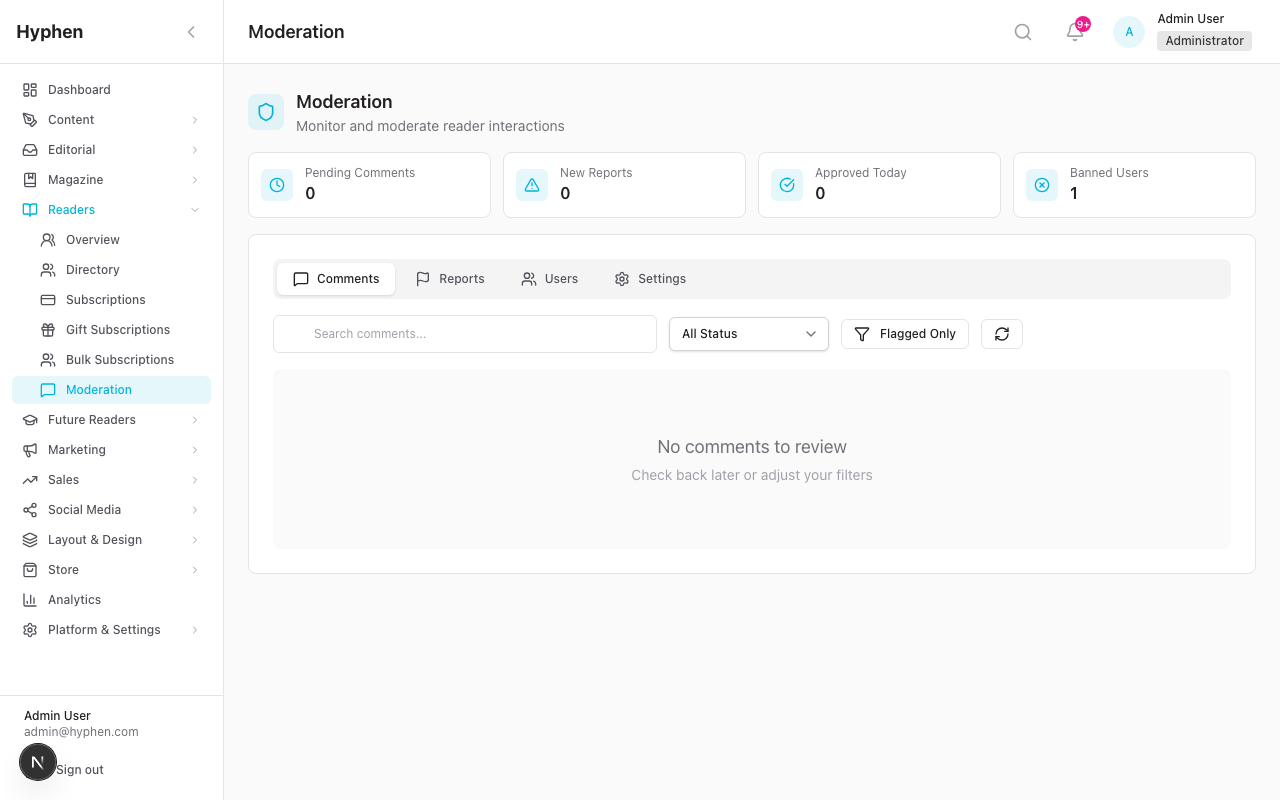
At the top of the Moderation page, you will see four stat cards giving you a quick snapshot:
| Stat Card | Icon | What It Shows |
|---|---|---|
| Pending Comments | Clock | Number of comments waiting for review. Turns yellow/warning if more than 10 are waiting. |
| New Reports | Alert Triangle | Number of comments that have been reported by readers. Turns red if any reports exist. |
| Approved Today | Check Circle | Number of comments approved since midnight today. |
| Banned Users | X Circle | Number of currently banned readers. |
Below the stat cards, you will see four tabs:
| Tab | What It Contains |
|---|---|
| Comments | The comment moderation queue — your primary daily workspace |
| Reports | Reader-submitted reports about inappropriate comments |
| Users | Reader moderation records — warnings, bans, comment history |
| Settings | Moderation configuration — approval rules, filters, profanity words (requires settings:update permission) |
5.3 Configuring Moderation Settings
Permission required:
settings:update
Click the Settings tab on the Moderation page. You will see several groups of settings:
Comment Settings
| Setting | What It Controls | Default |
|---|---|---|
| Comments Enabled | Master toggle — turns commenting on or off across the entire platform | On |
| Require Approval | When on, all new comments start as "Pending" and must be approved by a moderator before readers can see them. When off, comments go live immediately (unless flagged by filters). | On |
| Auto-approve for Trusted Users | When on, readers who have reached the trusted user threshold can have their comments auto-approved | On |
| Auto-close Comments After (days) | Automatically close comments on articles older than this many days. Set to 0 to never auto-close. | 30 |
| Minimum Comment Length | Shortest allowed comment in characters | 10 |
| Maximum Comment Length | Longest allowed comment in characters | 2,000 |
Links & Media
| Setting | What It Controls | Default |
|---|---|---|
| Allow Links | Whether readers can include URLs in comments | Off |
| Allow Images | Whether readers can include images in comments | Off |
Profanity Filter
| Setting | What It Controls | Default |
|---|---|---|
| Profanity Filter Enabled | Master toggle for the profanity filter | On |
| Profanity Action | What happens when a blocked word is detected: Flag (send to queue for review), Auto-reject (reject automatically), or Censor (replace the word with asterisks and allow the comment) | Flag |
Spam Filter
| Setting | What It Controls | Default |
|---|---|---|
| Spam Filter Enabled | Master toggle for the spam filter | On |
| Spam Threshold | Sensitivity level from 0 (catch everything) to 100 (catch almost nothing). Lower numbers mean stricter filtering. | 70 |
| Link Spam Threshold | Maximum number of links allowed in a single comment before it is flagged as spam | 2 |
User Trust Settings
| Setting | What It Controls | Default |
|---|---|---|
| Trusted User Threshold | Number of approved comments a reader needs before being considered "trusted" | 10 |
Notifications
| Setting | What It Controls | Default |
|---|---|---|
| Notify on Flag | Send a notification when a comment is automatically flagged by filters | On |
| Notify on Report | Send a notification when a reader reports a comment | On |
To change any setting:
- Go to the Settings tab.
- Find the setting you want to change.
- Toggle the switch, enter a new value, or select from the dropdown.
- Click Save (or the setting may save automatically depending on the field).
- Changes take effect immediately for all new comments.
5.4 Managing the Profanity Word List
Permission required:
settings:update
The profanity word list is at the bottom of the Settings tab. This is a database-backed list of words that the profanity filter checks against.
Adding a Word
- In the Settings tab, scroll to the Profanity Words section.
- Type the word into the text field.
- Select a severity level from the dropdown:
- Low — Usually just flagged for review
- Medium — Can trigger flag or censor depending on your Profanity Action setting
- High — Typically auto-rejected or censored
- Click Add.
- The word appears in the list below. All words are stored in lowercase.
Removing a Word
- Find the word in the profanity list (you can search/scroll).
- Click the Delete or Remove button next to it.
- The word is removed immediately.
Tip: Start with high-severity words that should always be caught, then add medium and low severity words as you learn what your community encounters.
5.5 Reviewing Comments in the Queue
Click the Comments tab. This is where you spend most of your moderation time.
Filtering the Queue
At the top of the Comments tab, you have three filter controls:
| Filter | How to Use It |
|---|---|
| Search | Type text to search by comment content, author name, or article title |
| Status dropdown | Filter by: All, Pending, Approved, Rejected, Flagged, Spam. Start with Pending to see what needs review. |
| Flagged Only toggle | When turned on, shows only comments that have been flagged by filters or moderators |
What Each Comment Card Shows
Each comment in the queue is displayed as a card with:
- Article title and slug — Which article the comment was posted on
- Author name — The reader's display name
- Date — When the comment was submitted
- Status badge — Color-coded: Pending (yellow), Approved (green), Rejected (red), Flagged (orange), Spam (gray), Hidden (gray)
- Report count — How many times readers have reported this comment
- Comment text — The full content of the comment
- Action buttons — The actions you can take (see next section)
Pagination
The queue shows 20 comments per page. Use the Previous and Next buttons at the bottom to navigate. You'll see "Page X of Y" to track your position.
Click the Refresh button to reload the queue with the latest comments.
5.6 Taking Action on Individual Comments
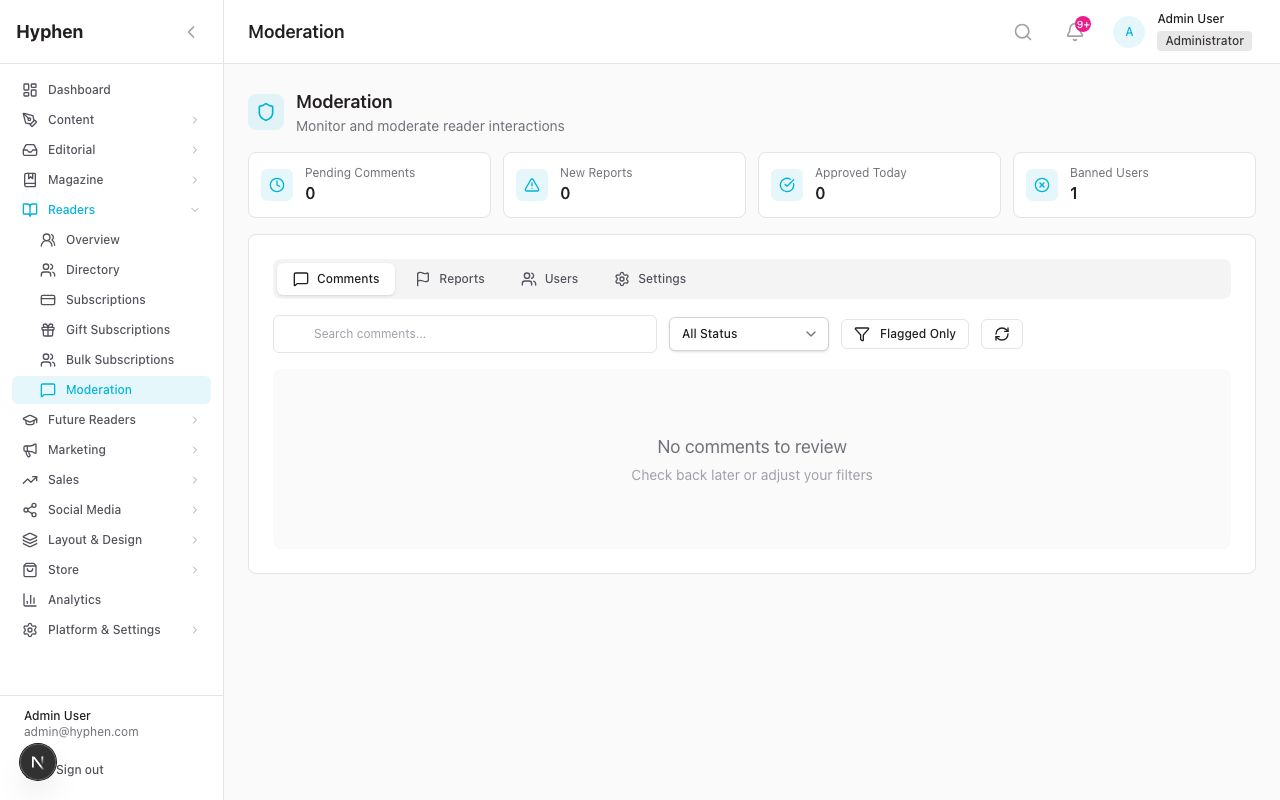
Each comment card has action buttons. The buttons available depend on the comment's current status and your permissions.
| Action | What It Does | Required Permission | When to Use It |
|---|---|---|---|
| Approve | Sets status to Approved. Comment becomes visible on the Reader Portal. | moderation:approve | The comment is appropriate and should be published. |
| Reject | Sets status to Rejected. Comment is hidden from readers. | moderation:reject | The comment violates your guidelines and should not be published. |
| Flag | Sets status to Flagged. Comment stays hidden, marked for further review. | moderation:approve | You want to escalate the comment for another moderator or admin to review. |
| Spam | Sets status to Spam. Comment is hidden and categorized as junk. | moderation:reject | The comment is clearly automated spam or junk. |
| Hide | Sets status to Hidden. Comment is hidden from readers but kept in the system. | moderation:reject | You want to temporarily remove a comment without fully rejecting it. |
| Restore | Sets status back to Pending. Comment re-enters the review queue. | moderation:approve | You or another moderator made an error and the comment needs re-review. |
| Edit | Opens the comment content for editing. | moderation:approve | The comment is mostly fine but contains a minor issue (e.g., a phone number or personal info that should be removed). |
| Delete | Permanently removes the comment from the system. | moderation:reject | The comment should be completely removed. This cannot be undone. |
| View User | Opens the User Moderation Panel for the comment author. | moderation:read | You want to see this reader's moderation history, other comments, or take action on their account. |
To take an action:
- Find the comment in the queue.
- Review the comment text, author, and article context.
- Click the appropriate action button.
- For some actions, you may be prompted to add a moderation note explaining your decision.
- The comment's status updates immediately.
Important: When you approve a comment, the article's comment count increases by one. When you reject, hide, spam, or delete a previously approved comment, the count decreases by one.
5.7 Using Bulk Actions on Multiple Comments
When you have many comments to process at once (e.g., after a weekend), bulk actions save time.
- In the Comments tab, you will see a checkbox next to each comment.
- Use the Select All checkbox at the top to select all comments on the current page, or check individual comments.
- Once at least one comment is selected, three bulk action buttons appear:
- Approve — Approve all selected comments
- Reject — Reject all selected comments
- Spam — Mark all selected comments as spam
- Click the desired action.
- The system processes all selected comments. You will see a result showing how many succeeded and how many failed (if any).
Limit: You can bulk-moderate up to 100 comments at once.
5.8 Managing Content Reports
Click the Reports tab to see reports submitted by readers.
What a Report Shows
Each report includes:
| Field | What It Means |
|---|---|
| Report ID | Unique identifier |
| Type | What kind of report (content or user) |
| Status | Open, Reviewing, Resolved, or Dismissed |
| Reason | Why the reader reported it: Spam, Harassment, Hate Speech, Misinformation, Copyright, Inappropriate, or Other |
| Target | The comment content (or article/user) that was reported |
| Reporter | The reader who submitted the report |
| Date | When the report was submitted |
Report Statuses Explained
| Status | What It Means |
|---|---|
| Open | New report that has not been looked at yet |
| Reviewing | A moderator has started looking into this report |
| Resolved | The report has been addressed — the moderator took action (e.g., rejected the comment) |
| Dismissed | The report was reviewed and determined to be invalid or no action was needed |
Taking Action on Reports
For each report, you can:
- Update Status — Change from Open to Reviewing to indicate you are working on it.
- Resolve — Mark the report as resolved. You will be prompted to add a resolution note explaining what action was taken.
- Dismiss — Mark the report as dismissed. You will be prompted to add a reason why no action was needed.
Typical report workflow:
- Open the Reports tab.
- Filter by Open status to see new reports.
- Click on a report to see the details.
- Read the reported content and the reporter's reason.
- If action is needed, go to the Comments tab and reject/hide/spam the reported comment.
- Come back to the report and click Resolve, adding a note like "Comment rejected — violated community guidelines."
- If no action is needed, click Dismiss and add a reason like "Comment does not violate guidelines."
Note: Readers cannot see who reported a comment. Reporter identity is only visible to admin users.
5.9 Moderating Users (Warn, Ban, Unban)
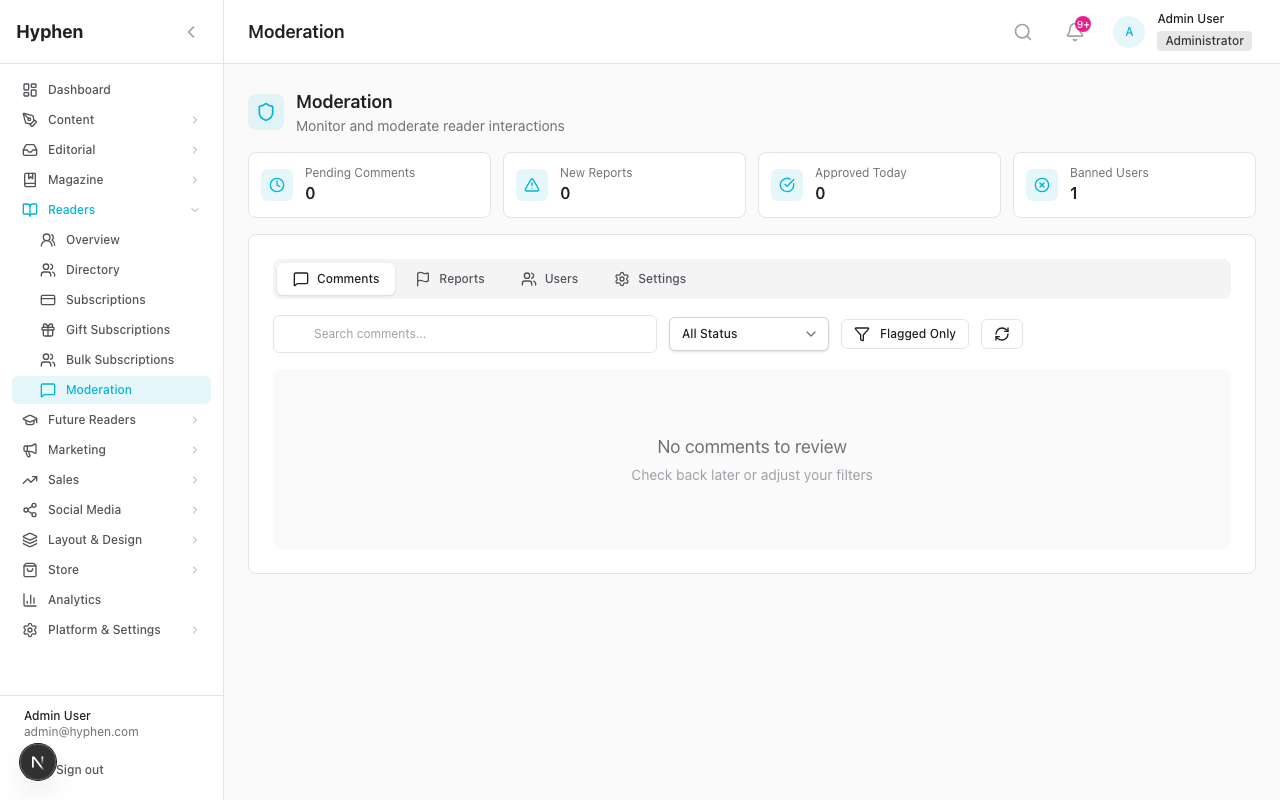
Click the Users tab to see a list of readers who have comment activity.
What the Users Tab Shows
The Users tab displays a table with:
| Column | What It Shows |
|---|---|
| User | Reader's name |
| Status | Active, Warned, Restricted, or Banned |
| Comments | Total number of comments submitted |
| Warnings | Number of warnings issued to this reader |
| Reports | Number of reports filed against this reader |
| Actions | A View button to open the full User Moderation Panel |
Using the User Moderation Panel
Click View next to any user to open the User Moderation Panel (a modal/slide-out). This shows:
- User information — Name, email, account details
- Statistics — Total comments, approved, rejected, flagged counts
- Active warnings — Any warnings currently on the account
- Active bans — Any bans currently in effect
- Recent comments — The user's latest comments
Actions Available in the User Moderation Panel
| Action | What It Does | Required Permission |
|---|---|---|
| Warn | Issues a formal warning to the reader. The warning is logged. | moderation:ban_user |
| Ban | Bans the reader from commenting. You select the ban type: Comment ban, Platform ban, Temporary ban, or Permanent ban. You provide a reason. | moderation:ban_user |
| Unban | Removes an active ban, allowing the reader to comment again. | moderation:ban_user |
| Toggle Trusted | Marks or unmarks the reader as a trusted user. | moderation:ban_user |
What happens when a reader is banned:
- The reader can no longer submit comments on any article.
- If they try to comment, they see a message: "Your account has been restricted from commenting."
- Their existing approved comments remain visible unless you separately reject or hide them.
- The ban reason is recorded in the system.
To ban a reader:
- Open the Users tab.
- Click View next to the reader.
- In the User Moderation Panel, click Ban.
- Select the ban type (e.g., Comment, Permanent).
- Enter a reason for the ban.
- Confirm the action.
To unban a reader:
- Open the Users tab.
- Find the banned reader (their status shows "Banned").
- Click View.
- Click Unban.
- The reader can immediately start commenting again.
5.10 How Readers Submit Comments on the Reader Portal
Understanding the reader experience helps you moderate effectively.
- A reader visits an article on the Reader Portal.
- Below the article, they see the comment section (if commenting is enabled for that article).
- The reader must be logged in to comment. If not logged in, they see a "Sign in" link.
- They type their comment in the text box. The box shows:
- Placeholder text: "Share your thoughts..."
- A character counter (max 2,000 characters)
- A Comment button
- When they click Comment, the system:
- Validates the comment length (minimum 10, maximum 2,000 characters)
- Checks for banned words (profanity filter)
- Checks for spam signals (spam filter)
- Checks if the reader is banned
- Checks the rate limit (max 10 comments per 15 minutes)
- If the comment passes all checks:
- If "Require Approval" is ON: The comment is saved as Pending. The reader sees: "Your comment has been submitted and is awaiting moderation."
- If "Require Approval" is OFF and filters pass: The comment is saved as Approved and immediately visible to other readers.
- If filters flag the comment: The comment is saved as Pending regardless of the approval setting.
Replying to comments:
- Readers can click Reply on any approved comment to write a threaded reply.
- Replies follow the same validation and moderation rules as top-level comments.
- The reply box shows the placeholder "Write a reply..."
5.11 How Readers Report Comments on the Reader Portal
- Next to each comment, readers see a Report button.
- Clicking it opens the Report Comment modal with the message: "Help us keep the community safe..."
- The reader selects a reason by clicking one of seven radio buttons:
- Spam
- Harassment
- Hate Speech
- Misinformation
- Copyright
- Inappropriate
- Other
- Optionally, the reader adds details in the "Additional details (optional)" text box (max 1,000 characters).
- They click Submit Report.
- The report is created with status "Open" and appears in your Reports tab.
- The reported comment's report count increases by one.
Protections against report abuse:
- A reader can only have one active (Open or Reviewing) report against the same comment. Duplicate reports are blocked with an error.
- Readers are limited to 5 reports per 15 minutes per IP address.
5.12 How Moderation Actions Affect Reader Portal Visibility
This is important to understand: only comments with "Approved" status are visible on the Reader Portal.
| Comment Status | Visible on Reader Portal? | What the Reader Sees |
|---|---|---|
| Pending | No | The comment author sees a message that their comment is awaiting moderation. Other readers see nothing. |
| Approved | Yes | The comment appears under the article with the author's name, date, and content. |
| Rejected | No | The comment disappears from the article for all readers. |
| Flagged | No | Same as Pending — hidden from all readers while under review. |
| Spam | No | Completely hidden from all readers. |
| Hidden | No | Completely hidden from all readers. |
Article comment count: The number shown next to the article's comment count reflects only Approved comments. When you approve a comment, the count goes up by one. When you reject, hide, or spam an approved comment, the count goes down by one.
5.13 Audit Logging and Moderation History
Every moderation action is automatically recorded in two places:
Moderation Log
The moderation log captures:
- What action was taken (approve, reject, flag, spam, hide, restore, delete, edit, warn, ban, unban, resolve report, dismiss report)
- Which item was affected (the comment, report, or reader)
- Who performed the action (the admin user)
- Previous status and new status (e.g., pending → approved)
- Reason or note provided by the moderator
- When the action occurred
Audit Trail
All moderation actions are also logged in the platform's general audit trail system, which records:
- The action type (e.g., moderation_approve, moderation_reject, moderation_ban_reader)
- The actor (admin user)
- IP address and user agent
- Timestamp
This dual logging means you have both a moderation-specific history and a platform-wide audit trail for compliance and accountability.
5.14 GDPR and Compliance Considerations
When handling moderation, keep these compliance points in mind:
| Consideration | What to Know |
|---|---|
| Reporter privacy | When a reader reports a comment, their identity (reporter name/email) is visible only in the Admin Console. Readers on the Reader Portal cannot see who reported a comment. |
| Reader data in comments | If a reader requests data export (GDPR), their comments and moderation history are part of their data. |
| Account deletion | If a reader requests account deletion, consider how this affects their comments. Comments may need to be anonymized or removed. |
| Moderation notes | Notes you add to moderation actions are stored in the system. Avoid including unnecessary personal information in moderation notes. |
| Ban reasons | Ban reasons are stored in the reader's record. Keep them factual and policy-based (e.g., "Repeated violation of community guidelines — 3 rejected comments for harassment"). |
| Audit retention | Moderation logs and audit entries are retained as part of the platform's compliance records. |
6. How to Verify It Worked
After setting up or using moderation features, use these checks to confirm everything is working:
Settings Verification
| What to Check | How to Check |
|---|---|
| Settings saved correctly | Go to Moderation > Settings tab, confirm your values are shown |
| Comments are enabled | Post a test comment on the Reader Portal — the comment form should appear |
| Require Approval is working | Post a test comment — it should appear as "Pending" in the queue, not visible to other readers |
| Profanity filter is working | Post a test comment containing a blocked word — it should be flagged or rejected based on your Profanity Action setting |
Comment Moderation Verification
| What to Check | How to Check |
|---|---|
| Approve works | Approve a pending comment → Check the Reader Portal — the comment should now appear under the article |
| Reject works | Reject an approved comment → Check the Reader Portal — the comment should disappear |
| Hide works | Hide an approved comment → Check the Reader Portal — the comment should disappear |
| Restore works | Restore a rejected comment → It should appear as Pending in your queue again |
| Bulk actions work | Select multiple comments → Click bulk Approve → All should change to Approved |
| Comment count updates | After approving/rejecting → Check the article's comment count on the Reader Portal |
Report Verification
| What to Check | How to Check |
|---|---|
| Reports appear | Have a test reader report a comment → Check the Reports tab — the report should appear as "Open" |
| Report resolution works | Resolve a report → Its status should change to "Resolved" |
| Duplicate prevention works | Have the same reader report the same comment again → They should see an error |
User Moderation Verification
| What to Check | How to Check |
|---|---|
| Ban works | Ban a test reader → Have them try to comment → They should see "Your account has been restricted from commenting" |
| Unban works | Unban the reader → They should be able to comment again |
| Warning logged | Warn a reader → Check their User Moderation Panel — the warning should appear |
7. Worked Examples
7.1 Example 1: Reviewing and Approving a New Comment
Scenario: A reader named Priya posted a comment on an article titled "The Future of Urban Fiction." Your settings have "Require Approval" turned on, so the comment is waiting in the queue.
Steps:
- Log in to the Admin Console.
- Navigate to Readers > Moderation.
- Check the stat cards — you see Pending Comments: 3, confirming there are comments waiting.
- Click the Comments tab (it should be selected by default).
- Set the Status dropdown to Pending to focus on comments needing review.
- Find Priya's comment card. You can see:
- Article: "The Future of Urban Fiction"
- Author: Priya
- Status: Pending (yellow badge)
- Content: "This article really resonated with me. The parallels between urban fiction and real city life are brilliantly explored."
- The comment is thoughtful and appropriate. Click the Approve button.
- The status badge changes to Approved (green).
- Verify on Reader Portal: Open the article "The Future of Urban Fiction" on the Reader Portal. Scroll to the comments section. Priya's comment should now be visible with her name, the date, and the comment text. The article's comment count should have increased by one.
7.2 Example 2: Rejecting Inappropriate Content and Verifying Reader Portal
Scenario: A reader named Vikram posted a comment containing offensive language on a poetry article. The profanity filter flagged it, but you need to review and take final action.
Steps:
- Navigate to Readers > Moderation.
- Notice the Pending Comments stat card shows pending items.
- In the Comments tab, toggle Flagged Only to On to see only flagged comments.
- Find Vikram's comment. You can see:
- Status: Pending (it was flagged by the profanity filter)
- Content contains offensive language
- Report count may show 0 (it was caught by the filter, not reported by readers)
- Click Reject.
- Optionally add a moderation note: "Contains offensive language — violates community guidelines."
- The status changes to Rejected (red badge).
- Verify on Reader Portal: Open the article on the Reader Portal. Vikram's comment should not appear anywhere in the comment section. The comment count should not include this comment.
- Consider user action: If Vikram has a pattern of inappropriate comments, click View User on his comment card to open the User Moderation Panel. Review his history. If warranted, click Warn or Ban.
7.3 Example 3: Restoring a Comment That Was Moderated Incorrectly
Scenario: A colleague accidentally rejected a perfectly fine comment from a reader named Anita. The customer success team received a complaint and asked you to fix it.
Steps:
- Navigate to Readers > Moderation.
- In the Comments tab, set the Status dropdown to Rejected to find Anita's comment.
- Use the Search box to type "Anita" to narrow the results.
- Find Anita's comment. Read the content to confirm it is indeed appropriate.
- Click Restore.
- The status changes to Pending (the comment re-enters the review queue).
- Now click Approve to make the comment visible to readers.
- The status changes to Approved (green).
- Verify on Reader Portal: Open the article where Anita commented. Her comment should now appear in the comment section.
- Inform the team: Let the customer success team know the comment has been restored and is now visible.
Note: The moderation log will show the full history: original rejection, the restore action, and the approval — including who performed each action and when.
7.4 Example 4: Checking Moderation History for a Specific Comment
Scenario: Your editorial lead asks about a comment on a sensitive political article that was reportedly removed. They want to know who removed it, when, and why.
Steps:
- Navigate to Readers > Moderation.
- In the Comments tab, set the Status dropdown to All (to search across all statuses, including rejected and hidden).
- Use the Search box to search for the article title or the commenter's name.
- Find the comment in question. Note its current status (e.g., Rejected or Hidden).
- The comment card shows:
- Who moderated it (the "Moderated by" field)
- When it was moderated (the moderation timestamp)
- The moderation note (if the moderator added one)
- For the full audit trail, the moderation log records every status change, including:
- The previous status and new status
- The admin user who took the action
- The timestamp
- Any reason provided
- Report back to the editorial lead with the specific details: "The comment was rejected by [Moderator Name] on [Date] with the note: [reason]."
Tip: If you need to verify this through the platform's broader audit system, check the Audit section which captures all moderation actions with IP address and timestamp details.
7.5 Example 5: Troubleshooting a Missing or Still-Visible Comment
Scenario A — Comment not showing in moderation queue:
A reader emails saying they posted a comment but it never appeared. You check the moderation queue and don't see it.
Troubleshooting steps:
- Check if commenting is enabled: Go to Moderation > Settings tab. Confirm "Comments Enabled" is On.
- Check the platform feature flag: Confirm
featureFlags.commentsistrue. - Check all statuses: In the Comments tab, set Status to All and search for the reader's name. The comment might already have been auto-rejected by the spam or profanity filter.
- Check if the reader is banned: Go to the Users tab, search for the reader. If their status is "Banned," their comment submission would have been blocked entirely (it never entered the system).
- Check rate limits: If the reader posted many comments quickly (more than 10 in 15 minutes), subsequent comments would have been rejected with a rate limit error.
- Check comment length: If the reader's comment was shorter than the minimum length (default 10 characters) or longer than the maximum (default 2,000 characters), it would have been rejected at submission time.
Scenario B — Comment still visible after rejection:
You rejected a comment but a reader reports it is still visible on the Reader Portal.
Troubleshooting steps:
- Verify the rejection: Go to Moderation > Comments, search for the comment. Confirm its status is Rejected (not still Pending or Approved).
- Check for caching: The Reader Portal may be showing a cached version of the page. Ask the reader to refresh the page or try in an incognito/private browser window.
- Check the correct article: Confirm you rejected the comment on the correct article. The reader may be looking at a different article.
- Check for duplicates: The reader may have posted the same comment twice. Search for similar content in the queue — there may be a second copy that is still Approved.
8. Common Mistakes and How to Fix Them
| Mistake | What Happens | How to Fix |
|---|---|---|
| Forgetting to set "Require Approval" to On | All comments go live immediately without moderator review. Inappropriate content appears on the Reader Portal. | Go to Moderation > Settings, turn on Require Approval. Existing approved comments are not affected, but all new comments will require approval. |
| Rejecting a comment instead of flagging it | The comment is permanently marked as rejected. If you meant to escalate it for senior review, it won't be obvious. | Click Restore on the rejected comment (this sets it back to Pending). Then click Flag to mark it for escalation. |
| Deleting a comment instead of rejecting it | The comment is permanently removed from the system and cannot be recovered. | Deletion is irreversible. In the future, use Reject or Hide instead of Delete unless you are certain the comment should be permanently removed. |
| Banning a user without checking their history | You may ban a user for one bad comment when they have a long history of good contributions. | Always click View User before banning. Review their total comments, approved count, and previous warnings. Issue a warning first for first-time offenders. |
| Not adding moderation notes | When another moderator or manager asks why a comment was rejected, there is no explanation on record. | Always add a brief moderation note when rejecting, hiding, or flagging a comment. Example: "Contains personal information — privacy concern." |
| Approving comments with personal information | A comment containing someone's phone number, email, or address becomes publicly visible. | Before approving, scan the comment for personal data. If found, use Edit to remove the personal information, then Approve. |
| Not processing reports | Open reports pile up. Readers lose trust that their reports are being reviewed. | Check the Reports tab regularly. Aim to review all Open reports within 24 hours. Set a daily reminder if needed. |
| Setting spam threshold too low | Legitimate comments get flagged as spam, creating extra work and frustrating readers. | Increase the Spam Threshold in Settings (higher number = less strict). Start at 70 and adjust based on false positive rate. |
| Profanity filter set to "Auto-reject" with a large word list | Comments get silently rejected and readers don't understand why. | Consider using Flag instead of Auto-reject as your Profanity Action, so a human reviews flagged comments. Only use Auto-reject for the most clearly offensive words. |
| Not unbanning a reader after the issue is resolved | The reader remains locked out of commenting even after the situation is addressed. | Set a reminder to review bans periodically. Go to the Users tab, find banned readers, and decide if any should be unbanned. |
Configuration Reference
This is the authoritative, field-by-field reference for everything you can configure in the Moderation system. "Where configured" tells you whether a setting lives in the Moderation > Settings UI or is backend/enum-defined (fixed values you select from, not free-form configuration). RBAC roles map to the permission required to change the setting.
Comment & approval settings
| Field / Option | What it does | Type | Mandatory? | Default | Where configured | Role |
|---|---|---|---|---|---|---|
| Comments Enabled | Master on/off for commenting platform-wide | Toggle | Yes | On | Moderation > Settings | settings:update |
| Require Approval | New comments start pending until a moderator approves | Toggle | Yes | On | Moderation > Settings | settings:update |
| Auto-approve for Trusted Users | Lets trusted readers bypass manual approval (see Limitations) | Toggle | No | On | Moderation > Settings | settings:update |
| Auto-close Comments After (days) | Close comments on articles older than N days; 0 = never | Number | No | 30 | Moderation > Settings | settings:update |
| Minimum Comment Length | Shortest allowed comment (chars); shorter is rejected | Number | Yes | 10 | Moderation > Settings | settings:update |
| Maximum Comment Length | Longest allowed comment (chars); longer is rejected | Number | Yes | 2,000 | Moderation > Settings | settings:update |
| Allow Links | Permit http(s):// URLs in comments | Toggle | No | Off | Moderation > Settings | settings:update |
| Allow Images | Permit images / image markdown in comments | Toggle | No | Off | Moderation > Settings | settings:update |
| Trusted User Threshold | Approved-comment count before a reader is "trusted" | Number | No | 10 | Moderation > Settings | settings:update |
Profanity filter
| Field / Option | What it does | Type | Mandatory? | Default | Where configured | Role |
|---|---|---|---|---|---|---|
| Profanity Filter Enabled | Master on/off for the profanity check | Toggle | Yes | On | Moderation > Settings | settings:update |
| Profanity Action | Outcome on a match: Flag, Auto-reject, or Censor | Enum (flag | reject | censor) | Yes | Flag | Moderation > Settings | settings:update |
| Profanity Words | Database-backed blocked words, each with a severity | List + severity (low | medium | high) | No | Empty | Moderation > Settings (word list) | settings:update |
Spam filter
| Field / Option | What it does | Type | Mandatory? | Default | Where configured | Role |
|---|---|---|---|---|---|---|
| Spam Filter Enabled | Master on/off for the multi-signal spam scorer | Toggle | Yes | On | Moderation > Settings | settings:update |
| Spam Threshold | Score (0–100) a comment must reach to be flagged as spam; higher = more lenient | Number | Yes | 70 | Moderation > Settings | settings:update |
| Link Spam Threshold | Max links allowed before the +30 link signal fires | Number | Yes | 2 | Moderation > Settings | settings:update |
| Spam signals (link, caps, repetition, email, phone, crypto, spam phrases, special chars, short-with-link) | Built-in scoring rules summed into the spam score | Backend (fixed) | — | See Concepts table | Backend (profanityFilter.ts) | n/a |
Notifications
| Field / Option | What it does | Type | Mandatory? | Default | Where configured | Role |
|---|---|---|---|---|---|---|
| Notify on Flag | Notify when a comment is auto-flagged (delivery not yet wired — see Limitations) | Toggle | No | On | Moderation > Settings | settings:update |
| Notify on Report | Notify when a reader files a report (delivery not yet wired) | Toggle | No | On | Moderation > Settings | settings:update |
Report reason types (fixed enum)
| Reason | Meaning | Where configured | Role |
|---|---|---|---|
| spam | Junk / advertising | Backend enum (ReportReason) | reader-selected on portal |
| harassment | Targeted abuse of a person | Backend enum | reader-selected |
| hate_speech | Hateful content toward a group | Backend enum | reader-selected |
| misinformation | False or misleading claims | Backend enum | reader-selected |
| copyright | Copyright / IP violation | Backend enum | reader-selected |
| inappropriate | Otherwise unsuitable content | Backend enum | reader-selected |
| other | Anything else (free-text detail) | Backend enum | reader-selected |
Moderation actions on comments (fixed)
| Action | Resulting status | Role |
|---|---|---|
| Approve | approved | moderation:approve |
| Restore | pending | moderation:approve |
| Flag | flagged | moderation:approve |
| Edit | (content change, status unchanged) | moderation:approve |
| Reject | rejected | moderation:reject |
| Spam | spam | moderation:reject |
| Hide | hidden | moderation:reject |
| Delete | (permanently removed) | moderation:reject |
Report actions (fixed)
| Action | Resulting status | Mandatory input | Role |
|---|---|---|---|
| Mark Reviewing | reviewing | — | moderation:read (action permission applies) |
| Resolve | resolved | Resolution note | moderation:approve / moderation:reject |
| Dismiss | dismissed | Reason | moderation:approve / moderation:reject |
User moderation options (fixed)
| Option | What it does | Mandatory input | Role |
|---|---|---|---|
| Warn | Logs a formal, non-blocking warning | Reason (recommended) | moderation:ban_user |
| Ban — type | comment | platform | temporary | permanent | Reason (required) | moderation:ban_user |
| Unban | Lifts an active ban | — | moderation:ban_user |
| Toggle Trusted | Marks/unmarks reader as trusted | — | moderation:ban_user |
Rate limits (fixed, backend)
| Limit | Value | Where configured |
|---|---|---|
| Comment submissions | 10 per 15 minutes | Backend (Redis-backed) |
| Report submissions | 5 per 15 minutes | Backend (Redis-backed) |
| Bulk moderation batch | Up to 100 comments | Backend |
| Queue page size | 20 comments per page | Backend |
Note: Reader-facing rate limits (comments and reports) are enforced by a Redis-backed limiter with an in-memory fallback, so limits hold consistently across multiple server instances.
Dependencies & Impact
The Moderation system does not operate in isolation. Understanding its connections helps you predict the downstream effect of a moderation action and diagnose issues quickly.
| Connected area | Relationship & impact |
|---|---|
| Reader Management | Comments, warnings, and bans are tied to reader accounts. The Users tab and User Moderation Panel read reader profiles. Banning a reader here blocks their commenting everywhere. Reader data export / deletion (GDPR) includes their comments and moderation history. |
| Editorial Workflow | Comments attach to published articles authored in Strapi. Comments can only be posted on published content, and the article's approved-comment count is surfaced alongside editorial content. |
| Email System | The "Notify on Flag" / "Notify on Report" toggles are designed to trigger moderator notifications through the notifications/email pipeline (delivery for these specific events is not yet wired — see Limitations). |
| Analytics & Reporting | The dashboard stat cards (pending comments, new reports, approved today, banned users) are moderation KPIs. Moderation volume and outcomes feed engagement/community analytics. |
| Audit & Compliance (GDPR) | Every moderation action writes a ModerationLog entry and a platform audit entry (actor, IP, user agent, timestamp). These records support compliance, accountability, and data-subject requests. |
Content (Strapi :1337) | Article bodies live in Strapi; the moderation system references them by ID/slug. If an article is unpublished or deleted, its comments are no longer reachable on the portal. |
Impact of common actions:
- Approving a comment makes it publicly visible and increments the article's comment count.
- Rejecting / hiding / spamming an approved comment removes it from the portal and decrements the count.
- Banning a reader immediately blocks new submissions but leaves their existing approved comments untouched.
- Deleting a comment is irreversible (no soft-delete / trash).
FAQ
Known Limitations
The following limitations exist in the current implementation. They are noted here so you know what to expect and can plan workarounds where needed.
| Limitation | What It Means | Workaround |
|---|---|---|
| Trusted user auto-approval not fully active | The setting "Auto-approve for Trusted Users" exists and can be toggled, but the system does not yet automatically approve comments from trusted users. All comments still follow the standard approval rules. | Continue manually approving comments from trusted users. The feature will be fully connected in a future update. |
| Auto-close comments not enforced | The "Auto-close Comments After X Days" setting can be configured, but commenting is not yet automatically disabled on older articles. | Manually disable comments on individual articles if needed, or monitor old articles for new comments. |
| Notification delivery not connected | The "Notify on Flag" and "Notify on Report" settings exist, but actual email or push notification delivery for these events is not yet wired up. | Check the moderation queue and reports tab regularly (at least daily) rather than relying on notifications. |
| Temporary ban duration not tracked | The ban type selector includes "Temporary" as an option, but there is no automatic expiration. A temporary ban stays active until manually removed. | If you issue a temporary ban, set a personal reminder to revisit and unban the reader after the intended period. |
| No comment edit history | When a moderator edits a comment, there is no visible "edited at" timestamp on the comment. The original and edited content are not displayed side by side. | Add a moderation note when editing a comment to record what was changed and why. |
| Comments are permanently deleted | The Delete action removes a comment from the database entirely. There is no soft-delete or trash/recycle bin. | Use Reject or Hide instead of Delete when you might need to reference the comment later. Only delete when absolutely necessary. |
| No per-comment moderation history view | There is no single view showing all moderation actions taken on a specific comment over time. | Check the moderation log filtered by the comment in question, or review the audit trail. |
| No bulk report management | You can bulk-moderate comments, but there is no bulk action for reports. Each report must be resolved or dismissed individually. | Process reports one at a time. Prioritize by focusing on "Open" status reports first. |
| No reader appeal process | Banned readers have no built-in way to submit an appeal or request unbanning through the Reader Portal. | Handle appeals through your existing customer support channel (email, support form). A moderator with moderation:ban_user permission can then unban the reader manually. |
This guide reflects the current Moderation module implementation. If you notice any behavior that differs from what is described here, please contact the platform team for clarification.
Magazine Issue Management
Complete guide to creating magazine issues, managing articles, cover images, editor notes, and structured layouts
E-Commerce Store
Complete guide to the Shopify-integrated e-commerce store — the Books Storefront (book pages, author profiles, wishlist, bundles), the Hyphen Collection book-box subscription, catalog, inventory, orders, and checkout