Reader Management System
Complete guide to reader registration, subscriptions, institutional access, sessions, GDPR compliance, and reader portal
1. Simple Feature Overview
The Reader Management System is the central hub for managing everyone who reads content on Hyphen. It covers the complete reader lifecycle — from the moment a person signs up, through their subscription journey, all the way to account deletion if they choose to leave.
This guide is the admin-side reference: how operators and customer-success teams run the reader directory, build and price subscription plans, define entitlements, grant complimentary access, send payment links, fulfil print, and manage institutional and bulk subscriptions. The reader's own self-service journey (browsing plans, the three-step checkout, gifting, upgrade/downgrade with proration, cancellation, and renewal) is documented end-to-end in the dedicated Subscriptions guide — this guide cross-links to it rather than duplicating it.
What You Can Do
| Capability | What It Means |
|---|---|
| Reader Registration | Readers sign up via email/OTP, Google, or Facebook on the Reader Portal |
| Reader Directory | Browse, search, filter, and manage all readers from the Admin Console |
| Profile Management | View and edit reader profiles, including personal information and account status |
| Subscription Plans | Create and manage subscription tiers (Digital Only or Print+Digital) with pricing and features |
| Subscription Assignment | Grant complimentary subscriptions, manage upgrades, cancellations, and renewals |
| Gift Subscriptions | Track gifted subscriptions from purchase through activation |
| Institutional Subscriptions | Manage institution-wide access with seat-based licensing and user invitations |
| Bulk Subscriptions | Handle large subscription requests with seat allocation and email processing |
| Session Management | Monitor reader devices, revoke sessions, configure security settings |
| Notifications | Readers receive notifications for new issues, renewals, content, and comments |
| Email Preferences | Readers control what emails they receive — newsletters, reminders, promotions |
| Bookmarks & History | Readers save articles and track their reading progress |
| GDPR Compliance | Export reader data, anonymize accounts, and handle deletion requests |
| Reader Moderation | Ban/unban readers, moderate comments, manage reports |
| Future Readers Program | Manage student enrollments, institutes, and discount programs |
How the Reader Journey Works
Reader visits Reader Portal
    ↓
Signs up with email/OTP, Google, or Facebook → Free account created
    ↓
Optionally subscribes to a plan → Becomes a Subscriber
    ↓
Reads content, saves bookmarks, comments on articles
    ↓
Admin monitors engagement, handles support, manages subscriptions
    ↓
Reader manages their own account, preferences, and sessions
    ↓
If needed: GDPR export, account deletion, or anonymization
2. Who Should Use This Feature
| Role | What You'll Do |
|---|---|
| Operations Team | Monitor reader metrics, manage the reader directory, handle subscription issues, process bulk requests |
| Customer Success | Help readers with account problems, grant complimentary access, troubleshoot login/session issues, handle GDPR requests |
| QA Team | Test registration flows, verify subscription behavior, validate notification delivery, check Reader Portal pages |
| Admin Users | Configure subscription plans, session settings, moderation rules, and RBAC permissions |
| Marketing Team | View reader growth metrics, manage the Future Readers Program, track subscription conversions |
| Finance / Billing | Review payment history, track revenue metrics, manage refunds |
| Readers (self-service) | Register, manage their profile, subscriptions, bookmarks, sessions, preferences, and account deletion via the Reader Portal |
3. Before You Begin
Prerequisites Checklist
| Step | What to Check | Where to Check |
|---|---|---|
| 1. Admin account | You have an Admin Console login with the appropriate permissions (see Section 5.17 for required permissions) | Ask your Admin to create your account under Settings → Admin Users |
| 2. Subscription plans | At least one subscription plan exists and is active | Readers → Subscriptions in Admin Console |
| 3. Payment gateway | Razorpay and/or Stripe credentials are configured if you need paid subscriptions | Settings → Payment Settings — your DevOps team sets this up |
| 4. Email | Email sending is configured for OTP delivery, password resets, and notifications | Settings → Email → Accounts — click an account, then Verify connection. The otp and account_security purposes at Settings → Email → Purposes must also be mapped to a primary account. See the Email System Guide. |
| 5. Reader Portal | The Reader Portal is deployed and accessible to readers | Visit your Reader Portal URL and confirm the login page loads |
| 6. Session settings | Session timeout, device limits, and security settings are configured | Settings → Sessions in Admin Console |
| 7. Moderation settings | Comment moderation rules and profanity filters are configured (if comments are enabled) | Readers → Moderation → Settings tab |
| 8. OAuth providers | Google and/or Facebook OAuth are set up (if you want social login) | Your DevOps team configures OAuth credentials |
Important: Subscription plans must be created before you can assign subscriptions to readers. Payment gateways must be configured before readers can purchase subscriptions on their own. Email/SMTP must work before OTP login, password resets, and notifications will function.
Dependencies Between Modules
| If You Want To... | You Also Need... |
|---|---|
| Let readers sign up with OTP | Email/SMTP configured |
| Let readers sign up with Google/Facebook | OAuth provider credentials configured |
| Let readers purchase subscriptions | At least one active subscription plan + Razorpay/Stripe configured |
| Send renewal reminders | Email/SMTP configured + automated tasks running |
| Grant complimentary subscriptions | At least one active subscription plan created |
| Set up institutional subscriptions | Institutions module configured under Sales → Institutions |
| Send push notifications | VAPID keys configured (DevOps) |
| Process gift subscriptions | At least one plan with "Allow Gift" enabled |
| Print magazine delivery | Magazine schedule configured + print delivery settings on subscription plan |
4. Key Terms in Simple Language
| Term | What It Means |
|---|---|
| Reader | Anyone who has an account on the Reader Portal — they may be a free user or a paying subscriber |
| Subscriber | A reader who has an active subscription plan (paid, complimentary, gift, or institutional) |
| Free Reader | A registered reader without a subscription — they can access free content, bookmark articles, and comment |
| Tier | The access level of a reader: Free, Registered, Subscriber, Institutional, or Admin |
| Subscription Plan | A predefined package (e.g., "Monthly Digital" or "Annual Print+Digital") with specific pricing and features |
| Complimentary Subscription | A subscription granted manually by an admin at no cost to the reader — e.g., for authors, partners, or promotions |
| Gift Subscription | A subscription purchased by one person (the buyer) for another person (the recipient) |
| Institutional Subscription | A subscription purchased by an organization (university, library, company) that gives access to multiple readers (seats) |
| Bulk Subscription | A large subscription request (multiple seats) handled through a negotiation and fulfillment process |
| OTP | One-Time Password — a 6-digit code sent to the reader's email for login verification |
| Session | A record of a reader being logged in on a specific device or browser |
| Device Limit | The maximum number of devices a reader can be logged in from at the same time |
| Renewal | When a subscription period ends and the next billing cycle begins automatically |
| Churn | When a subscriber cancels or lets their subscription expire |
| GDPR | General Data Protection Regulation — privacy rules that give readers the right to access, export, and delete their personal data |
| Anonymization | Permanently removing all personal information from a reader's account (email is hashed, name/phone/profile are erased) — this cannot be undone |
| Data Export | Downloading all of a reader's data as a JSON file — includes profile, subscriptions, bookmarks, comments, and reading history |
| Ban | Blocking a reader from accessing the platform — can be temporary or permanent |
| Moderation | Reviewing reader comments and reports to enforce community standards |
| Entitlement | A specific feature or access right included with a subscription plan (e.g., unlimited access, archive access, print delivery) |
| Billing Period | How often a subscription is charged: monthly, quarterly, annual, or one-time |
| Past Due | When a subscription payment has failed but the subscription hasn't been cancelled yet |
| Magazine Schedule | A calendar of print magazine delivery dates for Print+Digital subscribers |
| Future Readers Program | A program offering discounted or free subscriptions to students through competitions or verified student discounts |
How It Works (Behind the Scenes)
Every admin action in this guide follows the same path: an Admin Console screen calls an admin API route, the route validates input and your RBAC permissions, writes to PostgreSQL (via Prisma), and the change becomes visible to the reader on the Reader Portal — usually through resolved entitlements that gate content access.
Which tables hold what:
| Concern | Primary table(s) | Notes |
|---|---|---|
| The person | Reader (readers) | One row per account; profile, status, ban flags, structured shipping address, consent timestamps. Email is unique. |
| Their subscription | Subscription (subscriptions) | One active subscription per reader (reader_id is unique). Holds status, billing interval, period dates, subscriptionCode (HYP-YYMM-NNNNNN), and structured shipping. |
| The plan & its rules | SubscriptionPlan (subscription_plans) | Pricing, catalog dimensions, and the features JSON that carries all entitlements. |
| Per-issue print rights | SubscriptionIssueEntitlement | One row per issue the subscriber is owed; drives the Print Fulfilment list and FulfilmentStatus. |
| Institutional access | Institution, InstitutionUser | A reader linked via Reader.institutionId inherits the institution's plan. |
| Bulk orders | BulkSubscriptionRequest (bulk_subscriptions) | Negotiation lifecycle; on Process it fans out into individual Subscription rows. |
| Admin-sent checkout links | Email + audit log | New sends open Reader Portal checkout; legacy hosted Razorpay links keep their original status lifecycle. |
Key admin API routes (all under the Admin Console, all RBAC-guarded):
| Route | Purpose |
|---|---|
GET /api/readers | Reader directory list (search, status/tier/subscription filters, pagination). |
GET /api/readers/[id] | Single reader profile, subscription, devices. |
POST /api/readers/[id]/grant-subscription | Grant a complimentary subscription (plan-aware: computes period-end from delivery format + interval). |
PATCH /api/readers/[id]/subscription | Extend / cancel / reactivate / change plan. |
POST /api/readers/[id]/anonymize | GDPR anonymization. |
GET /api/readers/[id]/export | GDPR data export (JSON). |
GET / DELETE /api/readers/[id]/devices | List / revoke sessions. |
GET / POST /api/subscriptions/plans (+ /[id]) | Plan CRUD. |
POST /api/subscriptions/checkout-links | Email an authenticated Reader Portal checkout link for a cancelled/expired subscription. |
GET /api/subscriptions/fulfilment-list | Per-issue print fulfilment list. |
POST /api/subscriptions/regenerate-entitlements | Operator-triggered entitlement recompute. |
GET / POST /api/institutions (+ /[id]) | Institutional subscription management. |
... /api/bulk-subscriptions | Bulk request lifecycle + processing. |
Concepts: Plans, Entitlements & Institutional Access
A subscription plan is the unit of sale. What a plan actually unlocks is its set of entitlements, and those come in two shapes:
- Boolean entitlements — on/off access rights: includes print, archive access, can gift. Resolved from
plan.features.entitlements.*. - Numeric entitlements (limits) — quotas: max devices, archive issue limit, premium articles per month. Resolved from
plan.features.limits.*.
Important architecture note: entitlements are not individual database columns. Everything is read from the plan's
featuresJSON throughparsePlanFeatures()/resolveEntitlements(). TheplanTypeenum (DIGITAL_ONLY/PRINT_DIGITAL/PRINT_ONLY) is only a UI grouping label — never treat it as a substitute forentitlements.includesPrint.
A plan also carries three catalog dimensions that decide where it appears and how the admin/reader flows adapt to it:
- Audience —
INDIVIDUALorINSTITUTIONAL. Institutional plans are filtered out of every individual flow (grant dialog, change-plan, payment links, public catalog). - Delivery format —
DIGITAL,PRINT, orBUNDLE. Drives whether the grant/checkout asks for a billing interval, an issues window, or both. - Supported billing intervals —
MONTHLY/ANNUALwhitelist. Empty = both allowed.
How institutional / bulk access differs from individual:
- Institutional — an organization buys N seats on a plan (
Institutionrow). Readers are invited (InstitutionUser); on activationReader.institutionIdis set and the reader inherits the institution's plan. Their individual subscription card is locked — Grant/Extend/Cancel/Change-plan are replaced by a "Managed via Institutional Subscription" banner, and self-cancel/plan-change are blocked server-side. Managed from Sales → Institutions. - Bulk — a single
BulkSubscriptionRequestcaptures a negotiated multi-seat order. On Process, the request fans out into individualSubscriptionrows (typeBULK), one per recipient email, with skipped/errored reporting.
Configuration Reference
Every configurable surface in Reader Management, with type, whether it is mandatory, its default, where it lives, and the role required to change it. (Roles use the RBAC permission keys from §5.17; "Admin" = full admin role.)
Subscription plan fields (Plan Editor — Readers → Subscriptions → Add/Edit Plan)
| Field / Option | What it does | Type | Mandatory? | Default | Where configured (UI path OR backend) | Role |
|---|---|---|---|---|---|---|
| Plan Name | Internal unique key (name) | string | Yes | — | Plan Editor → Basic Info | SUBSCRIPTIONS_MANAGE_PLANS |
| Display Name | Reader-facing name | string | Yes | — | Plan Editor → Basic Info | SUBSCRIPTIONS_MANAGE_PLANS |
| Description | Short blurb | string | No | empty | Plan Editor → Basic Info | SUBSCRIPTIONS_MANAGE_PLANS |
| Plan Type | UI grouping label (DIGITAL_ONLY / PRINT_DIGITAL / PRINT_ONLY) | enum | Yes | DIGITAL_ONLY | Plan Editor → Basic Info | SUBSCRIPTIONS_MANAGE_PLANS |
| Currency | INR or USD | enum | Yes | INR | Plan Editor → Basic Info | SUBSCRIPTIONS_MANAGE_PLANS |
| Sort Order | Display order on pricing page | int | No | 0 | Plan Editor → Basic Info | SUBSCRIPTIONS_MANAGE_PLANS |
| Audience | INDIVIDUAL / INSTITUTIONAL — scopes where the plan appears | enum | Yes | INDIVIDUAL | Plan Editor → Catalog Dimensions | SUBSCRIPTIONS_MANAGE_PLANS |
| Delivery format | DIGITAL / PRINT / BUNDLE — drives grant/checkout fields | enum | Yes | DIGITAL | Plan Editor → Catalog Dimensions | SUBSCRIPTIONS_MANAGE_PLANS |
| Supported billing intervals | Whitelist of MONTHLY / ANNUAL | enum[] | No | [] (both) | Plan Editor → Catalog Dimensions | SUBSCRIPTIONS_MANAGE_PLANS |
| Price Monthly / Annual / One-time | Prices in smallest unit (paise for INR) | int | No | 0 | Plan Editor → Pricing | SUBSCRIPTIONS_MANAGE_PLANS |
| Duration unit | Issues / Days / Months — only one is the active driver | enum | Yes | Months (durationMonths=12) | Plan Editor → Pricing | SUBSCRIPTIONS_MANAGE_PLANS |
| Display Features | Reader-facing benefit bullets | string[] | No | empty | Plan Editor → Features | SUBSCRIPTIONS_MANAGE_PLANS |
| Unlimited / Archive / Includes Print (boolean entitlements) | Stored in features.entitlements.* | bool | No | off | Plan Editor → Features & Entitlements | SUBSCRIPTIONS_MANAGE_PLANS |
| Max Devices | features.limits.maxDevices | int (1–10) | No | plan-defined | Plan Editor → Device Features | SUBSCRIPTIONS_MANAGE_PLANS |
| Archive Issue Count | features.limits.archiveIssueLimit | int | No | null (unlimited) | Plan Editor → Features | SUBSCRIPTIONS_MANAGE_PLANS |
| Premium articles / month | features.limits.premiumArticlesPerMonth | int | No | plan-defined | Plan Editor → Features | SUBSCRIPTIONS_MANAGE_PLANS |
| Allow Gift | features.entitlements.canGiftSubscription — enables gift checkout | bool | No | off | Plan Editor → Options | SUBSCRIPTIONS_MANAGE_PLANS |
| Allow Renewal | allowsRenewal — suppresses renewal email/CTA when off | bool | No | true | Plan Editor → Options | SUBSCRIPTIONS_MANAGE_PLANS |
| Is Emphasized / Featured | Highlights plan on pricing page | bool | No | false | Plan Editor → Options/Display | SUBSCRIPTIONS_MANAGE_PLANS |
| Max Cycles | Upfront billing cycles a reader may buy | int | No | 1 | Plan Editor → backend | SUBSCRIPTIONS_MANAGE_PLANS |
| Is Publicly Visible | Gates appearance on /subscribe | bool | No | true | Plan Editor → backend | SUBSCRIPTIONS_MANAGE_PLANS |
| Valid Until | Sell-by date; past = excluded from new sales (existing subs grandfathered) | date | No | null | Plan Editor → backend | SUBSCRIPTIONS_MANAGE_PLANS |
| Renewal Reminders | Up to 3 reminder entries the cron uses | json | No | [] | Plan Editor → backend | SUBSCRIPTIONS_MANAGE_PLANS |
| HSN Code / GST Rate | Tax config for invoices | string / decimal | No | null | Plan Editor → backend | SUBSCRIPTIONS_MANAGE_PLANS |
| Razorpay / Stripe plan IDs | Gateway plan mapping | string | Only for paid plans | null | Plan Editor → Integration | SUBSCRIPTIONS_MANAGE_PLANS |
Reader directory filters (Readers → Directory)
| Field / Option | What it does | Type | Mandatory? | Default | Where | Role |
|---|---|---|---|---|---|---|
| Search | Match name or email | text | No | empty | Directory search bar | USERS_READ |
| Status | Active / Inactive / Banned / Pending Verification | enum | No | All | Directory filter | USERS_READ |
| Tier | Free / Registered / Subscriber / Institutional | enum | No | All | Directory filter | USERS_READ |
| Subscription Status | Active / Cancelled / Expired / Past Due / Trial / Complimentary (DB: ACTIVE / CANCELED / EXPIRED / PAST_DUE / TRIALING / PAUSED) | enum | No | All | Directory filter | USERS_READ |
| Export | Download filtered list | action | No | — | Directory → Export icon | USERS_EXPORT |
Grant / payment-link fields
| Field / Option | What it does | Type | Mandatory? | Default | Where | Role |
|---|---|---|---|---|---|---|
| Subscription Plan (grant) | Target plan (Individual only) | select | Yes | — | Reader profile → Grant Subscription | SUBSCRIPTIONS_CREATE |
| Billing Interval | Monthly/Annual (Digital/Bundle) | enum | Conditional | plan default | Grant dialog | SUBSCRIPTIONS_CREATE |
| Issues | Print entitlement window (Print/Bundle) | int | Conditional | plan durationIssues | Grant dialog | SUBSCRIPTIONS_CREATE |
| Duration override | Override period in months/days | int | No | computed | Grant dialog | SUBSCRIPTIONS_CREATE |
| Reason | Audit/churn reason | text | Yes | — | Grant / Cancel dialog | SUBSCRIPTIONS_CREATE / _UPDATE |
| Checkout-link plan + interval | Reader Portal checkout selection | select | Yes | current lapsed plan + interval | Subscription card → Send Payment Link | SUBSCRIPTIONS_UPDATE |
| Note to reader | Free-text added to the link email | text | No | empty | Send Payment Link modal | SUBSCRIPTIONS_UPDATE |
Institutional / bulk fields
| Field / Option | What it does | Type | Mandatory? | Default | Where | Role |
|---|---|---|---|---|---|---|
| Name / Type / Contact | Institution identity | mixed | Yes (name, contact) | — | Sales → Institutions → Add | INSTITUTIONS_READ + manage |
| Seats | Number of reader accounts included | int | Yes | — | Add Institution | manage |
| Plan / Start / End / Total Amount | Contract terms | mixed | Yes | — | Add Institution | manage |
| Offline Payment Mode / Reference / Date | Records offline commercials | enum/string/date | No | null | Add Institution | manage |
| Bulk: Status / Negotiated Amount / Notes | Bulk request lifecycle | enum/int/text | Status: Yes | Pending | Bulk request → Edit | SUBSCRIPTIONS_UPDATE |
| Bulk: Recipient Emails | Seats to fan out on Process | text (list) | Yes (at Process) | — | Bulk request → Process | SUBSCRIPTIONS_CREATE |
Moderation actions & payment-link / fulfilment
| Field / Option | What it does | Type | Mandatory? | Default | Where | Role |
|---|---|---|---|---|---|---|
| Ban Reason / Ban Type | Records why + temp vs permanent | text/enum | Reason: Yes | — | Reader profile / Moderation → Users | USERS_UPDATE / MODERATION_UPDATE |
| Trusted toggle | Exempts user from some auto-moderation | bool | No | off | Moderation → Users | MODERATION_UPDATE |
| Comment approve/reject/delete | Comment moderation | action | — | — | Moderation → Comments | MODERATION_UPDATE |
| Mark Dispatched / Force re-export | Flips FulfilmentStatus; re-export guarded | action | — | — | Subscriptions → Fulfilment | fulfilment:manage |
| Cancel payment link | Voids an unpaid link | action | — | — | Reader profile / payment-links | SUBSCRIPTIONS_UPDATE |
Dependencies & Impact
Reader Management sits at the centre of the platform — almost every other module either feeds it or reads from it.
| Module | Relationship | Why it matters |
|---|---|---|
| Subscriptions | Reader self-service counterpart | Browsing, checkout, gifting, upgrade/downgrade, cancellation, renewal — the reader's view of everything you configure here. |
| Paywall & Access | Downstream consumer | Reads each reader's subscription status + resolved entitlements to grant or block content. Entitlement changes you make here flow straight to the paywall. |
| Sales | Institutional/B2B owner | Institutions, seats, offline payment, and the institutional lock on reader cards live in Sales. |
| Future Readers | Acquisition feed | Student enrollments and discount coupons create or upgrade reader subscriptions. |
| Moderation | Shared reader records | Ban/trusted state, comment moderation, and reports act on the same Reader rows. |
| Email System | Notification delivery | OTP, password reset, grant/cancel/renewal/payment-link emails all require a configured, verified email account and mapped purposes. |
Configuration impact, at a glance:
- Changing a plan's entitlements affects every current subscriber on that plan the next time the paywall resolves access — there is no per-reader override.
- Marking a plan inactive or setting Valid Until in the past hides it from new sales but grandfathers existing subscribers.
- Setting
Reader.institutionId(via an institution invite) locks the individual subscription card and blocks self-service. - Editing the magazine schedule after subscriptions exist requires Regenerate Entitlements to propagate — it does not auto-backfill.
5. Step-by-Step Setup Guide
5.1 Reader Registration and Login Flows
Readers create their accounts on the Reader Portal (not the Admin Console). There are several ways to sign up and log in.
How a Reader Registers (Reader Portal)
- The reader visits the Reader Portal and clicks "Don't have an account?" (or navigates to
/register). - They see the "Create your account" page with these benefits listed:
- Save articles to your bookmarks
- Comment on articles
- Weekly newsletter with top picks
- Access to free content library
- They fill in:
- Full name (optional)
- Email address (required)
- Subscribe to our weekly newsletter checkbox (checked by default)
- I agree to the Terms of Service and Privacy Policy checkbox (required)
- They click "Create Account".
- A 6-digit OTP is sent to their email.
- They enter the OTP on the verification screen and click "Verify & Sign In".
- Their account is created and they are logged in.
Alternative — Social Sign-Up:
- The reader can click "Sign up with Google" or "Sign up with Facebook" instead.
- They must accept the Terms of Service checkbox before social sign-up buttons become active.
- A message appears: "Please accept the terms above to use social sign-up" if they try to click before accepting.
How a Reader Logs In (Reader Portal)
- The reader visits the Reader Portal and navigates to
/login. - They see the "Welcome back" page.
- They enter their email address and click "Send OTP".
- A 6-digit OTP is sent to their email.
- They enter the code and click "Verify & Sign In".
- They are logged in.
Alternative — Social Login:
- Click "Sign in with Google" or "Sign in with Facebook".
Alternative — Password Login:
- If the reader has set a password (e.g., through password reset), they can use email + password to log in.
Forgot Password Flow
- From the login page, the reader clicks "Forgot your password?".
- They enter their email address and click "Send Reset Link".
- They see: "If an account exists for [email], you'll receive a password reset link shortly."
- They check their email for the reset link.
- They click the link, which takes them to the "Reset your password" page.
- They enter a new password that meets the requirements:
- At least 8 characters
- Contains a letter
- Contains a number
- They confirm the password and click "Reset Password".
- They see a success message and can click "Sign in" to log in with their new password.
Tip: The reset link expires after a set period. If the reader's link has expired, they'll see an "Invalid Reset Link" message and can request a new one.
5.2 Reader Directory and Profile Management in Admin Console
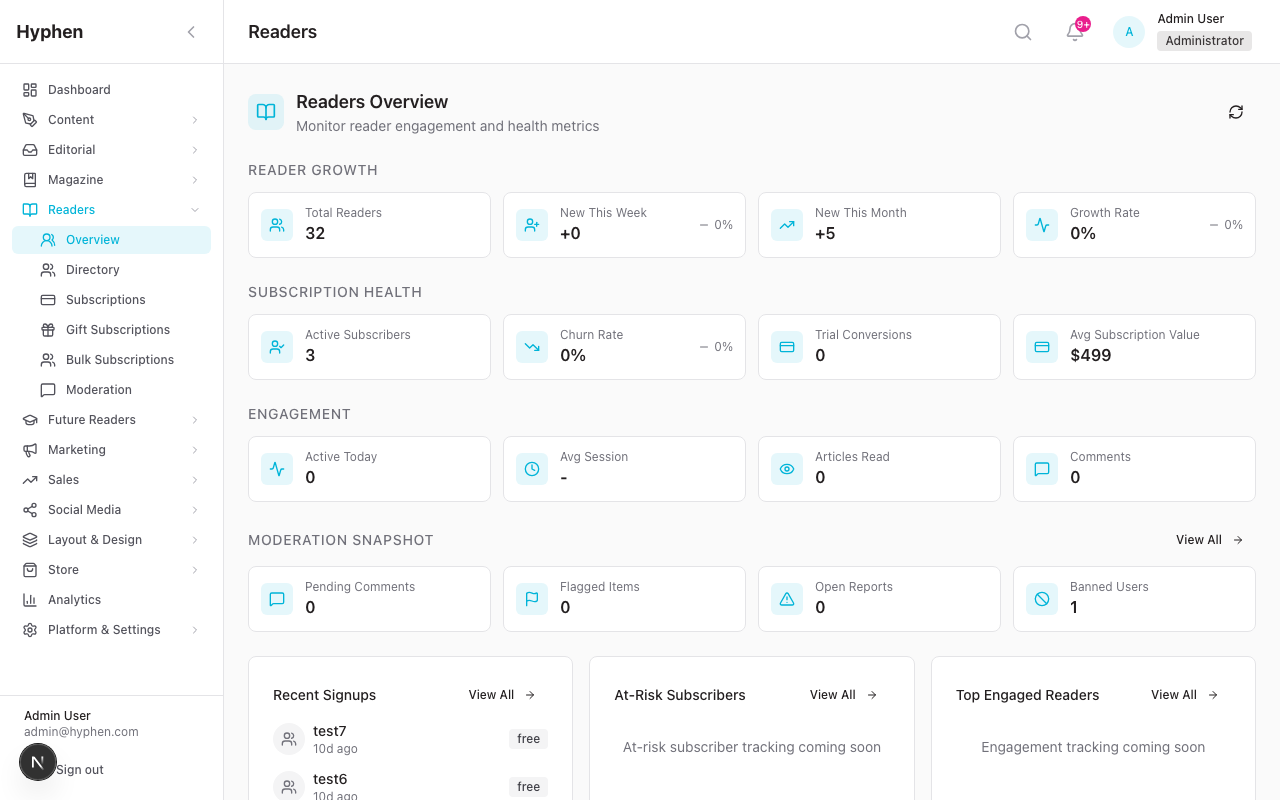
The Reader Directory is where admin users browse and manage all registered readers.
Accessing the Reader Directory
- Log in to the Admin Console.
- Click "Readers" in the sidebar.
- You'll see the Readers Overview dashboard with key metrics:
- Reader Growth: Total Readers, New This Week, New This Month, Growth Rate
- Subscription Health: Active Subscribers, Churn Rate, Trial Conversions, Avg Subscription Value
- Engagement: Active Today, Avg Session Duration, Articles Read Today, Comments Today
- Moderation Snapshot: Pending Comments, Flagged Items, Open Reports, Banned Users
- Click "Reader Directory" (or navigate to Readers → Directory).
Browsing and Filtering Readers
On the Reader Directory page, you'll see:
- Stats Cards at the top: Total Readers, Subscribers, Institutional Users, New This Month
- Search bar — search by name or email
- Filter dropdowns:
- Status: All Status, Active, Inactive, Banned, Pending Verification
- Tier: All Tiers, Free, Registered, Subscriber, Institutional
- Subscription Status: All, Active, Cancelled, Expired, Past Due, Trial, Complimentary
- Clear Filters button to reset all filters
The reader list shows a table with columns:
- Name — the reader's display name
- Email — their email address
- Tier — their access level (Free, Registered, Subscriber, Institutional)
- Status — their account status (Active, Inactive, Banned, Pending Verification)
- Joined Date — when they registered
- Last Login — when they last logged in
- Actions — View (→), Ban, Delete
Viewing a Reader's Profile
- In the Reader Directory, click the View (→) button on any reader row.
- You'll see the Reader Details page with breadcrumbs: Readers → Directory → [Reader Name].
The page includes:
User Summary Card (always visible at top):
- Avatar with initials
- Status badge (Active / Inactive / Banned / Pending Verification)
- Tier badge (Free / Registered / Subscriber / Institutional / Admin)
- Trusted badge (if applicable)
- Edit Profile button
- Quick stats: Member since, Last login, Total logins, Comments
Action Buttons (top right):
- Refresh — reload reader data
- Grant Subscription — appears if the reader has no active subscription and is not institutional
- Reset Password — sends a password reset email to the reader
- Ban Reader / Unban — depending on current status
Profile Information Card:
- Bio, Location, Website, Joined date, Last login, Total logins, Comment count
Subscription Card:
- Plan name, Status badge (Active / Past Due / Cancelled / Complimentary)
- Start date, Renewal/End date, Payment method
- Actions: Extend subscription, Cancel subscription
Institutional Subscription (if applicable):
- Institution name, Access dates, Seat count
Devices List:
- Each device shows: Device name, Last seen date, Revoke button
GDPR Actions:
- Export Data — downloads all reader data as a JSON file
- Anonymize — permanently removes all personal information (requires confirmation)
Editing a Reader's Profile
- On the Reader Details page, click "Edit Profile" in the User Summary Card.
- Edit the reader's name and email inline.
- Save your changes.
Note: You cannot change a reader's password directly. Use the "Reset Password" button to send them a reset link.
Exporting the Reader Directory
- On the Reader Directory page, click the Export button (download icon) in the top right.
- A file containing the filtered reader list will download.
- This requires the
USERS_EXPORTpermission.
5.3 Create and Manage Subscription Plans
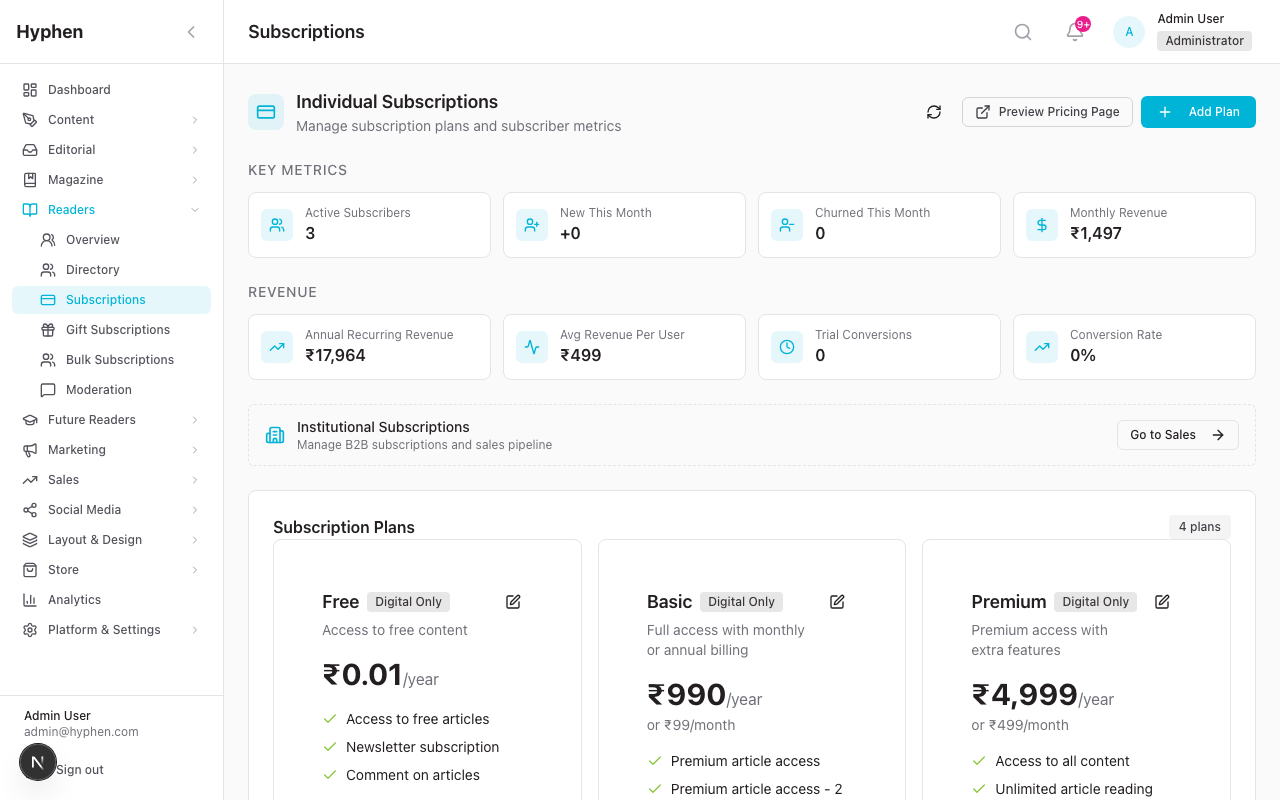
Subscription plans define what readers get when they subscribe. You must create at least one plan before readers can subscribe.
Viewing Existing Plans
- Navigate to Readers → Subscriptions in the Admin Console sidebar.
- You'll see the Individual Subscriptions page with:
- Key Metrics: Active Subscribers, New This Month, Churned This Month, Monthly Revenue
- Revenue Metrics: Annual Recurring Revenue, Avg Revenue Per User, Trial Conversions, Conversion Rate
- Subscription Plans section showing all plans in a card grid
Each plan card shows:
- Plan name and display name
- Plan type (Digital Only / Print+Digital)
- Price (monthly and/or annual)
- Features list
- Subscriber count
- Edit and Delete buttons
- Active/Inactive toggle
Creating a New Plan
- Click the "Add Plan" button (+ icon) in the top right.
- A slide-out panel appears: the Plan Editor.
- Fill in the following sections:
Basic Info:
| Field | What to Enter |
|---|---|
| Plan Name (required) | Internal name (e.g., "monthly_digital") — not shown to readers |
| Display Name | What readers see (e.g., "Monthly Digital") |
| Description | A short description of the plan |
| Plan Type | Choose DIGITAL_ONLY or PRINT_DIGITAL |
| Currency | INR or USD |
| Sort Order | Number that controls display order on the pricing page |
Catalog Dimensions — three fields that decide where the plan appears and how reader/admin flows adapt to it:
| Field | What to Enter |
|---|---|
| Audience | Individual (sold self-service; appears in the public catalog and admin grant/change/payment-link dialogs) or Institutional (sold offline via Sales; hidden from all individual flows) |
| Delivery format | Digital, Print, or Bundle. Drives what checkout and the grant dialog ask for (print/bundle capture a shipping address and an issues window) and how the period-end is computed. |
| Supported billing intervals | Tick Monthly, Annual, or both. Only ticked intervals are offered to readers and in the grant/change/payment-link dialogs. |
These dimensions are backfilled for existing plans (institutional via the Institution → plan relation; Print/Bundle via the includes print entitlement; intervals from existing monthly/annual prices) by migration
20260530000006.
Pricing:
| Field | What to Enter |
|---|---|
| Price One Time | One-time purchase price (in smallest currency unit — paise for INR) |
| Price Monthly | Monthly subscription price |
| Price Annual | Annual subscription price |
| Duration unit | Pick one: Issues / Days / Months. Only the selected input renders. Issues is for Multi-Issue plans (e.g. "subscribe for 6 issues") — see §5.13 for how the magazine schedule decides which issues count. Months is the default; pick Years by entering a multiple of 12 (the public price card renders "2 years" automatically). Days is for short-cycle plans (trials, one-week comp grants, etc.). |
Features & Entitlements:
| Field | What to Enter |
|---|---|
| Display Features | A list of benefits shown to readers (e.g., "Unlimited access to all articles"). You can highlight key features |
| Access Features | Toggle: Unlimited Access, Archive Access, Includes Print |
| Device Features | Max Devices (1–10), Offline Reading toggle |
Options:
| Field | What to Enter |
|---|---|
| Allow Gift | Toggle on if this plan can be purchased as a gift |
| Allow Renewal | Toggle on if this plan supports renewal at expiry. When off, the renewal email and the reader's Renew CTA are suppressed for this plan. |
| Is Emphasized | Toggle on to highlight this plan on the pricing page |
| Archive Access | Toggle on to give access to archived content |
| Archive Issue Count | Number of archived issues accessible |
Print Fulfilment & Inventory (only renders when Plan Type = PRINT_DIGITAL):
| Field | What to Enter |
|---|---|
| Shopify Product ID | The Shopify Admin GID for the product whose stock represents the current issue (e.g. gid://shopify/Product/123). Optional, but required if you want the reader's checkout to honour real stock. |
| Shopify Variant ID | The variant GID under the product (e.g. gid://shopify/ProductVariant/456). This is what the live inventory check actually queries. |
| When Current Issue is unavailable | Pick one: Show option with message (recommended — auto-picks Next Issue and surfaces the canonical "Current issue is unavailable…" message) / Show option but disable it (radio visible but disabled, with reason tooltip) / Hide the Current Issue option (only Next Issue is offered when stock is zero). |
What "current-issue inventory check" does at checkout — when a reader picks a Print plan, the checkout calls a public endpoint that asks Shopify "is the current-issue product in stock?" The result decides whether the Current Issue radio is offered, disabled, or hidden, per the behaviour above. If the Shopify call fails the checkout will not silently grant Current Issue — the reader sees a "stock check unavailable, please retry" message and the order-time guard (server-side, runs again at Pay) will return a 503 rather than risk an over-promise.
Integration:
| Field | What to Enter |
|---|---|
| Razorpay Plan ID | The corresponding plan ID from your Razorpay dashboard (needed for payment processing) |
- Click "Save" to create the plan.
Editing an Existing Plan
- On the Subscriptions page, find the plan card and click "Edit".
- The Plan Editor opens with the current values pre-filled.
- Make your changes and click "Save".
Activating or Deactivating a Plan
- Use the Active/Inactive toggle on the plan card.
- Inactive plans are not shown on the public pricing page.
- Existing subscribers on an inactive plan are not affected.
Previewing the Pricing Page
- Click "Preview Pricing Page" in the top right to see how plans appear to readers on the Reader Portal.
5.4 Assign, Upgrade, and Cancel Subscriptions
Granting a Complimentary Subscription
Use this when you want to give a reader free access — for example, for an author, partner, VIP, or promotional access.
- Navigate to Readers → Directory.
- Find the reader and click View (→) to open their profile.
- Click the "Grant Subscription" button (visible only if the reader has no active subscription and is not institutional).
- A modal appears: "Grant Subscription" with the message "Manually assign a complimentary subscription to [Reader Name]."
- Fill in:
| Field | What to Enter |
|---|---|
| Subscription Plan | Select a plan from the dropdown. Only Individual plans appear; institutional plans are filtered out. |
| Billing Interval (Digital / Bundle) | Monthly or Annual — only the intervals the plan supports are offered |
| Issues (Print / Bundle) | Number of issues to grant — drives the print entitlement window |
| Duration override (Digital / Bundle, optional) | Override the computed period in months/days |
| Reason | Enter a reason (e.g., "Author complimentary access", "Partner promotion") |
Plan-aware fields: the dialog renders different fields depending on the selected plan's delivery format — Digital → Billing Interval (+ optional override); Print → Issues counter; Bundle → both. The grant is routed through
/api/readers/[id]/grant-subscription, which computes the period-end from the delivery format and the chosen billing interval.
- Click "Grant Subscription".
- The reader's tier changes to Subscriber and their subscription status shows as Complimentary. An issue-entitlement set is generated immediately for print/bundle grants, and a subscription granted email + in-app notification are sent.
Extending a Subscription
- Open the reader's profile in Admin Console.
- In the Subscription card, click "Extend subscription".
- Select the extension duration.
- An info confirm dialog shows the old → new end date; confirm to apply.
Extend is hidden (not just disabled) when the subscription is Cancelled or Expired — extending a dead subscription is never the right action. On those subscriptions, use Reactivate, Grant New Subscription, or Send Payment Link instead (they surface side by side).
Reactivate is an immediate, non-renewing admin action. The confirmation shows the exact access end time: an unexpired cancellation restores only its remaining time; an already-expired subscription receives one fresh complimentary term using the plan's configured duration. No gateway charge or automatic renewal is restarted, so the reader must renew normally after that date.
Cancelling a Subscription (Admin Side)
- Open the reader's profile in Admin Console.
- In the Subscription card, click "Cancel subscription".
- A warning confirm dialog requires you to type
CANCELto proceed and to enter a free-text reason. - Confirm. The reason is persisted (churn reason = Admin cancel + the survey response text) for churn reporting, and a cancellation email is sent.
- The reader keeps access until the end of their current billing period; after that their tier changes back to Free or Registered.
Sending a Payment Link (Support)
When a reader needs to pay for a plan you've quoted (or to recover a failed payment), use Send Payment Link from the subscription card:
- Click Send Payment Link, pick the plan (Individual plans only) and billing interval.
- The system emails a Reader Portal checkout link. A cancelled/expired reader's current plan and interval are selected by default.
- If signed out, the reader sees the sign-in dialog and returns to the same checkout after authentication. Normal checkout verification activates the subscription after payment.
- The action is shown only for Cancelled or Expired subscriptions. If the reader reopens the emailed URL after the target plan is active, Reader Portal redirects them to Account → Subscription instead of offering another payment.
Previously-created hosted Razorpay links retain their original tracked lifecycle and remain payable/cancellable until terminal.
How a Reader Cancels Their Own Subscription (Reader Portal)
- The reader logs into the Reader Portal.
- Navigates to Account → Subscription (via the sidebar).
- Under "Manage Subscription", clicks "Cancel Subscription".
- A confirmation dialog appears: "Are you sure you want to cancel your subscription? You will continue to have access until the end of your current billing period on [date]."
- The reader clicks "Yes, Cancel".
- Their subscription shows as "Cancels on [date]" until the period ends.
- They can click "Keep Subscription" to change their mind before the period ends.
Reader-side checkout — what the reader sees
- Step 2: Subscription Details
- For Print / Print+Digital plans, the Start your print subscription from radios show Current Issue and Next Issue.
- The Current Issue option is automatically gated by the live Shopify stock check (see §5.3 Print Fulfilment & Inventory). When stock is zero the reader sees one of three things based on the plan's unavailable behaviour setting: a friendly message with auto-pick Next Issue, a disabled radio, or a hidden radio.
- A "(checking stock…)" inline pill renders while the inventory check is in flight.
- If the Shopify call fails the radio is disabled and a yellow alert appears — the reader can proceed with Next Issue.
- The Recipient + Shipping Address sections collect a structured address: Address Line 1*, Address Line 2 (optional), Landmark / Area (optional), City*, State* (Indian-states dropdown when Country=IN), Country*, PIN Code* (6-digit if IN). Required fields enforce inline validation — print plans cannot proceed until they're complete.
- The reader's saved profile address (if any) pre-fills these fields. A "Save this address to my profile" checkbox (default on) writes the captured address back so it's pre-filled on the next order.
- Step 3: Payment
- The Razorpay button creates an order; the order-time guard (server-side) re-checks Shopify stock. If stock dropped to zero between page-load and click, the server downgrades the request to Next Issue and returns a
printStartDowngradeflag the client surfaces in a "we updated your selection" toast.
5.4a Print Fulfilment List
The fulfilment workflow lets your operations team produce, per issue, the list of subscribers who need a print copy — and mark them as dispatched once mailed.
Where: Readers → Subscriptions → Fulfilment in the Admin Console.
Permissions required: fulfilment:read to view the list, fulfilment:manage to mark dispatched. Both are auto-granted to the Publishing Team role; admins always have them.
How the list is built
For every successful Print / Print+Digital subscription, the system writes one Issue Entitlement row per issue the subscriber is entitled to (matching the plan's durationIssues count, or counted from the magazine schedule for month/day plans). The fulfilment list is the set of those rows for the chosen issue, filtered to print plans, with revoked rows excluded.
Workflow
- Pick the issue. The page defaults to the current published issue. Use the Issue dropdown to switch.
- Audit addresses. A red-tinted row + inline "Incomplete — missing X, Y, Z" warning marks any subscriber whose required address fields are missing on both the subscription record AND the reader's profile fallback. Toggle Show only subscribers with incomplete addresses to triage.
- Select rows. Use the per-row checkbox or the header Select all to pick the subscribers you've actually mailed.
- Mark Dispatched. Click Mark Dispatched to flip
fulfilmentStatusfromPRINT_PENDINGtoPRINT_DISPATCHED. The action is audit-logged with your user, the entitlement IDs, and an optional delivery note. - Re-export guard. If you select a row that's already
PRINT_DISPATCHED(orPRINT_DELIVERED), the action refuses with a clear message until you tick Force re-export — that flag is also audit-logged so re-exports are searchable.
Address fallback rule: the recipient's address is taken from the Subscription record's shipping fields first (what they entered at checkout). When the subscription doesn't have a value, we fall back to the Reader profile address. Both surfaces let the operator update fields if the reader emails a correction.
Generating labels for the dispatched batch
See §5.13a — the fulfilment page has a Generate Labels button that streams CSV (Excel-compatible) or printable HTML straight to the operator's browser.
5.5 Gift Subscriptions
Gift subscriptions allow one person to purchase a subscription for another person.
Managing Gift Subscriptions in Admin Console
- Navigate to Readers → Subscriptions → Gifts (or click the gifts link on the Subscriptions page).
- You'll see the Gift Subscriptions page with:
- Search bar — search by buyer name, recipient email, or gift ID
- Status filter: All Statuses, Pending Payment, Paid, Sent, Activated, Expired
Gift Subscription Lifecycle
| Status | What It Means |
|---|---|
| PENDING_PAYMENT | Gift has been created but not yet paid for |
| PAID | Payment received — ready to send to recipient |
| SENT | Gift notification/email sent to recipient |
| ACTIVATED | Recipient has activated the gift and has an active subscription |
| EXPIRED | Gift was not activated before the expiration date |
Viewing Gift Details
- Click the View button (eye icon) on any gift row.
- A slide-over panel shows:
- Status badge and Gift ID
- Amount (highlighted card)
- Buyer section: name and email
- Recipient section: name, email, phone, address
- Gift Message (if the buyer included one)
- Plan details
- Timeline: Created, Paid, Sent, Activated, Expires dates
- Linked Subscription (if activated — shows reader details and period)
- Payment Reference ID
Changing Gift Status (Admin Action)
- In the gift detail panel, scroll to "Admin Actions".
- Click the appropriate status button to move the gift to the next stage.
- For example, if a gift is PAID but was not automatically sent, you can manually change it to SENT.
Important: Only plans with the "Allow Gift" option enabled can be used for gift subscriptions. Check this in the Plan Editor.
5.6 Institutional Subscriptions and Reader Access
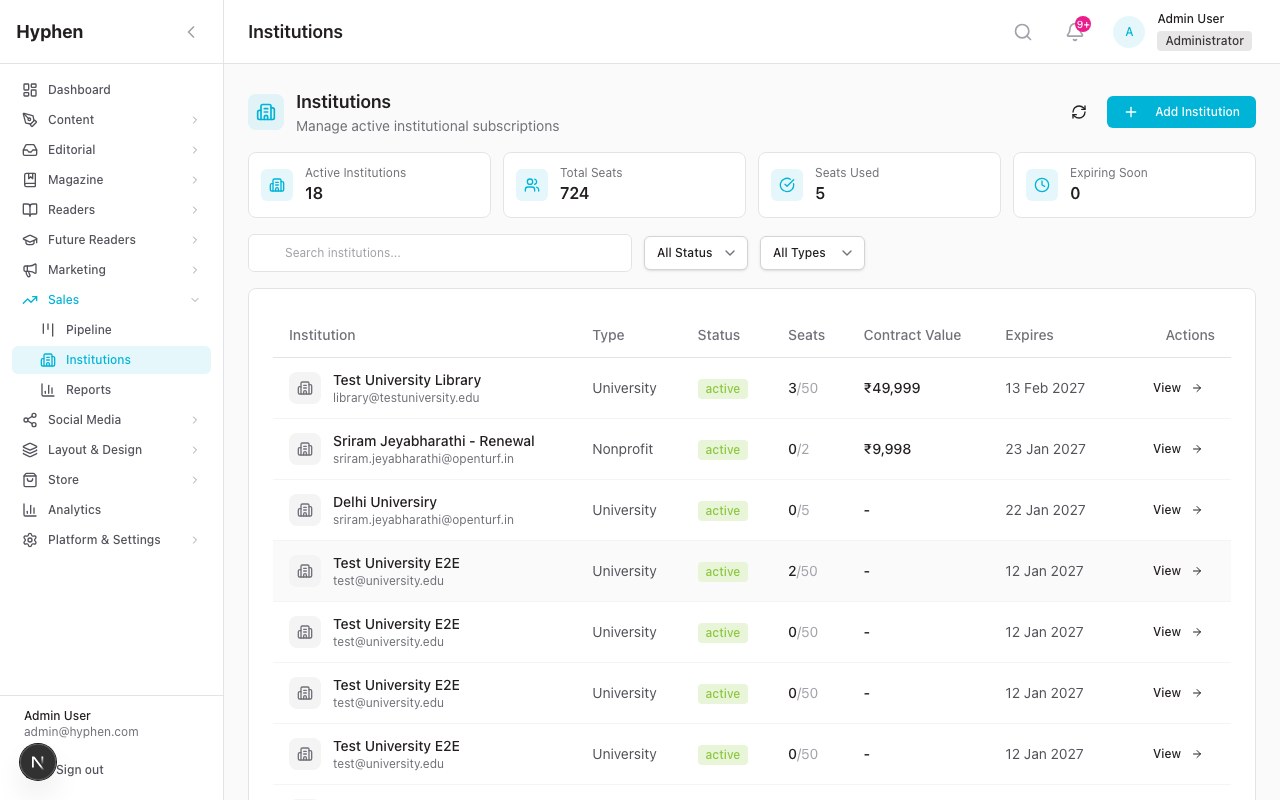
Institutional subscriptions give organizations (universities, libraries, companies) access for multiple readers.
Institutional lock on the reader card — when a reader belongs to an institution (
Reader.institutionIdis set), their subscription card shows a purple "Managed via Institutional Subscription" banner in place of the Grant / Extend / Cancel / Change-plan buttons. Their access is governed by the institution's plan, so self-cancel and plan-change are blocked server-side. Manage these readers from Sales → Institutions, not from the individual subscription card. See the Sales System guide for the full B2B workflow.
Where to Manage Institutions
- Navigate to Sales → Institutions in the Admin Console sidebar.
- The old path Readers → Subscriptions → Institutional redirects here.
Creating an Institutional Subscription
- Go to Sales → Institutions and click "Add Institution".
- Fill in the institution details:
| Field | What to Enter |
|---|---|
| Name | Institution name (e.g., "Delhi University") |
| Type | University, Library, School, Corporate, Nonprofit, or Other |
| Contact Name | Primary contact person |
| Contact Email | Contact email address |
| Contact Phone | Contact phone number |
| Address | Institution address |
| GSTIN | GST registration number (for Indian institutions) |
| PAN Number | PAN number (for Indian institutions) |
| Billing Address | Billing address details |
| Seats | Number of reader accounts included |
| Plan | Select a subscription plan |
| Start Date | When access begins |
| End Date | When access expires |
| Total Amount | Total contract value |
| Offline Payment Mode | One of: Bank Transfer, Cheque, Cash, Other. Used for institutional commercials negotiated outside the platform. |
| Offline Payment Reference | The bank/cheque reference number, internal invoice ID, or any free-text identifier you want to retain on the institution record. |
| Offline Payment Date | Date the offline payment was received. |
- Save the institution.
Inviting Readers to an Institution
- Open the institution's detail page.
- Go to the Users tab.
- Click "Add User" or "Invite" to add individual readers.
- To invite multiple readers at once, click "Send Bulk Invitations" and enter the email addresses.
- Each invited reader receives an email with an activation link.
How an Invited Reader Activates Their Account
- The invited reader receives an email with an activation link.
- They click the link and see the "Activate Your Account" page showing: "You've been invited to join Hyphen through [Institution Name]."
- If they don't have an existing account:
- They see their name and email (pre-filled from the invitation).
- They create a password (minimum 8 characters, must contain a letter and a number).
- They confirm the password and click "Create Account".
- If they already have a Hyphen account:
- They see: "An account already exists with this email."
- They click "Link My Account" to connect their existing account to the institutional subscription.
- After activation, they see: "Welcome to Hyphen! Your account has been activated. You now have full access to Hyphen through your institutional subscription."
- They click "Sign In to Get Started".
Renewing an Institutional Subscription
- Open the institution's detail page.
- Click "Renew".
- Update the end date, seats, and amount as needed.
- Save the renewal.
5.7 Bulk Subscription Requests
Bulk subscriptions handle large orders (multiple seats) that require negotiation and manual processing.
Viewing Bulk Requests
- Navigate to Readers → Subscriptions → Bulk (or the bulk subscriptions link).
- You'll see the Bulk Subscription Requests page.
- Filter by status: Pending, Negotiating, Approved, Processing, Completed, Rejected.
Bulk Request Lifecycle
| Status | What It Means |
|---|---|
| Pending | New request received — needs initial review |
| Negotiating | In discussion with the requester about pricing/terms |
| Approved | Terms agreed — ready to process |
| Processing | Subscriptions are being created |
| Completed | All subscriptions created and delivered |
| Rejected | Request was declined |
Processing a Bulk Request
- Click View on an approved request.
- Click "Process" (only available for approved requests).
- A processing modal appears showing:
- Contact name and seat count
- Plan assigned
- In the Recipient Emails text area, paste the email addresses — one per line or comma-separated.
- Tip: "Paste emails from your Excel file. One email per line, or comma-separated."
- Click "Process".
- The system shows results:
- Created: number of subscriptions successfully created
- Skipped: emails that already have subscriptions
- Errored: any failures
Editing a Bulk Request
- Click Edit on a request.
- Update the Status, Negotiated Amount (in INR), or Notes.
- Click "Save".
5.8 Reader Account Pages in Reader Portal
When a reader logs in to the Reader Portal and visits their account, they see a sidebar with these pages:
| Page | What It Shows |
|---|---|
| Profile | Personal information, shipping & contact, account security, and the Danger Zone (account deletion) |
| Subscription | Current plan details, benefits, print schedule, payment history, and management options |
Subscription History (/account/subscription/history) | Current subscription summary, per-issue entitlements with fulfilment status, full payment history including Dummy-mode payments (badged) |
| Bookmarks | Articles saved for later (two-column card grid; remove via the card's bookmark icon with a confirmation prompt) |
| Reading History | Recently read articles grouped by month, with author/translator details and a Clear All option |
| Notifications | Subscription, content, and system notifications — card layout with an All/Unread filter |
| Sessions | Active device sessions with sign-out options |
| Preferences | Content topics, email notifications, reading display, and data privacy (shown to paid subscribers) |
Activity (/account/activity) | A timeline of the reader's own account & subscription events (login, subscription created/cancelled/paused/resumed, plan change, payments, gift activation, ban/unban) |
Account sidebar gating: the Preferences page is shown only to paid subscribers in the account sidebar. The other pages (Profile, Reading History, Bookmarks, Notifications, Subscription, Sessions, Activity) are visible to every signed-in reader.
Profile Page
The reader sees their:
- Avatar (from linked social account or initials)
- Display Name — editable, max 100 characters. Help text: "This is how your name will appear on comments and your public profile."
- Bio — editable, max 500 characters with counter
- Location — editable (e.g., "Mumbai, India")
- Website — editable URL field
- Shipping & Contact — phone number + structured address (Address Line 1, Address Line 2, Landmark, City, State, Country, PIN). All optional on the profile, but required at checkout for Print plans. Saving here means the reader's next checkout is pre-filled.
- Account Security section showing email (with Verified badge) and password status
- Danger Zone section with "Delete Account" option
Subscription Page
The reader sees:
- Current Plan card with status badge (Active / Past Due / Cancelled / Expired / Trialing / No subscription)
- Plan details: name, type (Individual / Institutional / Gift / Complimentary), billing period, cancellation status
- Print Delivery Schedule (if their plan includes print) — shows upcoming and past deliveries with status (Scheduled / Processing / Shipped / Delivered)
- Your Benefits — checkmark list of included features (e.g., "Unlimited access to all articles", "Full digital archive access")
- Manage Subscription — buttons for "Change Plan" and "Cancel Subscription"
- Payment History table with Date, Description, Amount, and Status (Paid / Pending / Failed)
If the reader has no subscription, they see: "You don't have an active subscription." with a "View Plans & Subscribe" button.
Full reader self-service journey: browsing plans, the three-step checkout, gifting, upgrade/downgrade with proration, cancellation, renewal/win-back, and the Subscription History page are documented end-to-end in the dedicated Subscriptions guide.
5.8a Reader Search Scope
The reader portal's search page (/search) spans multiple content types and merges them into the results, so a reader looking for a person or a book finds them, not just articles.
Search now covers:
| Result type | Matched on | Where it links |
|---|---|---|
| Articles | Title, author name, translator name, tag name, language | /article/{slug} |
| Contributors (authors) | Name / bio | /author/{slug} |
| Books | Title / description | the book's page |
| Events | Title / description (published/featured events only; campaign events excluded) | /event/{slug} |
| Magazine Issues | Issue number, title | /issue/{slug} |
Notes that affect what a reader actually sees:
- Archive issues are discovery-gated. Archived-issue cards appear in search results only for readers whose subscription grants the archive access entitlement. This is a discovery/UX gate, not a hard content lock.
- Personalization. When the reader has selected topics in Preferences, relevance-sorted results are boosted toward those topics (an "Results personalized based on your interests" note appears).
- Filters & sort (section, access level, sort by relevance/date/title) and tag-only searches (
/search?tag=climate) still work as before; section and access-level filtering is applied server-side.
5.9 Bookmarks, Reading History, and Preferences
Bookmarks (Reader Portal)
- Readers save articles by clicking the bookmark icon on any article page.
- The Bookmarks page (
Account → Bookmarks) shows all saved articles as a two-column card grid (the standard article card). The header shows a saved count and the hint "… you've saved for later. Click the bookmark to remove." - Each card shows the article thumbnail, section tag, read time, title (clickable), and author — excerpts are hidden on this grid.
- To remove a bookmark, the reader clicks the bookmark icon on the card, which shows a confirmation prompt first (this guards against accidental removal).
- If no bookmarks: "No bookmarks yet. Save articles you want to read later by clicking the bookmark icon." with a "Browse Articles" button.
Reading History (Reader Portal)
- Reading history is tracked automatically when a reader opens an article.
- The Reading History page (
Account → Reading History) lists recently read articles grouped by month and year (e.g., a "JUNE 2026" badge), newest group first. - Each entry shows:
- Article title (clickable — resumes at the saved scroll position for partially read articles)
- Author name, and Translator as "… | Translated by …" when present (pulled from a richer history API response)
- A relative date label (TODAY / YESTERDAY / "23 JUN")
- A remove (trash) control that appears on hover for that entry
- A Clear All action (top-right) removes the entire history after a confirmation dialog ("Clear reading history? … This cannot be undone.").
- If no history: "No reading history yet. Start reading articles and they'll appear here." with a "Browse Articles" button.
Preferences (Reader Portal)
The Preferences page (Account → Preferences) has five sections:
1. Content Preferences:
- Reader selects topics of interest from available sections and tags.
- Selected topics are shown as highlighted pills.
- Used to personalize the "For You" feed and content notifications.
- Suggested Topics appear if the reader has reading history — shown as dashed-border pills with a "+" icon.
- Status text shows how many topics are selected.
2. Email Notifications:
| Checkbox | Description |
|---|---|
| Weekly Newsletter | "Receive our curated weekly digest of the best content." |
| Renewal Reminders | "Get notified before your subscription expires so you never lose access." |
| New Content Alerts | "Get notified when new content matching your preferred topics is published." |
| New Issue Published | "Get notified when a new magazine issue is published." |
| Comment Replies | "Get notified when someone replies to your comments." |
| Promotions & Events | "Receive information about special offers and literary events." |
3. Push Notifications:
- Browser Push Notifications toggle — "Receive instant notifications in your browser for new issues, content updates, and subscription alerts."
- Only available if the reader's browser supports push notifications.
4. Reading Preferences:
- Font Size: Small, Medium, or Large
- Theme: Light, Dark, or Sepia
5. Data Privacy:
- "Download My Data" button — downloads all reader data as a JSON file named
my-hyphen-data-{DATE}.json. - Help text: "Read our Privacy Policy to learn more about how we handle your data."
After making changes, the reader clicks "Save Preferences".
5.10 Sessions and Device Management
Reader-Side Session Management (Reader Portal)
- The reader navigates to Account → Sessions.
- They see a list of Active Sessions with:
- Device icon (mobile, tablet, or desktop)
- Device name (e.g., "Chrome on Windows")
- "This device" badge on their current session
- IP address and Last active timestamp
- "Sign out" button on non-current sessions
- To revoke a suspicious session, click "Sign out" on that session.
- An info box explains: "Each session represents a device or browser where you are signed in. If you see a session you don't recognise, sign out of it and change your password immediately."
Admin-Side Session and Security Settings
- Navigate to Settings → Sessions in the Admin Console.
- Configure:
| Setting | What It Does | Recommended |
|---|---|---|
| Inactivity Timeout | Users are logged out after this many minutes of inactivity (5–480 range) | 60 minutes |
| Enable Session Refresh | Automatically extends session when user is active | Enable |
| Maximum Concurrent Devices | How many devices a reader can be logged in from simultaneously (1–10) | 3 devices |
| Remember Me Duration | How long "Remember me" keeps the reader logged in (1–90 days) | 30 days |
| Require Re-authentication | Asks readers to confirm their password before changing account settings or making purchases | Recommended for sensitive environments |
- Click "Save" to apply changes.
- The page shows when settings were last updated and by whom.
Revoking a Reader's Session from Admin Console
- Open the reader's profile in Readers → Directory → [Reader].
- Scroll to the Devices section.
- Click "Revoke" next to the device session you want to end.
- The reader will be logged out on that device.
5.11 Notifications and Email Preferences
How Readers Receive Notifications
Readers receive notifications through three channels:
- In-app notifications — visible on the Notifications page in the Reader Portal
- Email notifications — sent to their email based on their preferences
- Push notifications — browser push notifications (if enabled)
Notification Types
| Type | When It's Sent |
|---|---|
| welcome | When a reader creates their account |
| new_issue | When a new magazine issue is published |
| new_content | When new content matching the reader's preferred topics is published |
| subscription_renewal | Before a subscription renewal date |
| subscription_expiry | When a subscription is about to expire |
| comment_reply | When someone replies to the reader's comment |
| system_announcement | Platform-wide announcements |
Notifications Page (Reader Portal)
- Reader navigates to Account → Notifications.
- They see a card list with:
- A header showing the count of unread notifications (or "All caught up")
- "Mark all as read" button (appears when there are unread notifications)
- "All" / "Unread" filter tabs
- Each notification card shows: a coloured type badge (New Issue, New Content, Renewal, Subscription, Comment, System, Welcome), the title, the message, and a relative timestamp. Unread cards are tinted and carry a check button to mark that one as read.
- Clicking a card marks it read; cards with an action URL also navigate to the linked page.
- "Load more" button for pagination (20 per page)
Email Unsubscribe
- Every email sent to readers includes an unsubscribe link.
- Clicking the link takes them to an unsubscribe page where they can manage their email preferences.
- Readers can also manage email preferences from Account → Preferences → Email Notifications.
5.12 Payment and Subscription Checkout
How a Reader Subscribes (Reader Portal)
- The reader visits the pricing page on the Reader Portal (linked from the subscription page or homepage).
- They see available plans with pricing and features.
- They select a plan and billing period (monthly/annual).
- They are directed to the payment checkout:
- Razorpay — for INR payments
- Stripe — for USD/international payments
- After successful payment, their subscription is activated immediately.
- They can view their subscription details on Account → Subscription.
Payment History (Reader Portal)
- Readers can view their payment history on the Subscription page.
- Each entry shows: Date, Description, Amount, and Status (Paid/Succeeded, Pending, Failed).
Payment Management (Admin Console)
- Admin users can view payments through the admin payment management interface.
- Capabilities include viewing payment details, processing refunds, and tracking payment status across gateways.
Dependency: Payment gateways (Razorpay and/or Stripe) must be configured before readers can purchase subscriptions. Contact your DevOps team to set up gateway credentials.
5.12a Dummy Payment Mode (UAT)
Dummy Payment Mode is a separately-toggled gateway that lets the UAT environment exercise the full subscription journey — registration → plan select → checkout → activation → entitlement → access — without real money or real Razorpay credentials. Dummy never calls Razorpay. Every Payment row it writes is tagged gateway='dummy' and isDummy=true for unmistakable filtering.
Gating (revised 2026-05-01 post-launch hardening):
The original two-key gate combined DUMMY_PAYMENT_MODE_ENABLED with a NODE_ENV !== 'production' check, plus an ALLOW_DUMMY_IN_PROD opt-in for production. We discovered this didn't work for UAT — Next.js bakes NODE_ENV='production' into every deployed build, so the original contract never permitted Dummy on UAT.
The current contract is default ON, single-key opt-out:
| Variable / control | What it does |
|---|---|
DUMMY_PAYMENT_MODE_ENABLED=false (production env) | The single env-floor switch. Set this to false on the production admin-console process to disable. Anywhere else, default ON. |
dummy_payment_mode_enabled (DB feature flag, Settings → Features) | Live runtime kill-switch. Toggle off to disable Dummy without a redeploy. Seeds isEnabled=true on fresh installs; existing rows are not overwritten. |
NEXT_PUBLIC_DUMMY_PAYMENT_MODE_ENABLED=false (production reader-portal build) | Build-time fallback so the reader-portal hides Dummy in production even if the runtime status check is briefly slow. |
Both /api/payments/dummy/create-order and /api/payments/dummy/simulate return 404 Not Found when either the env floor is off OR the DB feature flag is off. The 404 is deliberate — the URL must not reveal the gateway exists in environments where it's disabled.
What the reader sees (only when enabled):
When Dummy is on, it's the only payment option on the checkout's payment-method picker — Razorpay/Stripe tiles are hidden so an operator can't accidentally pick a broken / unconfigured live gateway. A clearly-marked yellow "Dummy Gateway (UAT only)" panel renders with two side-by-side buttons:
- Simulate Success — runs the same activation pipeline as a real Razorpay success: subscription upserted to
ACTIVE, structured shipping persisted (and optionally saved to profile), per-issue entitlements generated, welcome + payment-receipt emails sent, audit-logged. - Simulate Failure — writes a
Paymentrow withstatus='FAILED'and leaves the subscription inPAUSED. The reader sees a "Dummy payment simulated as FAILED" message.
Audit trail. Dummy payments show up alongside Razorpay payments in the admin payments list, distinguishable by the dummy gateway value and the isDummy=true flag. The composite index (gateway, is_dummy) makes filtering fast.
Operational rule: Production processes should always set
DUMMY_PAYMENT_MODE_ENABLED=falseto disable Dummy mode. The single-key opt-out + DB flag is the safety surface; the two-key NODE_ENV gate is gone.
5.13 Magazine Schedule (Print+Digital)
The Magazine Schedule maps each calendar month to a magazine Issue. This mapping is the load-bearing input for per-issue entitlement generation — when a reader subscribes to a Print plan, the system walks the schedule from the reader's start month and writes one entitlement row per qualifying issue. Without an Issue mapped on a schedule row, no entitlement is generated for that month and the reader won't appear on the Print Fulfilment list.
Setting Up the Magazine Schedule
- Navigate to Readers → Subscriptions → Magazine Schedule.
- You'll see the schedule page with:
- Year filter dropdown.
- "Generate Year" button — creates 12 placeholder rows (Jan–Dec) for the active year in one click. Idempotent — re-running on a partial year only fills missing months.
- "Add Entry" button — for one-off rows.
- "Regenerate Entitlements" button — re-runs entitlement generation for every active subscription against the current mapping (use after editing the mapping; idempotent).
- Schedule table with columns: Year, Month, Label, Mapped Issue, Active toggle, Edit action.
- A green dot on rows that are Active and mapped to a published Issue — the only state in which entitlements are produced for new subscribers.
First-time configuration sequence (recommended)
- Create at least one Issue with
status='published'at Magazine → Issues → New Issue. - Click Generate Year for the active year — creates the 12 placeholder rows with auto-labels ("January 2026", "February 2026", …).
- Click Edit on the row for the month you want subscribers entitled to (e.g. May 2026), pick the Issue from the searchable picker, and save.
- Repeat Step 3 for any other months you want covered.
- Subscribe a test reader via Dummy → Simulate Success and verify they appear on the Print Fulfilment list when you pick that issue.
Adding or editing a single entry
- Add Entry opens a modal with Year / Month / Label / Mapped Issue picker / Active toggle. Saves a new row, or warns if the (year, month) slot is already in use.
- Edit on an existing row opens the same modal pre-filled (Year and Month are locked since they're the row's identity). Use this to map an Issue, change the label, or flip Active.
- The Issue picker is searchable by issue number, title, or status — and includes drafts, so admins can pre-map issues that haven't been published yet. The entitlement resolver only grants access once the mapped Issue's status is
published, so pre-mapping is safe.
Active toggle
- Click the Active toggle on a row.
- A confirmation dialog appears: "Activate/Deactivate Schedule Entry" with the label and month/year.
- Click "Confirm". The mapped Issue is preserved through the toggle (this was a bug in the previous version — toggling Active used to wipe the mapping).
Regenerate Entitlements after a schedule edit
Schedule edits don't auto-propagate to subscriptions that activated before the edit. After mapping issues, click "Regenerate Entitlements" in the Schedule page header (or on the Print Fulfilment empty-state). It walks every ACTIVE / TRIALING subscription and re-runs entitlement generation against the current mapping. Idempotent — safe to re-run.
Note: Print delivery schedule entries also appear on the reader's Subscription page in the Reader Portal under the "Print Delivery Schedule" section.
5.13a Label Templates
Label Templates configure how address labels render and export. The fulfilment list (§5.4a) uses the chosen template to produce a CSV file or a printable HTML page sized for the operator's printer.
Where: Settings → Labels in the Admin Console.
Permission required: labels:manage (auto-granted to Publishing Team and admins).
Template fields
| Field | What it does |
|---|---|
| Name | Internal label (e.g., "Avery L7159 sheets" or "Thermal 2x1"). Must be unique. |
| Label Size | One of 2 × 1 inch (thermal), 3 × 2 inch (thermal), A4 sheet (24-up). Drives @page CSS in the rendered output. |
| Printer Type | One of Thermal label printer, Inkjet / Laser, PDF export. Operational hint — the rendered HTML is the same; the operator picks the matching paper in their browser's Print dialog. |
| Export Format | CSV (full support — Excel opens it natively), PDF (delivered as printable HTML — operator uses Print → Save as PDF), Excel (501 today; tracked as a follow-up dep-add). |
| Header text / Footer text | Optional — small lines printed above/below the address block. |
| Include subscriber mobile | Off by default. Per requirements §8.4, labels are address-only. Tick this only if your dispatch process actually needs a phone number on the label. |
| Set as default | Marks one template as the default. Setting a new default automatically unmarks the previous one. |
Generating labels from the fulfilment page
- On Readers → Subscriptions → Fulfilment, select the rows to mail.
- Click Generate Labels.
- The browser receives either a CSV download (Excel-compatible) or a printable HTML preview, depending on the template's Export Format.
- For HTML output: use the browser's Print dialog (or Save as PDF) — the page's
@pageCSS is sized for the chosen label. - The export is audit-logged with the issue ID, template, total selected, exported, and skipped-for-incomplete-address counts.
Why no native PDF / Excel binary today? Direct binary export is deferred to a focused dep-add (drop in
pdf-libandexceljs— neither is currently bundled). CSV + the printable HTML preview cover every daily fulfilment workflow we have today.
5.14 Renewal Reminders, Invitation Reminders, and Automated Tasks
The platform sends automated notifications and reminders based on subscription events and system triggers.
Types of Automated Notifications
| Notification | When It's Triggered | Who Receives It |
|---|---|---|
| Renewal Reminder | Before a subscription's billing period ends | Subscribers with renewal reminders enabled |
| Subscription Expiry Notice | When a subscription is about to expire or has expired | The affected subscriber |
| Invitation Reminder | When an institutional invitation has not been activated | The invited reader |
| Welcome Email | When a reader creates their account | The new reader |
| Gift Notification | When a gift subscription is purchased | The gift recipient |
| New Issue Notification | When a new magazine issue is published | Readers with new issue notifications enabled |
| New Content Alert | When content matching a reader's topics is published | Readers with content alerts enabled |
How to Check if Reminders Are Being Sent
-
Check if the reader has Renewal Reminders enabled in their email preferences:
- Open the reader's profile in Admin Console.
- Check their notification preferences.
- Or ask the reader to check Account → Preferences → Email Notifications → Renewal Reminders on the Reader Portal.
-
Verify that email is configured and working:
- Go to Settings → Email → Accounts in Admin Console.
- Click into the account mapped to OTP / account-security and click Verify connection.
- Confirm at Settings → Email → Purposes that
otpandaccount_securityhave a primary account.
-
If notifications are not being delivered, check:
- The reader's email preferences (they may have opted out)
- Spam/junk folder
- Email delivery logs
- Whether the automated task/cron job is running (contact DevOps)
Current Status: Automated renewal and expiry notifications are implemented. The timing and frequency of these reminders depends on the cron/scheduled task configuration managed by your DevOps team.
5.15 Account Deletion, GDPR Export, and Anonymization
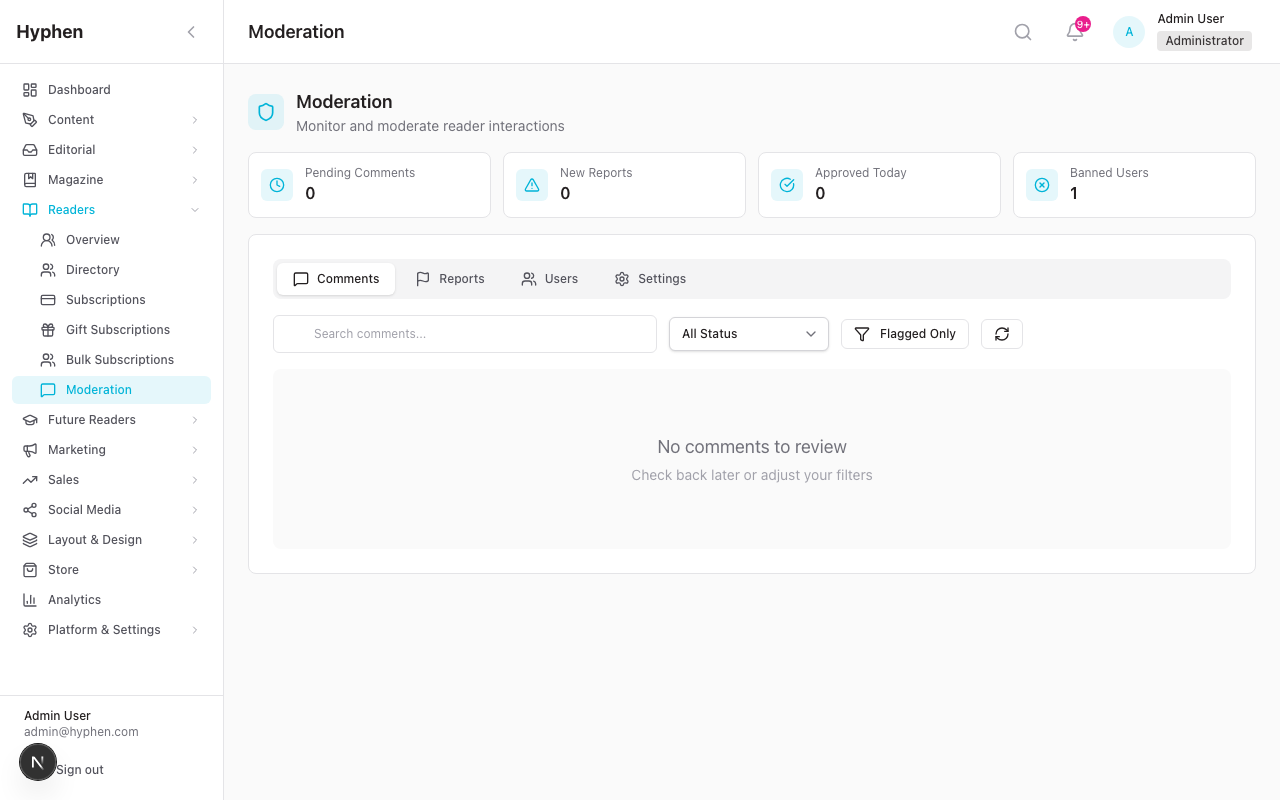
GDPR Data Export (Admin Console)
- Open the reader's profile in Readers → Directory → [Reader].
- Scroll to the GDPR Actions section.
- Click "Export Data" (with download icon).
- A JSON file downloads named
hyphen-data-export-{readerId}.json. - The file includes: profile, subscriptions, bookmarks, comments, and reading history.
GDPR Data Export (Reader Self-Service)
- Reader navigates to Account → Preferences on the Reader Portal.
- Scrolls to the Data Privacy section.
- Clicks "Download My Data".
- A JSON file downloads named
my-hyphen-data-{DATE}.json.
Account Anonymization (Admin Console)
This permanently removes all personal information from a reader's account. This action cannot be undone.
- Open the reader's profile in Readers → Directory → [Reader].
- Scroll to the GDPR Actions section.
- Click "Anonymize" (warning/error styled button).
- A confirmation dialog appears listing what will be deleted:
- Hash the email address
- Remove name, phone, profile details
- Delete OAuth linked accounts and sessions
- Remove bookmarks and institutional access
- Anonymize comment author information
- Confirm the action.
- The reader's account is anonymized. Their email becomes
anon-{hash}@deleted.hyphen.co. - If the account was already anonymized, the button shows "Already Anonymized".
Account Deletion (Reader Self-Service via Reader Portal)
- Reader navigates to Account → Profile on the Reader Portal.
- Scrolls to the Danger Zone section.
- Clicks "Delete Account" (red-bordered button).
- A confirmation dialog appears: "This action is irreversible. All your data, subscriptions, bookmarks, and reading history will be permanently removed."
- They must enter their current password to confirm their identity.
- They must type DELETE in the text field to confirm.
- Click "Permanently Delete" (button is disabled until both password and "DELETE" are entered).
- The account is deleted, the reader is signed out, and redirected to the homepage.
Deleting a Reader from Admin Console
- In the Reader Directory, click the Delete button on a reader row.
- A confirmation modal appears: "This action will anonymize the reader's data. This cannot be undone."
- Click "Delete Reader" to confirm.
- The reader's data is anonymized (same as the anonymization process above).
5.16 Reader Moderation (Ban, Unban, Comments)
Banning a Reader
- Navigate to the reader's profile in Readers → Directory → [Reader].
- Click "Ban Reader" in the action buttons.
- A modal appears asking for a Ban Reason (text input).
- Enter the reason and click "Ban Reader".
- The reader's status changes to Banned and they see a ban notice on their profile.
Or from the Moderation page:
- Navigate to Readers → Moderation → Users tab.
- Find the user and click their profile.
- Click "Ban" and specify ban type (temporary or permanent) and reason.
Unbanning a Reader
- Open the banned reader's profile.
- Click "Unban" in the action buttons.
- The reader's status returns to Active.
Comment Moderation
- Navigate to Readers → Moderation.
- The moderation dashboard shows stats: Pending Comments, New Reports, Approved Today, Banned Users.
- Use the tabs:
- Comments tab — review, approve, reject, edit, or delete comments (with bulk actions)
- Reports tab — review reader reports, resolve or dismiss
- Users tab — view user moderation records, warnings, ban status, toggle trusted status
- Settings tab — configure profanity filters, auto-moderation rules, thresholds
5.17 Permissions and RBAC for Admin Users
Different admin roles need different permissions to manage readers. Here are the key permissions:
| Permission | What It Allows |
|---|---|
READERS_DASHBOARD_READ | View the Readers Overview dashboard |
USERS_READ | View the Reader Directory and reader profiles |
USERS_UPDATE | Ban/unban readers, update reader profiles |
USERS_EXPORT | Export reader directory data and GDPR exports |
SUBSCRIPTIONS_READ | View subscription plans and subscriber lists |
SUBSCRIPTIONS_CREATE | Grant complimentary subscriptions, process bulk requests |
SUBSCRIPTIONS_UPDATE | Edit subscriptions, update bulk requests, manage gift status |
SUBSCRIPTIONS_MANAGE_PLANS | Create, edit, and delete subscription plans |
INSTITUTIONS_READ | View institutional subscriptions |
MODERATION_READ | View the Moderation section (comments, reports, users) |
MODERATION_UPDATE | Moderate comments and reports, ban/warn users |
SETTINGS_READ | View session and moderation settings |
SETTINGS_UPDATE | Update session settings and moderation rules |
ADMIN_USERS_READ | View admin team management (Team Management link in Reader Directory) |
Tip: If you click a button or try to access a page and nothing happens or you see a blank page, check with your administrator that your role has the required permissions listed above.
5.18 Future Readers Program
The Future Readers Program offers discounted or free subscriptions to students.
Accessing the Program
- Navigate to Readers → Future Readers in the Admin Console sidebar.
- You'll see the program dashboard with:
- Stats: Total Enrollments, Pending Review, Approved, Active Institutes
- Quick Links: Institutes, Enrollments, Campaigns & Events
Two Routes for Students
| Route | How It Works |
|---|---|
| Competition Route | Students submit essays or poems. Winners receive a 100% discount (free subscription) |
| Discount Route | Students verify their student ID and receive a 50% discount on subscriptions |
Managing Enrollments
- Click "Review Enrollments" from the dashboard.
- Review student enrollment applications.
- Approve or reject entries.
- Approved students receive discount coupons they can use during checkout.
Managing Institutes
- Click "Manage Institutes" from the dashboard.
- Add or manage schools, colleges, and universities participating in the program.
Linked Campaigns
- The dashboard shows campaigns and events linked to the program.
- Each campaign shows: name, status (Draft/Active/Paused/Completed/Archived), institute count, submission count, and pending count.
6. How to Verify It Worked
After setting up or making changes, use these checks to verify everything is working correctly.
Reader Registration Verification
| Check | How to Verify |
|---|---|
| Registration works | Visit Reader Portal → Register → Complete the flow → Confirm the reader appears in Admin Console → Reader Directory |
| OTP delivery | Register with a test email → Confirm OTP arrives within 1-2 minutes |
| Social login works | Click "Sign in with Google" → Complete OAuth flow → Confirm login succeeds |
| Reader appears in directory | Admin Console → Readers → Directory → Search for the new reader |
| Correct tier assigned | New free reader should show Tier: Free or Registered |
Subscription Verification
| Check | How to Verify |
|---|---|
| Plans visible to readers | Reader Portal → Pricing page → Confirm active plans appear |
| Complimentary grant works | Admin Console → Grant subscription → Reader Portal → Account → Subscription → Confirm plan shows as "Complimentary" |
| Subscription benefits work | Log in as subscriber → Try accessing a subscriber-only article → Should have full access |
| Payment works | Reader Portal → Select plan → Complete payment → Confirm subscription is Active |
| Cancellation works | Reader Portal → Account → Subscription → Cancel → Confirm "Cancels on [date]" message |
| Gift activation works | Send a gift → Recipient activates → Confirm their subscription shows as "Gift" type |
Reader Portal Verification
| Check | How to Verify |
|---|---|
| Profile page loads | Log in → Account → Profile → All fields display correctly |
| Bookmarks work | Bookmark an article → Account → Bookmarks → Confirm it appears → Remove → Confirm it disappears |
| Reading history tracks | Read an article → Account → Reading History → Confirm it appears with progress |
| Notifications display | Trigger a notification → Account → Notifications → Confirm it appears with unread indicator |
| Sessions show correctly | Log in on two devices → Account → Sessions → Confirm both sessions appear |
| Preferences save | Change topic selections and email preferences → Save → Refresh → Confirm selections are retained |
| Data download works | Account → Preferences → Download My Data → Confirm JSON file downloads |
| Account deletion works | Account → Profile → Danger Zone → Delete Account → Enter password → Type DELETE → Confirm signout and redirect |
Admin Console Verification
| Check | How to Verify |
|---|---|
| Reader directory loads | Readers → Directory → Confirm reader list displays |
| Filters work | Apply status/tier/subscription filters → Confirm list updates |
| Profile page loads | Click a reader → Confirm all sections load (summary, profile, subscription, devices, GDPR) |
| GDPR export works | Reader profile → GDPR Actions → Export Data → Confirm JSON downloads |
| Anonymize works | Reader profile → GDPR Actions → Anonymize → Confirm data is removed |
| Session revoke works | Reader profile → Devices → Revoke → Confirm session is removed |
7. Worked Examples
7.1 Example 1: Registering a New Reader and Verifying Account Access
Scenario: A new reader wants to sign up for Hyphen and start reading articles.
Steps:
-
Reader visits the Reader Portal and clicks "Don't have an account?" on the login page.
-
Reader fills in the registration form:
- Full name: "Priya Sharma"
- Email: "priya.sharma@example.com"
- Newsletter checkbox: left checked (default)
- Terms of Service: checked
- Clicks "Create Account"
-
Reader checks email and finds a message with a 6-digit OTP (e.g., 482915).
-
Reader enters the OTP on the verification screen and clicks "Verify & Sign In".
-
Reader is now logged in and redirected to the Reader Portal homepage.
-
Admin verifies in Admin Console:
- Navigate to Readers → Directory
- Search for "priya.sharma@example.com"
- Confirm the reader appears with:
- Status: Active
- Tier: Free (or Registered)
- Joined Date: Today's date
-
Reader tests account features:
- Navigates to Account → Profile — sees their name and email
- Tries to read a free article — succeeds
- Tries to read a subscriber-only article — sees paywall/limitation
- Bookmarks a free article — confirms it appears in Account → Bookmarks
Result: Reader "Priya Sharma" has a working free account. She can read free content, save bookmarks, and comment on articles. She cannot access subscriber-only content until she subscribes.
7.2 Example 2: Assigning a Complimentary Subscription and Checking Reader Portal
Scenario: The editorial team wants to give complimentary access to a contributing author, Rahul Mehta, who already has a free reader account.
Steps:
-
Admin logs into Admin Console and navigates to Readers → Directory.
-
Admin searches for the reader: Types "Rahul Mehta" or his email in the search bar.
-
Admin opens the reader's profile: Clicks the View (→) button.
-
Admin confirms the reader has no active subscription:
- The Subscription card shows no active plan
- The "Grant Subscription" button is visible in the action buttons
-
Admin clicks "Grant Subscription" and fills in:
- Subscription Plan: selects "Annual Digital" from the dropdown
- Duration: selects "1 Year"
- Reason: types "Contributing author — complimentary access"
- Clicks "Grant Subscription"
-
Admin verifies the change:
- The Subscription card now shows:
- Plan: Annual Digital
- Status: Complimentary (badge)
- Start date: today
- End date: one year from today
- The Tier badge changes to Subscriber
- The Subscription card now shows:
-
Verification on Reader Portal (as Rahul):
- Rahul logs into the Reader Portal
- Navigates to Account → Subscription
- Sees: Plan name, status ACTIVE, subscription type Complimentary, and period dates
- Sees the Your Benefits section with checkmarks for included features
- Tries reading a subscriber-only article — has full access
- The Manage Subscription section shows options (but cancellation would be unusual for a complimentary grant)
Result: Rahul now has full subscriber access for one year at no cost. The Admin Console shows the subscription was granted with the reason documented. This can be verified end-to-end in the Reader Portal.
7.3 Example 3: Troubleshooting Why a Reader Is Not Receiving Renewal Reminders
Scenario: A subscriber, Anita Desai, contacts customer support saying she was not notified before her subscription expired. Support needs to investigate.
Steps:
-
Support agent logs into Admin Console and navigates to Readers → Directory.
-
Search for the reader: Types "anita.desai@example.com" in the search bar.
-
Open the reader's profile and check the following:
-
Check 1 — Subscription status:
- Look at the Subscription card
- Note the subscription status (Expired? Cancelled? Active?)
- Note the current period end date — when did it expire?
- Note the subscription type — if it's Complimentary, renewal reminders may not apply
-
Check 2 — Reader's email preferences:
- The reader's notification preferences indicate what emails they've opted into
- Ask Anita to check Account → Preferences → Email Notifications on the Reader Portal
- Specifically check: is "Renewal Reminders" enabled?
- If it's disabled, that's why she didn't receive a reminder — she opted out
-
Check 3 — Email delivery:
- If renewal reminders were enabled, the issue may be email delivery
- Ask Anita to check her spam/junk folder for emails from Hyphen
- Check with DevOps if the email/SMTP service is working correctly
- Check email delivery logs if available
-
Check 4 — Automated task status:
- Renewal reminder emails are sent by automated tasks (cron jobs)
- If the automated task is not running, no reminders are sent to anyone
- Contact your DevOps team to confirm the renewal reminder cron job is active and running on schedule
-
Resolution:
- If the reader had renewal reminders disabled: Explain to Anita and help her enable it for the future
- If email delivery failed: Investigate the delivery issue with DevOps
- If the cron job was not running: Escalate to DevOps to restart it, and consider granting Anita a short extension as goodwill
- If the subscription type doesn't trigger reminders: Explain the expected behavior
-
Follow-up:
- If appropriate, grant a short complimentary extension to Anita while she renews
- Confirm that renewal reminder settings are correct for future cycles
- Ensure Anita's new subscription (once renewed) has the correct billing period and reminder setup
Result: The support agent has a clear checklist to diagnose why renewal reminders were not received. The root cause is identified and resolved, and the reader is helped back to an active subscription.
7.4 Example 4: Revoking a Reader Session and Verifying Account Security
Scenario: A reader, Vikram Singh, contacts support saying his account may have been compromised. He's seeing articles marked as read that he didn't read, and he wants to secure his account.
Steps:
-
Support agent logs into Admin Console and navigates to Readers → Directory.
-
Search for "Vikram Singh" and open his profile.
-
Check the Devices section:
- Scroll down to see all active sessions
- Look for any unfamiliar devices or locations
- Note the device names (e.g., "Chrome on Windows", "Safari on iPhone"), IP addresses, and last active timestamps
- If there's a session from an unfamiliar device or IP, this may be the compromised session
-
Revoke suspicious sessions:
- Click "Revoke" next to each unfamiliar device session
- The session is immediately terminated — the person using that session is logged out
-
Reset the reader's password:
- Click the "Reset Password" button in the action buttons at the top
- A password reset email is sent to Vikram's email address
- Tell Vikram to check his email and set a new, strong password
-
Verify from the Reader Portal (as Vikram):
- Vikram logs in with his new password
- Navigates to Account → Sessions
- Confirms only his current session is listed (marked as "This device")
- The suspicious session should no longer appear
-
Additional security steps (if needed):
- If the compromise is severe, consider temporarily banning the account while investigating
- Check if there are any unauthorized changes to Vikram's profile (name, email, bio)
- Check if any suspicious comments were posted from his account
- Review the reading history for unusual activity
-
Inform the reader:
- Tell Vikram that the suspicious sessions have been revoked
- Confirm his password has been reset
- Advise him to:
- Not reuse passwords across sites
- Enable "Require Re-authentication for Sensitive Actions" if available
- Check his sessions periodically from Account → Sessions
Optional — Admin adjusts security settings:
- Navigate to Settings → Sessions
- Consider reducing the Inactivity Timeout (e.g., from 60 to 30 minutes)
- Consider reducing Maximum Concurrent Devices (e.g., from 5 to 3)
- Enable "Require Re-authentication for Sensitive Actions"
Result: The compromised session is revoked, the password is reset, and Vikram's account is secured. The admin has also reviewed security settings to prevent future incidents.
7.5 Example 5: Handling a GDPR Export and Anonymization Request
Scenario: A reader, Maria Fischer, sends an email to support requesting a copy of all her personal data (GDPR Right of Access) and then asks for her account to be permanently deleted (GDPR Right to Erasure).
Steps:
Part A — Data Export:
-
Support agent logs into Admin Console and navigates to Readers → Directory.
-
Search for "maria.fischer@example.com" and open her profile.
-
Export her data:
- Scroll to the GDPR Actions section
- Click "Export Data" (with download icon)
- A JSON file downloads:
hyphen-data-export-{readerId}.json - The file contains: profile information, subscription details, bookmarks, comments, and reading history
-
Send the data to Maria:
- Review the exported file to ensure it contains all expected data
- Send it to Maria's email as requested (following your organization's data handling procedures)
-
Alternative — Reader self-service:
- Maria can also download her own data from the Reader Portal
- Navigate to Account → Preferences → Data Privacy → "Download My Data"
- A file named
my-hyphen-data-{DATE}.jsondownloads
Part B — Account Anonymization:
-
Confirm the request is legitimate:
- Verify the request came from Maria (check the email address matches)
- Follow your organization's GDPR request verification procedure
-
Anonymize the account:
- On Maria's profile page, scroll to GDPR Actions
- Click "Anonymize" (warning-styled button)
- A confirmation dialog appears listing everything that will happen:
- Hash the email address
- Remove name, phone, profile details
- Delete OAuth linked accounts and sessions
- Remove bookmarks and institutional access
- Anonymize comment author information
- Read the list carefully and click "Confirm"
-
Verify anonymization:
- The page reloads
- The reader's email now shows as
anon-{hash}@deleted.hyphen.co - Name, bio, location, website, and phone are blank
- All sessions are revoked
- Bookmarks are removed
- Comments still exist but show an anonymized author
- The "Anonymize" button now shows "Already Anonymized"
-
Confirm to Maria:
- Email Maria confirming that:
- Her data export was provided (Part A)
- Her account has been permanently anonymized
- She can no longer log in with her old credentials
- Her comments remain on the platform but are no longer linked to her identity
- Note: Maria could also delete her own account from Account → Profile → Danger Zone → Delete Account by entering her password and typing "DELETE" in the confirmation field
- Email Maria confirming that:
Alternative — Reader self-service deletion:
- Maria can navigate to Account → Profile → Danger Zone
- Click "Delete Account"
- Read the warning: "This action is irreversible. All your data, subscriptions, bookmarks, and reading history will be permanently removed."
- Enter her current password for identity verification
- Type DELETE in the confirmation field
- Click "Permanently Delete"
- She is signed out and redirected to the homepage
Result: Maria's GDPR request is fully handled. Her data was exported and provided to her, and her account is permanently anonymized. All personal information has been removed while preserving anonymized comment content for editorial integrity.
8. Common Mistakes and How to Fix Them
| Mistake | What Happens | How to Fix |
|---|---|---|
| No subscription plans created | Readers cannot subscribe — the pricing page is empty and "Grant Subscription" dropdown has no options | Navigate to Readers → Subscriptions → Click "Add Plan" → Create at least one active plan |
| Payment gateway not configured | Readers see plans but cannot complete checkout — payment fails or no checkout option appears | Contact DevOps to configure Razorpay/Stripe credentials in Settings → Payment Settings |
| Email not working | OTP emails not delivered — readers cannot register or log in with OTP; password reset links not sent; no notification emails | Go to Settings → Email → Accounts → click the account mapped to OTP → Verify connection. If it fails, the provider error message tells you what's wrong (e.g. 535 Authentication Failed often means Zoho/Gmail needs an app-specific password). Confirm otp is mapped at Settings → Email → Purposes. |
| Granting subscription to a reader who already has one | The "Grant Subscription" button doesn't appear | The reader already has an active subscription. Cancel or extend the existing one instead |
| Trying to grant subscription to institutional reader | The "Grant Subscription" button doesn't appear | Institutional readers get access through their institution, not individual grants |
| Reader says they can't log in after ban | Reader is banned and cannot access the platform | If the ban was a mistake, find the reader in Admin Console → Click "Unban" |
| Reader's session was revoked but they're still logged in | Session tokens may be cached temporarily | The reader needs to refresh the page or close and reopen the browser. Session will expire within minutes |
| Anonymization was done accidentally | All personal data is permanently removed | This cannot be undone. The reader will need to create a new account. Always double-check before confirming anonymization |
| Gift subscription shows as EXPIRED | Recipient didn't activate the gift before expiration | Create a new gift subscription or grant a complimentary subscription directly to the reader |
| Reader is not receiving notifications | Notifications are not showing in the Reader Portal or email | Check the reader's email preferences (they may have opted out). Check if the notification type is enabled. Check email delivery if email notifications are expected |
| Plan shows 0 subscribers after creating | No readers have subscribed to the new plan yet | Wait for readers to subscribe, or grant complimentary subscriptions for testing |
| Bulk subscription processing shows errors | Some email addresses in the paste list had issues | Check for typos, duplicates, or emails that already have subscriptions. Review the error count for details |
| "Allow Gift" not enabled on a plan | Readers cannot purchase that plan as a gift | Edit the plan in Plan Editor → Toggle "Allow Gift" on → Save |
| Reader cannot download their data | The export button fails or downloads empty data | This could be a browser issue. Try a different browser or clear the cache. If the issue persists, export from the Admin Console instead |
| Filters showing no results | Applied filters are too restrictive | Click "Clear Filters" to reset and try fewer filters. Check that you're searching with the correct values |
Known Limitations
| Limitation | Details | Workaround |
|---|---|---|
| Cron job visibility | Automated tasks (renewal reminders, expiry notices, session cleanup) are managed at the infrastructure level. There is no Admin Console UI to view or manage cron jobs. | Contact your DevOps team to verify cron jobs are running and configured correctly |
| No in-app subscription upgrade flow | Readers cannot directly upgrade from one plan to another within the Reader Portal. The "Change Plan" button navigates to the pricing page. | Reader must cancel their current subscription and subscribe to the new plan, or an admin can grant a new subscription |
| No partial refund UI | There is no self-service refund option for readers. Refund processing is handled through payment gateway admin panels. | Process refunds through the Razorpay/Stripe dashboard directly |
| Password login limited | The primary login flow uses OTP. Password-based login is only available if the reader has explicitly set a password through the reset flow. | Readers should use OTP or social login for the simplest experience |
| Gift subscription — no self-service purchase UI in Admin | Gift subscriptions are purchased by readers through the Reader Portal. Admins can view and manage gift status but cannot create gifts from the Admin Console. | To give a gift-like subscription from the admin side, use the "Grant Subscription" (complimentary) feature instead |
| Bulk subscription processing — no email validation | When pasting email addresses for bulk processing, the system does not preview which emails are valid before processing. | Double-check your email list for typos and duplicates before pasting. Review the created/skipped/errored counts after processing |
| Push notifications — browser support | Push notifications require browser support and reader opt-in. Not all browsers support web push. | Ensure email notifications are also enabled as a fallback |
| Magazine schedule — manual entry | Magazine schedule entries must be added manually. There is no automatic schedule generation. | Plan your print schedule in advance and add entries for the full year |
| Institutional invitation expiry | Institutional invitations have an expiration period. If a reader doesn't activate before expiry, a new invitation must be sent. | Resend the invitation from the institution's user management page |
| Data export format | GDPR exports are in JSON format only. There is no CSV or PDF export option. | Use the JSON file directly, or convert it to the desired format using a tool like an online JSON-to-CSV converter |
FAQ
This module is access- and entitlements-heavy, so most questions are about who can read what and how a reader controls their own account. Each answer is grounded in the flows above.