Page Template System
Complete guide to managing page templates, sections, banners, styling, and site navigation
1. What This System Does
The Page Template System is the page and template configuration layer of the Hyphen platform. It controls how every page on the Reader Portal is composed — which content blocks appear, in what order, what data they pull, and how they are styled — without anyone editing portal code. You pick a template for each page type, arrange its sections, save a draft, and publish; the Reader Portal then renders that configuration.
It does this for all page types, not just the homepage: section landing pages (Fiction, Poetry, Essays…), article detail, author profiles, tag pages, the subscribe page, the magazine archive, static pages (About, Terms…), search, and more.
This guide vs. Layout & Design
This guide and the Layout & Design guide overlap because they live in the same Admin Console area (Layout & Design in the sidebar). The boundary:
- This guide (Page Template System) is the configuration system — the concepts (page types, templates, variants, sections), the canvas editor, the page-configuration model, draft vs published state, and how a page resolves at render time.
- Layout & Design is the day-to-day operator walkthrough for curating the homepage and individual pages.
When in doubt, use this guide to understand how the machinery works, and Layout & Design to get a specific page done.
Key Concepts
| Concept | What It Means | Where it lives |
|---|---|---|
| Page Category | A group of related page types (e.g., "Section" groups Fiction, Poetry, Essays). Owns palette rules: allowedVariantCategories, showBanner. | Prisma page_categories table |
| Page Type | A specific page on the Reader Portal (e.g., homepage, section-fiction, article). Each has a built-in default template. | PAGE_TYPE_INFO constant + page_configuration (Strapi) |
| Template | A reusable layout — an ordered list of sections plus the page types it is compatible with (compatiblePageTypes). | Prisma page_templates + Strapi page-template, file in data/templates/*.json |
| Template Variant | The visual flavour of a single section (e.g., hero-image-left, grid-3-column, featured-events). Drives which React component renders. | variant-registry.ts (both apps) |
| Section / Block | One configured block inside a page (TemplateSection): a variant + its data source, filters, selection mode, field visibility, and display options. | templateSections[] JSON on the page configuration |
| Page Configuration | The per-page-type record that binds a template, stores the live templateSections[] / templateBanners[], SEO, and the draft/published state. | Strapi page-configuration (draft & publish) |
How It Connects
After you select a template and click Publish Page, the Reader Portal regenerates the page within 60 seconds (ISR revalidation).
The whole flow, end to end
This is the path most editorial and operations work follows:
2. Who Should Use This
| Role | What You'll Do |
|---|---|
| Content Editors | Select templates for pages and publish them |
| Operations / Publishing Staff | Create landing pages, manage navigation, configure static pages |
| Marketing Team | Set up campaign landing pages and promotional banners |
| Admin / Super Admin | Create custom templates, manage categories, configure appearance |
3. Before You Begin
- You have Admin Console access with Layout & Design permissions
- Content has been published (articles, authors, etc.) — pages with no content appear empty
Where to find things in the sidebar:
| Sidebar Item | What It Does |
|---|---|
| Layout & Design → Page Configuration | Select templates for each page type |
| Layout & Design → Page Categories | Manage page type groupings |
| Layout & Design → Static Pages | Create About, Terms, Contact, and other static pages |
| Navigation | Configure header menu, footer links, and mobile menu |
| Settings → Appearance | Customize colors, fonts, and theme |
How It Works (Behind the Scenes)
Understanding the data flow makes every "why didn't my change show up?" question answerable. The system spans three tiers: the Admin Console (where you configure), Strapi CMS + PostgreSQL (where configuration is stored), and the Reader Portal (where pages render).
The lifecycle of a page configuration
Where each thing is stored
| Configuration | Storage | Why it matters |
|---|---|---|
| Templates (definition, compatible page types, status) | Prisma page_templates table (authoritative) + data/templates/*.json files + mirrored to Strapi page-template. Self-healing hydration backfills sections on read. | The admin store is authoritative; Strapi is a render-side mirror. |
| Page categories | Prisma page_categories table | Owns palette rules (allowedVariantCategories, showBanner, sortOrder). |
| Page configurations (per page type) | Strapi page-configuration collection with draft & publish | This is what carries draft vs. published state and the live templateSections[]. |
| Page versions | Strapi page-version collection | Snapshots for version history / restore. |
| Static pages | Prisma static_pages table + Strapi static-page collection | About/Terms/Contact etc., with their own slug and template. |
| Banners | Prisma banners table + per-page templateBanners[] | Promotional strips. Page-configuration templateBanners take precedence over stale Strapi page-template banners. |
| Appearance / theme | Strapi site-appearance single type | Global colors, fonts, spacing, header/footer style. |
| Navigation | Strapi site-navigation single type | Header menu, footer columns, social links. |
| Homepage | Strapi homepage single type (draft & publish) | The homepage's own configuration record. |
Draft vs. Published parity
Page configurations behave exactly like articles in Strapi — they have a draft layer and a published layer:
| Badge on the All Pages list | Meaning |
|---|---|
| Live | Published and the draft matches the published layer (in sync). |
| Modified | A draft revision has been saved but not yet published (hasPendingRevision — the draft and published snapshots differ). |
| Unpublished | Never published. |
| Template inactive (orange warning chip) | The page config is published but the bound template body is still in draft (PageTemplate.status ≠ active), so nothing renders. Open the canvas editor and click Make Live. |
Saving from the canvas editor calls syncPageConfigDraftFromTemplate, so template-only edits correctly mark the page Modified (not Live) until you publish.
Section status filtering (what readers actually see)
Each listing section can filter content by editorial status (Published / Featured / Archived). The reader-portal section-resolver honours this filter when it fetches data — for example, an "Archived only" filter on a grid passes operator: 'in' with the chosen statuses to the content fetch. The default (all three statuses checked) shows everything; an empty selection is stored explicitly as in: []. Archived content is only matched if your live Strapi rows actually carry articleStatus / archivedAt on the published layer (the admin mirrors these markers on save).
The Template System Explained
This section pins down the four concepts that people most often conflate: page types, templates, variants, and sections/blocks.
The hierarchy
| Concept | One-line definition | Configurable from UI? |
|---|---|---|
| Page Type | A page that exists on the portal (e.g. section-fiction). Has a built-in default template and belongs to a category. | Built-ins are fixed; you create custom page types via Static Pages / categories. |
| Template | A named, reusable layout — an ordered list of sections plus compatiblePageTypes. | Yes — pick from the gallery, or Create Template in the canvas editor. |
| Variant | The visual style of one section. Registered in variant-registry.ts; the registry also declares each variant's allowedPageTypes, default displayOptions, and which fields are excluded from the editor. | Yes — drag from the Section Palette. The catalogue itself is code-defined. |
| Section / Block | A configured instance of a variant inside a page: variant + data source + filters + selection mode + field visibility + display options. | Yes — fully editable in the Properties Panel. |
How a page resolves at render time
When a reader requests a page, the Reader Portal does this:
Section behaviour types
Every section has a behaviorType that determines where its data comes from:
| Behavior type | Data source | Example variants |
|---|---|---|
| listing | The section-resolver fetches entities by data source + filters + selection mode. | grid-3-column, hero-carousel, featured-events, faq-accordion, static-press-list, static-media-coverage |
| detail | Reads the page's own entity from PageContext (the page is the entity). | article-content, author-hero, section-header |
| contextual | Related content based on the current entity (relationshipType: same-section, same-author, same-tags) with a fallbackBehavior (hide / show-empty / show-latest). | article-related, author-related-authors |
| static | Renders fixed content authored in displayOptions (no entity fetch). | static-rich-content, cta-block, static-masthead, static-media-contact, author-detail-card |
Selection modes (for listing sections)
| Mode | Behaviour |
|---|---|
| Dynamic | Auto-fills from the data source using filters + sort + max items. |
| Manual | You hand-pick exact items (selectedItems[], stored as Strapi documentIds). |
| Mixed | Pin some items to positions (pinnedItems[]); dynamic fill takes the rest. |
The curated-page / hero / page-context model
Three ideas work together so editors get rich control without per-page code:
- Curated pages — any page type (not just the homepage) is an ordered, editable list of sections via the same generalized editor.
- Hero sections — the prominent block at the top. Heroes support selection modes, and Hero Exclusive (
heroExclusive: true) prevents hero items from repeating in grids below (resolved in Pass 1, then excluded from Pass 2;DynamicTemplatealso dedupes client-side as a safety net). - Page-context sections — variants whose names start with a page prefix (
article-,author-,section-,tag-,event-, etc.) read directly from the page's own entity inPageContext, so they "just work" with no manual data wiring.
4. Page Configuration — Selecting Templates
This is the main screen for controlling page layouts.
Viewing All Page Types
Go to Layout & Design → Page Configuration in the sidebar.
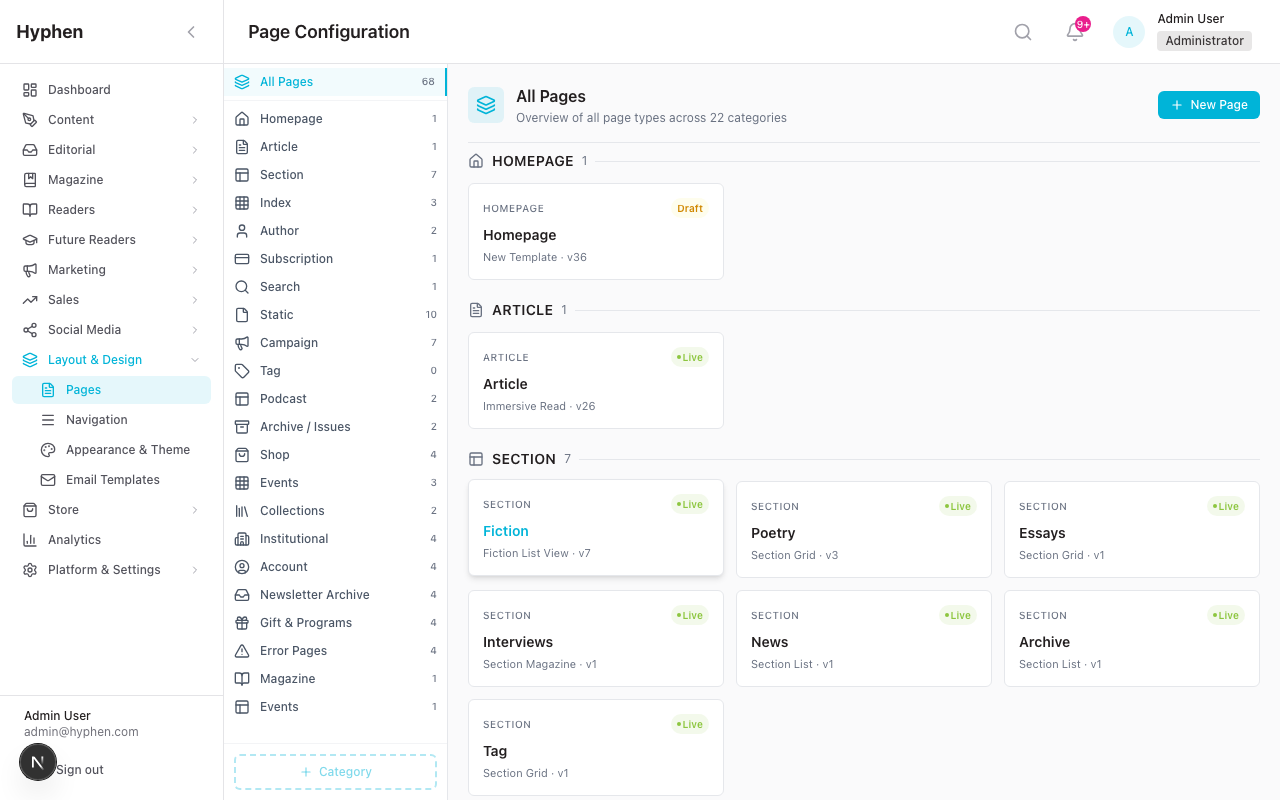
You'll see all page types grouped by category: Homepage, Article, Section (Fiction, Poetry, Essays, Interviews, News, etc.), Tag, and more.
Configuring a Page
Click any page type to open its configuration screen.
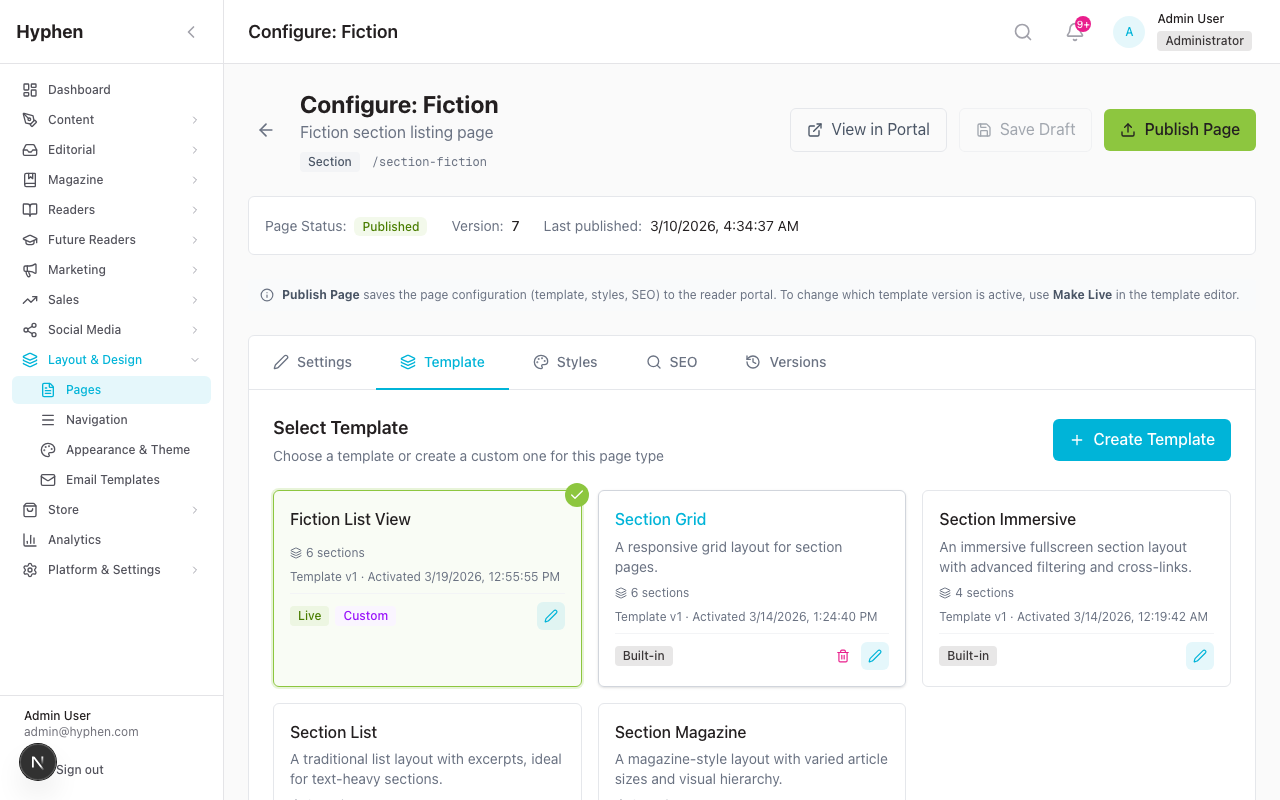
Each page configuration screen shows:
- Page Status — Published or Draft, with version number and last updated date
- Select Template — available templates for this page type, each with a name and description
- View in Portal — link to see the live page on the Reader Portal
- Publish Page — button to make the selected template live
To change a page's layout:
- Click the page type from the All Pages list
- Browse the available templates
- Click a template card to select it
- Click Publish Page (top right) to make it live
To create a custom template: Click Create Template to open the Template Canvas Editor (see Section 5).
5. Template Canvas Editor
The Canvas Editor is where you build custom templates by dragging components onto a page layout.
To open it: From any page configuration, click Create Template.
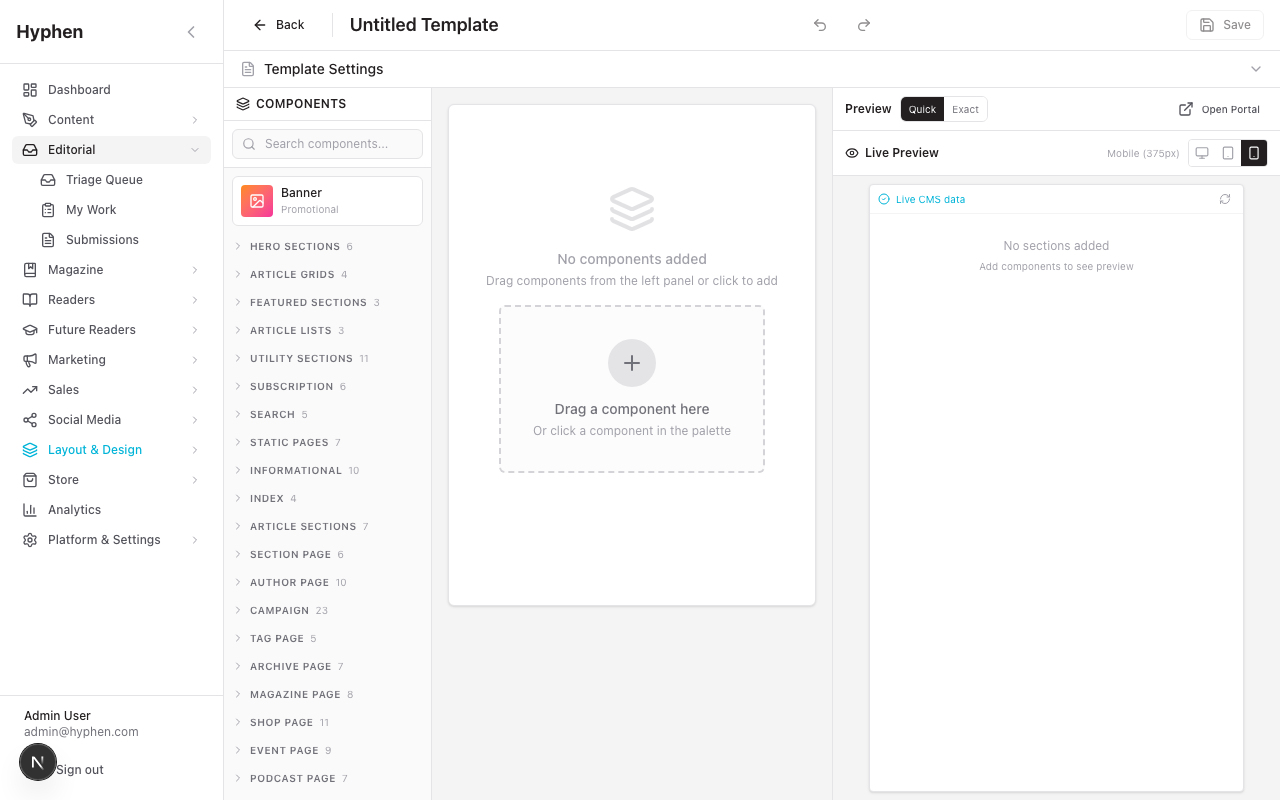
Editor Layout
| Panel | Position | What It Does |
|---|---|---|
| Components | Left | Lists all available components: Banner, Hero sections, Article grids, Lists, Utilities, and more. Drag components from here onto the Canvas. |
| Canvas | Center | Your working area. Components appear in order from top to bottom. Drag to reorder. |
| Live Preview | Right | Shows a real-time preview of how the page will look. |
The toolbar at the top shows the template name (editable), plus tabs for Template Settings and Components.
How to Build a Template
- Browse the Components list on the left — components are grouped by type
- Drag a component from the list onto the Canvas in the center
- Components stack top-to-bottom in the order they'll appear on the page
- Drag components on the Canvas to reorder them
- Click any component to configure its properties
- Check the Live Preview on the right to see how it looks
- Click Save when done
- Go back to the page configuration and select your new template
- Click Publish Page to make it live
Available Component Types
| Type | What It Does |
|---|---|
| Banner | Promotional strip with image, title, and call-to-action button |
| Hero | Large featured content area — full-width, image left/right, minimal, or carousel |
| Article Grid | Grid of article cards — 2-column, 3-column, with sidebar, or carousel |
| Featured | Highlighted content — featured article with grid, or mixed layout |
| Article List | List layout — horizontal cards, vertical cards, or minimal text |
| Author | Author profile sections — hero, articles grid, bibliography |
| Newsletter | Newsletter sign-up forms and archive listings |
| Subscription | Pricing tables, comparison charts, testimonials |
| Static | Rich text content, team grids, contact forms, timelines |
| Event | Event calendars, listing cards, speaker grids |
| Podcast | Show headers, episode lists, mini players |
| Archive | Magazine issue grids, timeline views |
6. Page Categories
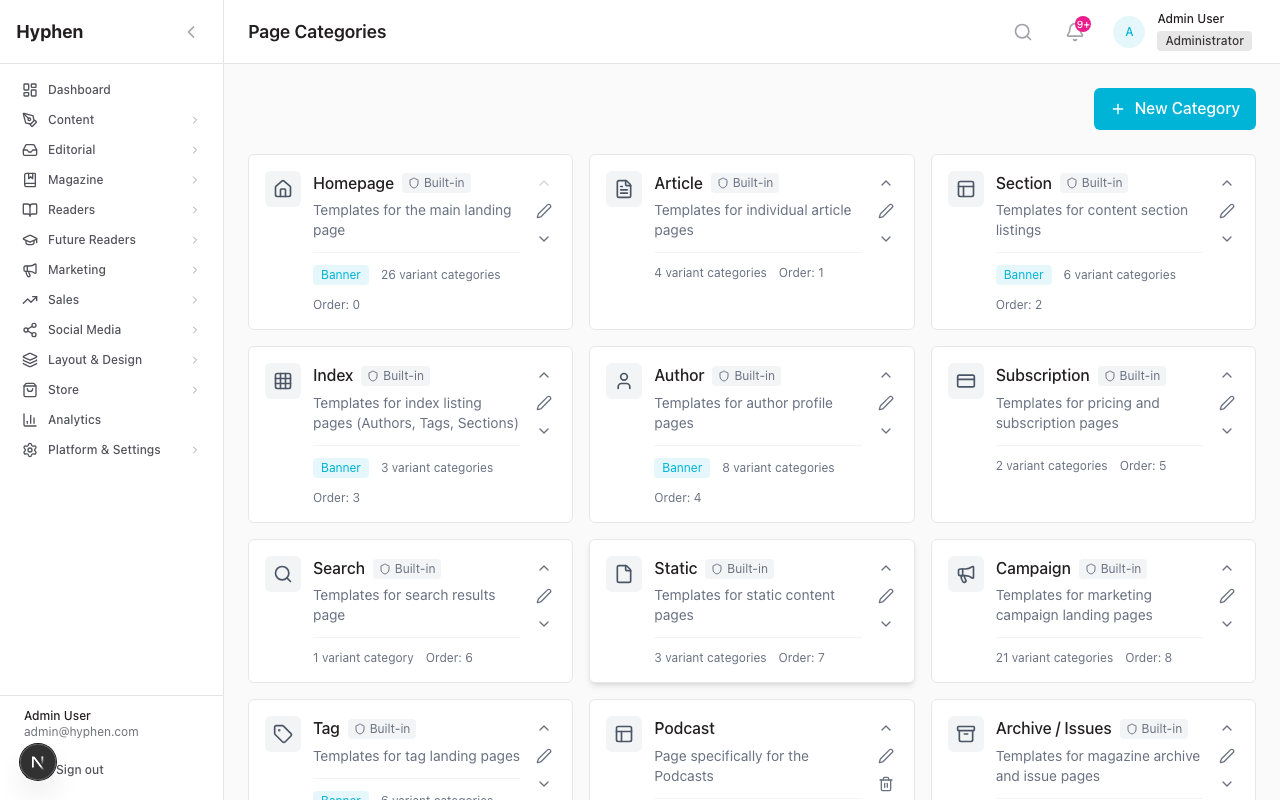
Page categories group related page types together. The platform includes built-in categories:
| Category | What It Contains |
|---|---|
| Homepage | Main site homepage |
| Article | Article detail page |
| Section | Fiction, Poetry, Essays, Interviews, News landing pages |
| Author | Author profile pages |
| Index | Authors index, Tags index |
| Search | Search results page |
| Tag | Tag listing pages |
| Subscription | Subscribe, checkout, success pages |
| Campaign | Campaign landing pages |
| Podcast | Podcast show and episode pages |
| Archive / Issues | Magazine archive and issue pages |
To create a custom category:
- Go to Layout & Design → Page Categories
- Click New Category (top right)
- Enter a name, slug, description, and choose an icon
- Click Save
Built-in categories cannot be deleted — you can only deactivate them.
7. Static Pages
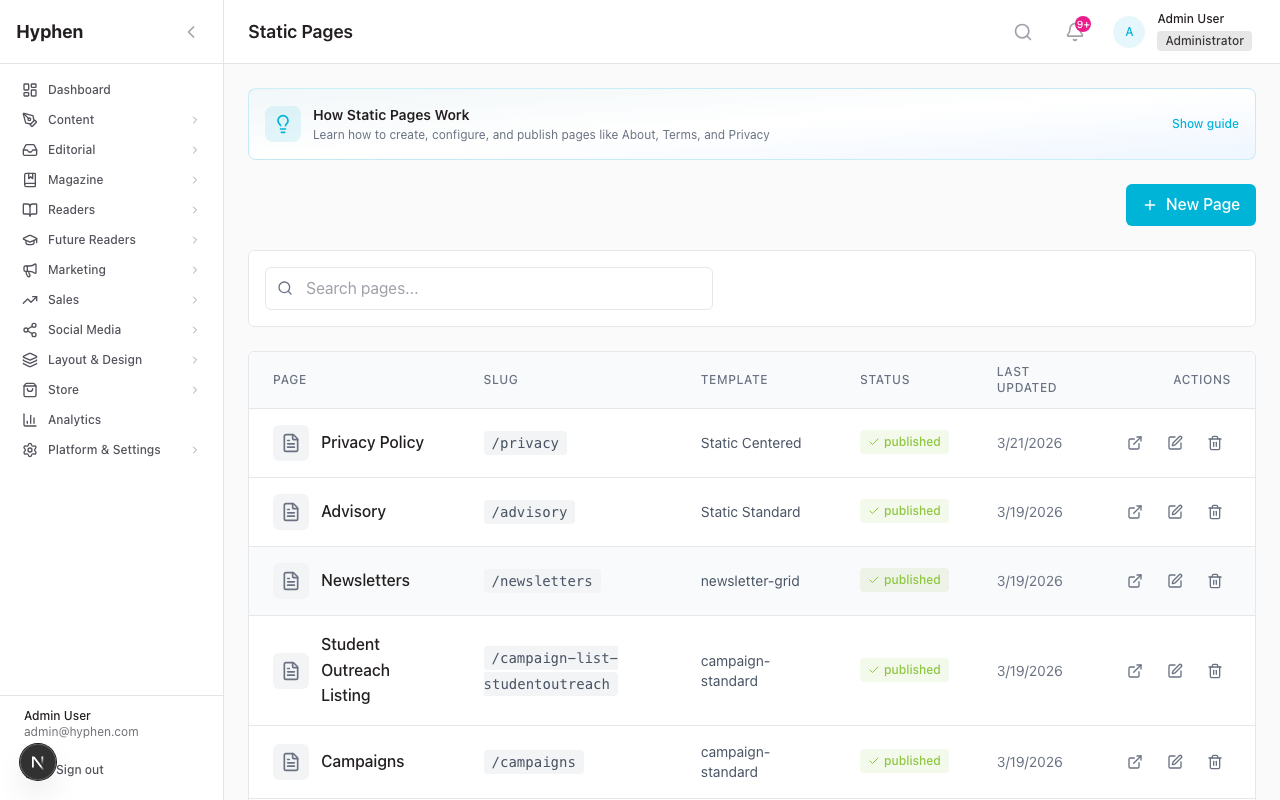
Static pages are standalone content pages like About, Privacy Policy, Terms, Contact, FAQ, and Masthead. Like every other page type, a static page is composed from sections — you assign it a template and arrange section blocks rather than only pasting raw HTML. For example, a /masthead page is built by dropping the Masthead section (static-masthead) onto a static-page template; a press-releases landing page combines a Press Release Listing section with a Media Contact and Gallery.
What the list shows:
- Page name and slug (the URL path, e.g.,
/privacy-policy) - Template assigned to the page
- Last updated date
- Actions — edit or delete
To create a new static page:
- Go to Layout & Design → Static Pages
- Click New Page (top right)
- Enter a Title and URL Slug
- Select a template or write content directly
- Click Publish
The page will be live at yoursite.com/{slug}.
8. Navigation
Header Menu
Go to Navigation in the sidebar. The Header Menu tab is shown by default.
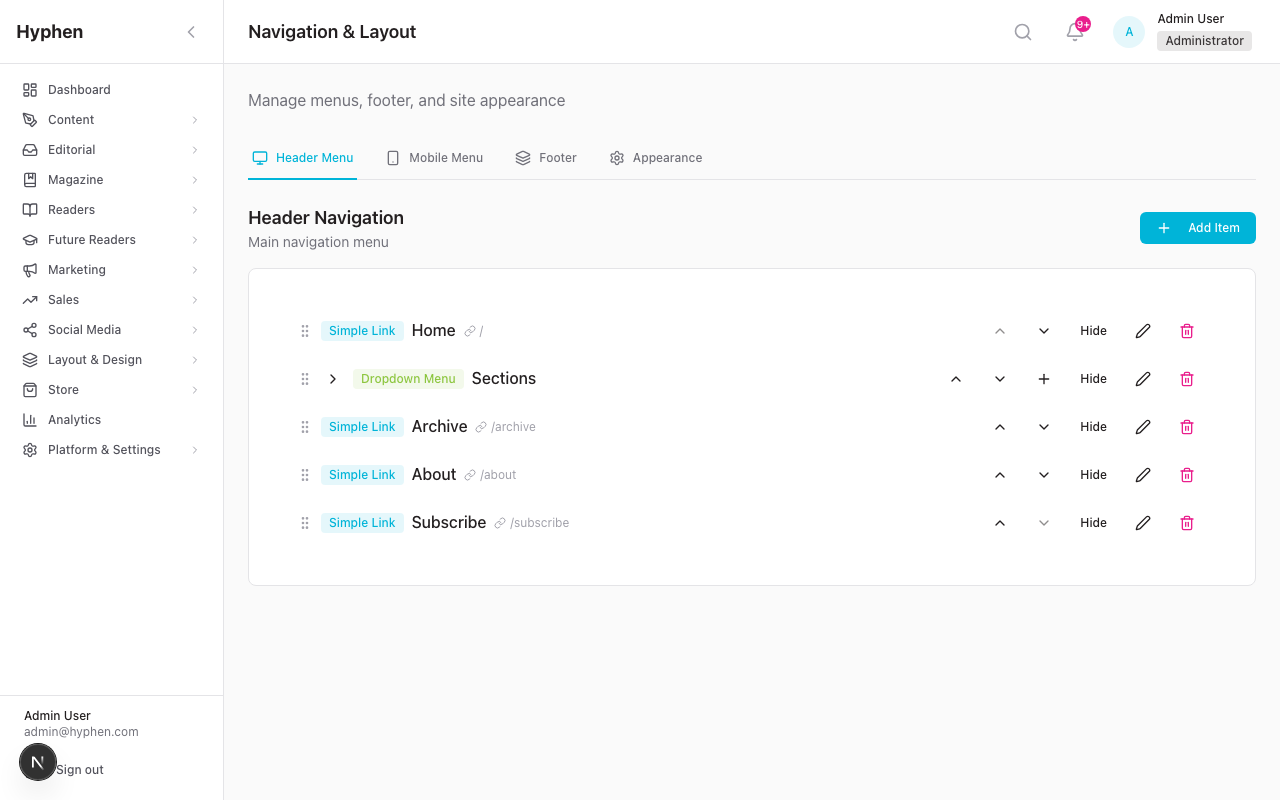
The header navigation shows your current menu items with their labels, URLs, and types (link or dropdown).
To manage navigation items:
- Click Add Item to add a new link
- Enter a Label (text readers see) and URL (where it goes)
- Choose a type: Link, Dropdown (with child items), or Megamenu
- Drag items using the grip handles to reorder
- Click Edit or Delete on any existing item
- Click Save when done
Footer
Switch to the Footer tab.
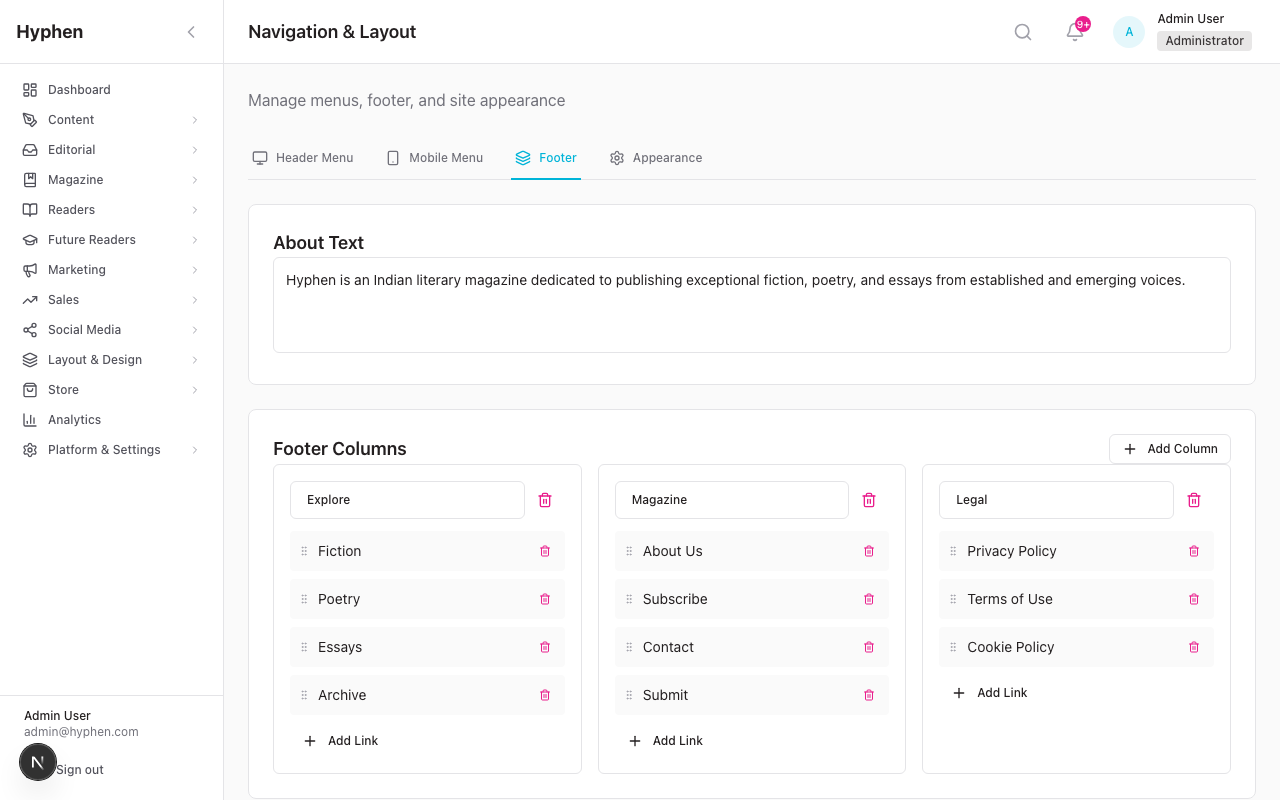
The footer editor shows:
- About Text — a description that appears in the footer area
- Footer Columns — grouped link columns (e.g., Genres, Magazine, Legal)
- Each column has a title and a list of links
- Click Add Link to add links within a column
- Click Save when done
Mobile Menu
Switch to the Mobile Menu tab to configure navigation for phone and tablet screens. It works the same as the Header Menu editor.
9. Appearance & Theme
Go to Settings → Appearance in the sidebar.
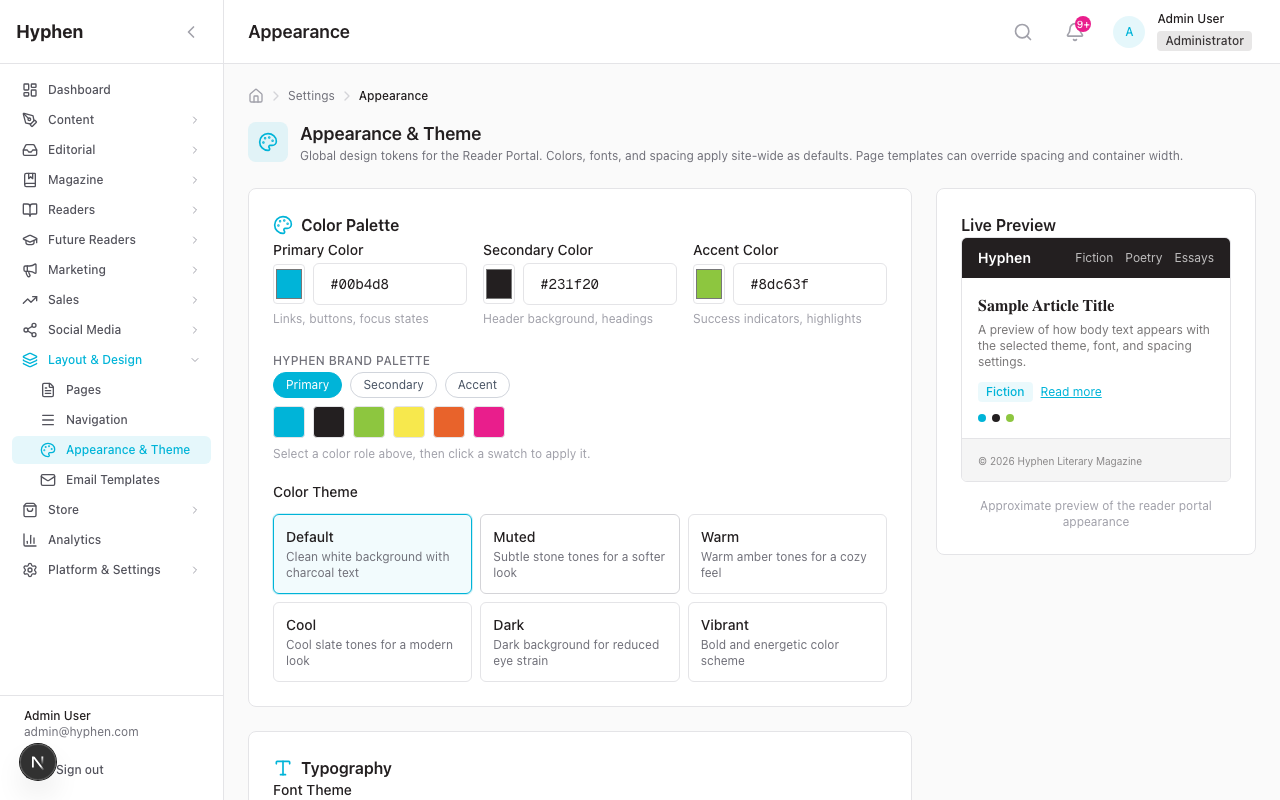
Settings available:
| Setting | What It Controls |
|---|---|
| Color Palette | Primary, secondary, and accent colors |
| Color Theme | Preset visual themes — Default, Muted, Warm, Cool, Dark, Vibrant |
| Typography / Font Theme | Font combinations for headings and body text |
| Spacing | Compact, Normal, or Spacious layout density |
| Container Width | Standard, Wide, or Full page width |
| Header & Footer Style | Visual style for the site header and footer |
| Favicon | Browser tab icon |
| Custom CSS | Advanced custom styling rules |
The Live Preview panel on the right shows changes in real time as you adjust settings. Click Save to apply — changes appear on the Reader Portal within 60 seconds.
10. Publishing and Versions
Every page configuration supports versioned publishing:
- Select a template for a page type
- Click Publish Page to make it live
- Each publish creates a version with a timestamp
- To revert, use the version history to restore a previous version
What happens when you publish:
- The configuration is saved as a new version
- The Reader Portal regenerates the page within 60 seconds (via ISR)
- Readers see the updated layout on their next visit
11. How Pages Appear on the Reader Portal
| Page Type | Reader Portal URL |
|---|---|
| Homepage | yoursite.com/ |
| Fiction | yoursite.com/fiction |
| Poetry | yoursite.com/poetry |
| Article detail | yoursite.com/article/{slug} |
| Authors & translators showcase | yoursite.com/authors (the bare yoursite.com/author shows the same list) |
| Author / contributor profile | yoursite.com/author/{slug} |
| Tag listing | yoursite.com/tag/{slug} |
| Magazine issue | yoursite.com/issue/{slug} |
| Press releases listing | yoursite.com/press-releases |
| Press release detail | yoursite.com/press-releases/{slug} |
| Masthead | yoursite.com/masthead (standalone static page you create) |
| Static page | yoursite.com/{slug} |
| Subscribe | yoursite.com/subscribe |
| Search | yoursite.com/search |
Pages automatically adapt to different screen sizes — desktop shows multi-column layouts, mobile switches to single-column.
12. Common Mistakes and How to Fix Them
| Problem | Fix |
|---|---|
| Page shows "Not configured" | Go to Page Configuration, select a template, and click Publish Page |
| Sections appear but have no content | Publish articles in the matching category or tag first |
| Can't see Layout & Design in sidebar | Ask an Admin to check your role under Settings → Roles & Permissions |
| New page doesn't appear on Reader Portal | Make sure you clicked Publish Page, then add a link in Navigation |
| Published wrong template | Go back to the page configuration, select the correct template, and publish again |
| Can't delete a built-in category | Built-in categories can be deactivated but not deleted |
| Navigation changes not showing | Click Save on the Navigation page — changes won't apply until saved |
| Appearance changes not showing | Wait 60 seconds and refresh. Make sure you clicked Save. |
| Limitation | Details | Workaround |
|---|---|---|
| Custom font upload not yet functional | The "Upload Custom Font" button in the Styles tab is present but not operational. | Use one of the 6 built-in font options (Inter, Playfair Display, Lora, Merriweather, Georgia, System Default). |
| Page revalidation delay | After publishing, the Reader Portal may take up to 60 seconds to reflect changes due to server-side caching. | Wait 60 seconds and hard-refresh the Reader Portal. |
| No drag-to-reorder for navigation links | Header and footer links can be added/removed but not reordered via drag-and-drop. | Remove and re-add links in the desired order. |
| Category reorder uses arrows only | Page categories can only be reordered via up/down arrow buttons, not drag-and-drop. | Use the arrow buttons on the dedicated Page Categories page. |
| Template sections are shared | Editing a template's sections affects all pages that use that template. | Create a separate template if you need a unique layout for one page. |
| No real-time collaborative editing | Only one user should edit a template at a time. No live collaboration or conflict detection. | Coordinate with your team to avoid simultaneous edits. |
| Banner availability depends on category | Banners only appear in the Section Palette if the page category has "Show Banner" enabled. | Edit the category and toggle Show Banner ON if needed. |
| Hero Exclusive is per-section | You must manually enable Hero Exclusive on each hero section to prevent content duplication. The toggle is in the Properties Panel for all hero variants. | Enable this setting when using a hero section alongside listing sections on the same page. |
| Max 5 social links | The navigation system enforces a limit of 5 social platform links. | Prioritize your most important social channels. |
| Advisory member images use URL input | The advisory member form uses a URL text field for images instead of the media library picker. | Upload the image to the media library first, copy the URL, and paste it into the image URL field. Media picker integration is planned. |
| Press/Coverage edit pages not yet built | Press releases and media coverage entries can be created and listed, but inline editing from the list page is not yet available. | Delete and recreate the entry, or use the API directly for updates. Edit pages are planned. |
| Static section content via displayOptions | Some static sections (Card Grid, Icon Features, Testimonials) configure their content through displayOptions in section properties rather than a dedicated content editor. | Use the Properties Panel in the Canvas Editor to configure display options. A more user-friendly content editor is planned. |
| Advisory/Press/Media not synced to Strapi | These entities are managed in the admin database, not Strapi CMS. They don't have Strapi editorial workflow (drafts, localization). | Manage directly from the Admin Console. Strapi sync can be added later if needed. |
| Subscription/Shop sections are preview-only | All subscription and shop page sections (pricing tables, product grids, cart, checkout) display placeholder data. Payment checkout (Stripe/Razorpay) and Shopify product integration are not yet connected. | Use these sections for layout preview only. Actual subscription pages work via the separate /subscribe flow. |
| Event sections use live Strapi data | Event listing cards, detail header, description, speakers, and recordings sections read from Strapi Events. The Events Listing (/events) and Event Detail (/events/[slug]) pages are template-driven. | See the Events Management guide for setup instructions. RSVP form submission is not yet connected to a backend. |
| Institutional sections are preview-only | Institutional hero, pricing, login, and usage stats sections display placeholder data. IP-based detection and institutional login are not yet functional. | Use the existing institutional inquiry form at /institutional for real institutional sales. |
This table shows which section types are fully functional vs. preview-only (stubs), so you know what to expect when building pages.
| Category | Sections | Notes |
|---|---|---|
| Hero | Hero Image Left/Right, Hero Full-Width, Hero Minimal, Hero Carousel | All 5 variants work with real article data, filters, manual selection |
| Article Grids | Grid 2-Column, Grid 2+Sidebar, Grid 3-Column, Grid 4-Carousel | All configurable with filters, sorting, pagination |
| Featured | Featured Left+Grid, Featured Above, Featured Mixed, Featured Events, Featured Collections, Featured Podcasts | Configurable with subscriber badges. The Featured Events / Collections / Podcasts strips are small 3-card teasers (cap 8 items, no pagination) with a "View all →" link to /events, /collections, or /podcasts — distinct from the full landing-page browse grids, and available on any template whose category allows the Featured group |
| Lists | Horizontal Cards, Vertical Cards, Minimal List | All show real articles with proper metadata |
| Article Detail | Article Header, Article Content, Author Bio, Related Articles | Read real article data; Author Bio shows social links |
| Section Page | Section Header, Featured Article, Article Grid, Hero Fullscreen | Read real section data from CMS |
| Author | Author Hero, Articles Grid, Bibliography, Author Detail Card | Read real author data; Bibliography groups by year. Author Hero (Contributor) shows name, bio and Follow button by default; photo, short bio, social links, article count and languages are optional toggles |
| Static Page | Hero, Rich Content, FAQ, CTA Block, Timeline, Card Grid, Icon Features, Team Grid, Contact Form, Image Content, Support Block, Testimonial Band, People Grid, Person Detail (Author Detail Card), Masthead, Press List, Media Contact, Media Coverage, Submission CTA, Sidebar Nav | All configurable from admin Properties Panel; FAQ, Card Grid, Icon Features support configurable columns; FAQ renders multi-category content as side-by-side columns with a visible category picker |
| Press / Media | Press Release Listing (static-press-list), Media Contact (static-media-contact), Media Coverage Listing (static-media-coverage), Gallery (utility-gallery) | Press list shows a dateline (location or linked source); Media Contact shows name/role/email; Gallery is a lightbox image grid from the Media Library; Media Coverage links out to the outlet or to an in-app detail page |
| Campaign | Hero, Info, Form, CTA, Success, Expired, Upcoming, Paused, Countdown, Speakers, Schedule, Partners, Testimonial, Related Events (campaign-related-events), all 11 extended variants | Full campaign state management; ICS calendar download. Related Events shows a grid of Strapi Events filtered by the current campaign's type (allowed on campaign and event page types, defaults to 4 items) |
| Newsletter | Archive Header, Edition Grid, Edition Detail, Subscribe Form | Full API integration, GA4 analytics, topic filtering, pagination |
| Collection | Header, Article List, Curator Note, Reading Progress | Partial — reads real article data for counts and lists |
| Category | Sections | What's Needed |
|---|---|---|
| Article Detail | Table of Contents, Media Embed, Series Nav, Footnotes | Content parsing, audio player, series data model |
| Section Page | Filter Bar, Cross Links | State connection to article grid, real section data |
| Author | Related Authors, Social Feed, Audio Readings | Related authors data, podcast data |
| Subscription | All 7 variants | Payment gateway (Stripe/Razorpay), real plan data |
| Shop | All 11 variants | Shopify integration, cart state, checkout flow |
| Institutional | All 6 variants | IP detection, token verification, inquiry API |
| Event | RSVP Form (submission only) | RSVP form UI renders but submission is not yet connected to a backend. All other event sections (listing cards, detail header, description, speakers, recordings, calendar) are fully functional with live Strapi data. |
| Podcast | All 7 variants | Strapi podcast data, audio player |