Layout & Design Templates
Complete guide to global appearance & theme tokens, banners & announcements, navigation, page categories, and the email template system — with end-to-end data flow, configuration reference, and diagrams
Scope of this guide
This guide is the reference for the global design layer of the platform: Appearance & Theme tokens (colors, typography, spacing, badges), Banners & Announcements, Navigation (header + footer), Page Categories, and the Email Template system. Together these decide how every Reader Portal page and every outbound email looks.
The page/section layout builder — the drag-and-drop canvas, the 176+ section variants, per-page template binding, and publishing individual pages — has its own dedicated reference at Page Template System. The multi-account email delivery layer (provider accounts, purpose routing, suppressions, the send dashboard) lives in the Email System Guide. This guide cross-links to both at every boundary.
1. Executive Overview
What This Module Does
The Layout & Design — Page & Email Template System provides the complete visual management layer for the Hyphen Publishing Platform. It consists of two interconnected systems:
-
Page Template System — A visual drag-and-drop page builder that lets admins create, configure, and publish page layouts across 21 page categories (homepage, article, section, author, subscription, search, campaign, archive, shop, etc.). Published templates render on the Reader Portal as the public-facing magazine.
-
Email Template System — A template management system for all transactional, lifecycle, notification, and marketing emails. Admins can customize email content, branding, and behavior through a WYSIWYG editor with variable substitution, preview, and test-send capabilities.
Who Uses It
| User | Role |
|---|---|
| Admins / Editors | Create, configure, and publish page templates; customize email templates |
| Content Editors | Use page templates to organize how content appears on the magazine |
| Marketing Teams | Create email campaigns using the template system |
| Readers | Experience the published page templates on the Reader Portal; receive styled emails |
| QA Teams | Validate template rendering, email delivery, and configuration workflows |
Business Problem Solved
- Eliminates the need for code changes to modify page layouts or email styling
- Provides consistent branding across all reader-facing pages and emails
- Enables non-technical staff to control magazine appearance and communication
- Supports 20+ page types with 80+ template variants and 176+ section components
- Centralizes email branding, variable management, and delivery tracking
2. Feature Scope
In Scope
Page Template System
| Feature | Description |
|---|---|
| Template Gallery | Browse and select from 80+ built-in templates across 21 categories |
| Visual Drag-Drop Editor | Canvas-based editor with section palette, properties panel, and live preview |
| Section System | 176+ pre-built section components (hero, grid, list, detail, campaign, etc.) |
| Section Properties | Configurable properties per section (content source, filters, layout, visibility) |
| Template Versioning | Major/minor version tracking with rollback capability |
| Template Publishing | Publish templates to Strapi CMS for Reader Portal consumption |
| Page Categories | 20 database-driven page categories with dynamic management |
| Static Pages | About, Privacy, Terms, and custom static page management |
| Homepage Editor | Dedicated homepage editing with featured carousel and section management |
| Banner Management | Promotional banners with scheduling (start/end dates) |
| Navigation Editor | Header and footer link management |
| Theme & Appearance | Global theme customization (colors, typography, spacing, header/footer styles) |
| Campaign Landing Pages | Template-driven campaign pages |
| Preview Mode | Preview templates before publishing with session-based preview API |
Email Template System
| Feature | Description |
|---|---|
| Email Template CRUD | Create, edit, delete, and manage email templates |
| Variable System | {{variable}} substitution in subject and body |
| Template Preview | In-editor preview with branding wrapper |
| Test Email | Send test email per template with [TEST] prefix |
| Email Branding | Global branding (logo, colors, footer, social links) via preferences |
| Email Campaigns | Campaign builder with audience targeting and scheduling |
| Email Logs | Full delivery log with status tracking (sent/failed/bounced) |
| Template Seeding | One-click seeding of 20 default templates |
| Multi-Provider Support | SMTP, SendGrid, Mailchimp with admin-selectable provider |
| Unsubscribe Compliance | RFC 8058, GDPR, CAN-SPAM compliant unsubscribe system |
| Email Classes | 4 email classes with appropriate unsubscribe and compliance behavior |
Out of Scope
- A/B testing of page templates (not implemented)
- Drag-and-drop email editor (HTML-based editing only)
- Real-time collaborative editing (single editor at a time)
- Template marketplace or third-party template import
Related Modules / Dependencies
| Module | Relationship |
|---|---|
| Content Management | Templates display content from Strapi CMS |
| Reader Portal | Renders published page templates |
| Admin Settings & RBAC | Controls permissions for template management |
| Notifications & Email | Uses email templates for all outbound emails |
| Marketing & Outreach | Uses email campaign system |
| User & Subscription | Subscription lifecycle emails use templates |
3. Roles Involved
Page Template System
| Role | Capabilities |
|---|---|
| Super Admin | Full access to all template operations |
| Admin | Create, edit, publish, delete templates; manage categories, static pages, navigation, appearance |
| Editor | View templates; limited to editing page configurations assigned to their scope |
| Viewer | Read-only access to template gallery |
Email Template System
| Role | Capabilities |
|---|---|
| Super Admin | Full access to all email settings |
Admin (with SETTINGS_UPDATE) | Create, edit, delete email templates; manage preferences; send test emails; view logs |
Admin (with SETTINGS_READ) | View email templates, preferences, SMTP status, logs |
| Marketing (with campaign permissions) | Create and send email campaigns |
RBAC Permissions Required
| Permission Key | Controls |
|---|---|
homepage:update | Template CRUD, page category management |
homepage:read | View templates and page configurations |
SETTINGS_READ | View email templates, preferences, SMTP status |
SETTINGS_UPDATE | Edit email templates, preferences; send test emails; seed templates |
NAVIGATION_READ | View navigation and appearance settings (also used by Reader Portal internal token) |
4. Architecture & Design Overview
System Architecture
Data Flow — Page Templates
- Admin creates/edits template in Canvas Editor
- API saves to PostgreSQL (PageTemplate + TemplateVersion) and writes versioned JSON file to
/data/templates/ - Admin publishes template → API syncs to Strapi CMS (
page-configurationcontent type) - Reader Portal fetches page configuration from Strapi → resolves template → renders sections dynamically
- Revalidation webhook triggers ISR cache refresh on Reader Portal
Data Flow — Email Templates
- Admin creates/edits email template in Editor (Settings → Email → Templates)
- API saves to PostgreSQL (EmailTemplate model). Each template carries a
defaultPurposeKeythat drives downstream routing. - System event triggers email (subscription welcome, OTP, campaign send, etc.)
- Email Pipeline resolves the template's purpose → looks up the primary account for that purpose at
EmailPurposeAccount→ decrypts that account's credentials → replaces variables → wraps with branding → sends via the resolved provider → logs to EmailLog withpurposeKey+emailAccountId - Admin views delivery status in Settings → Email → Logs and aggregate analytics in Settings → Email → Dashboard
Multi-account routing is the delivery model: each canonical purpose routes to its own provider account. See the Email System Guide for the admin-facing details.
Key Entities & Models
Page Template Models (PostgreSQL/Prisma)
| Model | Purpose |
|---|---|
PageCategory | 21 page categories (homepage, article, section, author, etc.) |
PageTemplate | Template definitions with metadata, sections, styles |
TemplateVersion | Version history per template (major.minor) |
Banner | Promotional banners with scheduling |
StaticPage | Static content pages (About, Terms, Privacy, etc.) |
Strapi Content Types
| Content Type | Kind | Purpose |
|---|---|---|
page-configuration | Collection | Per-page-type template configuration (supports draft/publish) |
page-template | Collection | Template metadata synced from admin |
page-version | Collection | Version snapshots for rollback |
site-navigation | Single | Header links, footer columns, social links |
site-appearance | Single | Global theme (colors, fonts, spacing) |
homepage | Single | Homepage template selection and hero config |
static-page | Collection | Static page content |
Email Models (PostgreSQL/Prisma)
| Model | Purpose |
|---|---|
EmailTemplate | Template definitions with key, subject, HTML/text content, variables |
EmailLog | Delivery log with status tracking, provider, error details |
EmailPreferences | Singleton — branding, footer, unsubscribe, CRM settings |
EmailCampaign | Campaign definitions with segment, status, metrics |
Settings Precedence Model
The template system follows a 5-level precedence hierarchy:
Level 1: Global platform settings (DB)     — AUTHORITATIVE, NEVER overrideable
Level 2: Global site defaults (Strapi)     — AUTHORITATIVE with selective override
Level 3: Page template defaults            — OVERRIDE spacing/layout only
Level 4: Page-specific configuration       — Per-page overrides
Level 5: Content access rules              — OVERRIDE paywall per content
5. Prerequisites & Setup Requirements
Infrastructure Prerequisites
| Requirement | Details |
|---|---|
| Node.js | 18.x minimum (20.x LTS recommended) |
| PostgreSQL | 15.x+ with uuid-ossp and pgcrypto extensions |
| Redis | 7.x for caching |
| Strapi CMS | Running on port 1337 with admin access |
| Docker / Docker Compose | 24.x / 2.20+ |
Environment Variables Required
Admin Console
| Variable | Purpose | Example |
|---|---|---|
DATABASE_URL | PostgreSQL connection | postgresql://hyphen:...@localhost:5432/hyphen_admin |
STRAPI_URL | Strapi CMS URL | http://localhost:1337 |
STRAPI_API_TOKEN | Strapi API token | (from Strapi admin) |
NEXT_PUBLIC_READER_PORTAL_URL | Reader portal URL (for revalidation) | http://localhost:3001 |
READER_PORTAL_REVALIDATION_SECRET | Shared secret for ISR revalidation | (random string) |
INTERNAL_API_TOKEN | Shared secret for Reader Portal ↔ Admin API | (random string) |
EMAIL_ENABLED | Enable email sending | true |
EMAIL_FROM | Default sender address | notifications@hyphen.co |
SMTP_HOST, SMTP_PORT, SMTP_USER, SMTP_PASS | SMTP configuration | (provider-specific) |
SENDGRID_API_KEY | SendGrid API key (if using SendGrid) | SG.xxxxx |
VAPID_PUBLIC_KEY, VAPID_PRIVATE_KEY | Push notification keys | (from npx web-push generate-vapid-keys) |
Reader Portal
| Variable | Purpose | Example |
|---|---|---|
NEXT_PUBLIC_STRAPI_URL | Strapi CMS URL | http://localhost:1337 |
STRAPI_API_TOKEN | Strapi API token | (from Strapi admin) |
NEXT_PUBLIC_ADMIN_API_URL | Admin console API URL | http://localhost:3000 |
INTERNAL_API_TOKEN | Same value as Admin Console | (matching secret) |
REVALIDATION_SECRET | Same as READER_PORTAL_REVALIDATION_SECRET | (matching secret) |
NEXT_PUBLIC_SITE_NAME | Site display name | Hyphen |
Module Dependencies (Must Be Set Up First)
| Dependency | Required For |
|---|---|
| Core Infrastructure (Docker, PostgreSQL, Redis) | Database and caching |
| Strapi CMS with content types created | Template sync, page configurations |
| Authentication & User Management | Admin login, RBAC |
Prisma migrations run (npx prisma migrate deploy) | PageTemplate, EmailTemplate models |
Seed Data Initialization
Before the template system is usable, seed data must be initialized:
-
Page Categories — Seed 21 built-in categories:
POST /api/page-categories/seed -
Page Templates — Seed built-in templates:
POST /api/templates/seed -
Email Templates — Seed default email templates (subscription, campaign, notification, OTP, and operational):
POST /api/settings/email-templates/seedOr click the "Seed Missing" button in Settings → Email → Templates.
Strapi Content Types Required
The following content types must exist in Strapi:
page-configuration(collection, draft & publish enabled)page-template(collection)page-version(collection)site-navigation(single type)site-appearance(single type)homepage(single type)static-page(collection)
6. Configuration Guide — Page Template System
6.1 Accessing the Template System
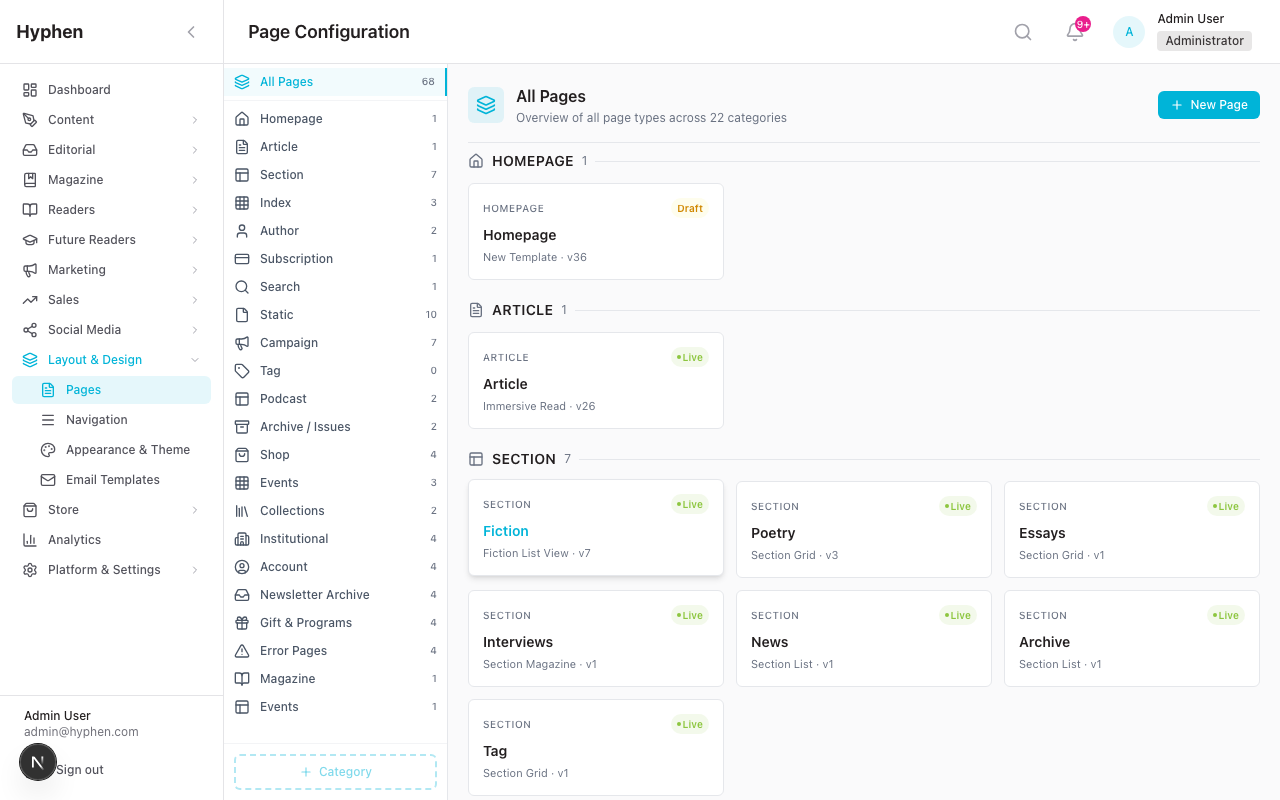
Navigate to Layout & Design in the admin console sidebar:
| Menu Item | Path | Purpose |
|---|---|---|
| Pages | /layout/pages | View and manage page types with their templates |
| Templates | /layout/templates | Browse the full template gallery |
| Categories | /layout/categories | Manage page categories |
| Static Pages | /layout/static-pages | Manage static content pages |
| Campaigns | /layout/campaigns | Campaign landing page layouts |
| Homepage | /homepage | Homepage-specific editor |
| Navigation | /navigation or /settings/navigation | Header/footer link management |
| Appearance | /settings/appearance | Theme customization |
6.2 Understanding Page Categories
There are 21 built-in page categories:
| Category | Slug | Description |
|---|---|---|
| Homepage | homepage | Main landing page |
| Article | article | Individual article pages |
| Section | section | Section/category listing pages (Fiction, Poetry, Essays, etc.) |
| Index | index | Index/directory pages |
| Author | author | Author profile pages |
| Subscription | subscription | Subscription/pricing pages |
| Search | search | Search results page |
| Static | static | Static content pages |
| Campaign | campaign | Campaign landing pages |
| Tag | tag | Tag listing pages |
| Archive | archive | Archive/back-issue pages |
| Magazine Issues | magazine-issues | Magazine issue viewer |
| Shop | shop | E-commerce pages |
| Event | event | Event pages |
| Podcast | podcast | Podcast pages |
| Collection | collection | Curated collection pages |
| Institutional | institutional | Institutional subscription pages |
| Account | account | Reader account pages |
| Newsletter Archive | newsletter-archive | Newsletter archive pages |
| Gift | gift | Gift subscription pages |
| Error | error | Error pages (404, 500) |
6.3 Working with the Template Canvas Editor
Opening the Editor
- Go to Layout & Design > Pages
- Select a page type (e.g., Homepage)
- Click on the assigned template or click Edit Template
- The Canvas Editor opens with three panels:
- Left Panel: Section Palette (drag sections from here)
- Center Panel: Canvas Area (your page layout)
- Right Panel: Properties Panel (configure selected section)
Adding Sections
- In the Section Palette (left panel), browse section variants by category
- Drag a section variant onto the Canvas Area
- Drop it in the desired position (drop zones appear between existing sections)
- The section appears on the canvas with default configuration
Configuring Section Properties
When you select a section on the canvas, the Properties Panel shows configuration options based on the section's behavior type:
| Behavior Type | Properties Available |
|---|---|
| Listing | Content source (dynamic/manual/mixed), curated Section / Tag / Language multi-select filters (for article sources), status filter, max items, sort order, pagination, entity picker, and (on article grids) the optional reader-facing filter dropdowns described below |
| Detail | Entity reference, display fields, related content config |
| Contextual | Relationship type, related entity config, plus the same curated Tag / Language scope filters for article sources |
| Static | Title, subtitle, body text, CTA button, image |
Curated editor filters vs. reader-facing filters
There are two distinct filter layers, and it helps to keep them apart:
- Curated editor (scope) filters — In the Properties Panel, article-sourced Listing and Contextual sections expose multi-select Section / Tag / Language dropdowns. These narrow what the section pulls (its base scope) and are baked into the published configuration. Readers never see these controls; they only see the resulting content.
- Reader-facing per-grid filters — Article grids can additionally expose live Language / Author / Section (Category) dropdowns above the grid on the Reader Portal. These let the reader re-filter within the section's base scope. They are opt-in per section (see §6.9) and default to off, so a grid shows no reader controls unless you enable them.
Section Variant Categories
| Category | Examples | Count |
|---|---|---|
| Hero | HeroFullWidth, HeroImageLeft, HeroImageRight, HeroMinimal, HeroCarousel | 5 |
| Article Grids | Grid2Column, Grid3Column, Grid2WithSidebar, Grid4Carousel | 4 |
| Featured | FeaturedLeftGridRight, FeaturedAboveGrid, FeaturedMixed | 3 |
| Article Lists | ListHorizontalCards, ListVerticalCards, ListMinimal | 3 |
| Article Detail | ArticleHeader, ArticleContent, ArticlePaywallGate, etc. | 10 |
| Campaign | CampaignHero, CampaignForm, CampaignCountdown, etc. | 11 |
| Event | EventHero, EventListingCards, EventRsvpForm, etc. | 7 |
| Podcast | PodcastShowHeader, PodcastEpisodeList, PodcastMiniPlayer | 6 |
| Shop | ShopHero, ShopProductGrid, ShopProductHeader | 9 |
| Archive | ArchiveHero, ArchiveIssueGrid, ArchiveTimelineView | 7 |
| Newsletter | NewsletterArchiveHeader, NewsletterEditionGrid | 4 |
| And 10+ more categories | Sidebar, footer, account, institutional, error, etc. | 100+ |
Reordering Sections
- Drag sections up or down on the canvas to reorder
- Section
orderproperty updates automatically
Removing Sections
- Select the section on the canvas
- Click the Delete/Remove button in the Canvas Toolbar or section context menu
Live Preview
- The LiveTemplatePreview component renders a real-time preview of the current template configuration
- Preview updates as you modify section properties
6.4 Template Versioning
Every template edit creates a version record:
| Field | Description |
|---|---|
| Major version | Incremented for breaking changes (component removal, layout redesign) |
| Minor version | Incremented for non-breaking changes (section reorder, config update) |
| Change note | Optional description of what changed |
| Created by | Admin user who made the change |
Viewing Version History:
- Open a template in the editor
- Click Version History to see all versions
- Each version shows: version number, change note, author, timestamp
Rolling Back:
- In the version history, find the desired version
- Click Rollback to this version
- A new version is created with the rolled-back content (non-destructive)
6.5 Publishing Templates
Publishing syncs the template configuration to Strapi CMS, making it available to the Reader Portal.
- Open the template in the editor
- Review the configuration
- Click Publish
- The API:
- Sets template status to
active - Syncs template data to Strapi
page-configurationcontent type - Triggers Reader Portal ISR revalidation
- Sets template status to
- Changes appear on the Reader Portal within seconds
6.6 Managing Static Pages
- Go to Layout & Design > Static Pages
- Click Create to add a new page (or select existing)
- Fill in:
- Title — Page heading
- Slug — URL path (e.g.,
about,privacy-policy,terms) - Category — Default:
static - Template ID — Optionally bind to a template
- Content — Rich text content
- Active — Toggle visibility
- Click Save
6.7 Managing Navigation
Navigate to Settings > Navigation or Navigation page.
Header Links
- Add, edit, reorder, or remove main navigation links
- Each link has: label, URL, and optional icon
- Changes sync to Strapi
site-navigationsingle type
Footer Configuration
- Configure footer columns (each with title and list of links)
- Add social media links (X/Twitter, Facebook, Instagram, LinkedIn, etc.)
- Set copyright text and company information
6.8 Theme & Appearance
Navigate to Settings > Appearance.
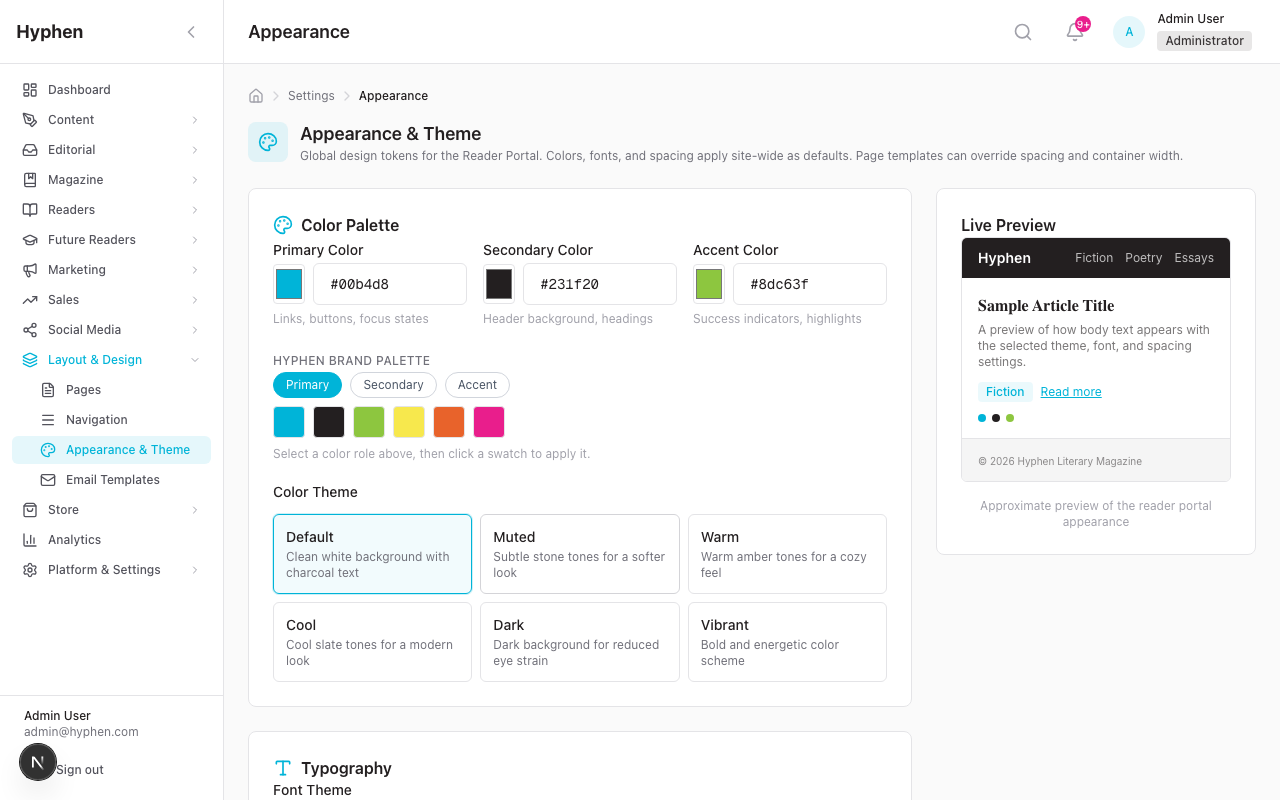
Available customizations:
| Setting | Description |
|---|---|
| Colors | primaryColor, secondaryColor, accentColor, and ctaColor (the call-to-action / button colour). colorTheme selects a named palette preset |
| Typography | fontTheme (e.g. editorial) drives heading/body font pairing; bylineStyle (plain / italic); sectionLabelCase (uppercase / etc.) controls how section/category labels are cased |
| Spacing & Layout | spacing (compact/normal/relaxed), containerWidth (standard / wide), section spacing |
| Header & Footer | headerStyle (e.g. sticky), footerStyle (e.g. editorial), footerLogoUrl, and sectionNavStyle (placement of the in-page section nav, e.g. top-right) |
| Shape / Borders | borderStyle (e.g. rounded) and borderRadius set the global corner treatment for cards, buttons, and chips. Certain elements (carousel indicators, comment/author avatars) stay circular regardless of this setting by design |
| Tags & Badges | tagBorderEnabled, tagBackgroundColor, tagBorderColor style article tags; per-section badge colours (badgeFictionColor, badgePoetryColor, badgeEssayColor, badgeInterviewColor, and arbitrary sectionBadgeColors) tint category labels |
| Announcements | announcementBgColor, announcementTextColor, announcementLinkColor style the promo/announcement strip |
| Custom CSS | customCss for advanced overrides |
These defaults mirror the Figma "The Hyphen" design system and are kept in sync across three places: the reader
globals.css:root, the reader/api/appearancestructural defaults, and the admin appearance route. Changing a token in the admin overrides the corresponding default.
Changes sync to Strapi site-appearance and are consumed by the Reader Portal's ThemeProvider, which applies them as CSS variables and prefixed Tailwind classes (theme-, font-theme-, spacing-, container-width-, header-style-, footer-style-, border-style-, section-nav-).
Live Preview: The appearance editor includes a live preview panel showing how changes will look on the Reader Portal.
6.9 Reader-Facing Per-Grid Filters (Language / Author / Section)
Article grids can optionally expose live filter dropdowns to readers, letting them re-filter a grid in place. This is opt-in per section and defaults to off, so a grid shows no reader controls unless you enable them.
Supported grid variants: Grid2Column, Grid3Column, Grid4Carousel, Grid2WithSidebar, and the section-page article grid (SectionArticleGrid).
Configuration (per section, in the Properties Panel): an articleFilters config with:
| Field | Effect |
|---|---|
enabled | Master switch — filters render only when this is true AND at least one dimension below is enabled |
language | Show the Language dropdown (options from /api/articles/languages) |
author | Show the Author dropdown (options from /api/authors) |
section | Show the Category dropdown (options from /api/sections) |
How it behaves on the Reader Portal:
- No filter selected — the grid uses its server-rendered (SSR) article pool and paginates client-side. No extra network calls.
- A filter selected — the grid re-fetches server-side via
GET /api/articles, combining the reader's selection with the section's base scope (the section's ownfiltersplus any page-level section/author scope, e.g. on a Section or Author page). Results re-paginate from page 1. - Each enabled dropdown defaults to "All …". If its option list fails to load, the dropdown still renders at its default so the grid never breaks.
- A small feedback line handles loading ("Loading articles…"), empty ("No articles match these filters."), and error (with a "Try again" retry) states.
- Selections respect the same base scope, so a grid on
/fictionfiltered by Author still only shows that author's fiction.
The styling reuses the same shared FilterDropdown as the standalone utility-article-filter bar, so the two look identical. You can exercise all three dropdowns on the grid variants in /preview/sections.
7. Configuration Guide — Email Template System
7.1 Accessing Email Templates
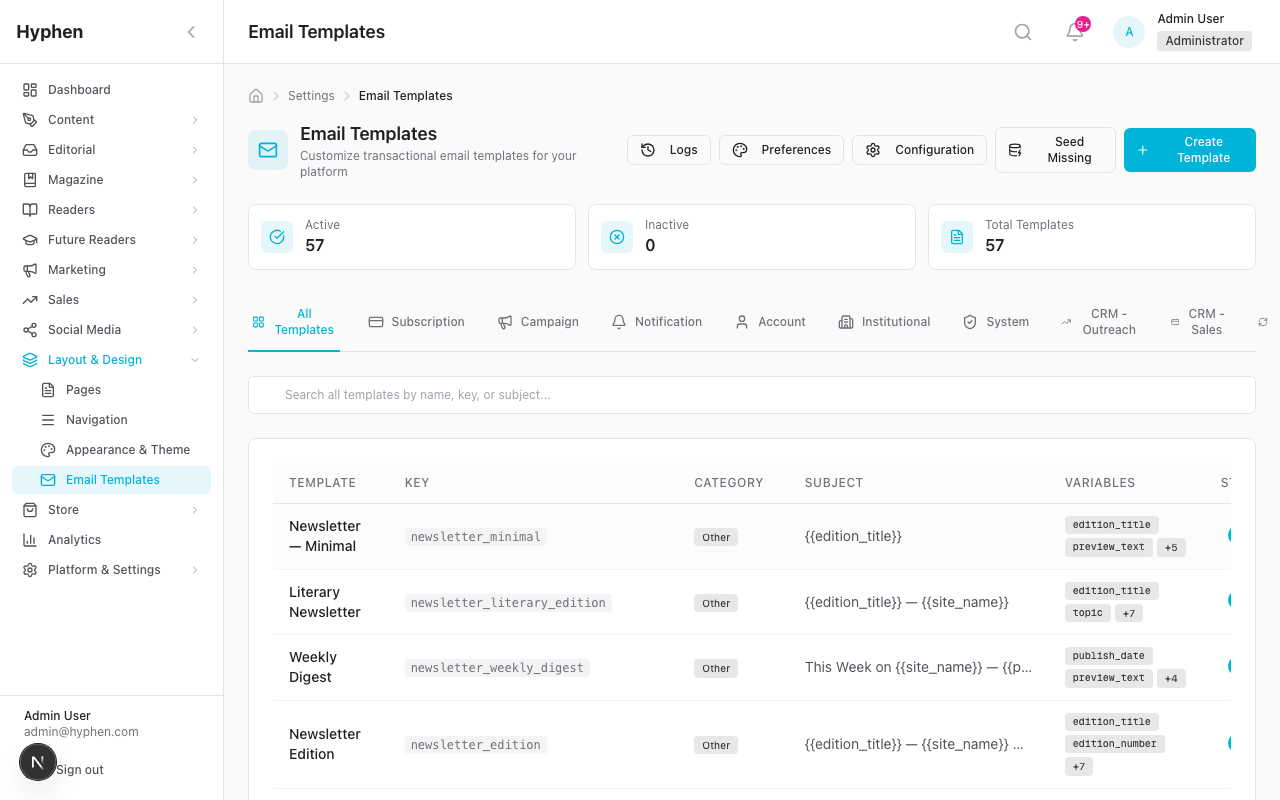
Navigate to the Email sidebar group:
| Menu Item | Path | Purpose |
|---|---|---|
| Email → Dashboard | /settings/emails/dashboard | KPI strip + per-account / per-purpose breakdowns + daily volume chart + unsubscribe analytics |
| Email → Templates | /settings/emails | Browse and manage all email templates (each carries a defaultPurposeKey) |
| Email → Accounts | /settings/emails/accounts | Provider connections: SMTP / SendGrid / Mailchimp Transactional / AWS SES / Postmark |
| Email → Purposes | /settings/emails/purposes | Map every canonical purpose to a primary account |
| Email → Suppressions | /settings/emails/suppressions | Local mirror of bounce / complaint / unsubscribe / GDPR records |
| Email → Logs | /settings/emails/logs | Row-level delivery records, filterable by status / template / account / purpose / bounce class |
/settings/emails/configredirects to/settings/emails/accounts. The full guide is at Email System Guide.
7.2 Initial Setup — Seed Default Templates
Before email templates are usable, seed the defaults:
- Go to Settings → Email → Templates
- Click the "Seed Missing" button in the header
- This creates 20 default templates (only creates missing ones, never overwrites existing):
| Category | Templates |
|---|---|
| Subscription (7) | Welcome, Renewal Reminder, Expiration, Payment Receipt, Future Readers Coupon, Institutional Invite, Gift Activation |
| Campaign (4) | Submission Approved, Submission Rejected, Invitation, New Campaign Notification |
| Notification (8) | New Submission, Reassigned, Action Needed, Author Response, Ready for Review, Publishing Approved, Change Requested, Article Live |
| System (1) | OTP Verification |
7.3 Creating / Editing Email Templates
- Go to Settings → Email → Templates
- Click Create New or select an existing template
- Fill in:
| Field | Description | Required |
|---|---|---|
| Key | Unique identifier (e.g., subscription_welcome) | Yes (immutable after creation) |
| Name | Display name (e.g., "Welcome Email") | Yes |
| Subject | Email subject line — supports {{variables}} | Yes |
| HTML Content | HTML email body — supports {{variables}} | Yes |
| Text Content | Plain-text fallback body | Recommended |
| Variables | List of variable names used in the template | Auto-detected |
| Active | Toggle template availability | Yes (default: true) |
7.4 Using Template Variables
Variables are placeholders that get replaced with actual values at send time.
Syntax: {{variableName}}
Matching: Case-insensitive (e.g., {{userName}} matches username)
System Variables (Auto-Injected)
These are always available in every template:
| Variable | Source | Example Value |
|---|---|---|
{{site_name}} | NEXT_PUBLIC_SITE_NAME env var | Hyphen |
{{site_url}} | System settings | https://hyphen.co |
{{support_email}} | CRM settings | support@hyphen.co |
{{current_year}} | System | 2026 |
{{unsubscribe_url}} | HMAC-generated per recipient | https://hyphen.co/unsubscribe?token=... |
CRM Variables (Auto-Injected from CRM Settings)
| Variable | Source |
|---|---|
{{support_phone}} | CRM settings |
{{admin_portal_url}} | CRM settings |
{{reader_portal_url}} | CRM settings |
{{user_guide_url}} | CRM settings |
{{company_website}} | CRM settings |
{{schedule_demo_url}} | CRM settings |
{{pricing_page_url}} | CRM settings |
Context-Specific Variables
| Template Type | Variables |
|---|---|
| Subscription emails | {{userName}}, {{userEmail}}, {{subscriptionPlan}}, {{subscriptionEndDate}}, {{renewalLink}} |
| OTP | {{otpCode}}, {{expiryMinutes}} |
| Article notifications | {{articleTitle}}, {{articleAuthor}}, {{articleUrl}} |
| Campaign | {{campaignName}}, {{offerCode}}, {{redemption_instructions}} |
| Password reset | {{resetLink}}, {{userName}} |
7.5 Previewing Email Templates
- In the template editor, click Preview
- The preview renders the template with:
- Branding wrapper (logo, header, footer from Email Preferences)
- Sample variable values
- Actual styling as it would appear in email clients
7.6 Sending Test Emails
- In the template editor, click Send Test
- Enter a recipient email address
- The system sends the email with:
[TEST]prefix in subject line- Sample variable values
- Full branding wrapper
- Check the Email Logs page to verify delivery
7.7 Configuring Email Branding (Preferences)
Navigate to Settings → Email → Templates → Preferences:
| Section | Settings |
|---|---|
| Header | Logo URL, background color |
| Footer | Company name, address, social media links, copyright text, custom HTML |
| Unsubscribe | Link text, preferences URL, grace period (0–30 days), confirmation required, reason options |
| Font & Colors | Font family, primary color |
| CRM | Support email, portal URLs, company website |
Important: Custom footer HTML is sanitized server-side to prevent XSS (strips scripts, iframes, event handlers, javascript: URLs).
7.8 Provider Configuration (Email Accounts)
Navigate to Settings → Email → Accounts and click + New email account, or click an existing row to edit:
- Pick a provider: Custom SMTP, SendGrid, Mailchimp Transactional, AWS SES, or Postmark (immutable after save).
- Enter provider credentials. The form encrypts them at rest with AES-256-GCM.
- Set the sender identity (from name, from email, optional reply-to and return-path).
- Click Save & connect — saves AND runs a connection probe in one action. The result is shown inline (latency on success, the provider's actual error message on failure).
- To re-verify later, use Verify connection in the Diagnostics card on the account detail page. To send an actual templated probe, use Send test email in the same card.
Multiple accounts coexist side by side. Map each canonical email purpose to a primary account at Settings → Email → Purposes. The pipeline reads this mapping at every send. After every save, the resolver cache and per-account transporter are invalidated automatically — no server restart required.
7.9 Viewing Email Logs
Navigate to Settings → Email → Logs:
| Column | Description |
|---|---|
| Recipient | Email address + name |
| Template | Template key used |
| Subject | Rendered subject line |
| Status | sent, failed, bounced, pending |
| Provider | smtp, sendgrid, etc. |
| Sent At | Timestamp |
| Error | Error message if failed |
Additional features:
- Unsubscribe Analytics — Collapsible section showing: total unsubscribes, by reason, by category, 30-day timeline
8. How the Page Template System Works End to End
8.1 Template Lifecycle
8.2 What Happens When You Publish
- Template status set to
activein PostgreSQL - Template data (sections, styles, banners) synced to Strapi
page-configuration - Strapi stores as a published document (draft/publish workflow)
- Reader Portal receives revalidation webhook
- Next.js ISR regenerates affected pages
- Readers see updated layout within seconds
8.3 Reader Portal Rendering Pipeline
1. Request arrives at Reader Portal (e.g., /fiction)
2. Next.js route resolves page type (e.g., "section")
3. Fetch page-configuration from Strapi for this page type
4. Extract templateId, sections[], banners[], styles
5. TemplateRenderer maps templateId → React component
6. DynamicTemplate iterates over sections[]:
   a. Resolve section variant → SectionRenderer → actual component
   b. Fetch section data based on contentSource (dynamic queries, manual IDs, mixed)
   c. Apply personalization boost if personalizationEnabled=true
   d. Render section component with data + properties
7. PageStyleOverrides applies page-level CSS overrides
8. BannerRenderer renders active banners (checks startsAt/endsAt)
9. ThemeProvider applies global appearance (colors, fonts, spacing)
8.4 Section Data Resolution
Each section can get content from different sources:
| Content Source | How It Works |
|---|---|
| Dynamic | Queries Strapi with filters (category, tag, date range, sort order, max items) |
| Manual | Uses manually selected entity IDs (via EntityPicker) |
| Mixed | Combines manual pinned items + dynamic fill |
| Static | No data fetch — uses section configuration directly (text, images, CTAs) |
When a grid has reader-facing filters enabled (§6.9), the initial render uses the resolved dynamic/mixed pool, but a reader selection triggers a client-side server refetch (
GET /api/articles) that re-applies the section's base scope plus the chosen Language / Author / Section value.
9. How the Email Template System Works End to End
9.1 Email Pipeline Flow
9.2 Email Classes and Compliance
| Class | When Used | Unsubscribe | Can Suppress? |
|---|---|---|---|
| mandatory-transactional | OTP, password reset, payment receipt | None | Never |
| transactional-lifecycle | Welcome, renewal, expiry, gift, institutional invite | Reader HMAC link | Respects reader prefs |
| operational | Institution inquiry, admin workflow notifications | None | N/A |
| marketing | Campaigns, newsletters, outreach | Reader HMAC link | Must respect opt-in |
9.3 Unsubscribe Flow
- Reader clicks unsubscribe link in email
- Link contains HMAC token (generated from email + secret)
- Reader Portal
/unsubscribepage loads - If
requireConfirmationenabled: a. Shows confirmation message b. Optional reason picker (admin-configured options) c. Grace period notice if configured - Reader confirms → API processes unsubscribe:
a. Update
Reader.newsletterOptInb. SetAudienceContact.unsubscribedAtc. Create audit log entry d. If grace period > 0: store as pending, process via daily cron - Reader sees confirmation with category-specific message
10. Business Logic & Rules
Page Template Rules
| Rule | Description |
|---|---|
| Seed-on-write | Built-in templates are auto-copied to DB on first edit (preserves original) |
| DB precedence | DB templates override built-in templates by slug |
| Version always created | Every edit creates a TemplateVersion record |
| One active per page type | Only one published template can be active per page type at a time |
| Built-in protection | Built-in templates cannot be deleted (only archived) |
| Strapi sync on publish | Publishing always syncs to Strapi (not saved to Strapi on draft) |
| ISR revalidation | Publishing triggers Reader Portal cache invalidation |
| Section visibility | Sections with isVisible: false are skipped during rendering |
| Banner scheduling | Banners respect startsAt and endsAt — only active banners render |
| Personalization per-section | Sections with personalizationEnabled: true boost content matching reader preferences |
Email Template Rules
| Rule | Description |
|---|---|
| DB-first resolution | Templates resolved from DB by key; hardcoded fallback if not found |
| Case-insensitive variables | {{userName}} and {{username}} both match |
| System variables auto-injected | site_name, support_email, current_year always available |
| Caller overrides system | Caller-provided variables take precedence over system variables |
| Branding always applied | All emails wrapped with branding from EmailPreferences |
| Unsubscribe by class | Marketing and lifecycle emails include unsubscribe; transactional do not |
| AudienceContact suppression | Unsubscribed contacts excluded from all audience queries |
| Grace period enforcement | If configured, unsubscribes are deferred and processed by daily cron |
| EmailLog always created | Every email send (success or failure) creates an EmailLog entry |
| Test emails marked | Test sends have [TEST] subject prefix |
| Seed is additive | Template seeding only creates missing templates (by key), never overwrites |
Style Precedence
Global Appearance (Strapi) → Template defaultStyles → Page-specific stylesOverride scope:
spacing,containerWidth,fontFamilycan be overridden at template and page level- Colors, global fonts, and navigation are authoritative from global settings
11. Use Cases & Operational Scenarios
Page Template Use Cases
| # | Scenario | Steps |
|---|---|---|
| 1 | Change homepage layout | Open Homepage editor → Select different template → Rearrange sections → Publish |
| 2 | Add a featured section to category page | Go to Pages → Select Section page → Edit template → Drag "FeaturedAboveGrid" section → Configure content source → Publish |
| 3 | Create campaign landing page | Go to Layout > Campaigns → Create new → Select campaign template → Add hero, form, countdown sections → Configure → Publish |
| 4 | Customize article page | Go to Pages → Select Article → Edit template → Add/remove sections (header, content, comments, related, paywall gate) → Publish |
| 5 | Create static About page | Go to Static Pages → Create → Set title, slug, content → Activate |
| 6 | Revert a template change | Open template → Version History → Select previous version → Rollback |
| 7 | Add promotional banner | Homepage editor → Banner section → Create banner with image, link, schedule → Save |
| 8 | Change site theme | Settings > Appearance → Modify colors, fonts, spacing → Preview → Save |
| 9 | Update navigation | Settings > Navigation → Edit header links → Edit footer columns → Save |
| 10 | Preview before publish | Template editor → Preview mode → Verify layout → Close preview → Publish |
| 11 | Let readers filter a grid | Select an article grid → Properties Panel → enable articleFilters (Language / Author / Section) → Publish → readers see live dropdowns above the grid |
| 12 | Scope a grid in the editor | Select an article Listing section → set the curated Section / Tag / Language multi-select filters → only matching articles are pulled |
| 13 | Restyle to brand | Settings > Appearance → adjust ctaColor, borderStyle, tag/badge colours, sectionLabelCase → Preview → Save |
Email Template Use Cases
| # | Scenario | Steps |
|---|---|---|
| 1 | Customize welcome email | Email Templates → Find subscription_welcome → Edit subject/body → Preview → Test send → Save |
| 2 | Change email branding | Email Templates > Preferences → Update logo, colors, footer → Save |
| 3 | Add new notification template | Email Templates → Create New → Set key, name, subject, body, variables → Save |
| 4 | Verify email delivery | Email Logs → Filter by status/date → Inspect failed emails → Check error messages |
| 5 | Configure SMTP | Email Config → Select provider → Enter credentials → Test connection → Save |
| 6 | Send email campaign | Marketing > Email Campaigns → Create → Select template → Choose audience → Preview → Send |
| 7 | Review unsubscribe trends | Email Logs → Expand Unsubscribe Analytics → Review by reason, category, timeline |
| 8 | Seed missing templates | Email Templates → Click "Seed Missing" → Verify 20 templates created |
12. End-to-End User Flows
Flow 1: Create and Publish a New Page Template
Step 1: Admin navigates to Layout & Design > Pages
Step 2: Selects a page type (e.g., "Section")
Step 3: Clicks "Edit Template" or creates a new template
Step 4: Canvas Editor opens with three panels
Step 5: Admin drags sections from the palette onto the canvas:
        - HeroFullWidth (hero section)
        - FeaturedAboveGrid (featured articles)
        - Grid3Column (article grid)
        - NewsletterInline (newsletter signup)
Step 6: For each section, admin configures properties:
        - Content source: dynamic
        - Category filter: current section's category
        - Max items: 9
        - Sort order: newest first
Step 7: Admin clicks "Preview" to verify layout
Step 8: Admin clicks "Publish"
Step 9: System syncs to Strapi + triggers revalidation
Step 10: Reader Portal shows updated section page layout
Flow 2: Customize and Test an Email Template
Step 1: Admin navigates to Settings → Email → Templates
Step 2: Locates "Subscription Welcome" template
Step 3: Opens the editor
Step 4: Modifies subject line: "Welcome to `{{site_name}}`, `{{userName}}`!"
Step 5: Edits HTML body with updated welcome message
Step 6: Clicks "Preview" — sees rendered email with branding
Step 7: Clicks "Send Test" → enters own email address
Step 8: Receives test email with [TEST] prefix
Step 9: Verifies styling, variables, branding in email client
Step 10: Clicks "Save" to persist changes
Step 11: Future welcome emails use the updated template
Flow 3: Configure Email Branding
Step 1: Admin navigates to Settings → Email → Templates → Preferences
Step 2: Updates Header section:
        - Upload logo image URL
        - Set header background color
Step 3: Updates Footer section:
        - Company name, address
        - Social media links (Twitter, Facebook, etc.)
        - Copyright text
Step 4: Updates Unsubscribe section:
        - Grace period: 7 days
        - Require confirmation: Yes
        - Reason options: "Too many emails", "Not relevant", "Other"
Step 5: Clicks "Save"
Step 6: All future emails use updated branding
Flow 4: Manage Site Appearance and Navigation
Step 1: Admin navigates to Settings > Appearance
Step 2: Adjusts color theme (primary color, accent color)
Step 3: Selects font family for headings and body
Step 4: Adjusts spacing (container width, section padding)
Step 5: Previews changes in live preview panel
Step 6: Clicks "Save" → Strapi updated → Reader Portal revalidated

Step 7: Admin navigates to Settings > Navigation
Step 8: Adds "Programs" link to header navigation
Step 9: Reorders footer columns
Step 10: Adds Instagram social link
Step 11: Clicks "Save" → Changes appear on Reader Portal
Known Limitations
Page Template System
| Item | Description | Severity | Workaround |
|---|---|---|---|
| No A/B testing | You cannot test multiple template variants against each other | Low | Manually switch templates and compare analytics |
| Single editor at a time | There is no collaborative editing or locking | Medium | Coordinate edits via team communication |
| No template import/export | You cannot transfer templates between environments | Medium | Manual database migration |
Email Template System
| Item | Description | Severity | Workaround |
|---|---|---|---|
| No email rate limiting | Bulk sends process sequentially without throttling | Medium | For large subscriber bases, monitor delivery rates |
| No drag-drop email editor | Email editing is HTML-based, not visual drag-drop | Low | Use an external HTML email builder, then paste the HTML |
| VAPID keys must be generated manually | Push notification keys are not auto-generated | Low | Run npx web-push generate-vapid-keys during setup |
| Self-hosted social icons pending | Email footer social icons load from an external CDN | Low | Replace with self-hosted assets in production |
| Institution inquiry templates hardcoded | CRM email drafts live in the route file, not in the database | Low | Intentional design — used as pre-written drafts for sales staff |
| Integration deep wiring partial | Some integration settings are not fully connected to SDK initialization | Medium | Configure directly via env vars |