Student Subscription Program
Complete technical reference for the student enrollment program — enrollment workflow, institutes, premium access grants, data flow, configuration, and dependencies
1. Simple Feature Overview
The Student Subscription Program is Hyphen's sponsored / educational-access program. It brings students from schools, colleges, and universities onto the platform — granting them premium reading access at no cost or a discounted cost — through two enrollment routes:
| Route | What the Student Does | What They Get |
|---|---|---|
| Writing Competition | Submits an original essay, poem, or short story | 100% free subscription via coupon (if approved) |
| Student Discount | Uploads their student ID for verification | 50% off any subscription plan via coupon |
How it works at a high level:
- An admin adds participating institutes (schools, colleges, universities) to the system.
- Students visit the Student Subscription page on the Reader Portal, choose a route, and submit their enrollment application.
- The enrollment lands in the admin review queue (status Pending Review).
- An admin reviews each application — checking the student ID or reading the competition entry.
- On approval, the system grants access by generating a single-use discount coupon (100% or 50%), emailing it to the student, and adding the student to the marketing Audience.
- The student redeems the coupon code at checkout to obtain their subscription (free or discounted), at which point their enrollment can move to Subscription Created.
Everything is managed from the Admin Console under Student Subscription in the sidebar. Students interact only with the Reader Portal.
How "premium access" is granted (important): Access is not a direct flag set on the reader account. It is delivered through a time-bound, single-use discount coupon (
source = future_readers) that the student applies during normal subscription checkout. The coupon, not the enrollment record, is what unlocks premium content. See Concepts below.
Primary Process Flow
How It Works (Behind the Scenes)
The program spans three tiers: the Reader Portal (where students enroll), the Admin Console API + UI (where admins review and grant access), and PostgreSQL/Prisma (where institutes, enrollments, and coupons are stored).
Step-by-step:
- Institute list — The enroll form calls the public
GET /api/public/future-readers/institutesendpoint, which returns only active institutes from thefuture_readers_institutestable. - Enrollment submission — The form posts to the public
POST /api/public/future-readers/enroll. This endpoint is unauthenticated, rate-limited to 5 requests per IP per hour, validates the payload, confirms the institute is active, blocks duplicate emails (any non-rejected status), computes word count for competition entries, and inserts a row intofuture_readers_enrollmentswith statusPENDING_REVIEW. - Review queue — Admins load
GET /api/future-readers/enrollments(requires authentication andSUBSCRIPTIONS_READ) to populate the Enrollment Review Queue. - Review decision —
POST /api/future-readers/enrollments/[id]/reviewrequiresSUBSCRIPTIONS_UPDATE. It only accepts enrollments inPENDING_REVIEWorEVALUATING. On approve, it: creates adiscount_couponsrow (source = future_readers,maxUses = 1, 90-day validity, 100% for COMPETITION / 50% for DISCOUNT), updates the enrollment toCOUPON_GENERATEDwith the coupon code, upserts anaudience_contactsrecord taggedfuture_reader, and fires the coupon email (non-blocking). On reject, it sets statusREJECTEDwith the optional review note and sends no email. - Redemption — The student applies the coupon during standard subscription checkout (Subscriptions module). The checkout page has a promo/coupon field; entering the code calls
/api/promo-codes/validate, and on submit the order route validates and reserves the coupon (validateCoupon→reserveCoupon) before charging. The "Subscribe Now" button in the coupon email can also carry the code as a?coupon=URL parameter, which the checkout page auto-applies so the student does not have to type it. Successful redemption is what actually grants premium access; the enrollment can then reflectSUBSCRIPTION_CREATED.
Resilience notes (from code): The audience sync and the coupon email are both wrapped so a failure in either is logged but does not roll back the approval — the coupon is still created and the enrollment still moves to
COUPON_GENERATED. If a student reports a missing email, recover the code from the enrollment detail modal (see Troubleshooting).
Concepts: Enrollment, Institutes & Access Grant
Institute — A participating future_readers_institutes record (school / college / university). Only active institutes appear in the student enroll dropdown. An institute may optionally be linked to a Sales Institution via sourceInstitutionId (set when synced from the Sales module).
Enrollment — A future_readers_enrollments record representing one student's application. It carries the chosen route (enrollmentType: COMPETITION or DISCOUNT), the uploaded student-ID image URL, optional competition text + word count, and the review/approval fields (status, reviewNote, reviewedAt, couponCode, subscriptionId).
Access Grant — The mechanism that delivers premium access. On approval the system mints a single-use discount coupon (discount_coupons, source = future_readers) valid for 90 days. The coupon — not the enrollment — is the access token; the student redeems it through normal checkout.
Waitlist / approval model — There is no automatic approval or waitlist queue. Every enrollment is held at PENDING_REVIEW until an admin manually approves or rejects it. (Admins may informally treat PENDING_REVIEW as the waitlist.) There is no auto-expiry of pending enrollments; only the generated coupon has a 90-day lifetime.
Enrollment Lifecycle (State Diagram)
Enum note: The
FREnrollmentStatusenum definesPENDING_REVIEW,EVALUATING,APPROVED,REJECTED,COUPON_GENERATED,SUBSCRIPTION_CREATED, andID_REJECTED. In the current review flow an approval transitions directly toCOUPON_GENERATED(coupon is minted in the same transaction), soAPPROVEDis rarely seen as a resting state.
2. Who Should Use This Feature
| Role | What They Do |
|---|---|
| Program Team / Operations | Create and manage institutes, review student enrollments, approve or reject applications |
| Marketing Team | Link institutes to outreach campaigns and events, run email campaigns targeting enrolled students |
| Sales Team | Sync educational institutions from the Sales module into the Student Subscription program |
| QA Team | Test the enrollment flow end-to-end, verify coupon generation and email delivery |
| Admin / Super Admin | Configure permissions, oversee program activity, manage all institutes and enrollments |
| Customer Support | Help students who have questions about their enrollment status or coupon codes |
3. Before You Begin
3.1 Permissions Required
You need the following permissions assigned to your admin role. Ask your administrator if you do not have them.
| Permission | Needed For |
|---|---|
| SUBSCRIPTIONS_READ | Viewing the Student Subscription dashboard, institutes, and enrollments |
| SUBSCRIPTIONS_CREATE | Adding new institutes |
| SUBSCRIPTIONS_UPDATE | Editing or deleting institutes, reviewing (approving/rejecting) enrollments |
| MARKETING_CAMPAIGNS_READ | Viewing campaigns linked to institutes |
| MARKETING_CAMPAIGNS_UPDATE | Creating campaigns and linking institutes to them |
3.2 System Prerequisites
Before using the Student Subscription program, confirm the following are in place:
- Your admin account has the permissions listed above
- The Reader Portal is live and accessible to students (the enrollment form is at
/future-readers/enroll) - Email sending is configured (so coupon emails reach students after approval)
- The daily cron job for institution reference data sync is configured (runs at 2 AM UTC — this keeps institute data in sync for campaign form dropdowns)
3.3 Where to Find It
- Admin Console sidebar → Student Subscription — the main hub for managing institutes and reviewing enrollments
- Reader Portal →
/future-readers— the public-facing landing page students see - Reader Portal →
/future-readers/enroll— the enrollment form students fill out
Region note: On the regional subscription-pricing section, the Students entry point (the card that links to
/future-readers) and the Gift card are shown only when the picked currency is INR. Non-INR visitors do not see the Students promo card on that pricing section. The/future-readersand/future-readers/enrollpages themselves remain directly reachable by URL.
4. Key Terms in Simple Language
| Term | What It Means |
|---|---|
| Institute | A school, college, or university participating in the Student Subscription program |
| Enrollment | A student's application to join the program — either through the competition or discount route |
| Competition Route | The student submits a writing piece (essay, poem, short story). If approved, they get a 100% free subscription |
| Discount Route | The student uploads their student ID. If verified, they get a 50% discount coupon |
| Enrollment Status | Where the application is in the review process (see status table below) |
| Coupon Code | A unique code generated when an enrollment is approved. The student uses this at checkout |
| Audience Contact | When a student is approved, they are added to the Audience as a contact tagged "future_reader" for marketing purposes |
| Reference Data | Behind-the-scenes data that makes institutes appear in campaign form dropdowns |
| Source Institution | A Sales module institution that has been synced into the Student Subscription program |
Enrollment Status Values
| Status | What It Means |
|---|---|
| Pending Review | The application has been submitted and is waiting for an admin to review it |
| Evaluating | An admin has started looking at the application but has not decided yet |
| Approved | The application has been approved |
| Coupon Generated | A coupon code has been created and emailed to the student |
| Subscription Created | The student has used their coupon and now has an active subscription |
| Rejected | The application was rejected (e.g., the writing did not meet criteria) |
| ID Rejected | The student ID could not be verified (blurry photo, wrong document, etc.) |
Configuration Reference
Everything below reflects the implemented behavior. "Mandatory?" describes what the backend/validation enforces; "Default" is the value applied when nothing is supplied.
Student Enrollment Form (Reader Portal → /future-readers/enroll)
| Field / Option | What it does | Type | Mandatory? | Default | Where configured (UI path) | Role |
|---|---|---|---|---|---|---|
| Your Institute | Selects the participating institute; only active institutes are listed | Dropdown (institute id) | Yes | — | Reader Portal /future-readers/enroll | Student (public) |
| Your Name | Student's full name; stored on the enrollment | Text | Yes | — | Reader Portal enroll form | Student (public) |
| Email Address | Where the coupon is emailed; duplicate-blocked across non-rejected enrollments | Yes | — | Reader Portal enroll form | Student (public) | |
| Student ID Photo | Uploaded ID image used for verification | File (PNG/JPG/JPEG, ≤5 MB) | Yes | — | Reader Portal enroll form | Student (public) |
| Choose Your Path | Selects route: Writing Competition or Student Discount | Radio (COMPETITION / DISCOUNT) | Yes | — | Reader Portal enroll form | Student (public) |
| Your Writing Submission | Competition entry text; word count auto-computed; max 50,000 chars | Long text | Yes if Competition | — | Reader Portal enroll form (Competition only) | Student (public) |
Institute Fields (Admin Console → Student Subscription → Institutes)
| Field / Option | What it does | Type | Mandatory? | Default | Where configured (UI path) | Role |
|---|---|---|---|---|---|---|
| Name | Institution name shown in dropdowns and tables | Text | Yes | — | Student Subscription → Institutes → Add/Edit | SUBSCRIPTIONS_CREATE / _UPDATE |
| Type | Classifies the institute | Select (School / College / University) | Yes | — | Student Subscription → Institutes → Add/Edit | SUBSCRIPTIONS_CREATE / _UPDATE |
| City | Location, shown as "Name — City, State" | Text | Yes | — | Student Subscription → Institutes → Add/Edit | SUBSCRIPTIONS_CREATE / _UPDATE |
| State | Location, shown in the dropdown label | Text | Yes | — | Student Subscription → Institutes → Add/Edit | SUBSCRIPTIONS_CREATE / _UPDATE |
| Country | Country of the institute | Text | No | India | (Set via API / sync; not always surfaced in form) | SUBSCRIPTIONS_CREATE / _UPDATE |
| Active | Controls whether the institute appears in the enroll dropdown | Toggle | No | true (active) | Student Subscription → Institutes → toggle action | SUBSCRIPTIONS_UPDATE |
| Source Institution | Links back to a synced Sales institution | Reference (sourceInstitutionId) | No | none | Set automatically on Sales → FR sync | SUBSCRIPTIONS_UPDATE |
Review Actions & Access-Grant Settings (Admin Console → Student Subscription → Enrollments)
| Field / Option | What it does | Type | Mandatory? | Default | Where configured (UI path) | Role |
|---|---|---|---|---|---|---|
| Decision | Approve or reject the enrollment | Action (approve / reject) | Yes | — | Enrollments → Review modal | SUBSCRIPTIONS_UPDATE |
| Review Note | Internal note stored on the enrollment | Text | No | empty | Enrollments → Review modal | SUBSCRIPTIONS_UPDATE |
| Discount Percent | Optional override for competition coupons | Number (%) | No | 100 (Competition) / 50 (Discount, fixed) | Review endpoint (discountPercent); not always surfaced in UI | SUBSCRIPTIONS_UPDATE |
| Coupon prefix | Derived from route; not user-set | Auto | — | FR-WIN (Competition) / FR-STU (Discount) | System (review endpoint) | System |
| Coupon validity | Lifetime of the generated coupon | Auto | — | 90 days from approval | System (review endpoint) | System |
| Coupon max uses | Single-use enforcement | Auto | — | maxUses = 1 | System (review endpoint) | System |
| Coupon source | Tags coupon origin for reporting | Auto | — | future_readers | System (review endpoint) | System |
System / Backend Settings (not in UI)
| Setting | What it does | Type | Default | Where configured |
|---|---|---|---|---|
| Enroll rate limit | Caps public enrollment submissions | Int | 5 per IP per hour | enroll/route.ts (RATE_LIMIT / RATE_WINDOW) |
| Competition text max | Caps competition entry length | Int | 50,000 chars | enroll/route.ts |
| Duplicate-email block | Prevents re-enroll while a non-rejected enrollment exists | Logic | enabled | enroll/route.ts |
| Reference-data sync cron | Keeps institute data fresh for campaign dropdowns | Cron | daily, 2 AM UTC | api/future-readers/sync-reference-data |
Dependencies & Impact
The Student Subscription program does not work in isolation. It reads from and writes to several other modules:
- Subscriptions — Access is granted as a
discount_couponsrow (source = future_readers, 100% or 50% off, single-use, 90-day validity). Students redeem these coupons through the standard subscription checkout, which exposes a promo/coupon field and supports an auto-applying?coupon=URL parameter (used by the coupon email's "Subscribe Now" button). If subscription/coupon handling changes, Student Subscription grants are directly affected. - Reader Management — When a student redeems the coupon and subscribes, they become a managed reader. Enrollment
studentEmailis the join key between an enrollment and the eventual reader/subscription. - Paywall & Access — The premium content the program unlocks is governed by the paywall. The coupon-driven subscription is what flips a Future Reader from gated to full access.
- Sales — Educational institutions managed in Sales (type School or University) can be synced into Student Subscription institutes via
sourceInstitutionId, avoiding duplicate data entry. A daily 2 AM UTC cron reconciles reference data. - Email System — Approval triggers
sendFutureReadersCouponEmail()("Your Hyphen Student Subscription coupon is ready!"). Email delivery must be configured or students will not receive their coupon codes (recoverable from the admin detail modal). - Marketing / Audience — Approved students are upserted into
audience_contactstaggedfuture_reader, making them targetable by email campaigns and segments. Institutes can be linked to marketing campaigns and events (campaign_institutesM2M).
Impact if misconfigured:
- No active institutes → the enroll dropdown is empty and students cannot apply.
- Email not configured → coupons are generated but students never receive them (silent in the flow; logged server-side).
- Subscription/coupon module disabled → coupons cannot be redeemed even though they are issued.
5. Step-by-Step Setup Guide
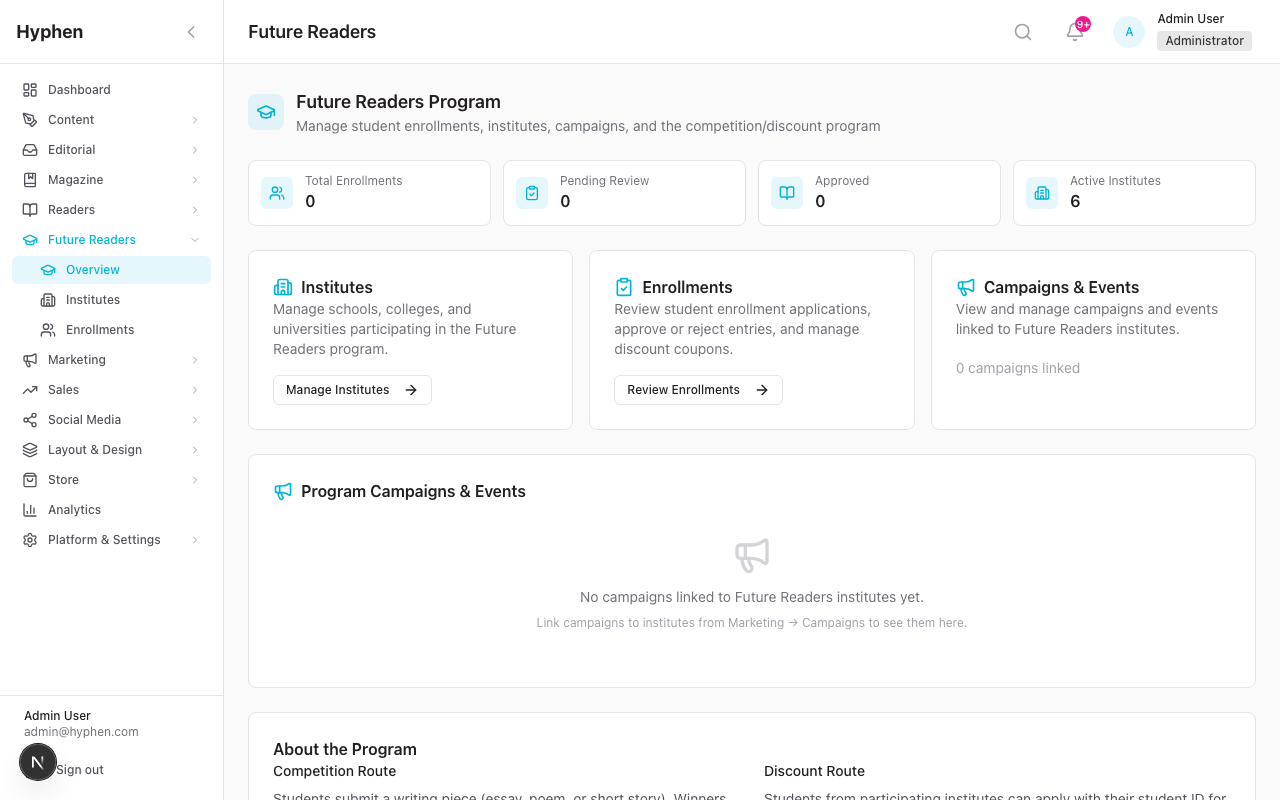
5.1 Creating and Managing Institutes
Before students can enroll, you need to add at least one institute to the system.
Adding a New Institute
- Go to Student Subscription → Institutes in the Admin Console sidebar (or click "Manage Institutes" on the Student Subscription dashboard).
- Click the "Add Institute" button in the top-right corner.
- A form modal appears. Fill in:
- Name — The full name of the institution (e.g., "Delhi University")
- Type — Select from the dropdown: School, College, or University
- City — The city where the institution is located (e.g., "New Delhi")
- State — The state (e.g., "Delhi")
- Click "Create".
The institute is now active and will appear in the student enrollment form's institute dropdown on the Reader Portal.
Editing an Institute
- Go to Student Subscription → Institutes.
- Find the institute in the table.
- Click the Edit action (pencil icon) in the Actions column.
- Update any fields in the modal.
- Click "Update".
Deactivating an Institute
If an institute is no longer participating and you want to prevent new enrollments:
- Go to Student Subscription → Institutes.
- Find the institute in the table.
- Click the Toggle Active/Inactive action in the Actions column.
Deactivated institutes no longer appear in the student enrollment form dropdown. Existing enrollments from that institute are not affected.
Deleting an Institute
- Click the Delete action in the Actions column.
- Confirm when prompted: "Are you sure you want to delete [institute name]?"
Note: If the institute has any enrollments, it will be deactivated (soft-deleted) instead of permanently removed. This preserves the enrollment history.
Viewing Active vs. All Institutes
- By default, the institutes page shows only active institutes.
- Click the "Show All" button to see both active and inactive institutes.
- Click "Active Only" to return to the filtered view.
5.2 Reviewing the Institute Detail Page
Click on any institute name in the institutes table to open its detail page. This page shows:
Metric Cards at the Top:
- Total Enrollments — All enrollments from this institute
- Pending Review — Enrollments awaiting review (Pending Review + Evaluating statuses)
- Approved — Successfully approved enrollments (Approved + Coupon Generated + Subscription Created)
- Audience Contacts — Number of students from this institute added to the marketing audience
Campaigns & Events Section:
- Shows all marketing campaigns linked to this institute
- Each campaign shows its name, status, type, submission counts, and date range
- If no campaigns are linked, you will see: "No campaigns linked to this institute yet." with a button to create one
Recent Enrollments Table:
- Shows the 20 most recent enrollments from this institute
- Columns: Student Name, Email, Type (Competition/Discount), Status, Coupon Code, Date
- Click "View All Enrollments" to go to the full enrollments page filtered to this institute
Quick Actions (bottom of page):
- Create Student Outreach Campaign — Opens the campaign creation page pre-linked to this institute
- Create Event — Opens event creation pre-linked to this institute
- Run Email Campaign — Opens email campaign creation with the institute's audience segment pre-selected
- View All Enrollments — Goes to the enrollments page filtered to this institute
5.3 How Students Enroll (Reader Portal)
This section describes what students see and do. Understanding this helps you support students and verify the flow.
Step 1 — Student Visits the Landing Page
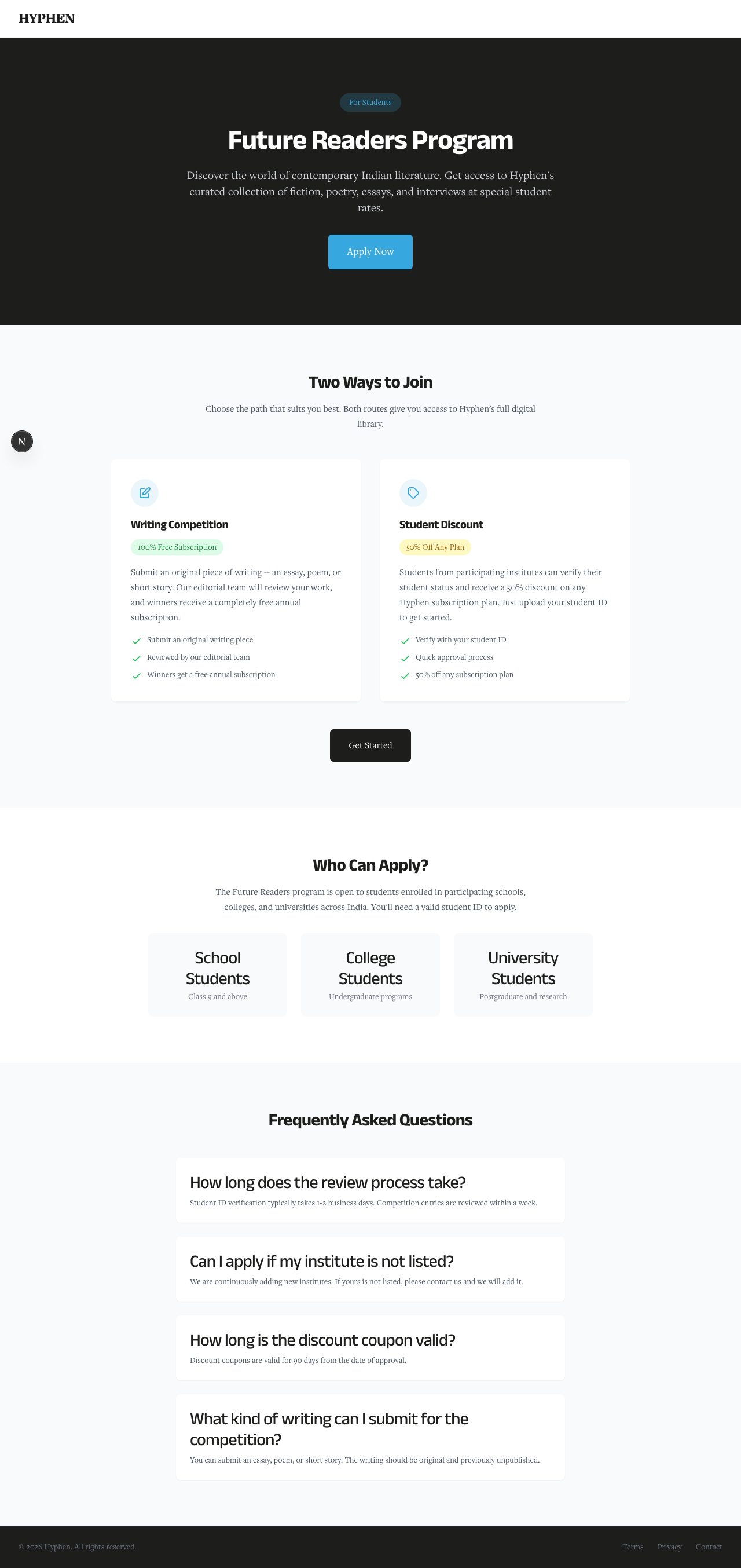
The student goes to /future-readers on the Reader Portal. They see:
- A hero section explaining the program
- Two cards explaining the Writing Competition route (100% free subscription) and the Student Discount route (50% off)
- Eligibility information (School students class 9+, College undergraduates, University postgraduate/research)
- An FAQ section answering common questions
- An "Apply Now" button
Step 2 — Student Fills Out the Enrollment Form
The student clicks "Apply Now" and is taken to /future-readers/enroll. The form has these fields:
- Your Institute — A dropdown listing all active institutes. Format: "Institute Name — City, State". If their institute is not listed, there is a "Contact us" link.
- Your Name — Full name (text input)
- Email Address — Their email (where the coupon will be sent)
- Student ID Photo — Upload area (drag-and-drop or click to browse). Accepts PNG, JPG, JPEG. Maximum 5 MB.
- Choose Your Path — Two radio options:
- Writing Competition — "Win a free subscription"
- Student Discount — "50% off any plan"
- Your Writing Submission — (Only appears if they chose Writing Competition) A large text area where they write their essay, poem, or short story. A word count is displayed at the bottom-right.
The student clicks "Submit Application".
Step 3 — Confirmation
After successful submission, the student sees:
- A green checkmark icon
- "Application Submitted!" heading
- A message:
- If Competition: "Your writing submission has been received. Our editorial team will review it and notify you via email within a week."
- If Discount: "Your student ID is being verified. We will send you a discount coupon via email within 1-2 business days."
- Buttons to "Learn More" or "Back to Home"
What Prevents Submission
The form will not submit if:
- Any required field is empty
- The student ID file is larger than 5 MB
- The student has already applied with the same email address (they see: "You have already applied to the Student Subscription program.")
- The selected institute is no longer active
- More than 5 submissions from the same IP address in one hour (rate limiting)
5.4 Reviewing Enrollments (Approval and Rejection)
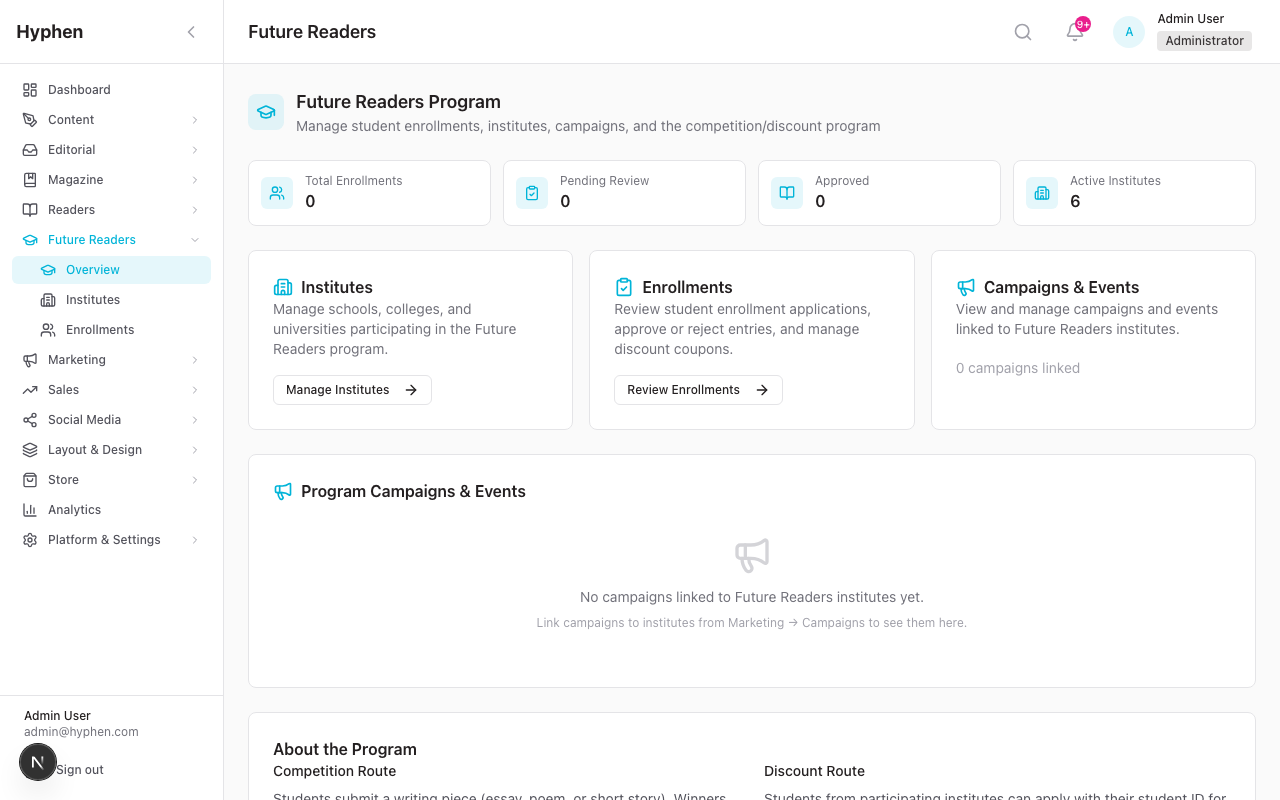
This is the core workflow for program administrators.
Opening the Enrollment Review Queue
- Go to Student Subscription → Enrollments in the sidebar (or click "Review Enrollments" on the Student Subscription dashboard).
- You see the "Enrollment Review Queue" page with the subtitle "Review and approve/reject student enrollment applications".
Filtering Enrollments
Use the filter dropdowns at the top of the page:
- Status — Filter by: All Statuses, Pending Review, Evaluating, Approved, Rejected, Coupon Generated, Subscription Created, ID Rejected
- Institute — Filter by a specific institute or show all
- Type — Filter by: All Types, Competition, Discount
Viewing Enrollment Details
- Find the enrollment in the table.
- Click the eye icon in the Actions column.
- The "Enrollment Details" modal opens, showing:
- Student Name, Email, Institute, Enrollment Type, Status, Submission Date
- Coupon Code (if generated)
- Word Count (for competition entries)
- Student ID — The uploaded photo of the student's ID card
- Competition Entry — The full text of the writing submission (for competition entries only)
- Review Note — Any note added by the reviewer (if previously reviewed)
Approving an Enrollment
- From the enrollment details modal, click "Review" (or click the checkmark icon directly from the table).
- The "Review Enrollment" modal opens, showing:
- A summary box with: Student name, Institute, Type (Competition/Discount), Word Count
- The student ID image
- The competition entry text (if applicable)
- A "Review Note (optional)" text area — add any note about your decision
- Click the "Approve" button (green, with checkmark icon).
What happens on approval:
- The system generates a unique coupon code:
- Competition winners: Code starts with FR-WIN- (e.g., FR-WIN-A3B7C9D2), 100% discount
- Discount students: Code starts with FR-STU- (e.g., FR-STU-X4Y8Z1M5), 50% discount
- The coupon is valid for 90 days from the approval date
- The enrollment status changes to Coupon Generated
- The student receives an email with subject "Your Hyphen Student Subscription coupon is ready!" containing:
- A congratulations message
- The coupon code displayed prominently
- A "Subscribe Now" button linking to the subscription page
- Information about the coupon validity (90 days)
- The student is added to the Audience Contacts list tagged as "future_reader"
Rejecting an Enrollment
- Open the Review modal (same steps as above).
- Optionally add a review note explaining the reason.
- Click the "Reject" button (red outline, with X icon).
The enrollment status changes to Rejected. No coupon is generated and no email is sent.
Which Enrollments Can Be Reviewed?
Only enrollments with status Pending Review or Evaluating can be reviewed. You will see the review action (checkmark icon) only for these statuses.
Pagination
- Enrollments are shown 20 per page.
- Navigate between pages using the Previous and Next buttons at the bottom.
- The page shows: "Page X of Y (Z results)".
5.5 Linking Institutes to Campaigns
You can connect Student Subscription institutes to marketing campaigns and events. This helps track outreach efforts per institute.
From the Institute Detail Page
- Go to Student Subscription → Institutes and click on an institute name.
- In the Quick Actions section at the bottom, click one of:
- "Create Student Outreach Campaign" — Opens the campaign creation page with the institute pre-linked
- "Create Event" — Opens event creation with the institute pre-linked
- "Run Email Campaign" — Opens email campaign creation with the institute's audience segment pre-selected
From the Campaign Creation Page
- Go to Marketing → Campaigns and create or edit a campaign.
- In the campaign form, use the institute picker to select one or more Student Subscription institutes.
- Save the campaign.
Linked campaigns will appear on:
- The Student Subscription dashboard under "Program Campaigns & Events"
- The Institute Detail Page under "Campaigns & Events"
5.6 Syncing Sales Institutions to Student Subscription
If your sales team manages educational institutions in the Sales module, these can be synced into the Student Subscription program.
Which institutions can be synced? Only institutions with type School or University are eligible. Corporate and library institution types are not synced.
How it works:
- A sales institution is created or updated in the Sales module.
- An admin triggers the sync (via the Sales institution's detail page or the sync API).
- The system creates a matching Student Subscription institute, linked via the
sourceInstitutionIdfield. - If an institute with the same name already exists (case-insensitive), the system links to the existing one instead of creating a duplicate.
Daily Reconciliation: A cron job runs every day at 2 AM UTC to keep Student Subscription institute data in sync with the reference data used by campaign form dropdowns. This happens automatically — no manual action is needed.
6. How to Verify It Worked
Use this checklist after performing key actions to confirm everything is working correctly.
After Adding an Institute
- The institute appears in the Student Subscription → Institutes table with status "Active"
- The institute appears in the student enrollment form dropdown on the Reader Portal (
/future-readers/enroll) - The institute count on the Student Subscription dashboard metric card ("Active Institutes") has increased
After a Student Submits an Enrollment
- The enrollment appears in Student Subscription → Enrollments with status "Pending Review"
- The "Total Enrollments" and "Pending Review" counts on the dashboard have increased
- On the institute detail page, the enrollment appears in the "Recent Enrollments" table
- The student saw the success confirmation page
After Approving an Enrollment
- The enrollment status changed to "Coupon Generated"
- A coupon code is visible in the enrollment detail modal (starting with FR-WIN- or FR-STU-)
- The student received an email with subject "Your Hyphen Student Subscription coupon is ready!"
- The email contains the correct coupon code and a "Subscribe Now" button
- The "Approved" count on the dashboard has increased
- The "Audience Contacts" count on the institute detail page has increased
- The coupon is valid for 90 days from the approval date
- The coupon gives the correct discount: 100% for competition, 50% for discount route
After Rejecting an Enrollment
- The enrollment status changed to "Rejected"
- No coupon code was generated
- No email was sent to the student
- The "Pending Review" count on the dashboard has decreased
After Linking a Campaign
- The campaign appears in the Student Subscription dashboard under "Program Campaigns & Events"
- The campaign appears on the institute detail page under "Campaigns & Events"
- The campaign shows the correct institute count and submission counts
7. Worked Examples (End-to-End)
7.1 Example 1 — Setting Up a New Institute and Preparing It for Enrollment
Scenario: Your organization has partnered with St. Xavier's College in Mumbai. You need to add them to the Student Subscription program so their students can apply.
Steps:
- Log in to the Admin Console.
- Go to Student Subscription → Institutes in the sidebar.
- Click "Add Institute".
- Fill in:
- Name: St. Xavier's College
- Type: College
- City: Mumbai
- State: Maharashtra
- Click "Create".
- Verify: The institute now appears in the table with a green "Active" badge and 0 enrollments.
- Open the Reader Portal in a new tab and go to
/future-readers/enroll. - Verify: Click the "Your Institute" dropdown — "St. Xavier's College — Mumbai, Maharashtra" should appear in the list.
- Go back to the Admin Console. On the institute detail page (click the institute name), click "Create Student Outreach Campaign" to prepare a marketing campaign for the college.
- The institute is now ready. Share the enrollment link (
/future-readers/enroll) with the college's student body.
7.2 Example 2 — Processing a Competition Enrollment from Submission to Approval
Scenario: A student named Priya Sharma from Delhi University has submitted an essay through the Writing Competition route. You need to review and approve her entry.
Steps:
- Go to Student Subscription → Enrollments.
- Use the filters:
- Status: Pending Review
- Type: Competition
- Find Priya Sharma's entry in the table.
- Click the eye icon to view her enrollment details.
- Review:
- Check her Student ID Photo — confirm it shows a valid Delhi University ID card with her name.
- Read her Competition Entry — the full text of her essay appears in the modal.
- Note the Word Count displayed.
- If the writing meets your criteria, click "Review" at the bottom of the detail modal.
- In the Review modal:
- Optionally add a review note: "Strong essay on contemporary Indian fiction. Approved for competition winner coupon."
- Click "Approve".
- Verify:
- The confirmation message shows: "Enrollment approved. 100% discount coupon generated: FR-WIN-XXXXXXXX"
- The enrollment status changes to Coupon Generated.
- Priya receives an email titled "Your Hyphen Student Subscription coupon is ready!" with a coupon for a free annual subscription.
- In the institute detail page for Delhi University, the "Approved" count has increased by 1.
- In the Audience module, Priya appears as a contact tagged "future_reader".
7.3 Example 3 — Following Up on Pending Enrollments
Scenario: You notice that 15 enrollments have been sitting in "Pending Review" status for several days. You need to clear the backlog and follow up on any that need attention.
Steps:
- Go to Student Subscription → Enrollments.
- Set the Status filter to "Pending Review".
- Work through each enrollment:
- Click the eye icon to view the details.
- For Discount route enrollments:
- Check the Student ID photo. Is it clear and valid?
- If yes → click "Review" → "Approve" (student gets 50% coupon via email).
- If the ID is blurry, wrong document, or unreadable → click "Review" → add a note: "Student ID photo is not legible. Please resubmit." → click "Reject".
- For Competition route enrollments:
- Read the writing submission.
- Evaluate quality against your program criteria.
- Approve or reject with a review note.
- Verify: After processing, check the dashboard:
- The "Pending Review" count should have decreased.
- The "Approved" count should reflect your approvals.
- If you want to reach students who were rejected and encourage them to reapply:
- Go to an institute's detail page.
- Click "Run Email Campaign" to compose an email to the institute's audience contacts.
Tip: Students whose enrollments were rejected can resubmit — they need to use a different email address since the system blocks duplicate email enrollments. Consider communicating this to rejected students via support.
7.4 Example 4 — Linking a Student Subscription Initiative to a Campaign
Scenario: Your marketing team is running a "Back to Campus 2026" campaign targeting 5 universities. You want to link the Student Subscription institutes to this campaign so you can track enrollment activity per campaign.
Steps:
- First, ensure all 5 universities are added as institutes in Student Subscription → Institutes (see Example 1 if you need to add new ones).
- Go to Marketing → Campaigns.
- Click "Create Campaign" (or edit the existing "Back to Campus 2026" campaign).
- In the campaign form, find the institute picker field.
- Select the 5 universities from the dropdown.
- Save the campaign.
- Verify on the campaign side:
- The campaign should show "5 institutes linked."
- Verify on the Student Subscription side:
- Go to Student Subscription (the dashboard).
- Scroll to "Program Campaigns & Events" — the "Back to Campus 2026" campaign should appear with a badge showing 5 institutes.
- Click into any of the linked institutes — the campaign should appear in their "Campaigns & Events" section.
Alternative approach — Create a campaign directly from an institute:
- Go to Student Subscription → Institutes and click on a university name.
- In the Quick Actions section, click "Create Student Outreach Campaign".
- You are taken to the campaign creation page with the institute already pre-linked.
- Fill in the campaign details and save.
7.5 Example 5 — Troubleshooting a Stuck Enrollment
Scenario: A student contacted support saying they applied 5 days ago but never received a coupon email. You need to investigate.
Steps:
-
Go to Student Subscription → Enrollments.
-
Search for the student:
- You cannot search by name directly, so filter by Institute (if you know which one) and scan the table.
- Alternatively, check multiple pages using the pagination controls.
-
Find the student's enrollment and click the eye icon.
-
Check the Status:
Status You See What It Means What to Do Pending Review Nobody has reviewed it yet Review and approve/reject it now Evaluating Someone started reviewing but did not finish Complete the review now Approved Approved but coupon may not have generated Check if a coupon code is visible in the detail modal. If not, there may have been a system issue — escalate to engineering Coupon Generated Coupon was generated and email was sent The email may have gone to spam. Give the student their coupon code from the detail modal. The code starts with FR-WIN- or FR-STU- Rejected or ID Rejected The application was rejected Inform the student of the reason (check the Review Note). They can reapply with a different email address -
If the status is Coupon Generated and the student says they did not get the email:
- Copy the coupon code from the enrollment detail modal.
- Share it with the student directly via your support channel.
- Suggest they check their spam/junk folder.
- Remind them the coupon is valid for 90 days and they can use it at the subscription page.
-
If the enrollment does not appear at all:
- The student may not have completed the submission (they might have left the form without clicking "Submit Application").
- Ask the student to try again at
/future-readers/enroll. - If they get the error "You have already applied to the Student Subscription program", it means an enrollment does exist — keep looking in the list or check with a different status filter.
8. Common Mistakes and How to Fix Them
Mistake 1: Institute Not Showing in Student Enrollment Form
Symptom: You added an institute, but students do not see it in the dropdown on the enrollment page.
Fix:
- Check that the institute is Active (green badge) in Student Subscription → Institutes.
- If it is inactive, click the toggle action to reactivate it.
- The enrollment form dropdown only shows active institutes.
Mistake 2: Student Cannot Enroll — "Already Applied" Error
Symptom: A student sees "An enrollment with this email already exists" or "You have already applied to the Student Subscription program."
Fix:
- The system only allows one active enrollment per email address. "Active" means any status except Rejected or ID Rejected.
- If the student's previous enrollment was rejected, they need to use a different email address to reapply.
- If their previous enrollment is still pending, find and process it in the admin queue.
Mistake 3: Coupon Email Not Received
Symptom: An enrollment shows "Coupon Generated" but the student says they never got the email.
Fix:
- Ask the student to check their spam/junk folder.
- Look up the coupon code in the enrollment detail modal and share it with the student manually.
- Verify that the email address on the enrollment is correct (typos happen).
- If emails are systematically not being sent, check that email sending is configured correctly (escalate to engineering if needed).
Mistake 4: Trying to Review an Already-Processed Enrollment
Symptom: You open an enrollment but the "Review" button does not appear.
Fix:
- Only enrollments with status Pending Review or Evaluating can be reviewed.
- If the status is already Coupon Generated, Approved, Rejected, or any other final status, the enrollment has already been processed.
- The review action (checkmark icon) only appears in the table for reviewable enrollments.
Mistake 5: Deleting an Institute With Enrollments
Symptom: You try to delete an institute, but it does not disappear from the list.
Fix:
- If an institute has enrollments, it cannot be permanently deleted. It is deactivated (soft-deleted) instead.
- This is by design — it preserves the enrollment history.
- The institute will show as "Inactive" and no longer appear in the student enrollment dropdown.
Mistake 6: Wrong Coupon Discount Amount
Symptom: A competition winner received a 50% coupon instead of 100% (or vice versa).
Fix:
- Coupon amounts are determined automatically based on the enrollment type:
- Competition → 100% discount (code starts with FR-WIN-)
- Discount → 50% discount (code starts with FR-STU-)
- If the wrong type was selected by the student, the coupon will reflect that type. You cannot change the coupon after it is generated.
- For exceptional cases, you may need to manually create a coupon from the subscription/coupon management area and share it with the student.
Mistake 7: Rate Limiting on the Enrollment Form
Symptom: A student sees "Too many requests. Please try again later."
Fix:
- The enrollment form is rate-limited to 5 submissions per IP address per hour.
- This protects against spam. If a legitimate student hits this limit (e.g., they are in a shared network like a college lab), ask them to try again after an hour.
Known Limitations
-
No search on the enrollments page. You cannot search for a specific student by name or email. You must use the filters (Status, Institute, Type) and browse through the paginated list. For large volumes, this can be time-consuming.
-
Rejected students cannot reapply with the same email. The system blocks duplicate enrollments by email address. A student whose enrollment was rejected must use a different email address to reapply. There is no "reopen" or "resubmit" action for rejected enrollments.
-
No bulk review. Enrollments must be approved or rejected one at a time. There is no "approve all" or "reject all" action for processing multiple enrollments at once.
-
No notification to admin for new enrollments. When a student submits an enrollment, no alert or notification is sent to the admin team. Admins must periodically check the enrollment queue for new submissions.
-
Coupon codes cannot be regenerated. Once a coupon is generated for an approved enrollment, it cannot be changed, extended, or reissued from the enrollment page. If a coupon expires or is lost, a new coupon must be created manually from the subscription/coupon management area.
-
No direct rejection reason email to students. When an enrollment is rejected, the review note is stored internally but no email is sent to the student explaining why. You need to communicate rejection reasons through your support channels.
-
Institute "Other" option not available on the enrollment form. Unlike campaign forms (which have an "Other" option for unlisted institutions), the student enrollment form only shows pre-configured institutes. Students whose institute is not listed must contact support.
-
Enrollment type cannot be changed after submission. If a student accidentally selected "Discount" instead of "Competition" (or vice versa), the enrollment type cannot be changed. The student would need to submit a new application with a different email.
-
Cron job dependency. The daily reference data sync cron runs at 2 AM UTC. If a new institute is created and a campaign form is accessed before the next sync, the institute may not appear in campaign form dropdowns until the next cron run. However, direct institute management and student enrollment dropdowns update immediately.
FAQ
Subscriptions
Complete technical reference for the reader-facing subscription experience — browsing plans, checkout, payment & billing model, entitlements, gifting, upgrades/downgrades, cancellation, renewal, and how the whole journey flows from the Reader Portal through the Admin Console subscription engine into PostgreSQL and the payment gateways
Marketing Operations Guide
Operations perspective on campaign lifecycle, team coordination, approval workflows, and day-to-day marketing management